Recognizing of the layout of folders
After installation, the bundle will display multiple directories. Below is an overview of each file and its accompanying data:
Please keep in mind that the offered snapshots are only intended to serve as templates and should not be used in actual production situations.
Theme: This location contains every requirement WordPress theme files.
"lawyer-legal-firm-pro" This folder contains all of the necessary WordPress theme files.
Developing via the Template
The installation of a WordPress theme is a straightforward process that can be accomplished using one of two methods outlined below.
Initial Progress Log into your WordPress Admin as an administrator to activate the selected theme.
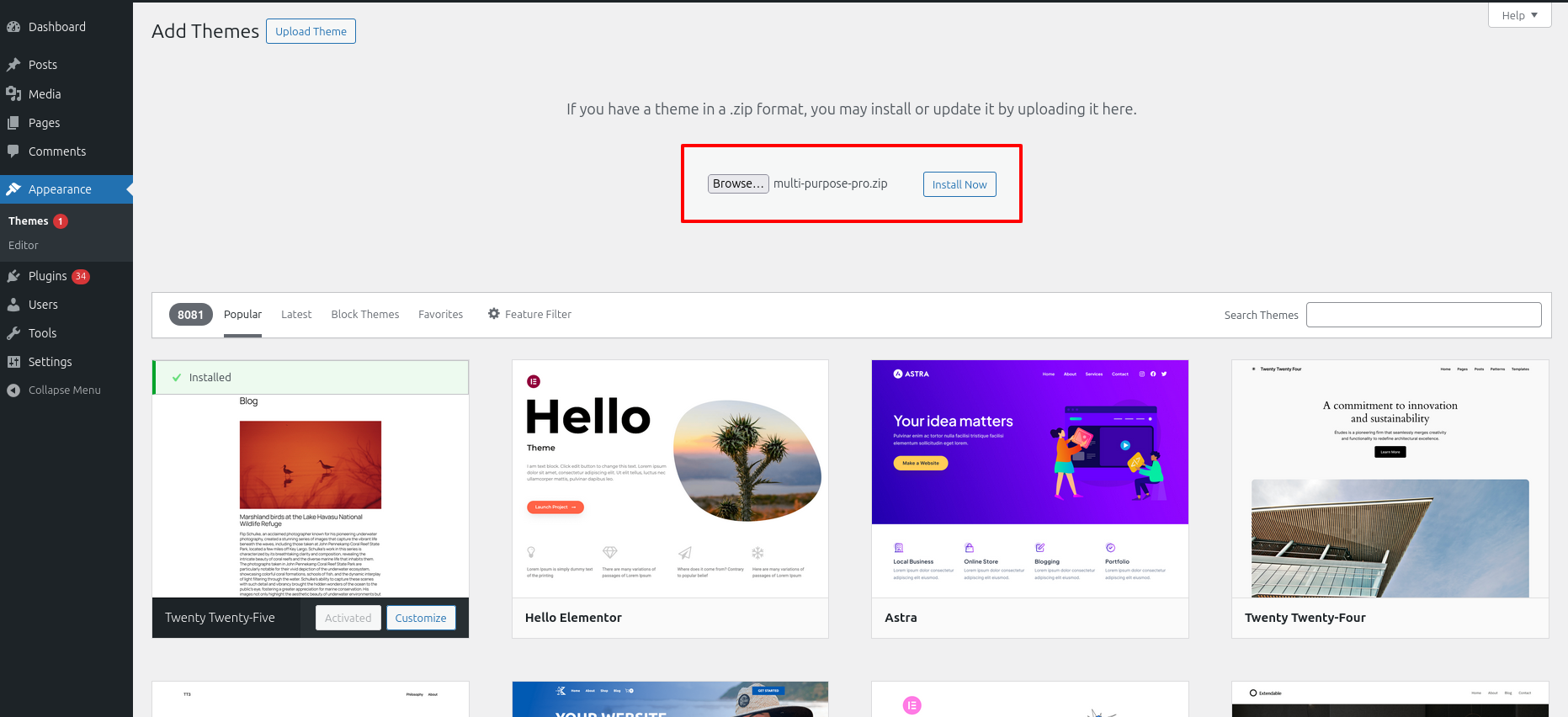
Next Progress while hitting "Dashboard" Discover "Appearance" Move forward "Themes" then "Add New" and lastly "Upload Themes" previous tapping "Install Now" .
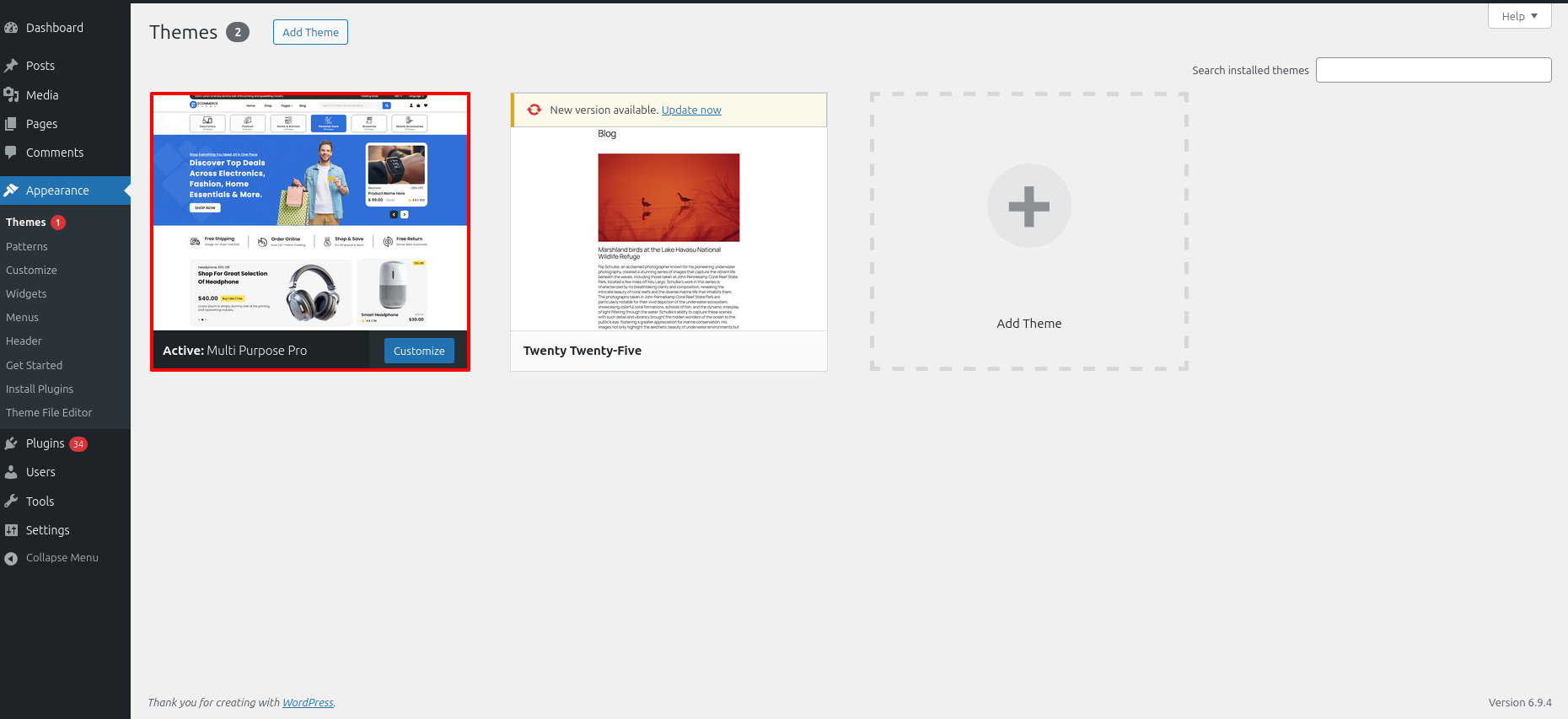
Final Process while hitting "Dashboard" Discover "Appearance" and lastly "Themes" previous tapping "Activate" .
Transmissions through FTP
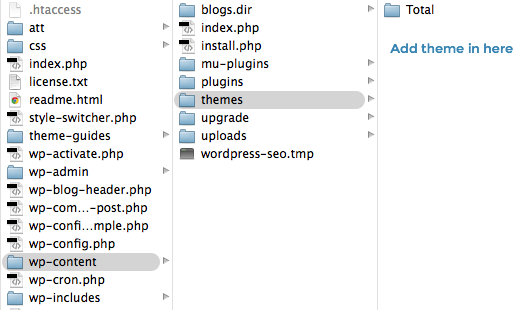
Use FTP as a last resort. Open your FTP client, log in, and locate wp-content and your theme. Download, unzip, and transfer the folder to the server's "themes" directory. The new template will show under "Appearance" in your WordPress Dashboard.
Applying the Plugins as the outset.
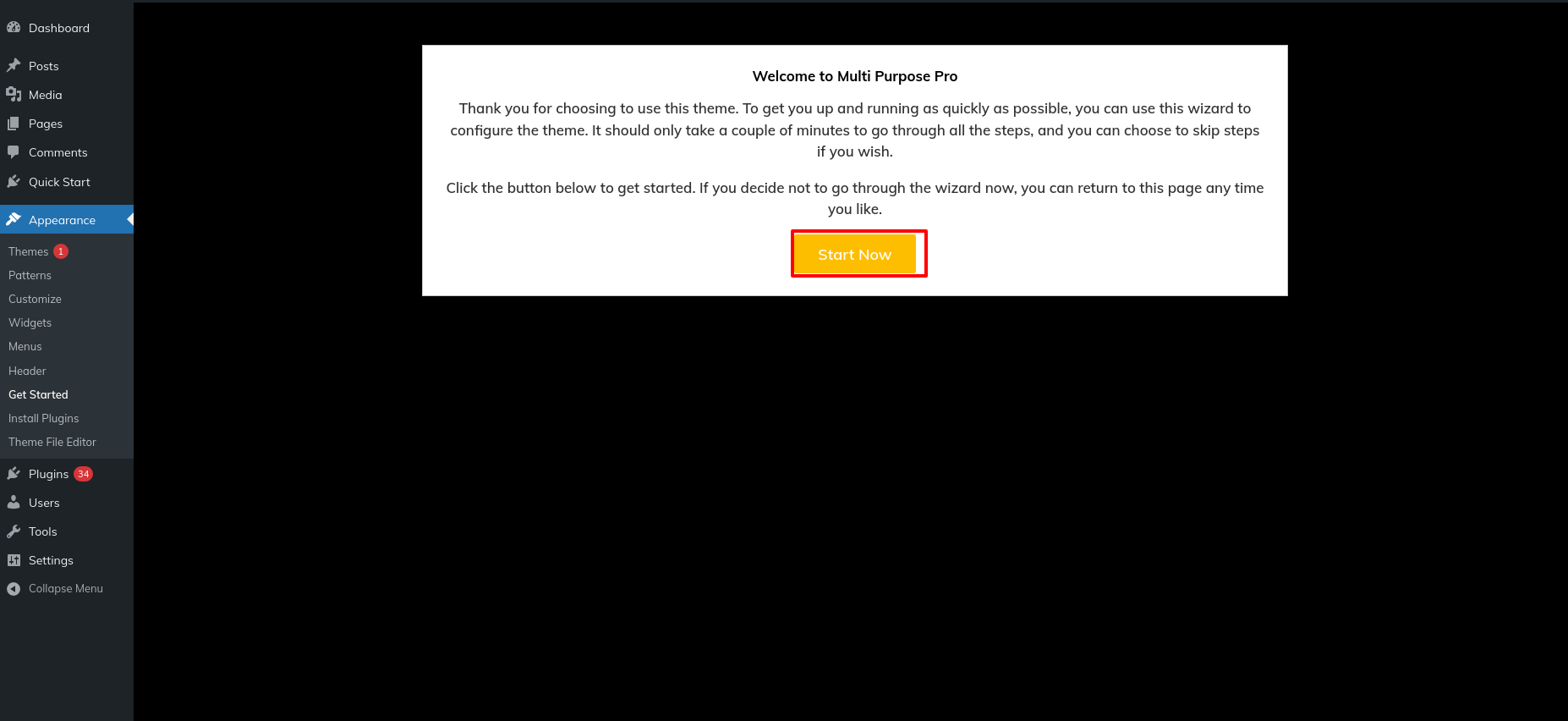
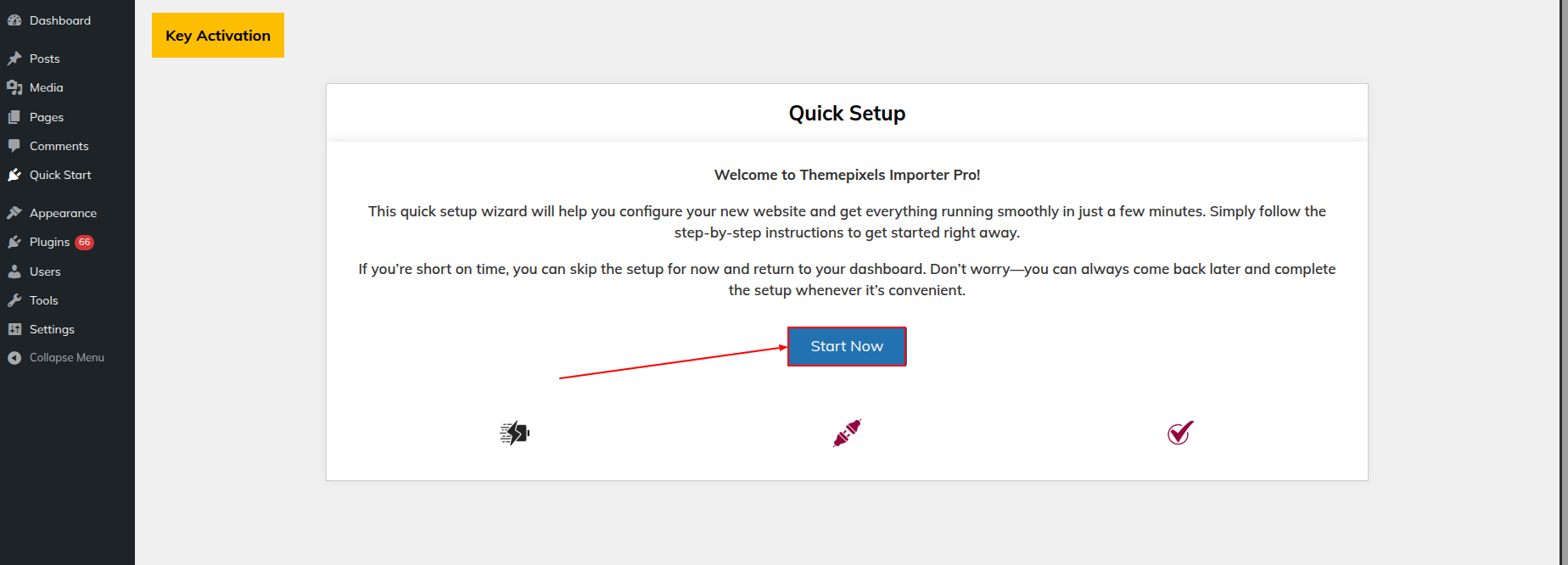
1.Example Import Procedure Simply click the "Start Now" button to get started.
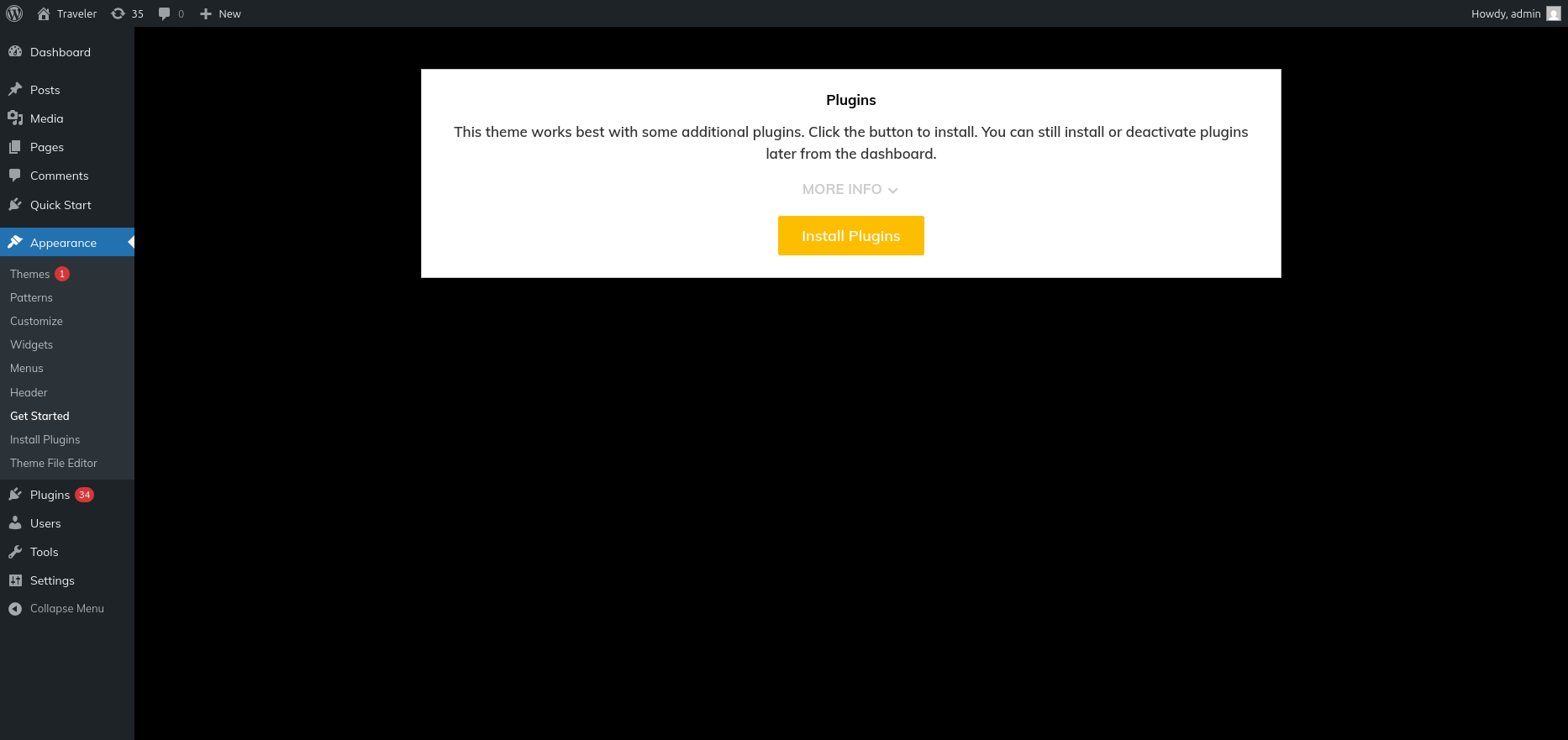
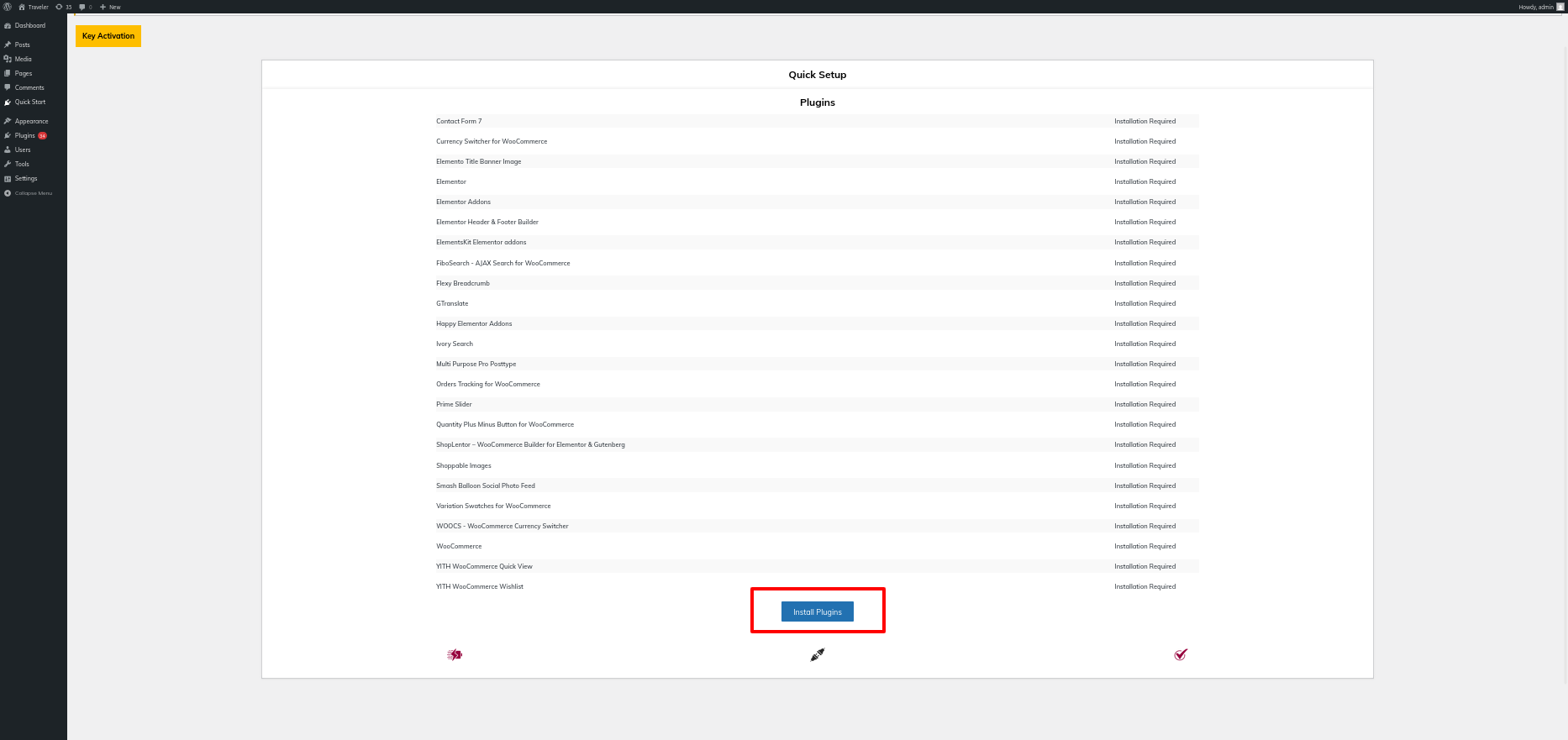
2. Install Every Plugin That's Needed Simply click the Install Plugs button.
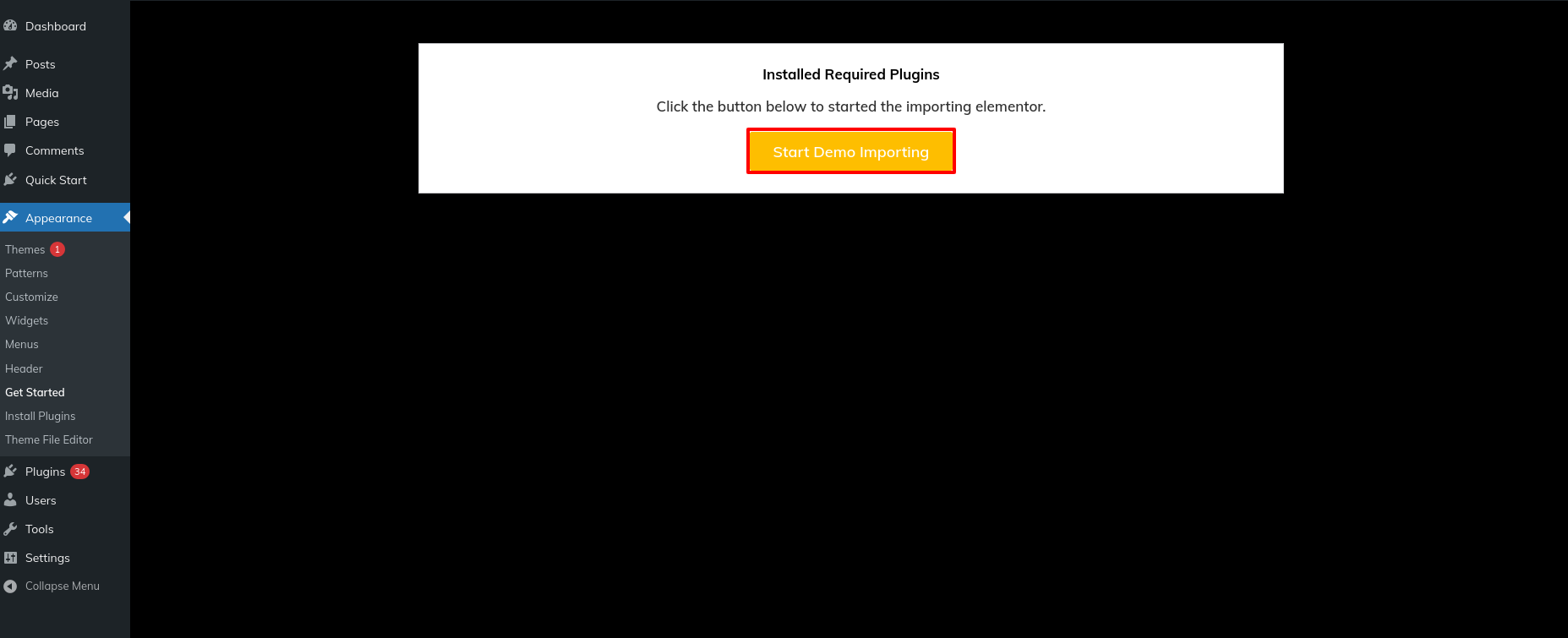
3.Select "Start Demo" Import Buttons
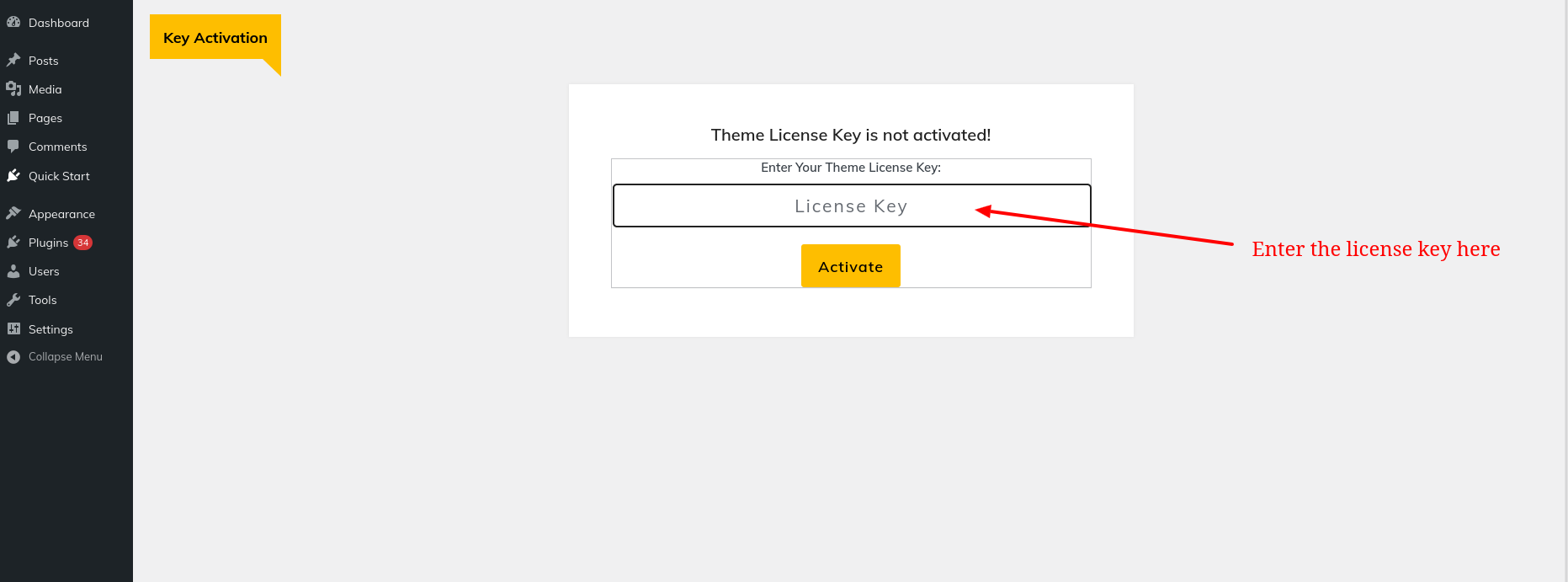
4.After entering your license key, select "Activate."
5.After activating the license key, click Next
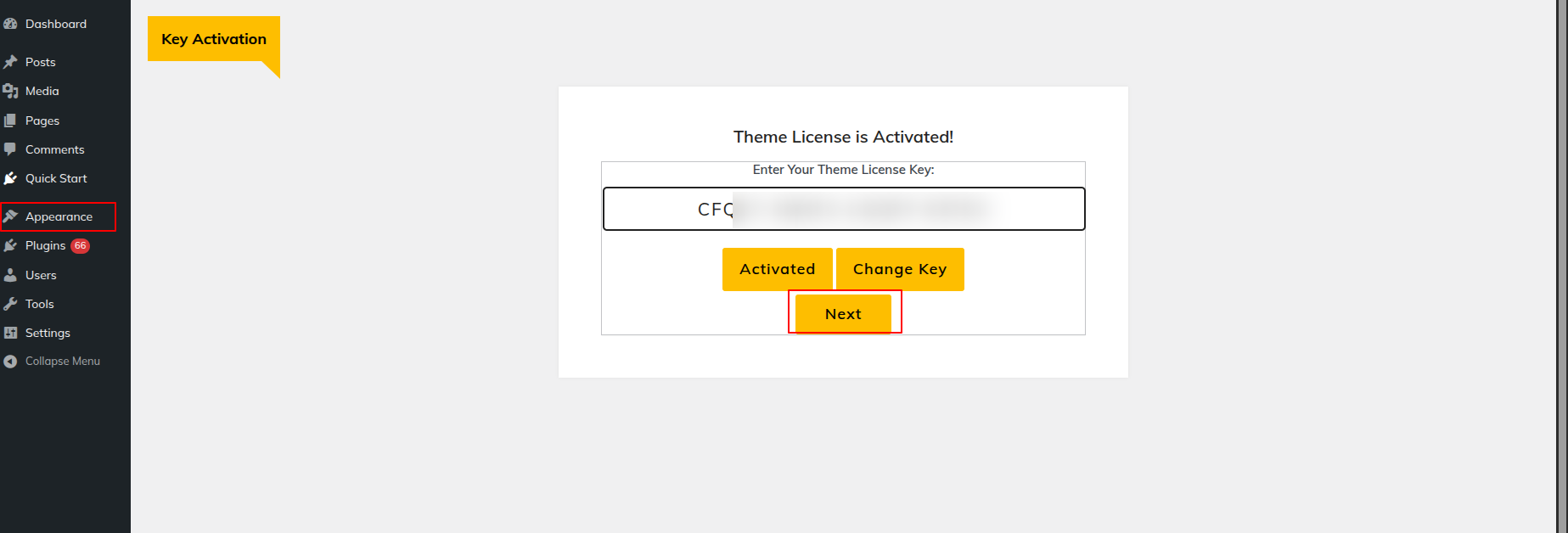
6.Click the "Start Now" button.
7.Hit the Plugins Install button.
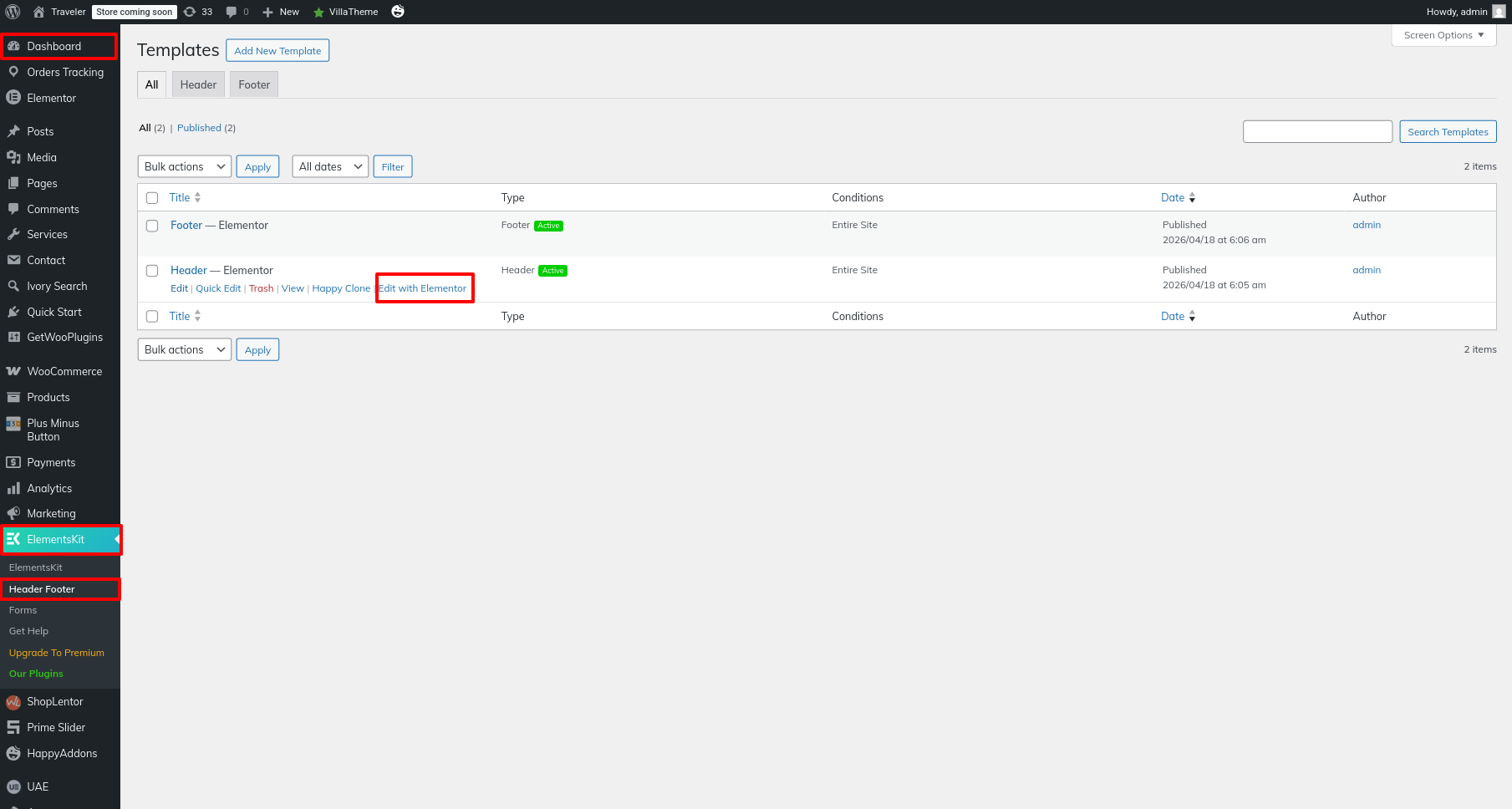
This section pertains to the Header reference.
Initial Progress while hitting "Dashboard" Discover "Elements-Kit" Discover "Header Template" Move forward "Edit with elementor" Select Elements-Kit Nav Menu Make the changes and then "Publish" .
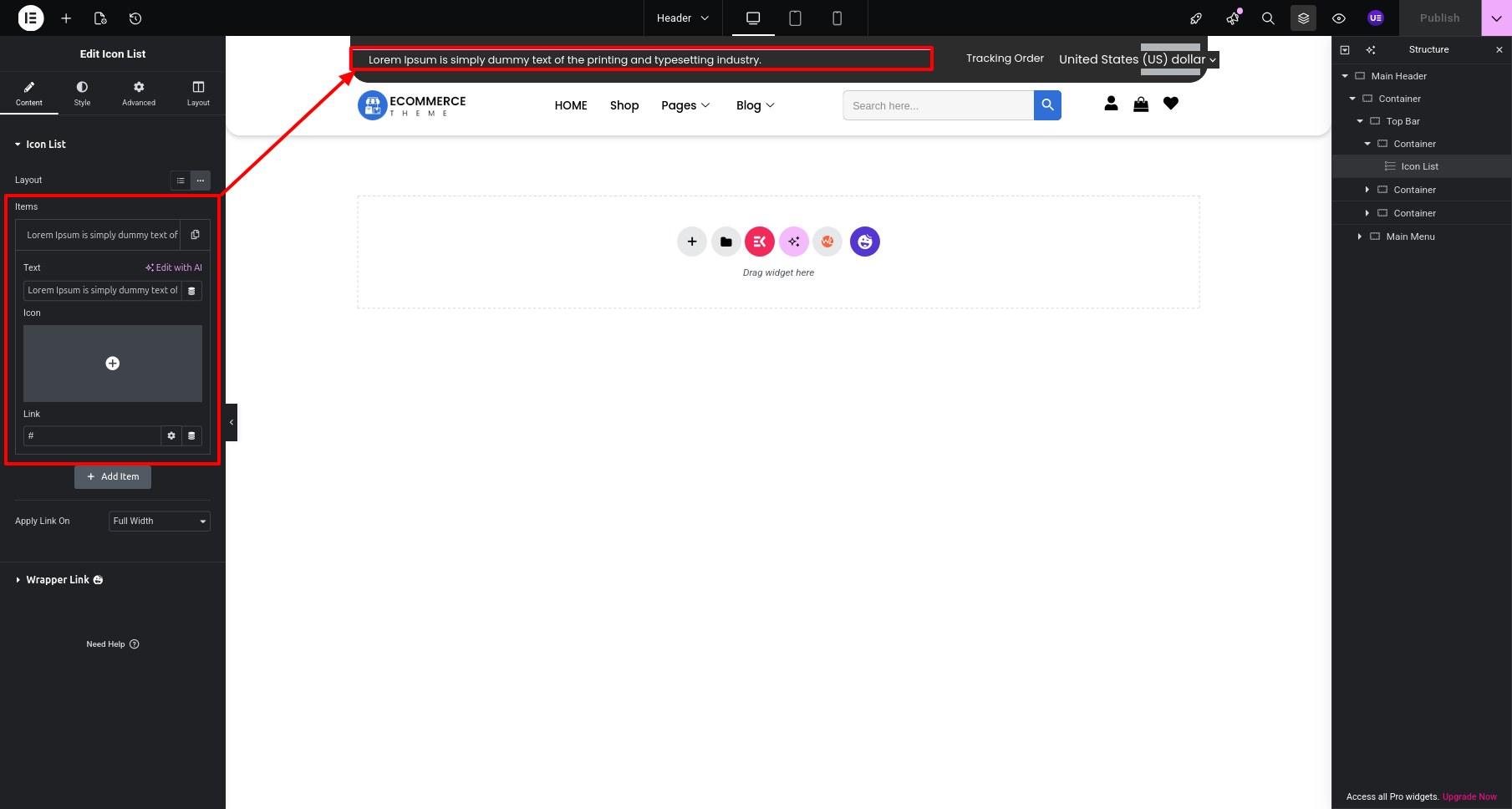
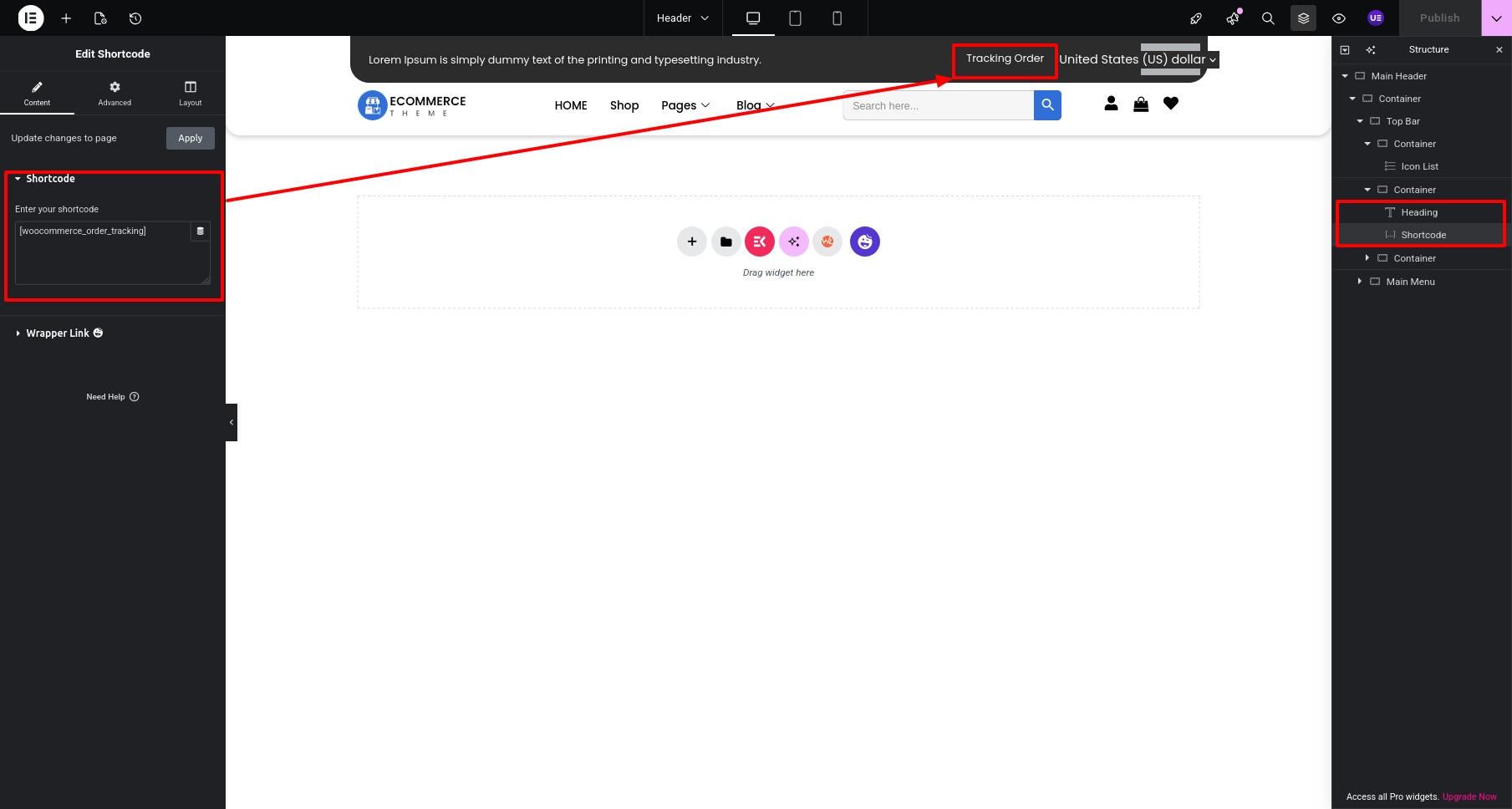
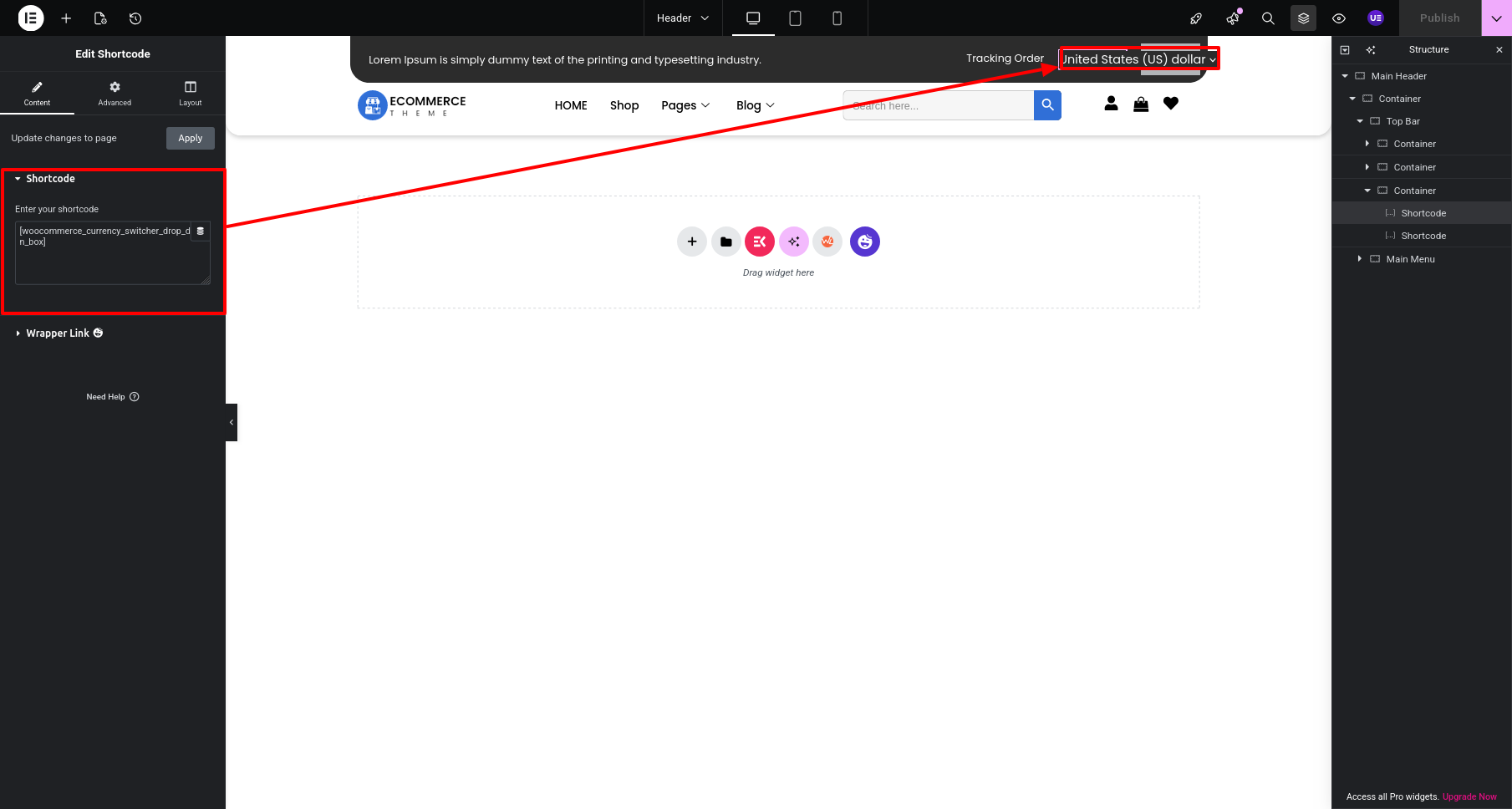
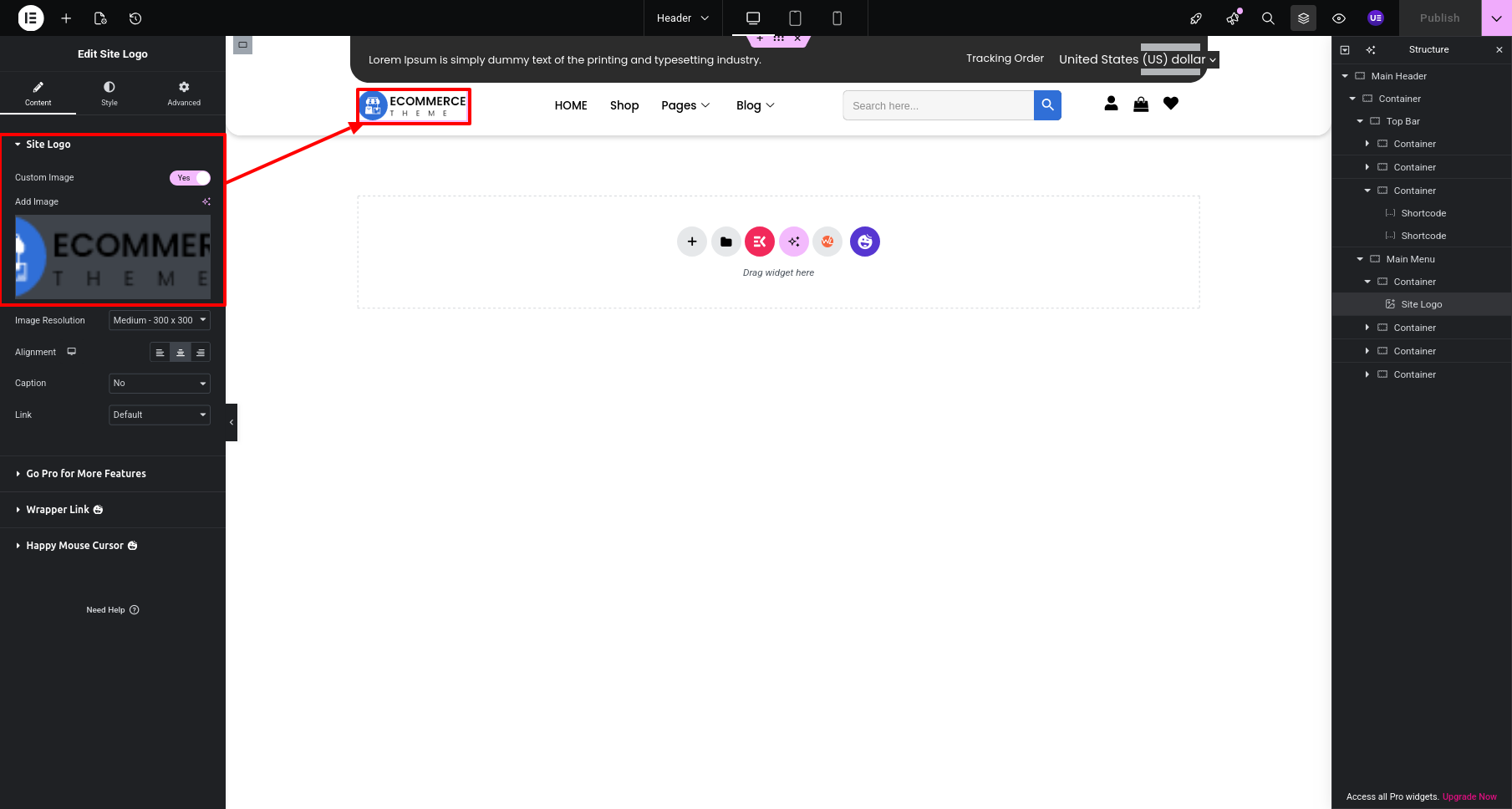
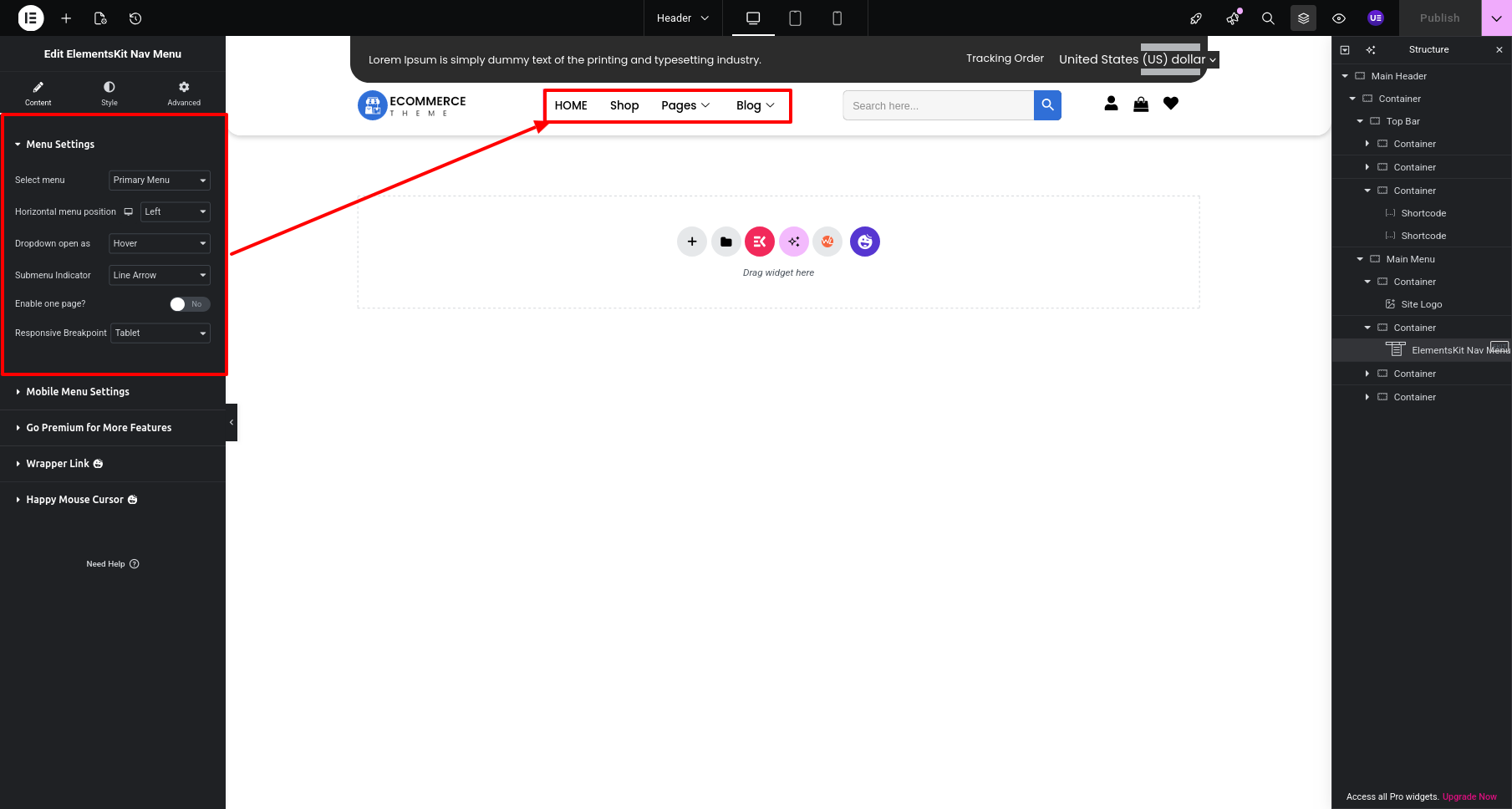
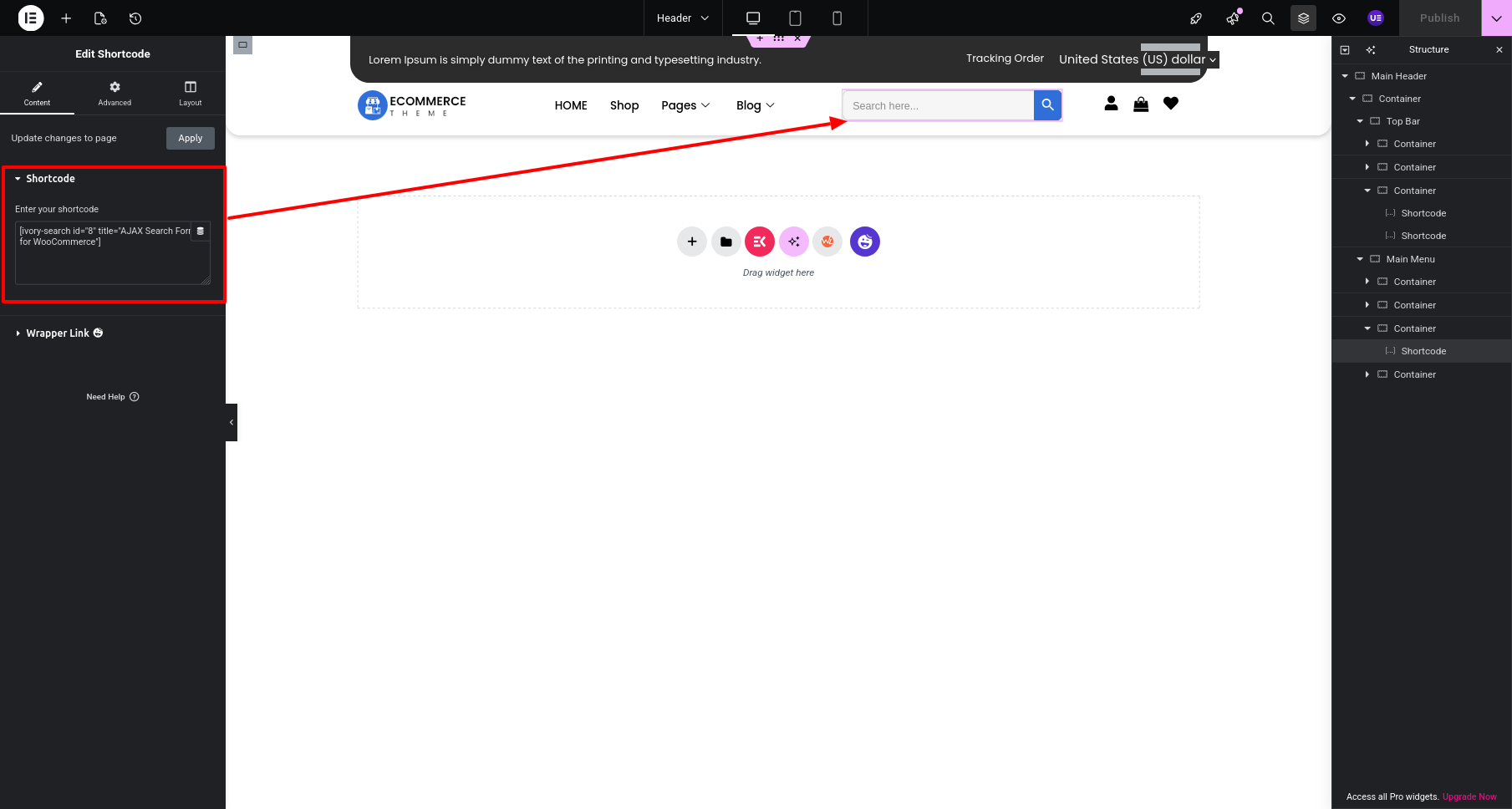
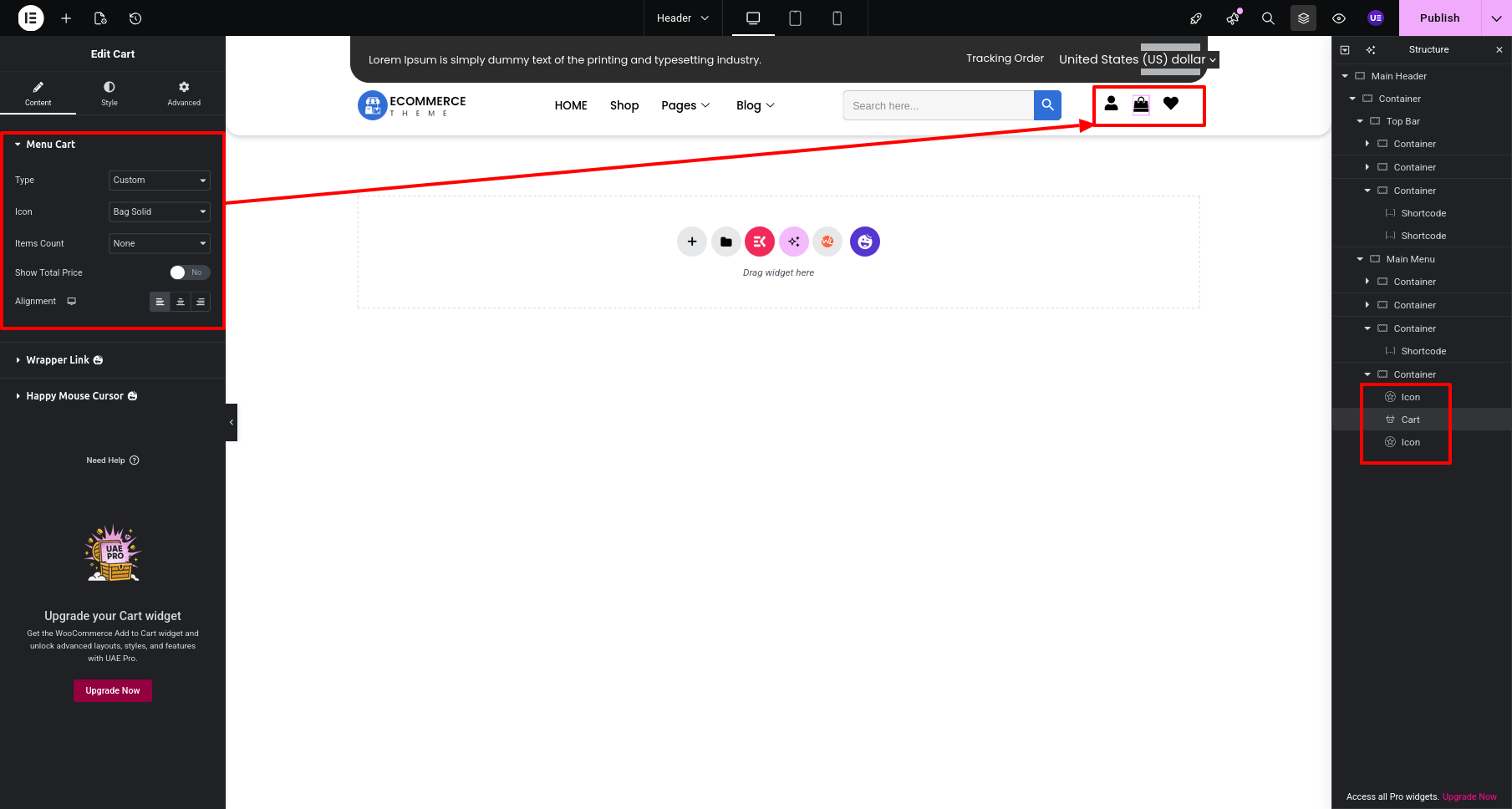
Final Output See below for design insights.

This section pertains to the Top Category Section.
Initial Progress While hitting "Dashboard" Discover "Products" then "Go to Categories"
Edit or Add CategoryAdd tittle, description, featured Image and other details and publish
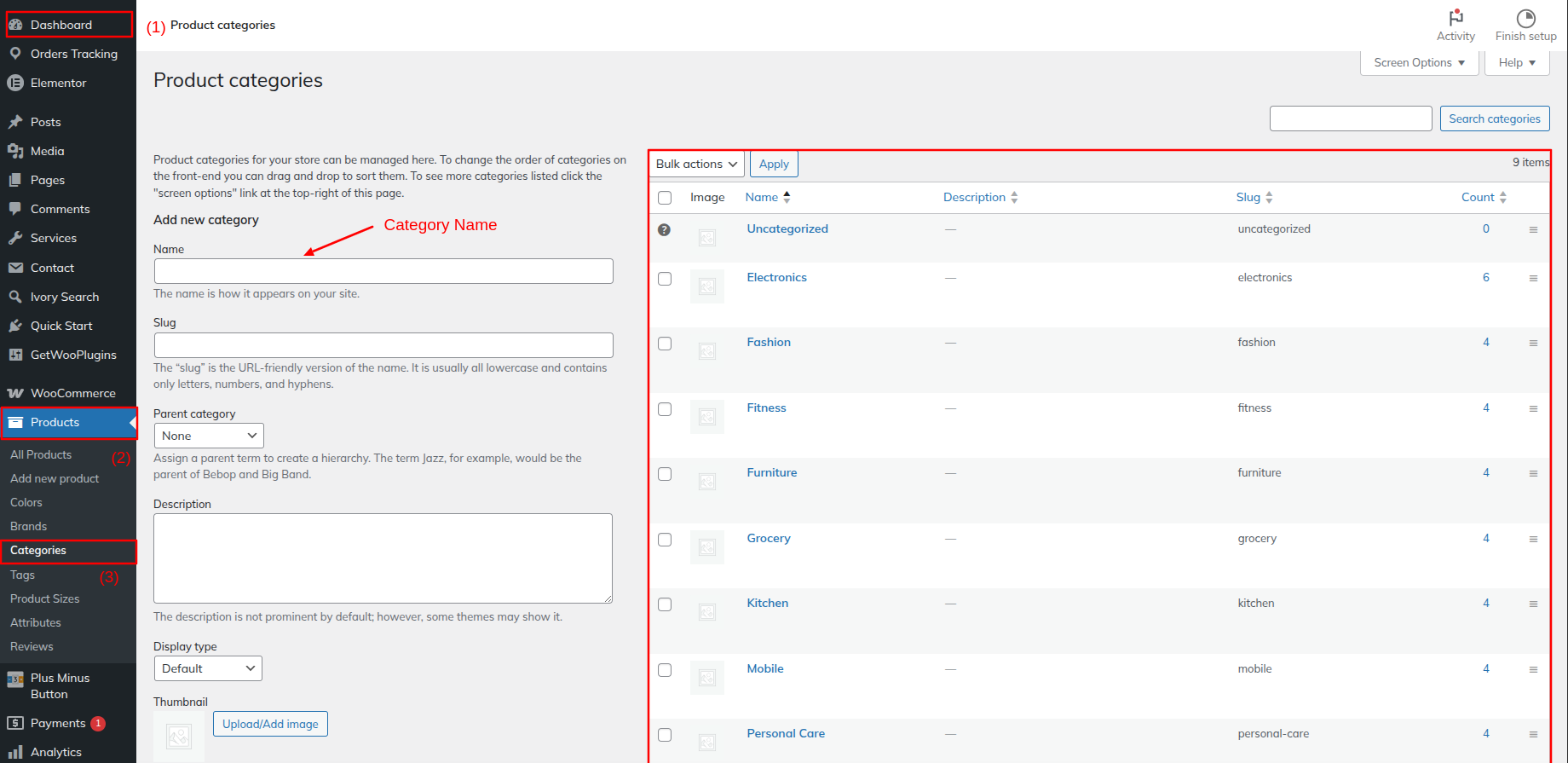
Initial Progress While hitting "Dashboard" Discover "Edit with elementor" then "add a Shortcode [product_cat_count category="electronics" title="Electronics"] as shown in the screenshots"
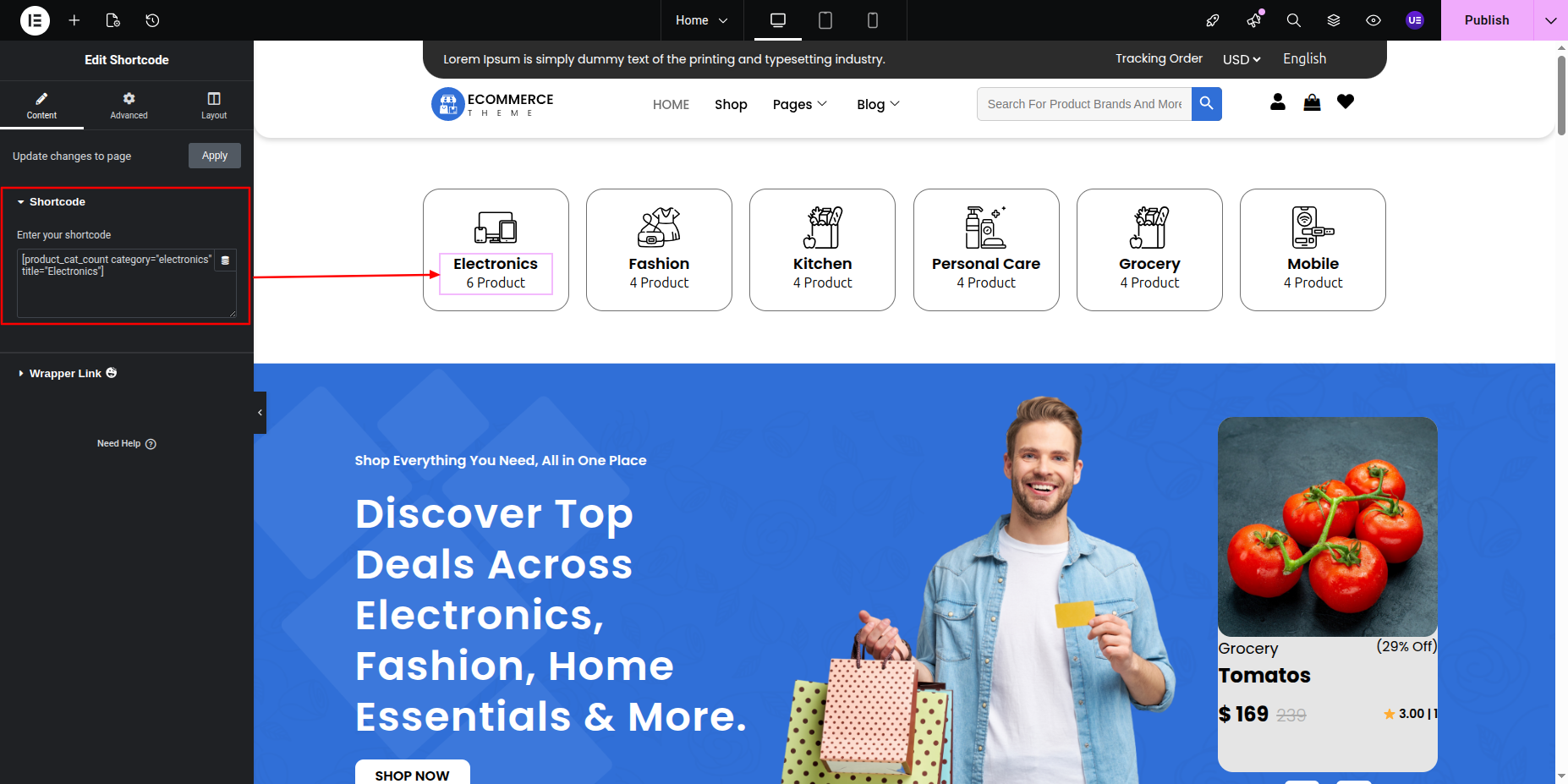
Final Image See below for design insights.

This section pertains to the Hero Section.
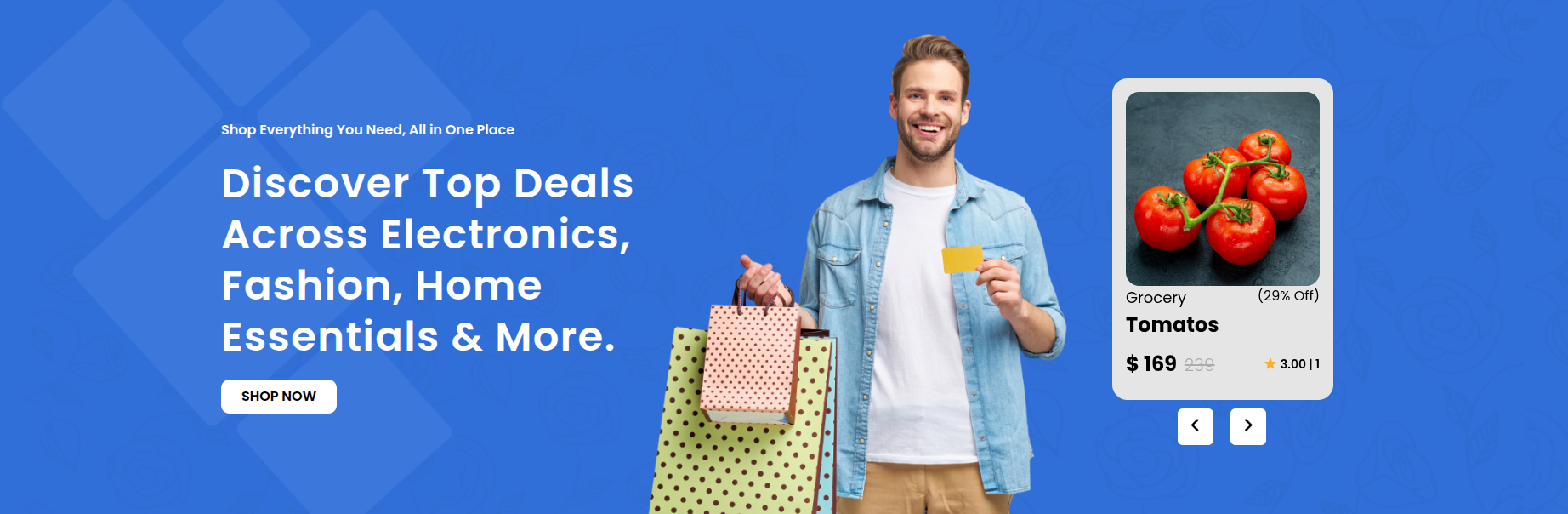
Initial Progress While hitting "Dashboard" Discover "Edit with elementor" then "add new heading the and content as shown in the screenshots"
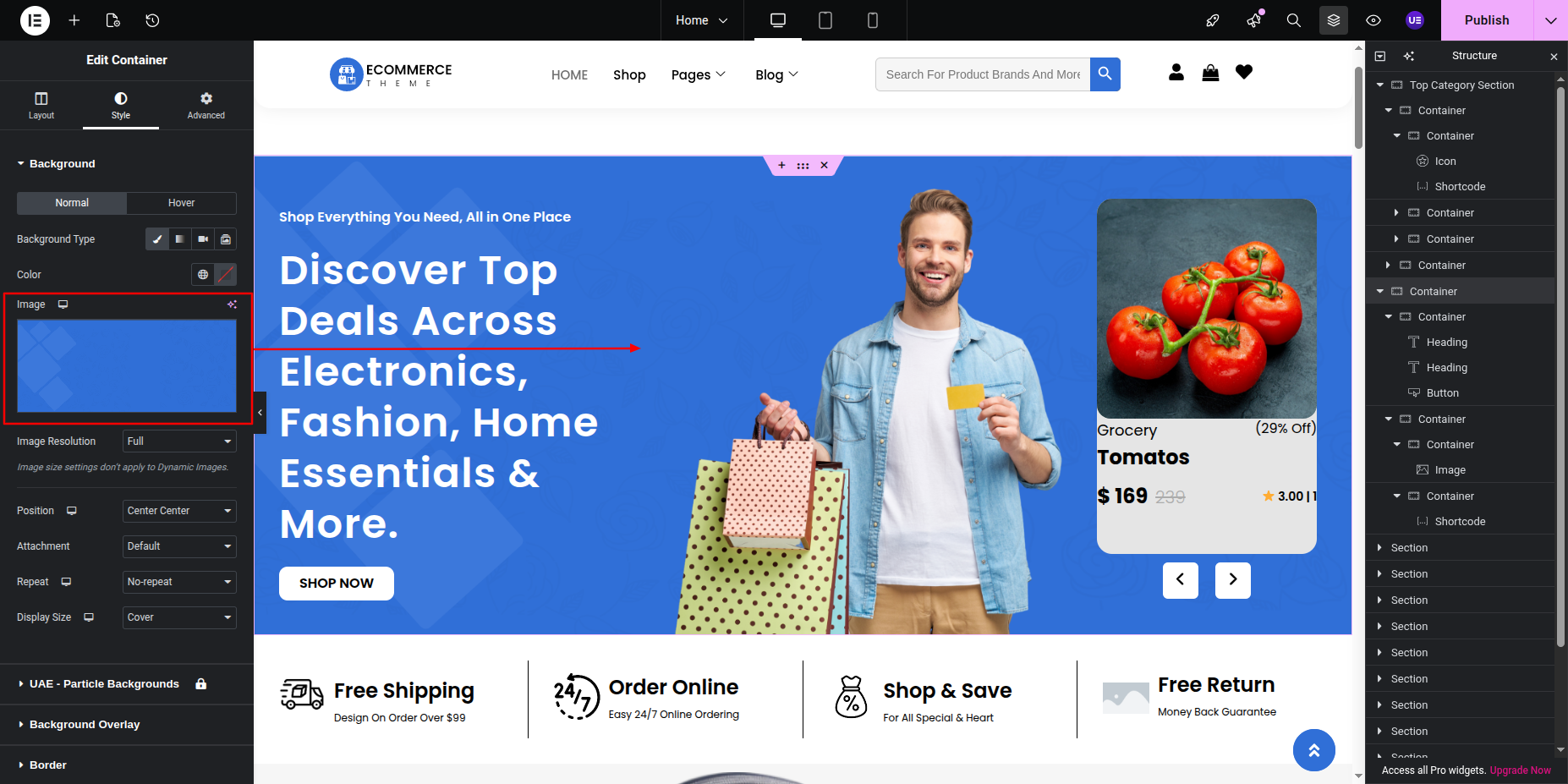
Edit PostAdd tittle, description, featured Image and other details and publish
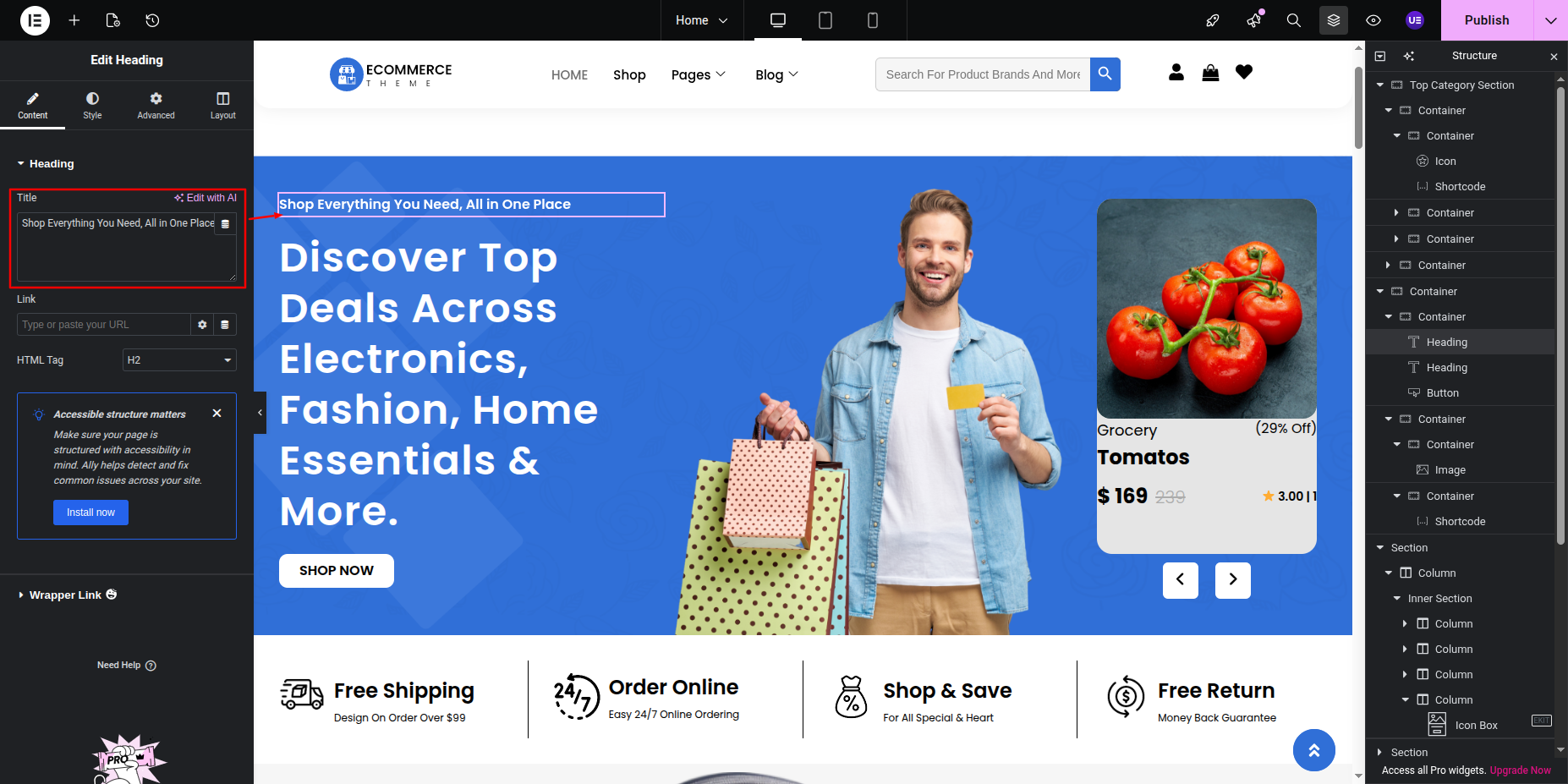
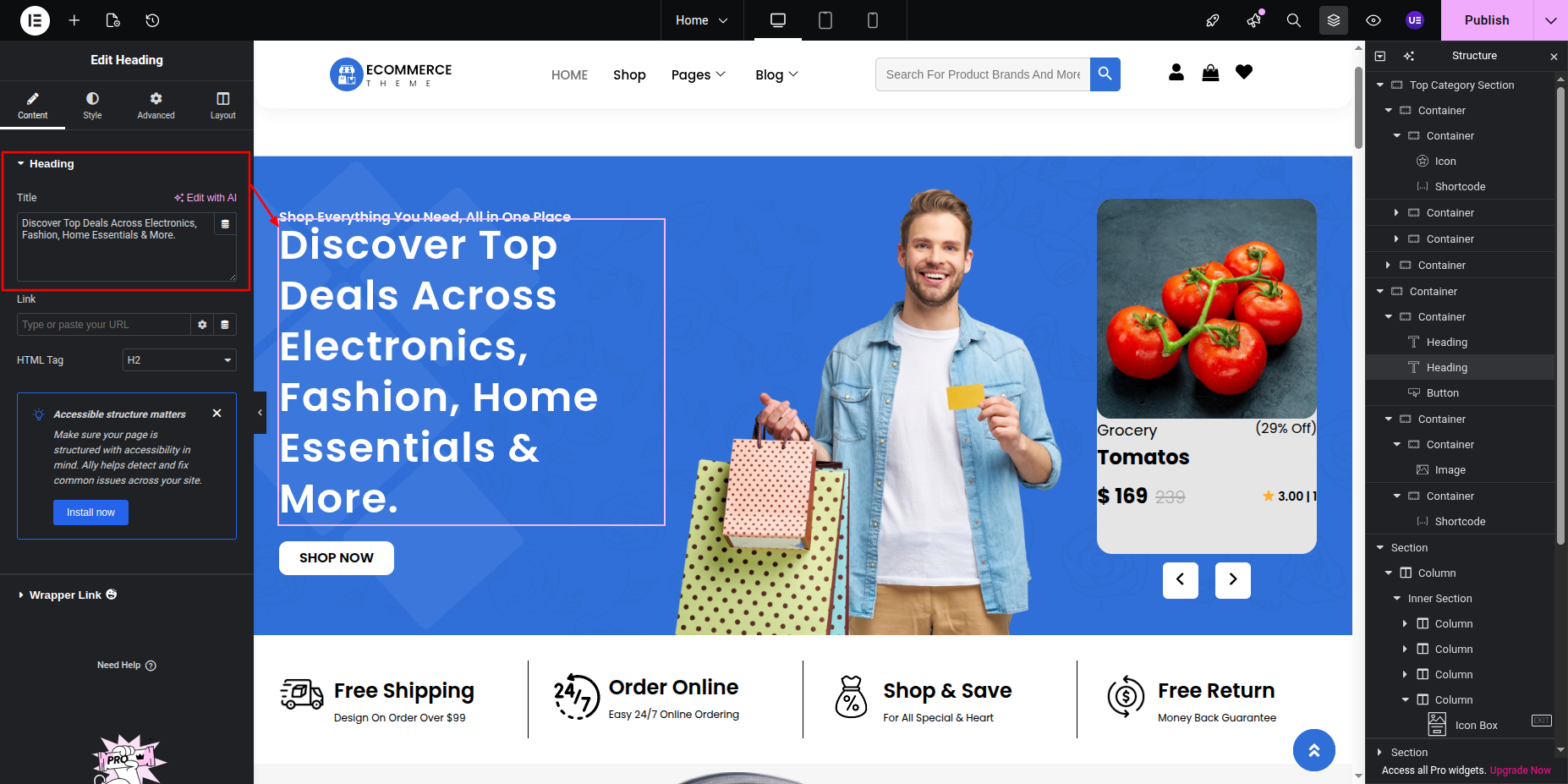
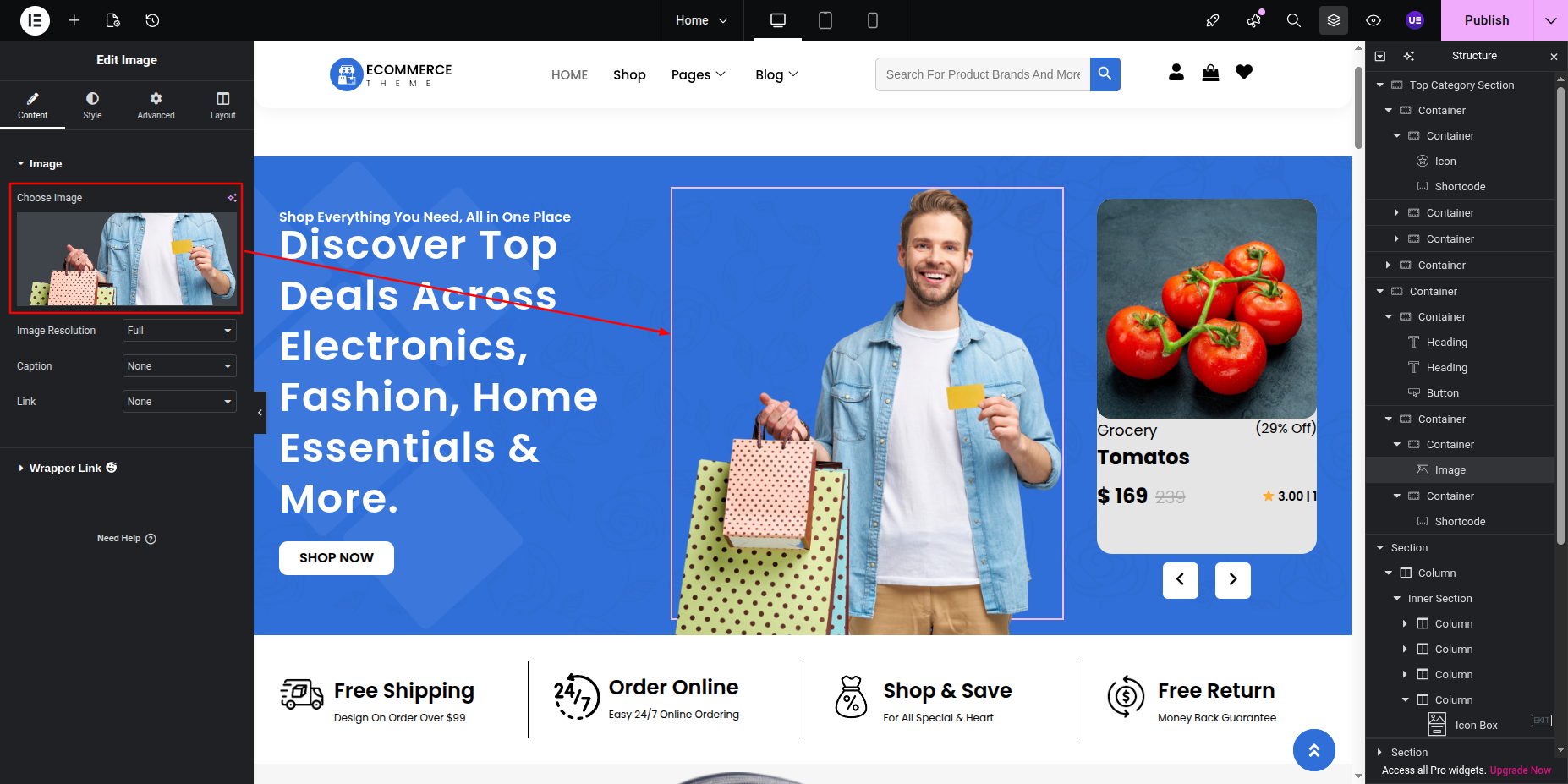
Now Add the Shortcode [custom_product_slider limit="4"]Paste and publish
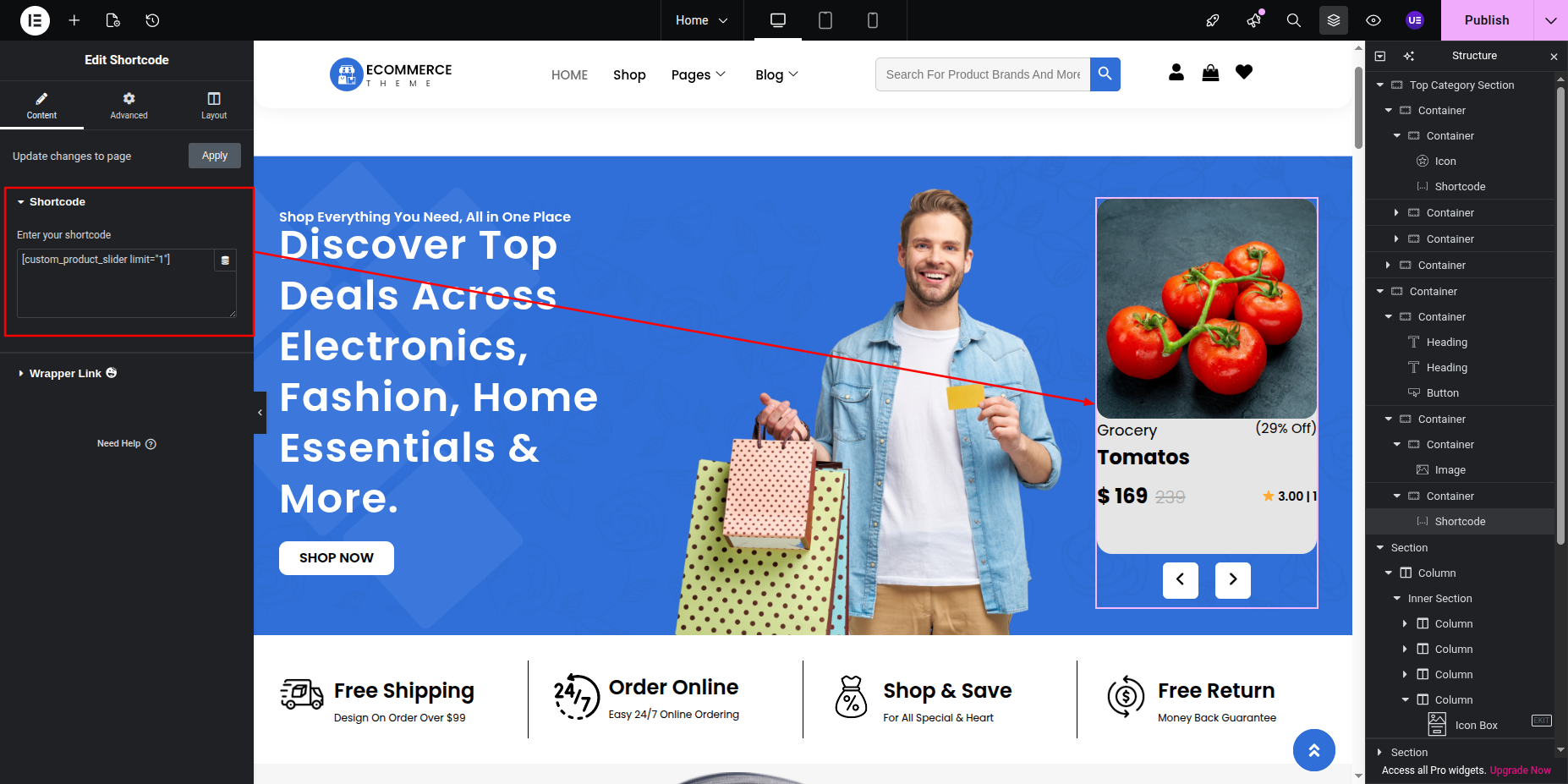
Final Image See below for design insights.
This section pertains to the Shipping Section
Initial Progress while hitting "page, edit with elementor" Move forward Add your icons Text " Select Products from Query
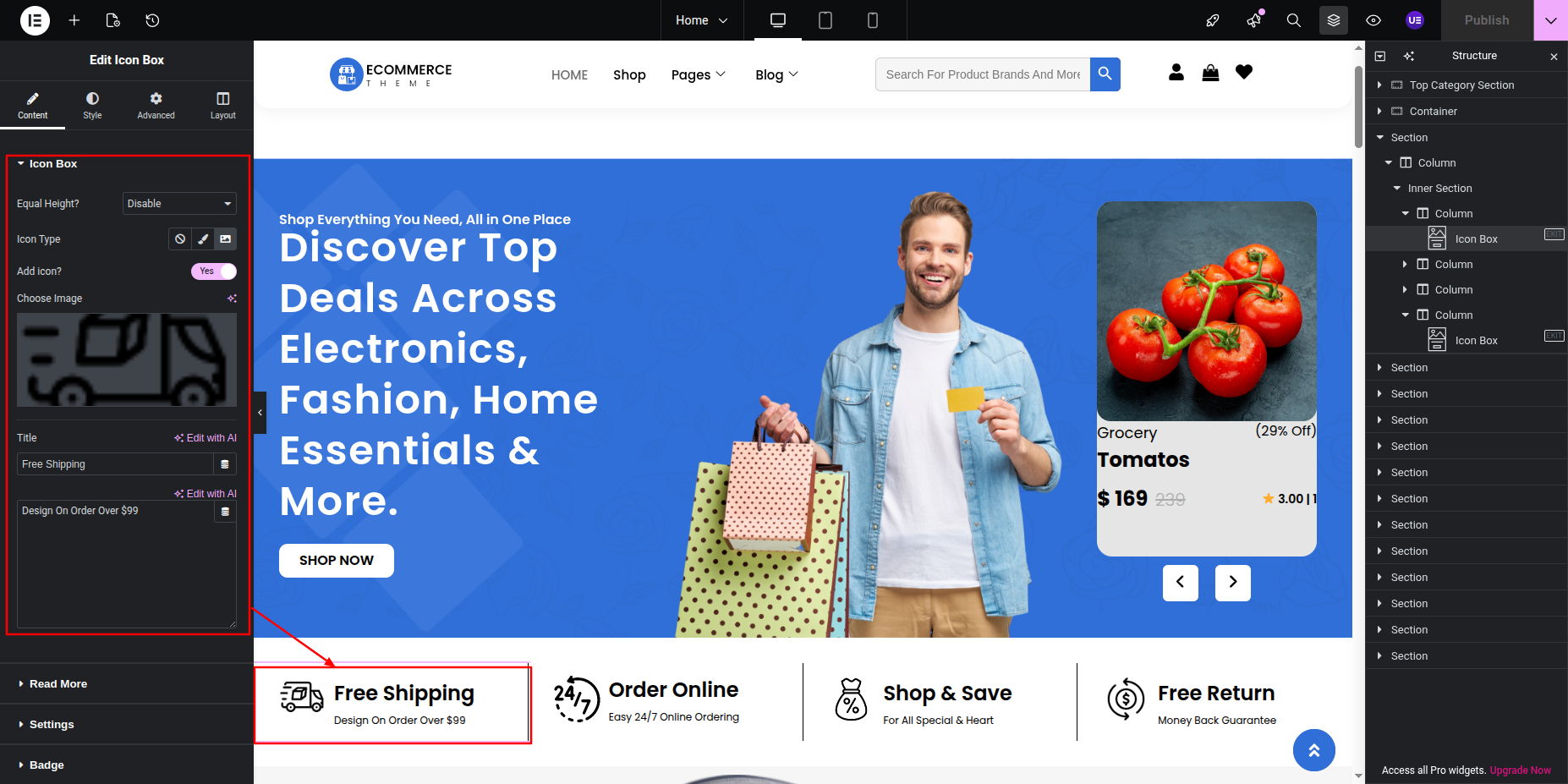
Final Progress See below for design insights.

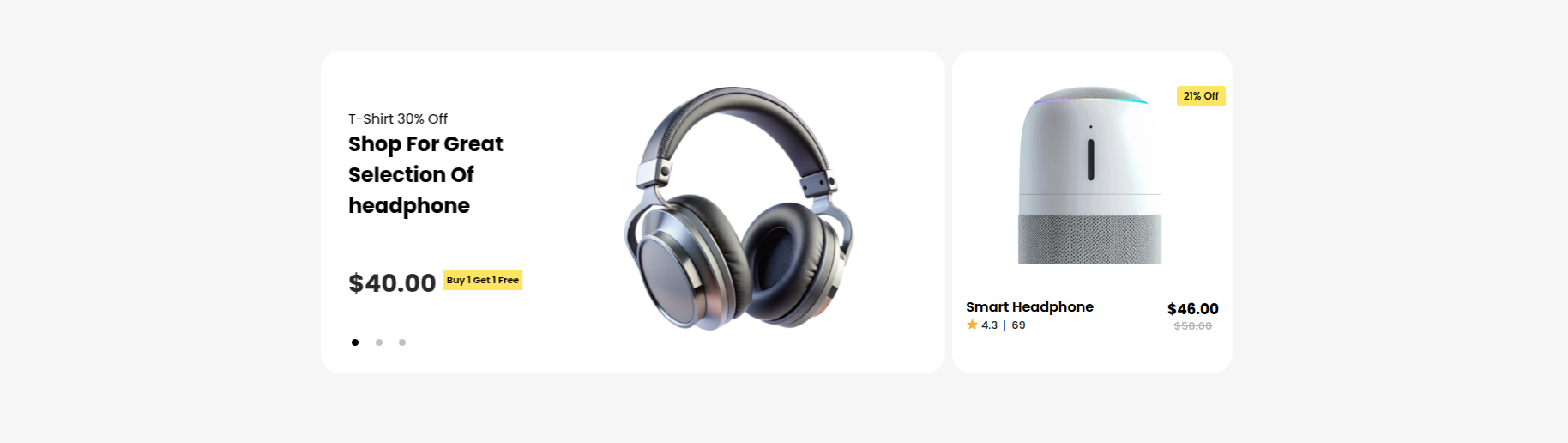
This section pertains to the Offer Slider
Initial Progress while hitting "page, edit with elementor" Move forward "Select Isolate Widget" and Edit the content and image.
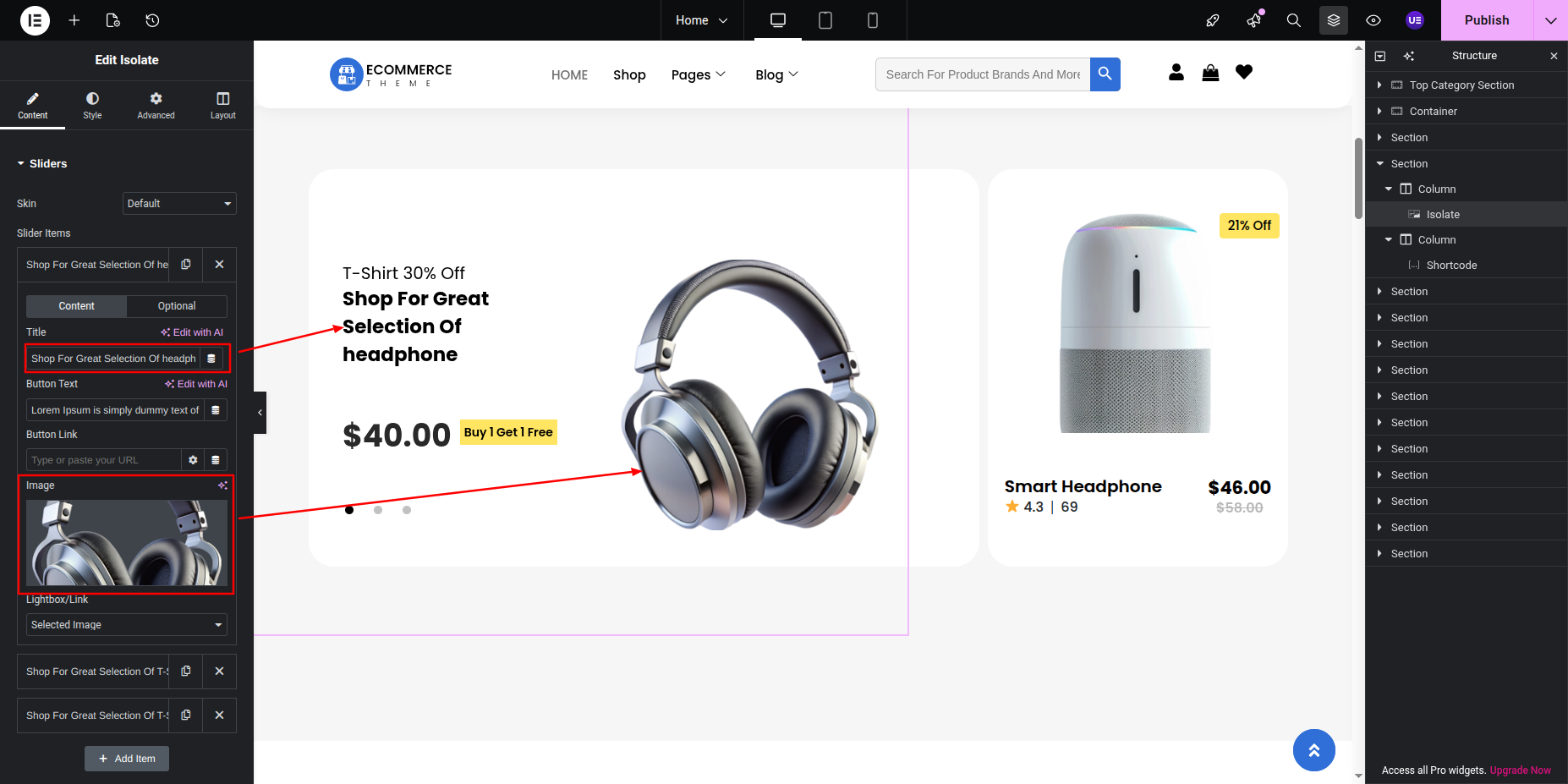
Initial Progress Look for the "Shortcode Widget" Move forward and add the shortcode [clothing-product-single-section].
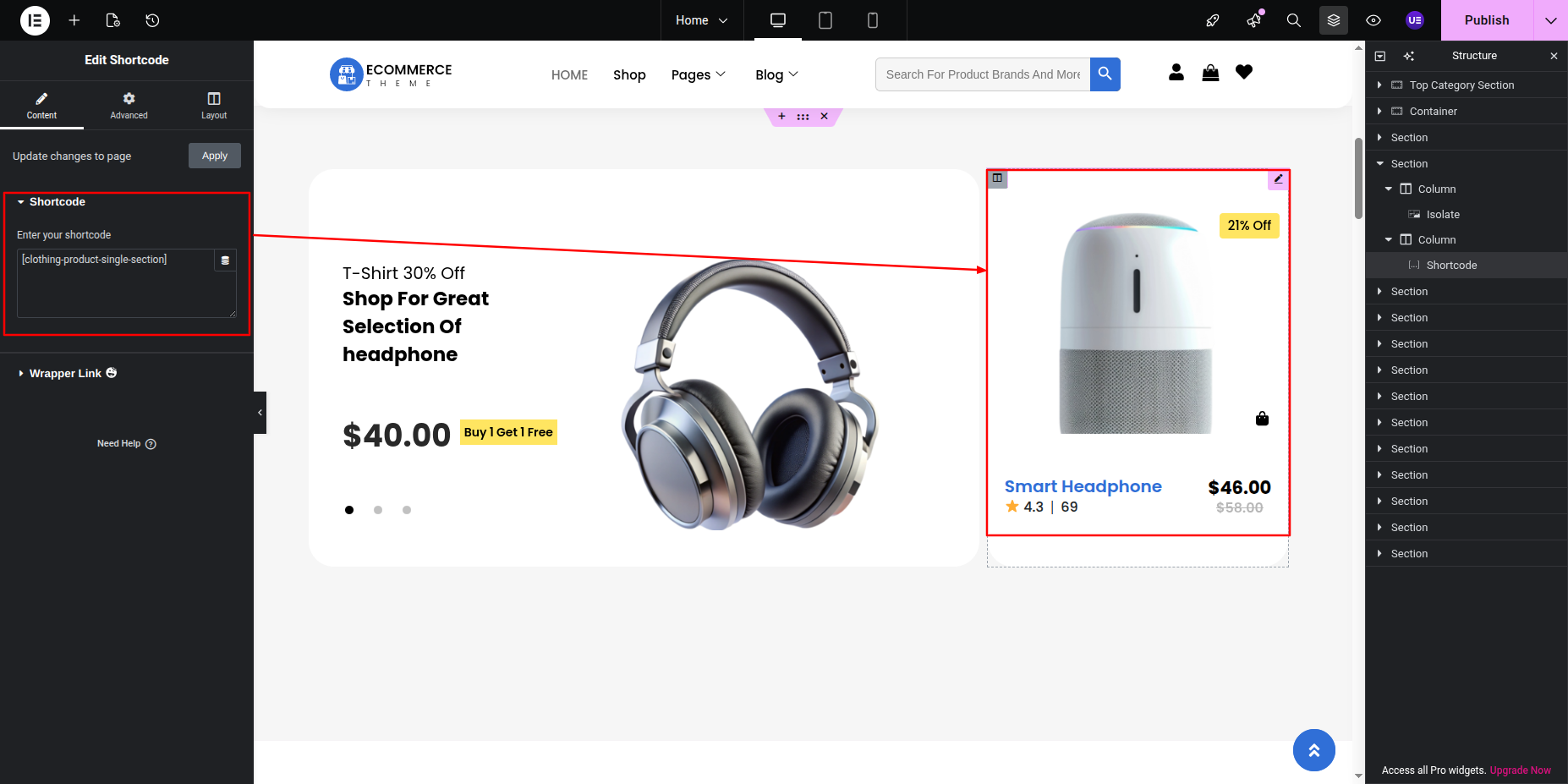
Final Progress See below for design insights.
This section pertains Popular Product Section
Initial Progress while hitting "Dashboard" Move forward "Edit with elementor" Now edit or add new content in the Popular Product Section previous tapping "Published" .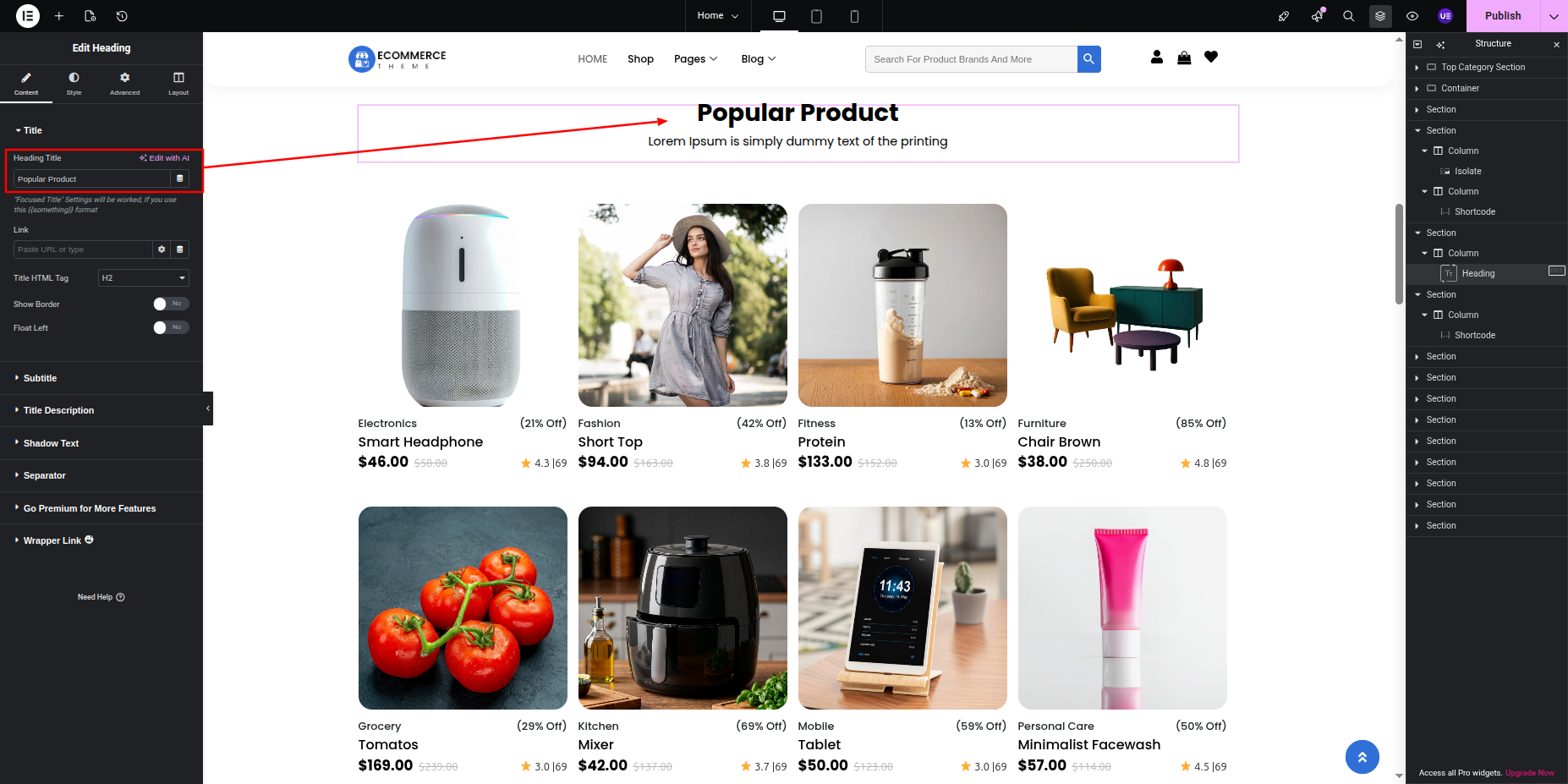
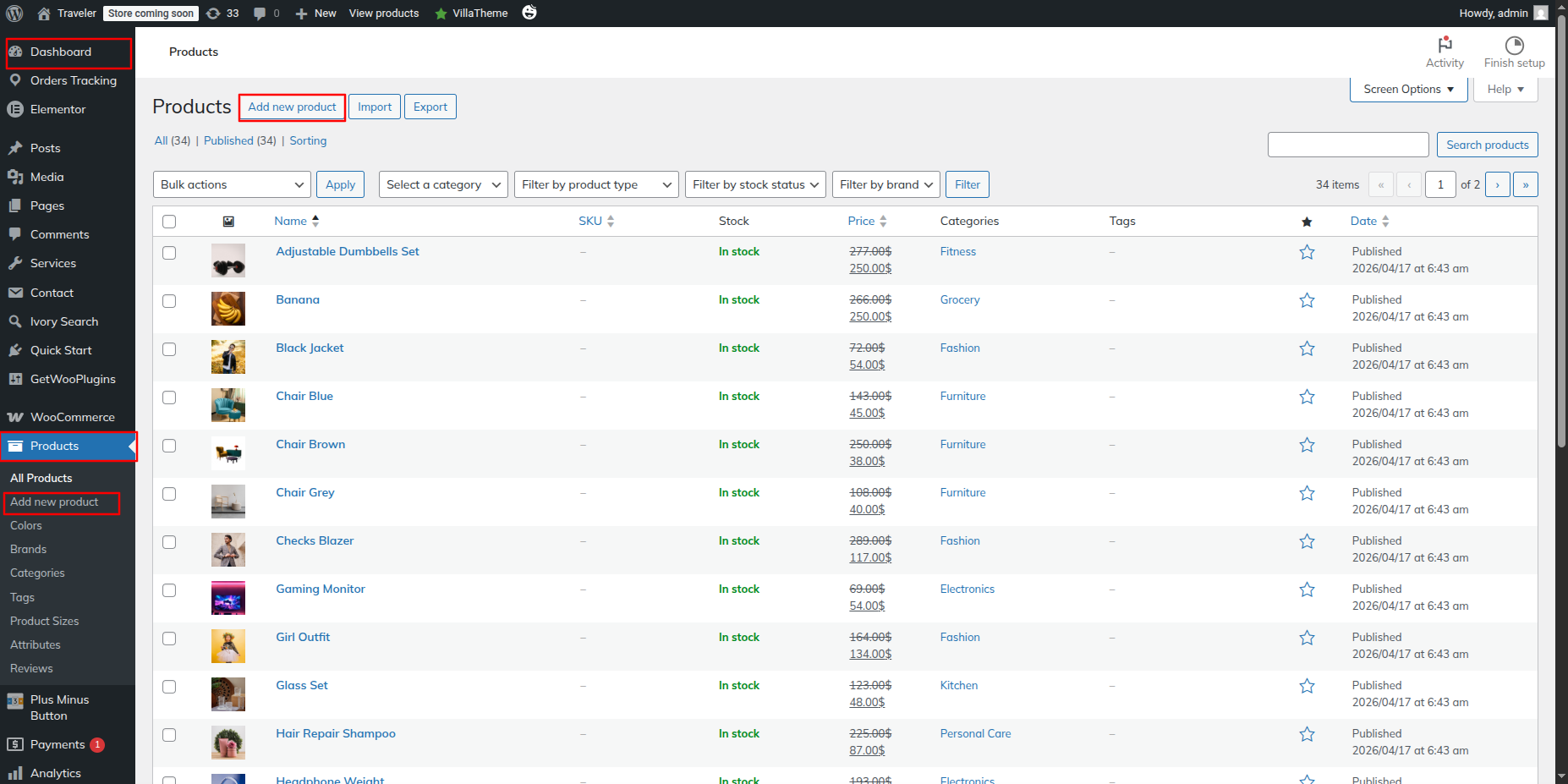
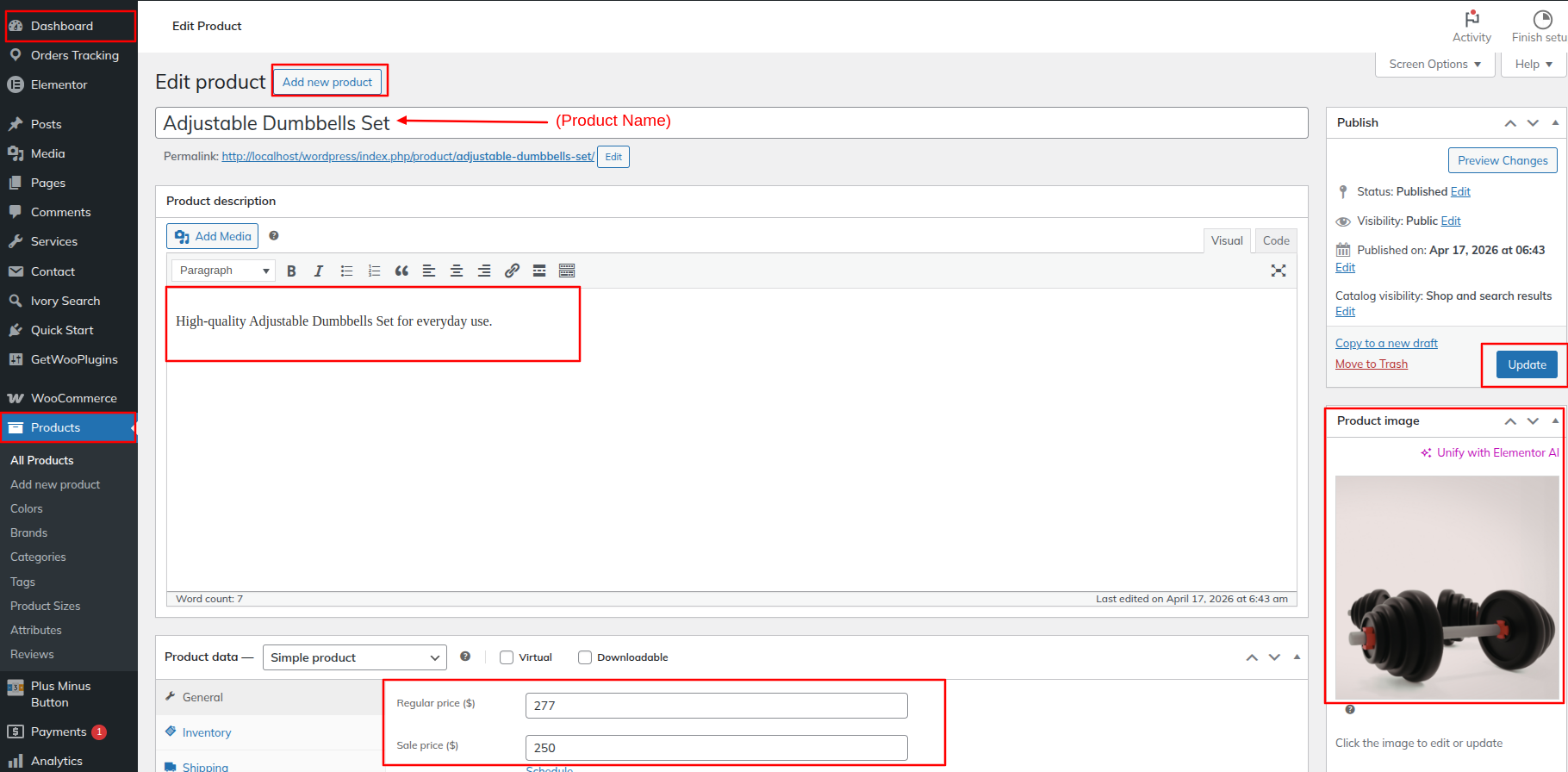

Final Progress See below for design insights.
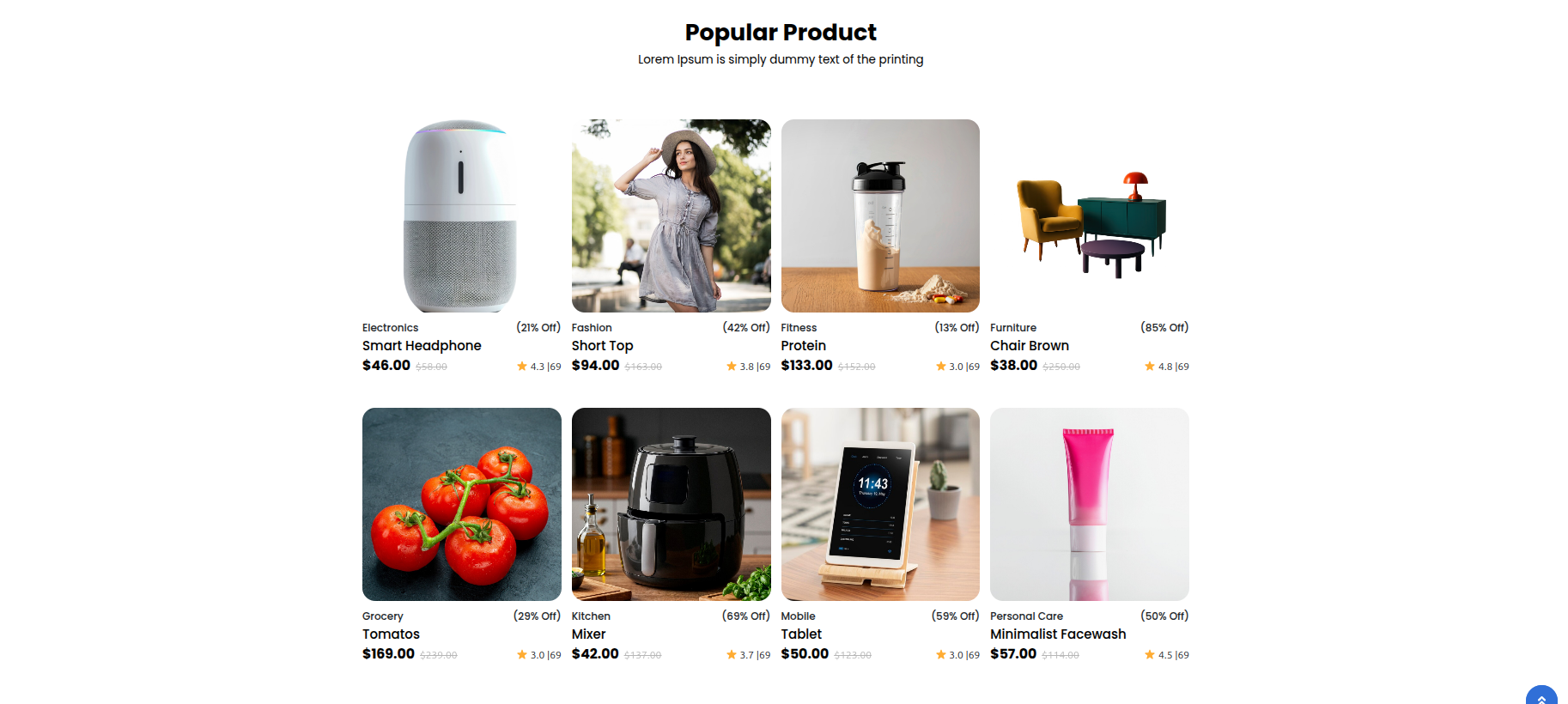
This section pertains to the Spacial Offer Section.
Next Progress while hitting "Edit With Elementor" Discover "Inner Section" then edit the content Move forward "add heading name, change the background images, add content and featured".
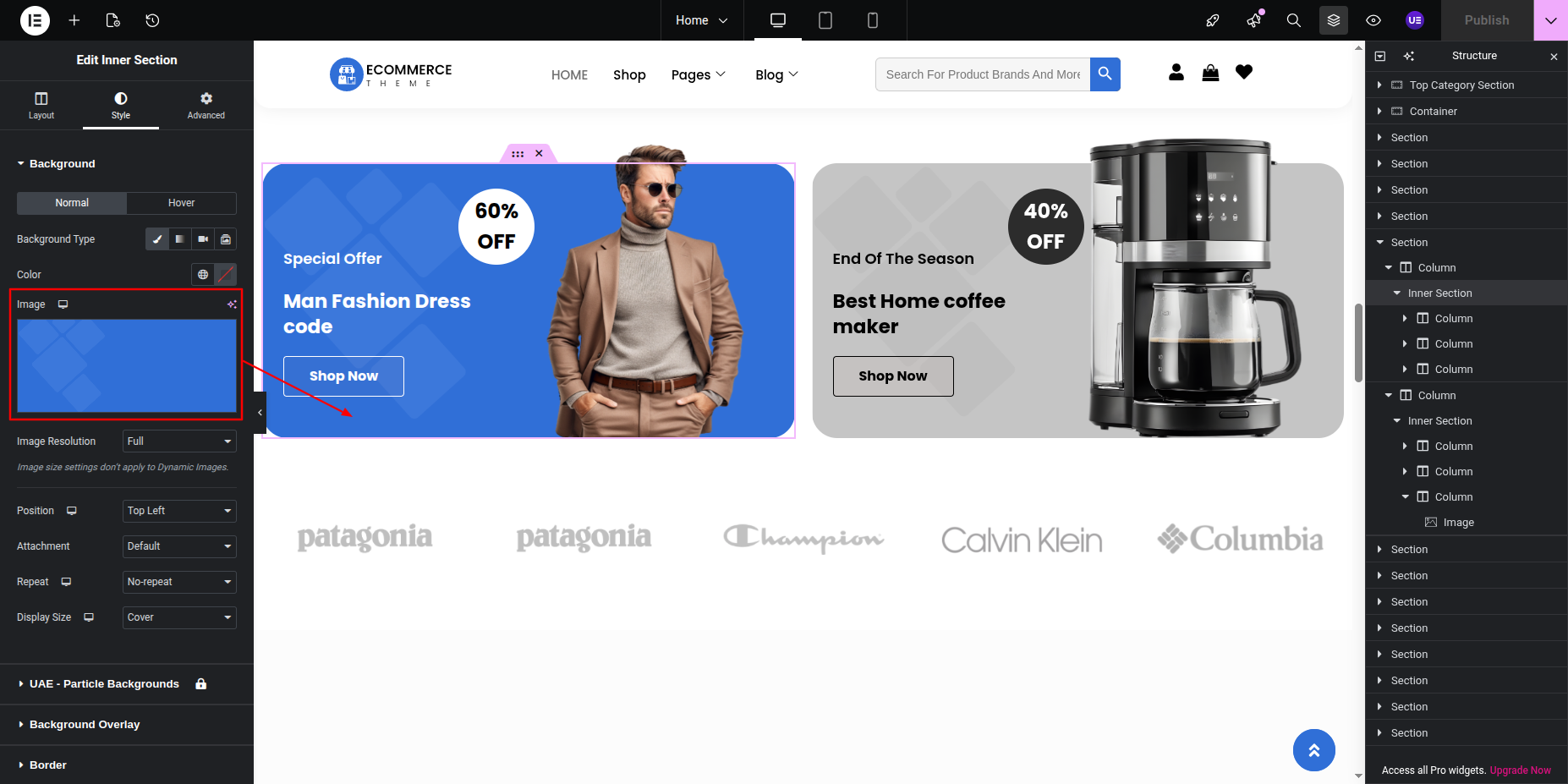
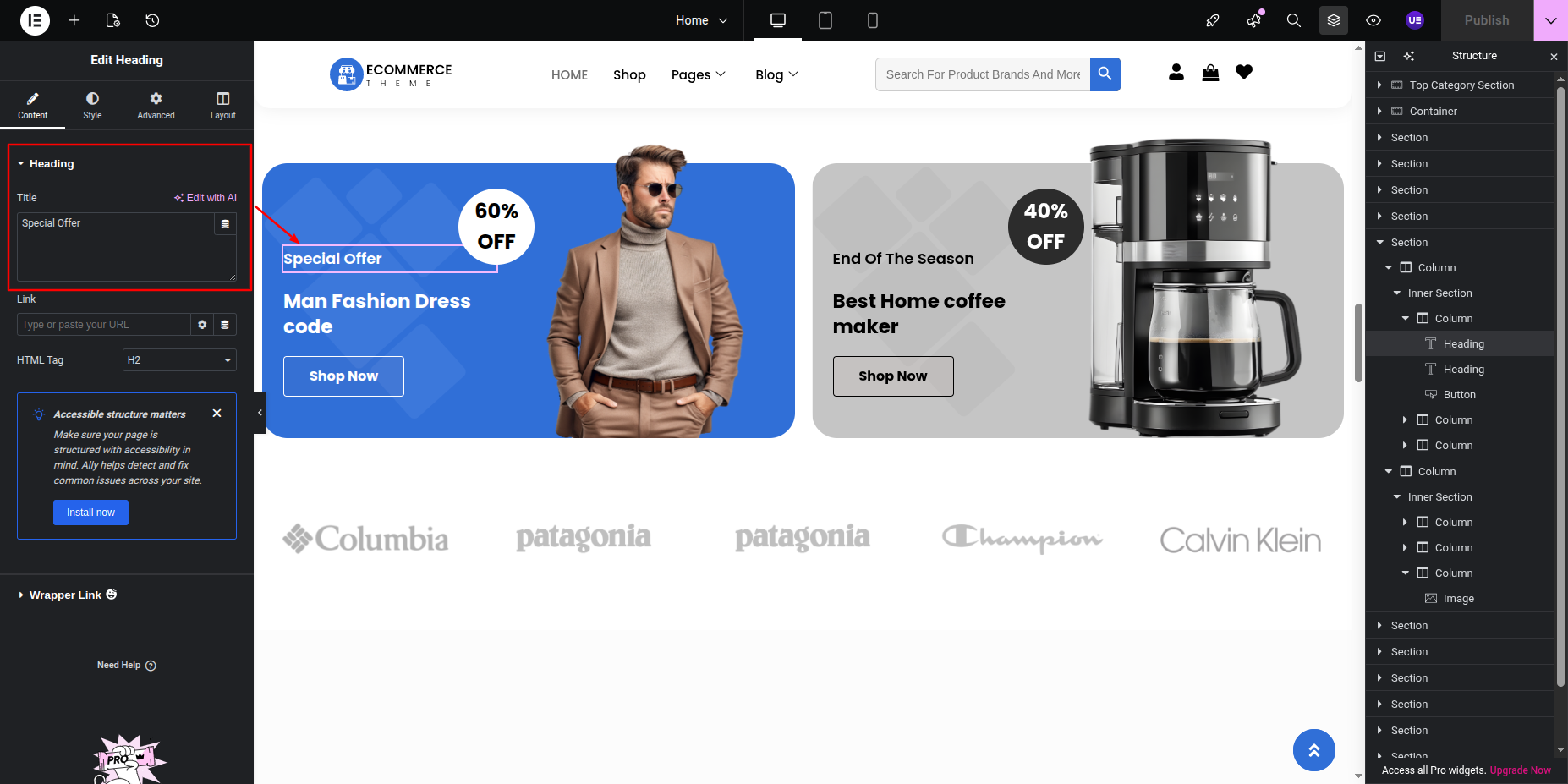
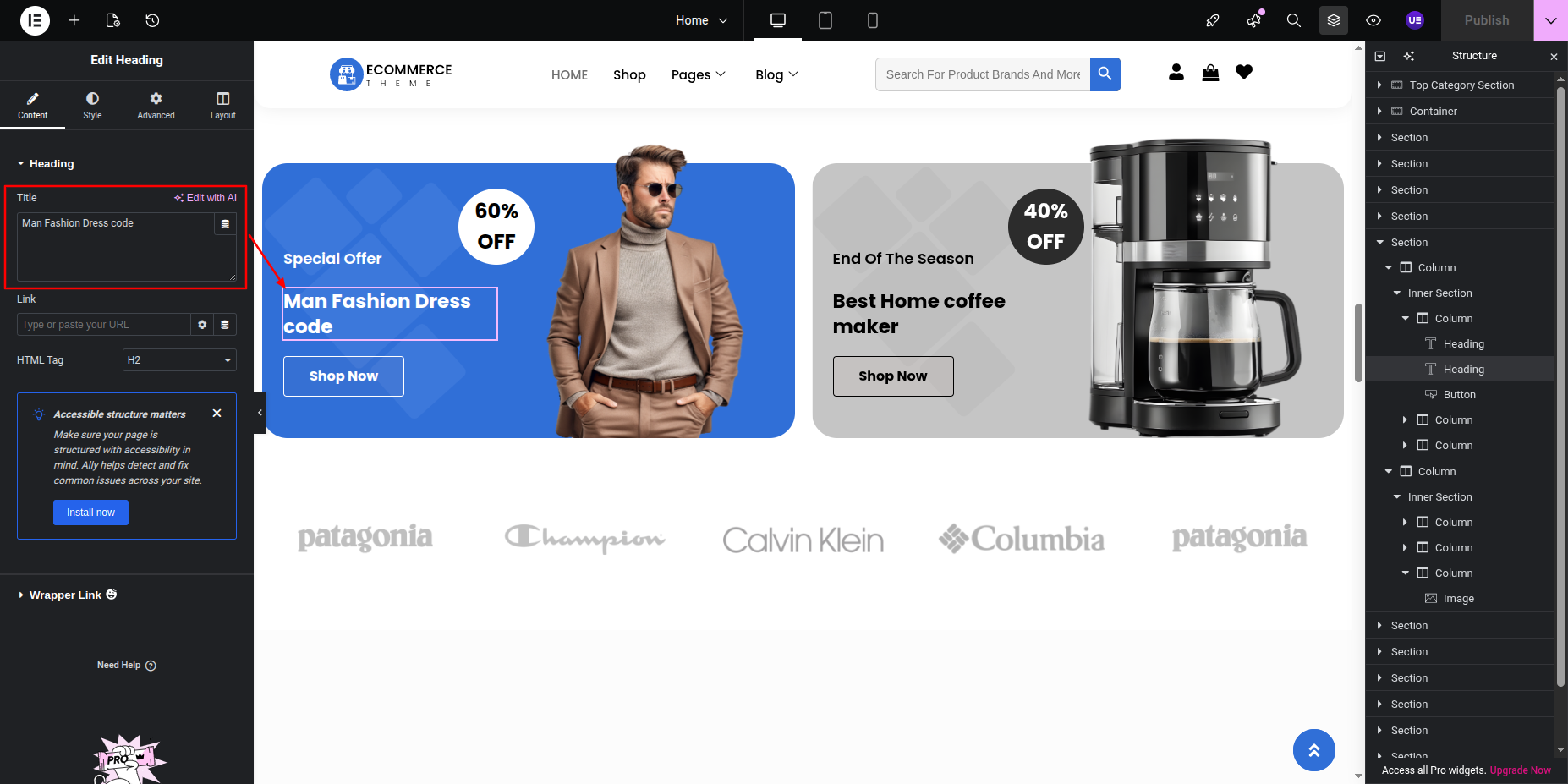
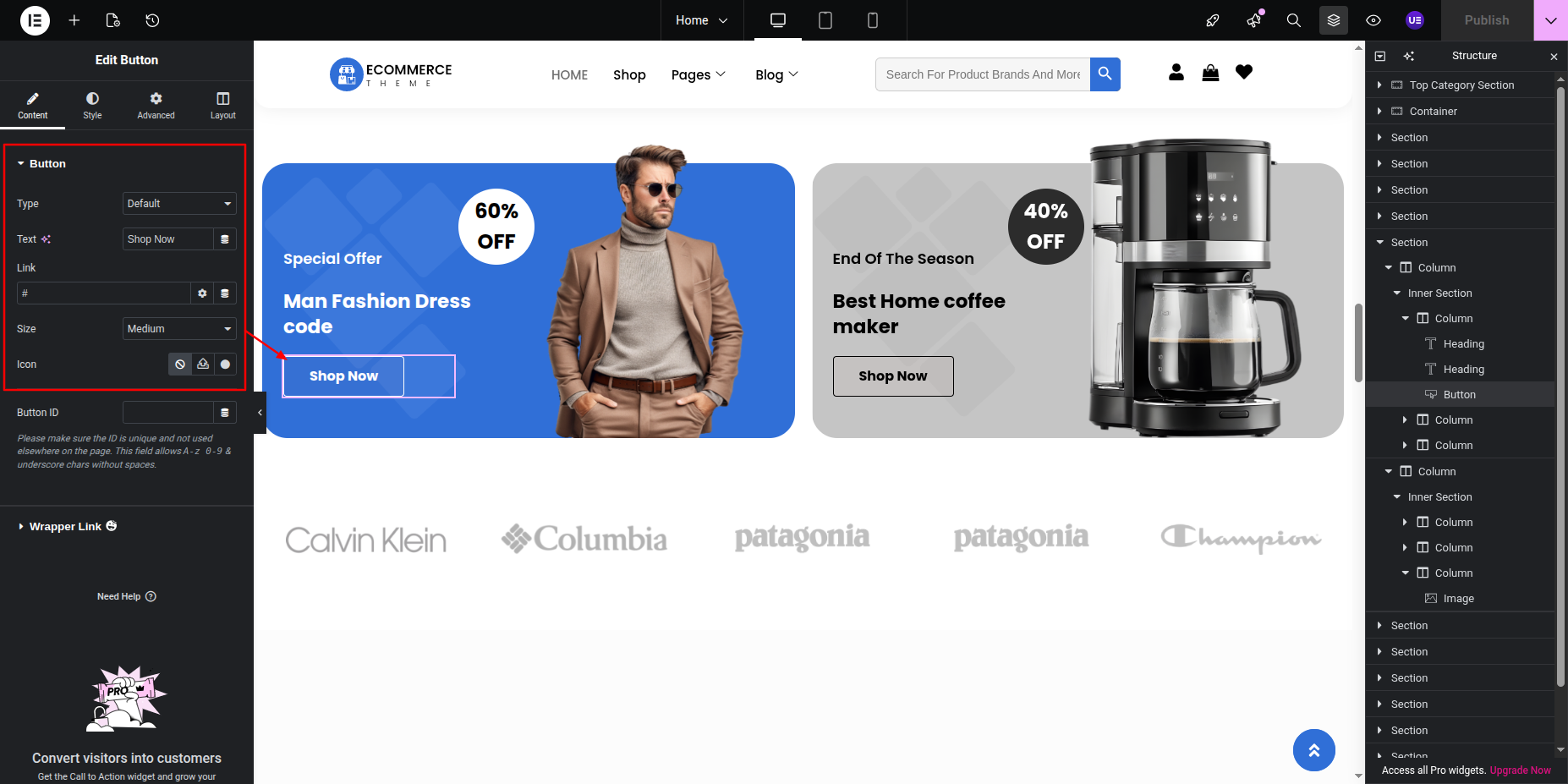
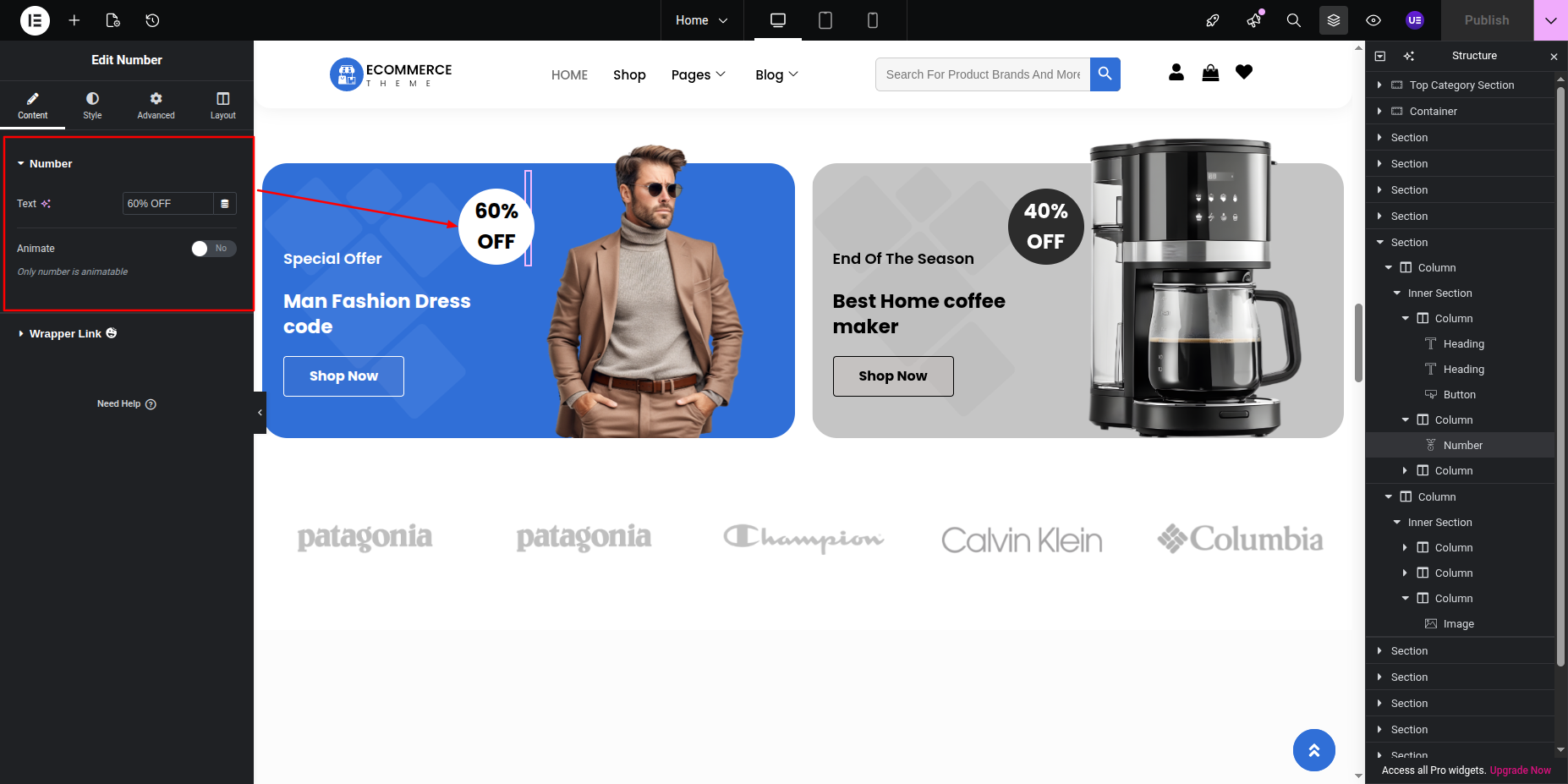
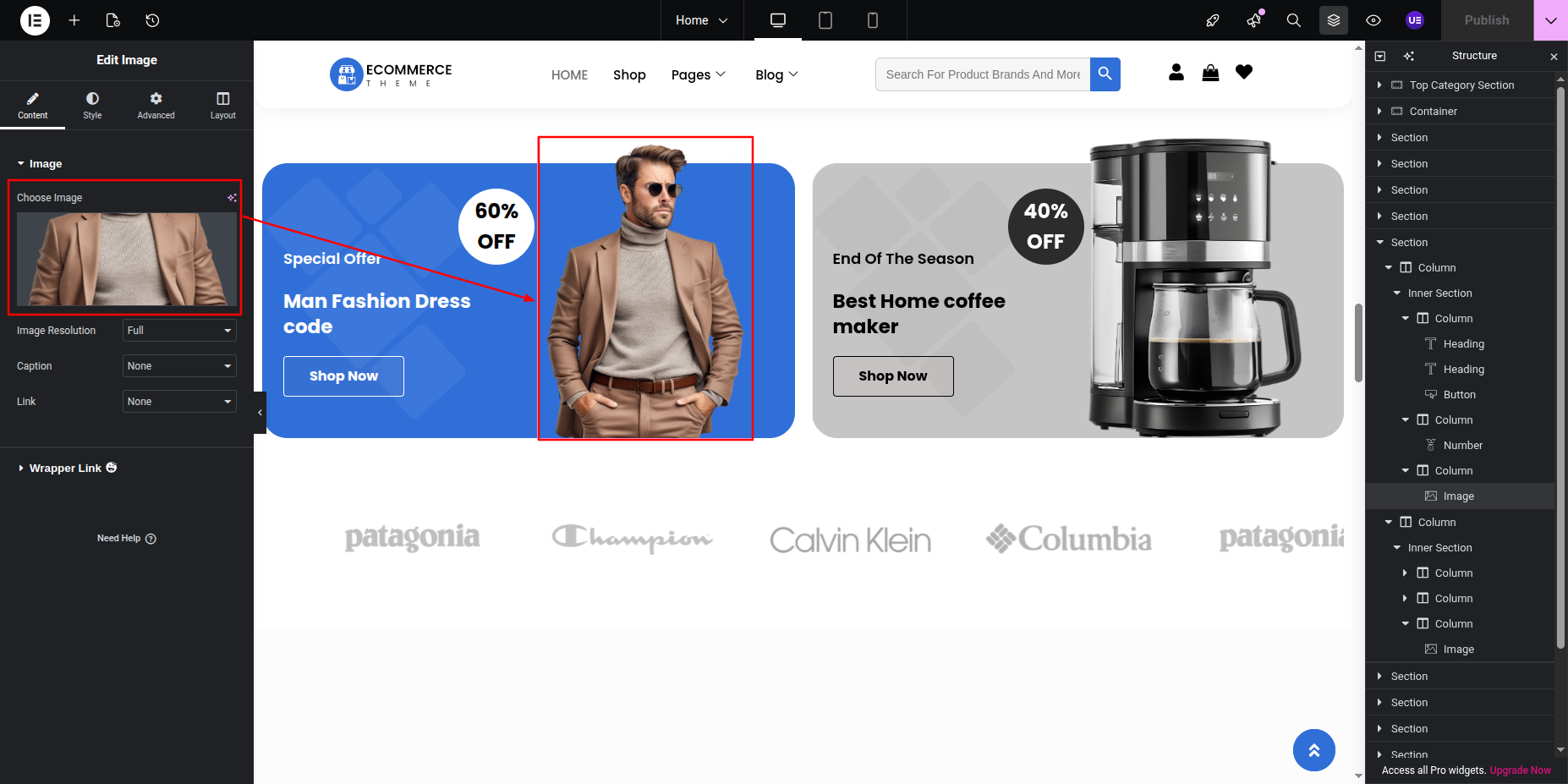
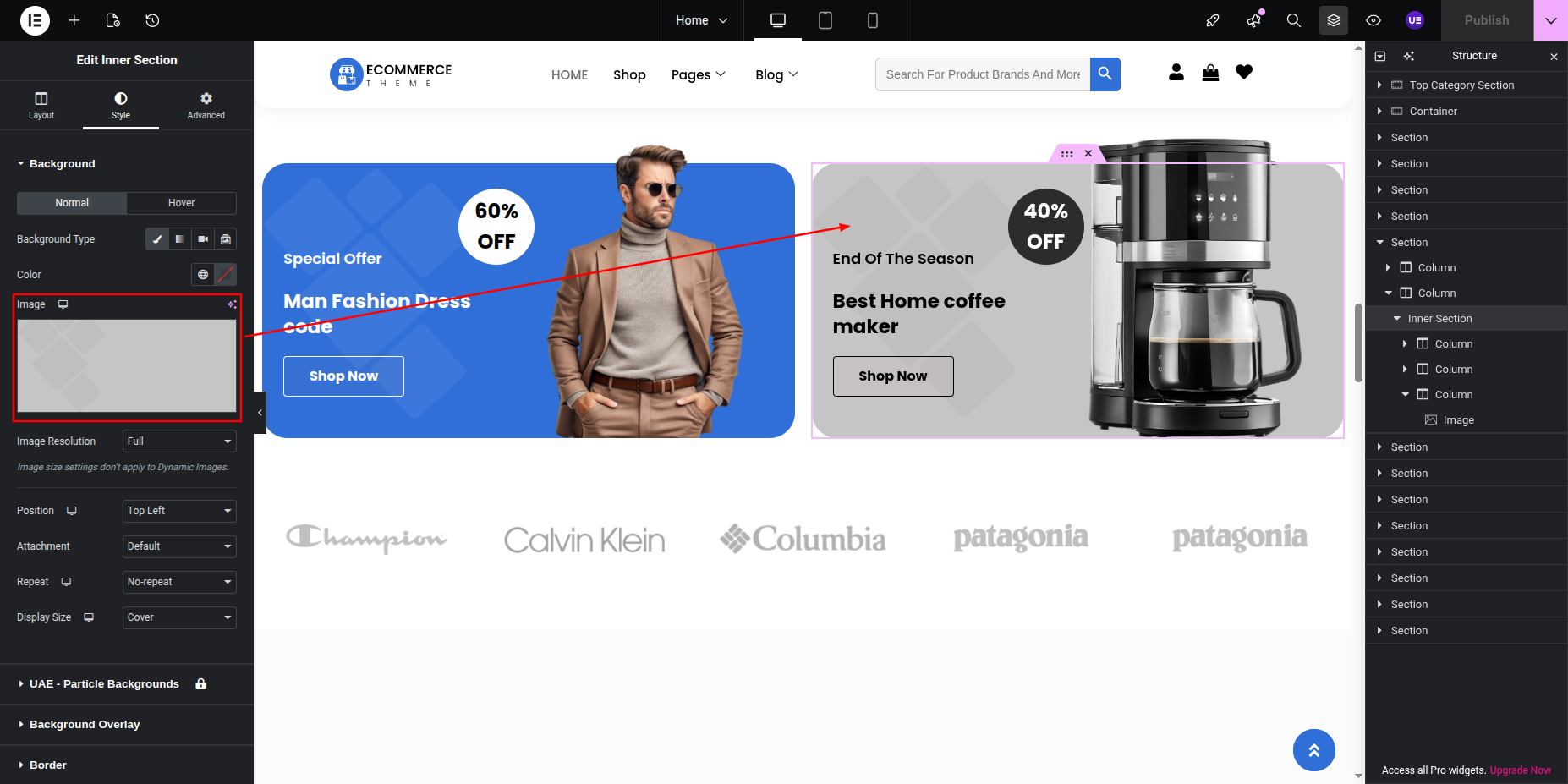
Final Output See below for design insights.
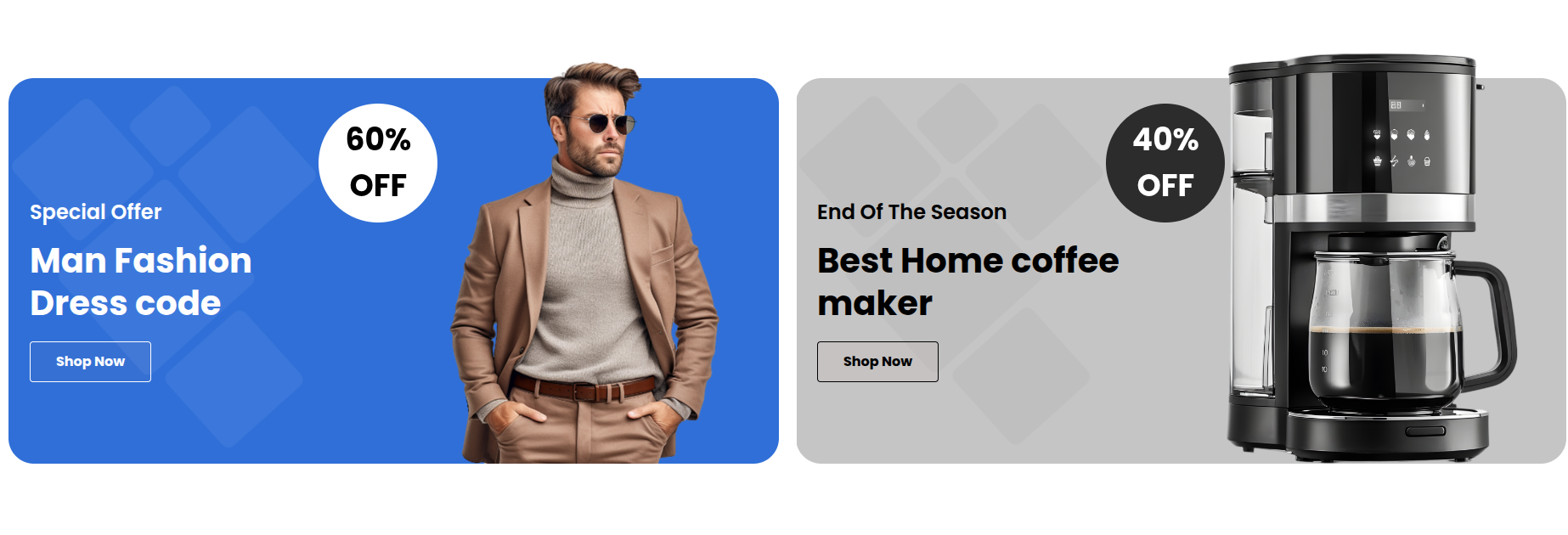
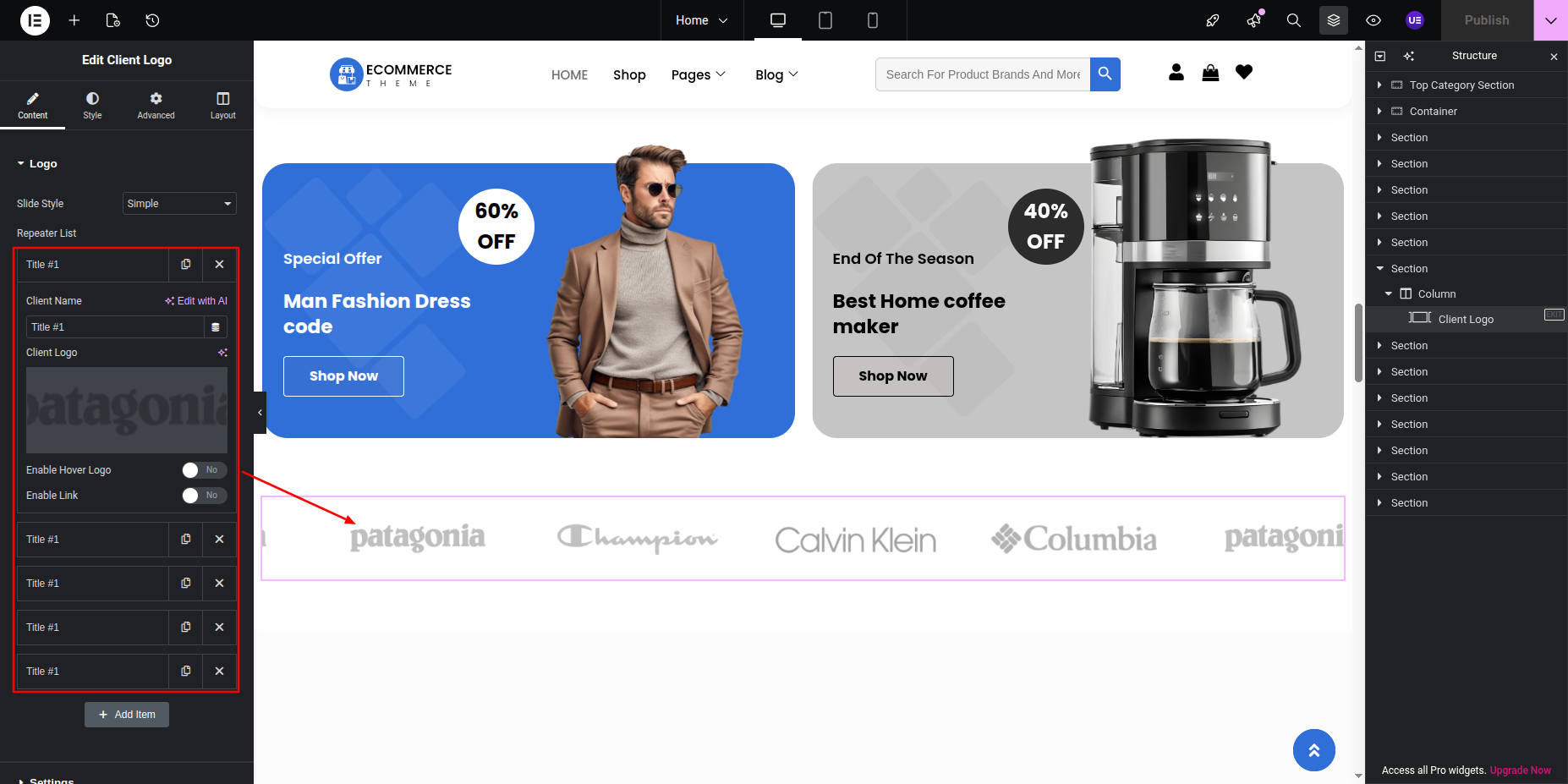
This section pertains to the Brands Section
Initial Progress while hitting "edit page with elementor" Discover "Clients Logo" Widget then "add content in it" .

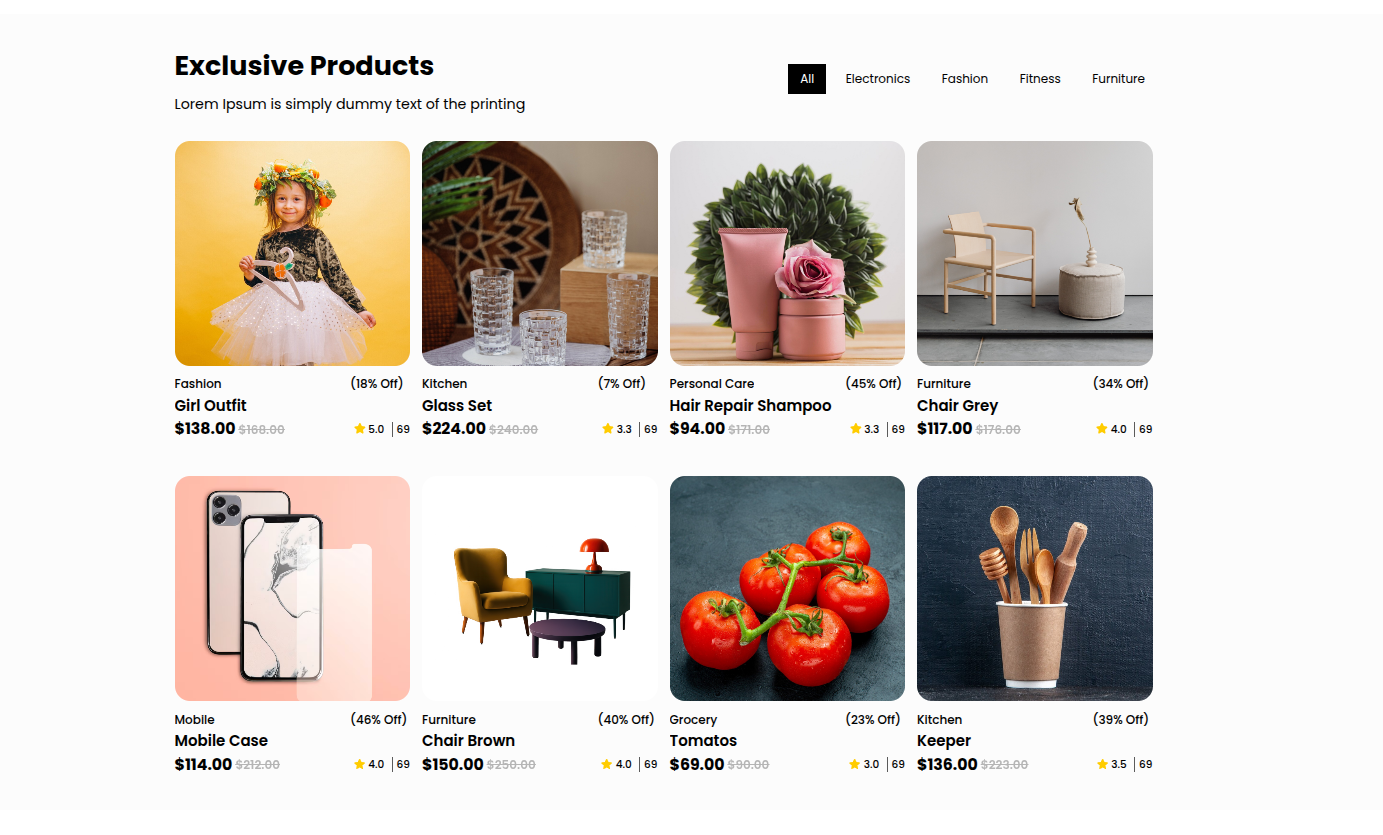
This section pertains to the Exlusive Product Section.
Initial Progress this is the exlusive product tab section , click on "Heading" to change or edit then select the shortcode widget add shortcode [custom_product_tabs] .
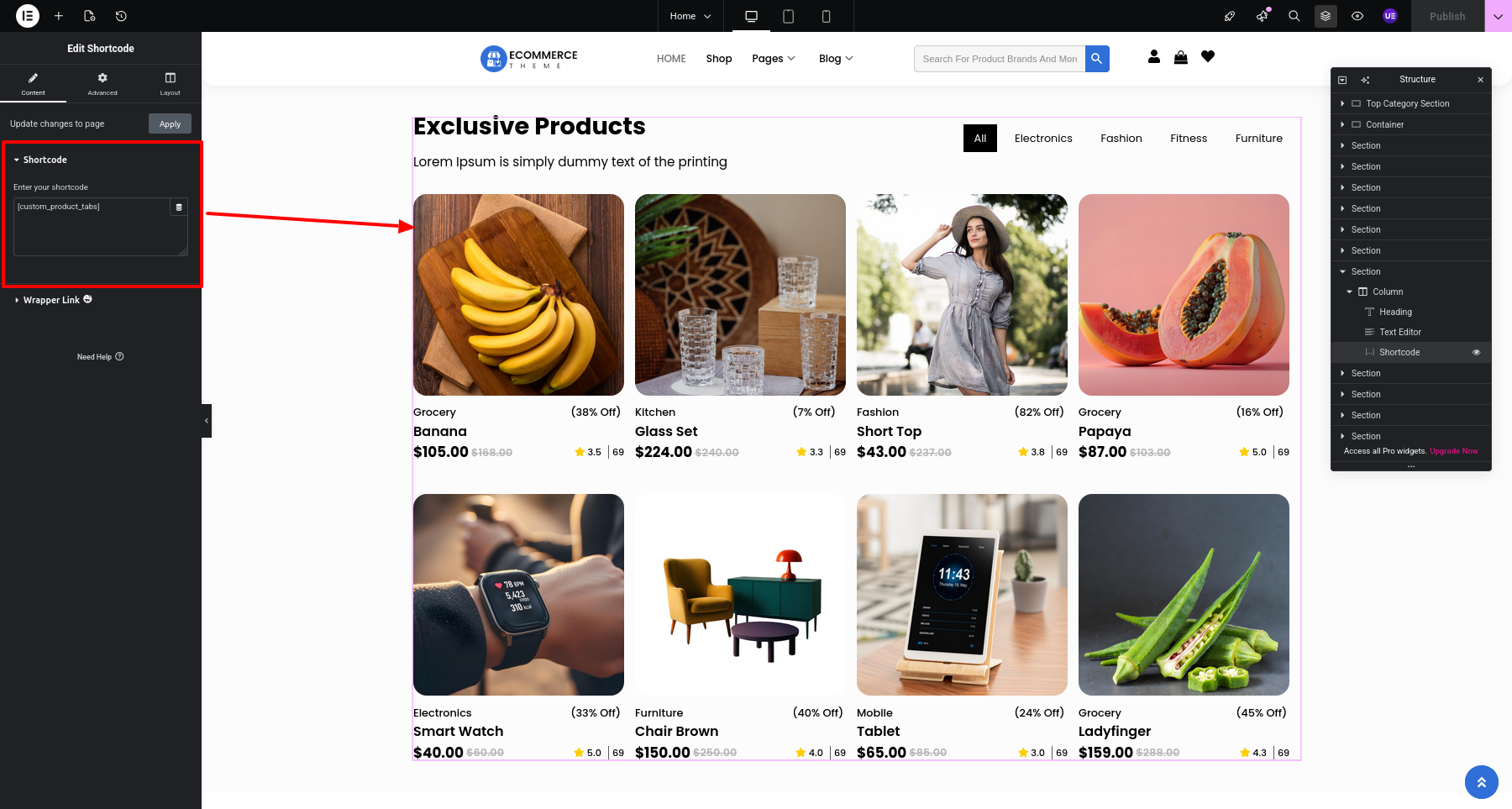
Final Progress See below for design insights.
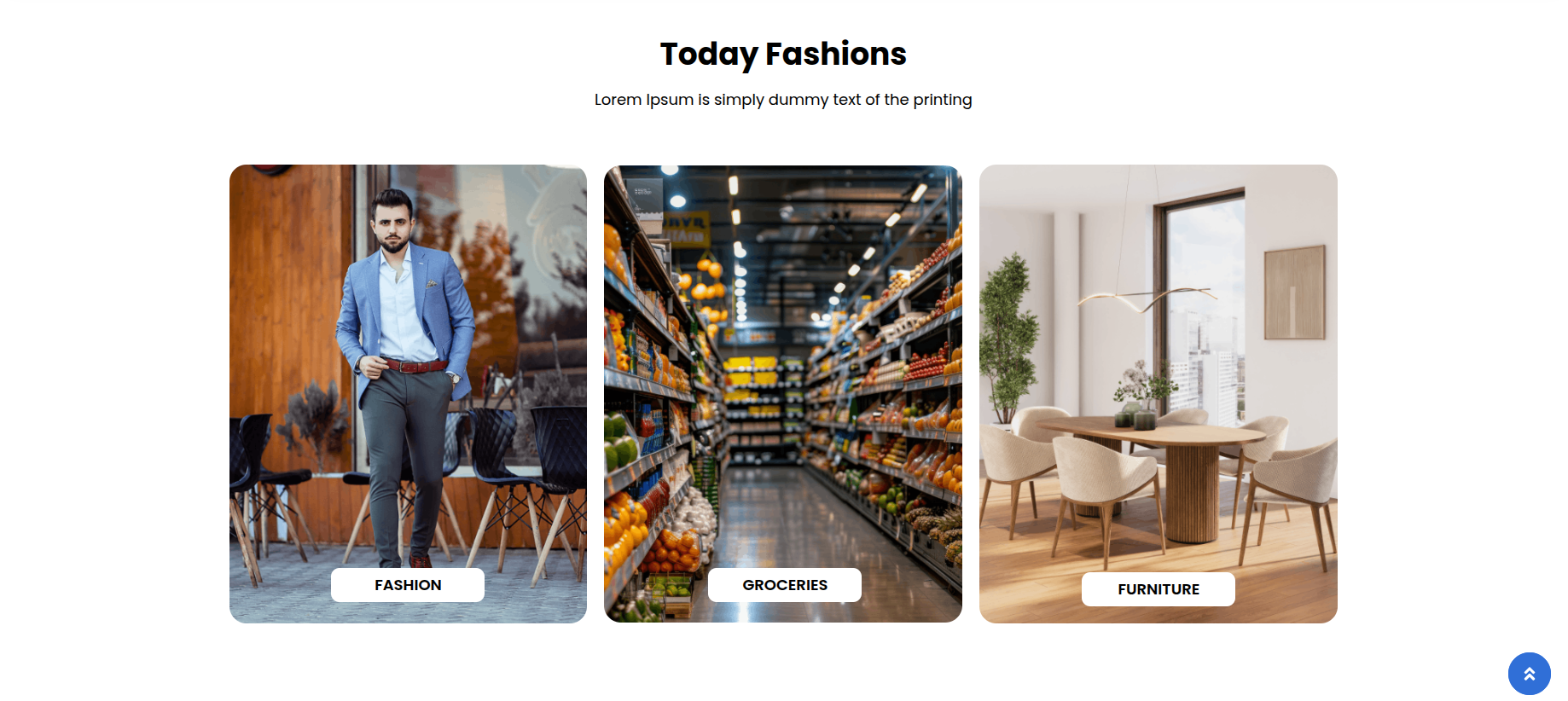
This section pertains to the Today Fashions Section.
Initial Progress while hitting "Dashboard" Discover "Today's Fashion Section" then "add heading, posts categories as per your requirements" .
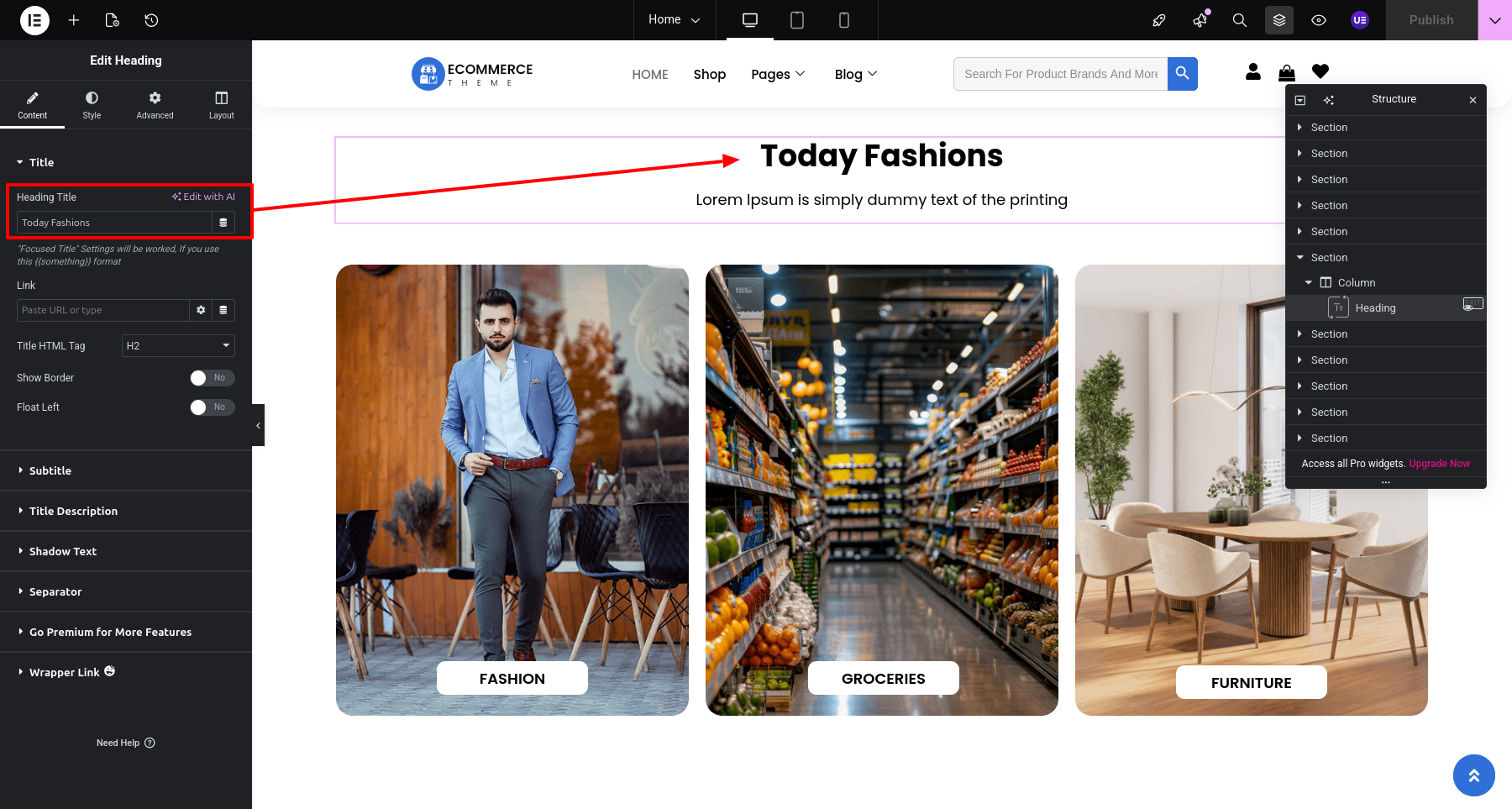
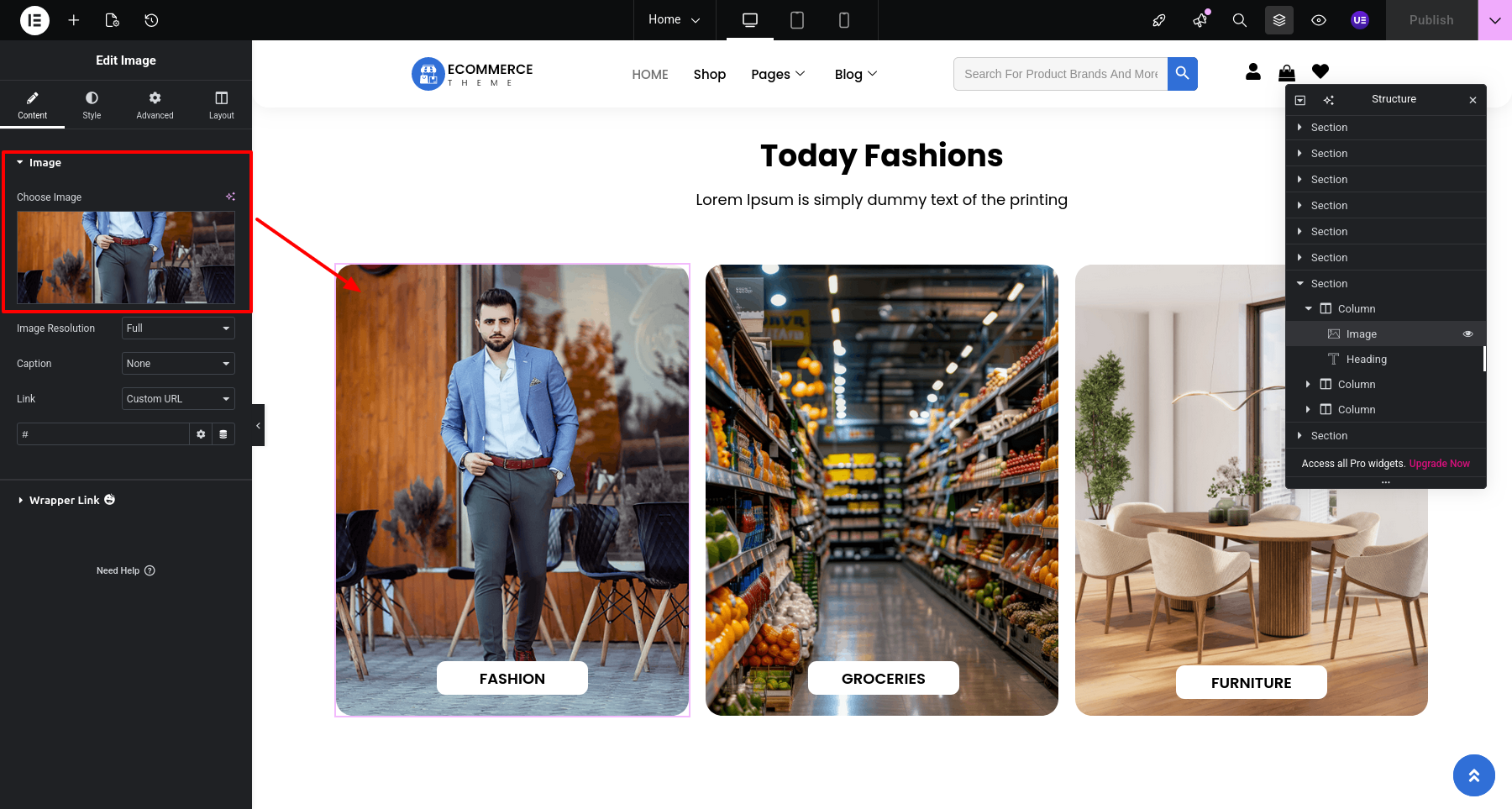
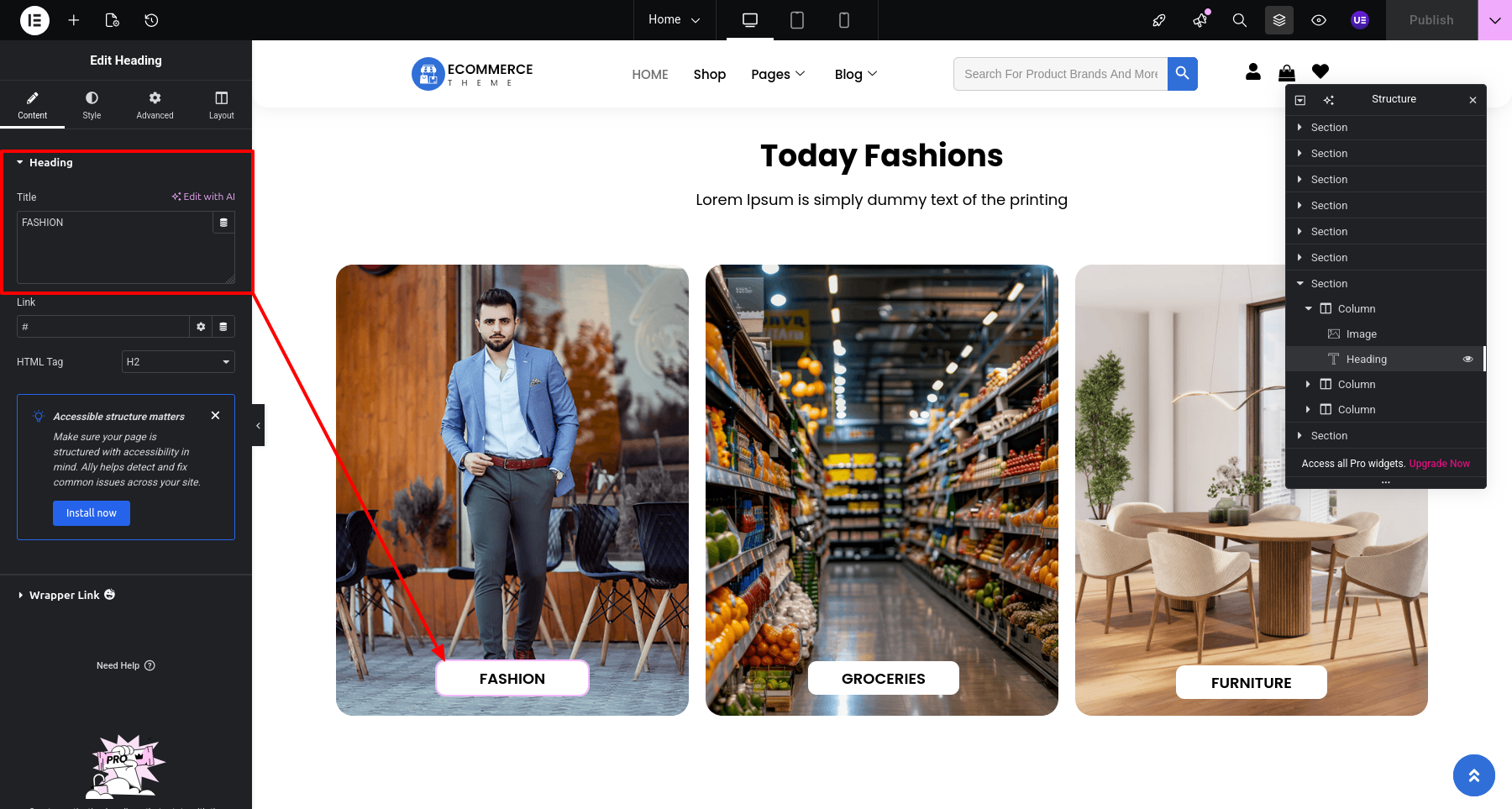
Final Progress See below for design insights.
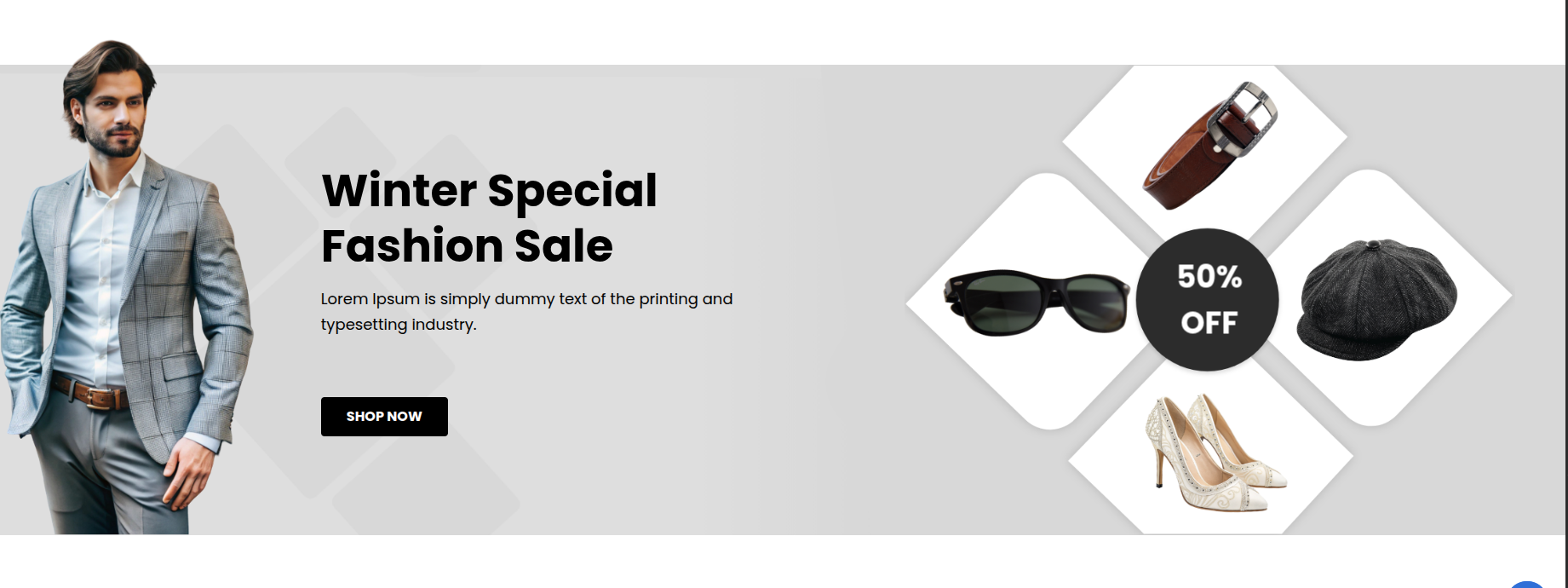
This section pertains to the Winter Offer Section.
Initial Progress while hitting "edit page with elementor" Discover "Winter Offer Section" previous tapping "Published" .
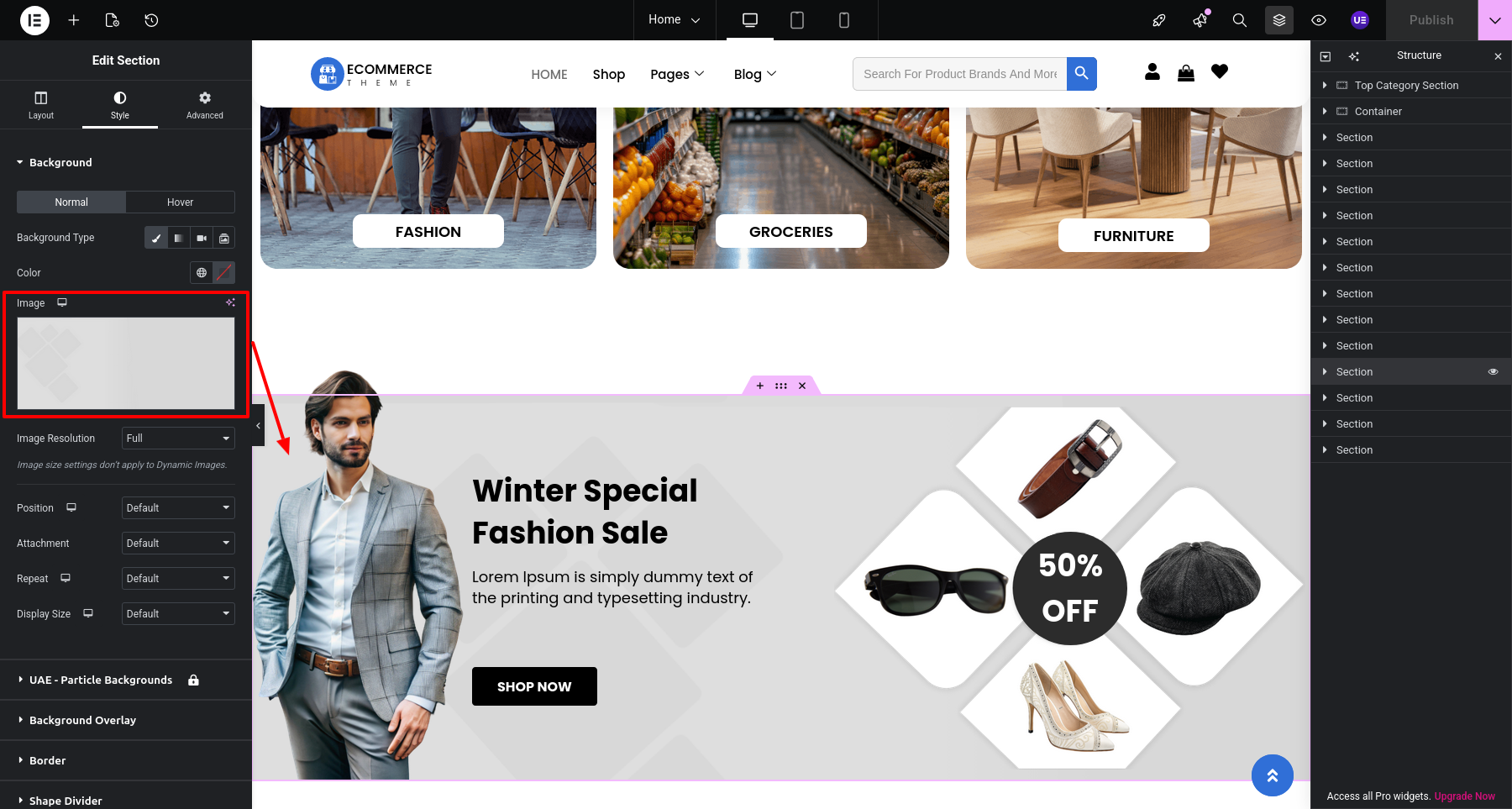
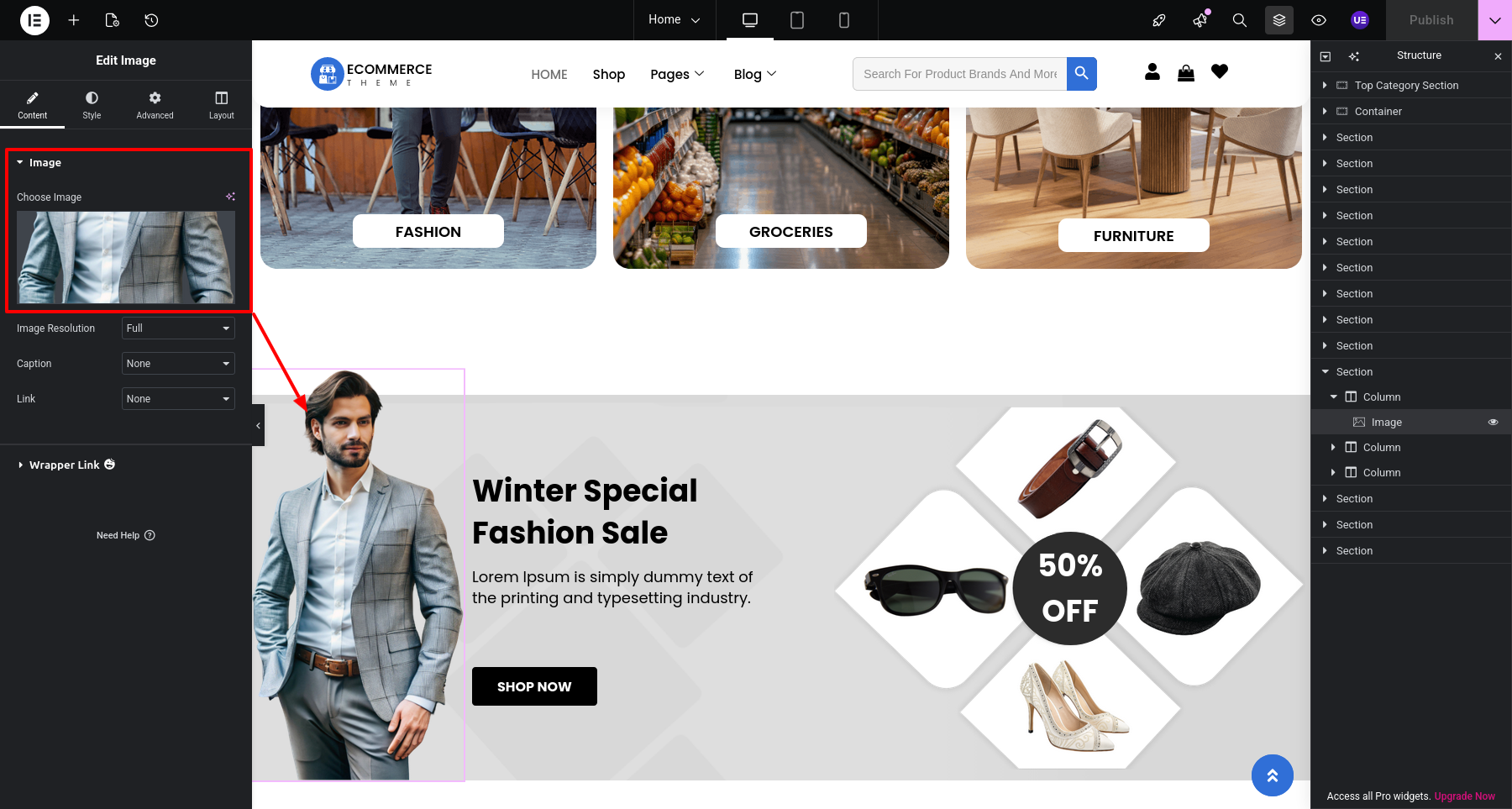
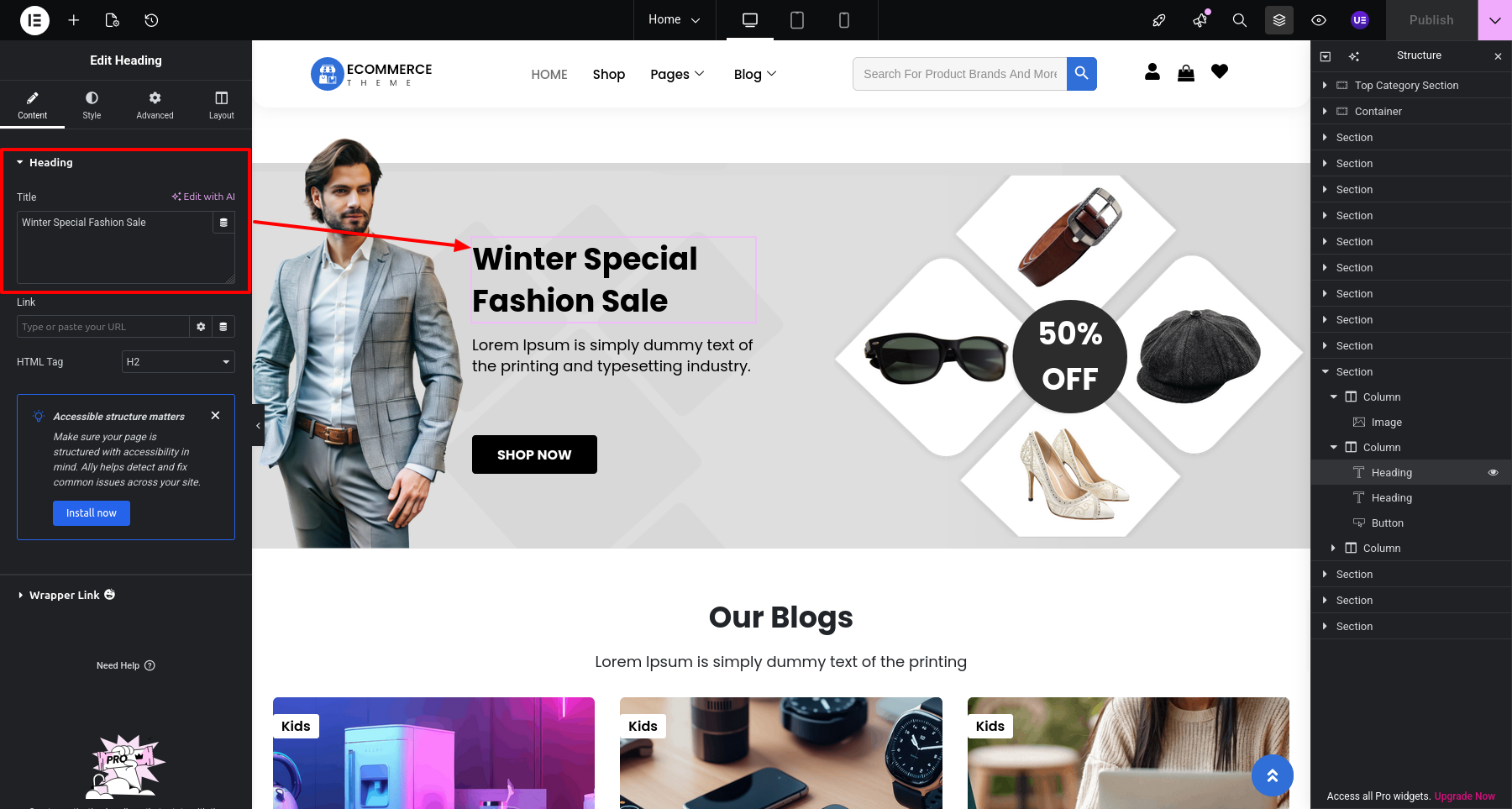
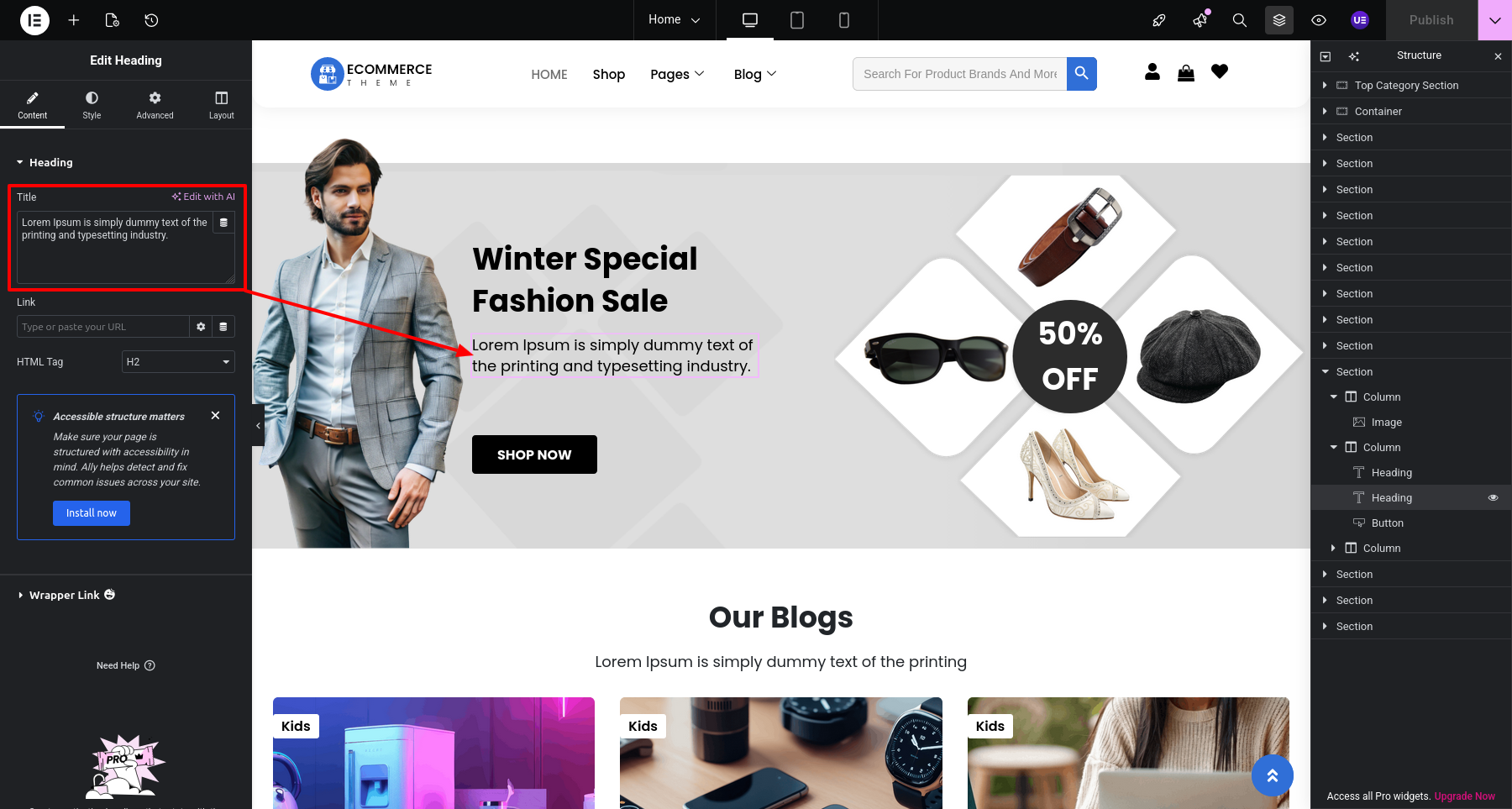
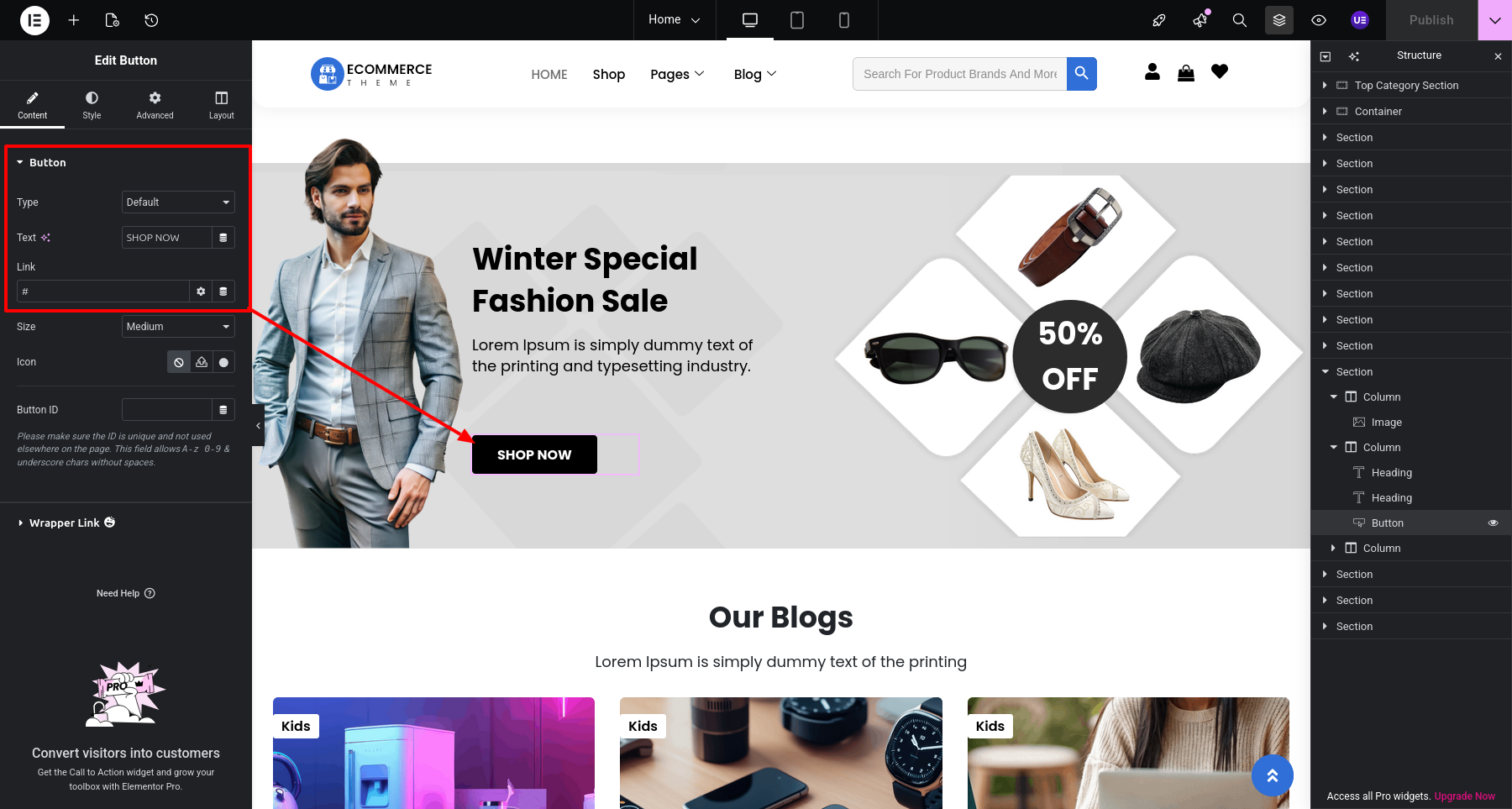
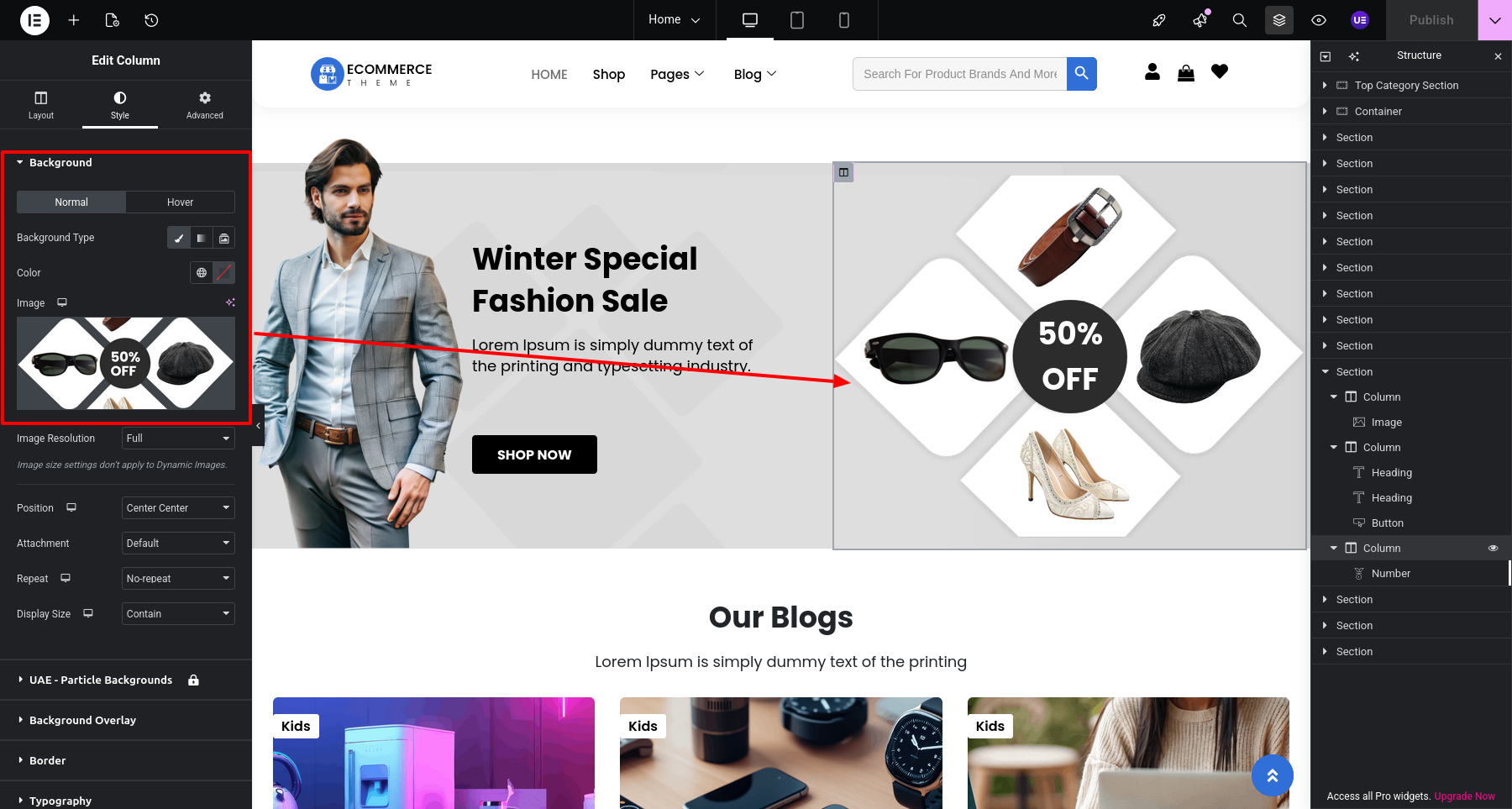
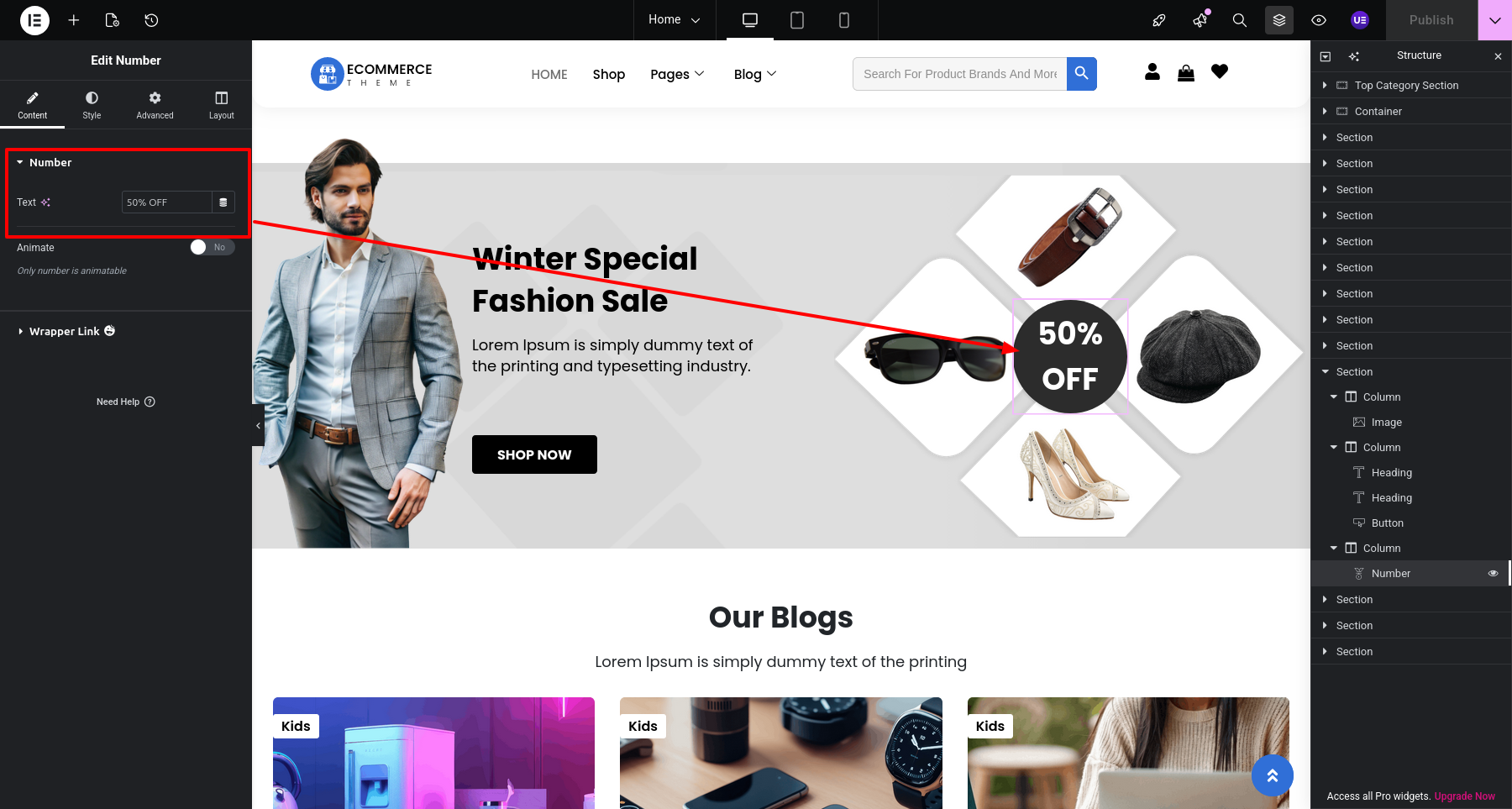
Final Progress See below for design insights.
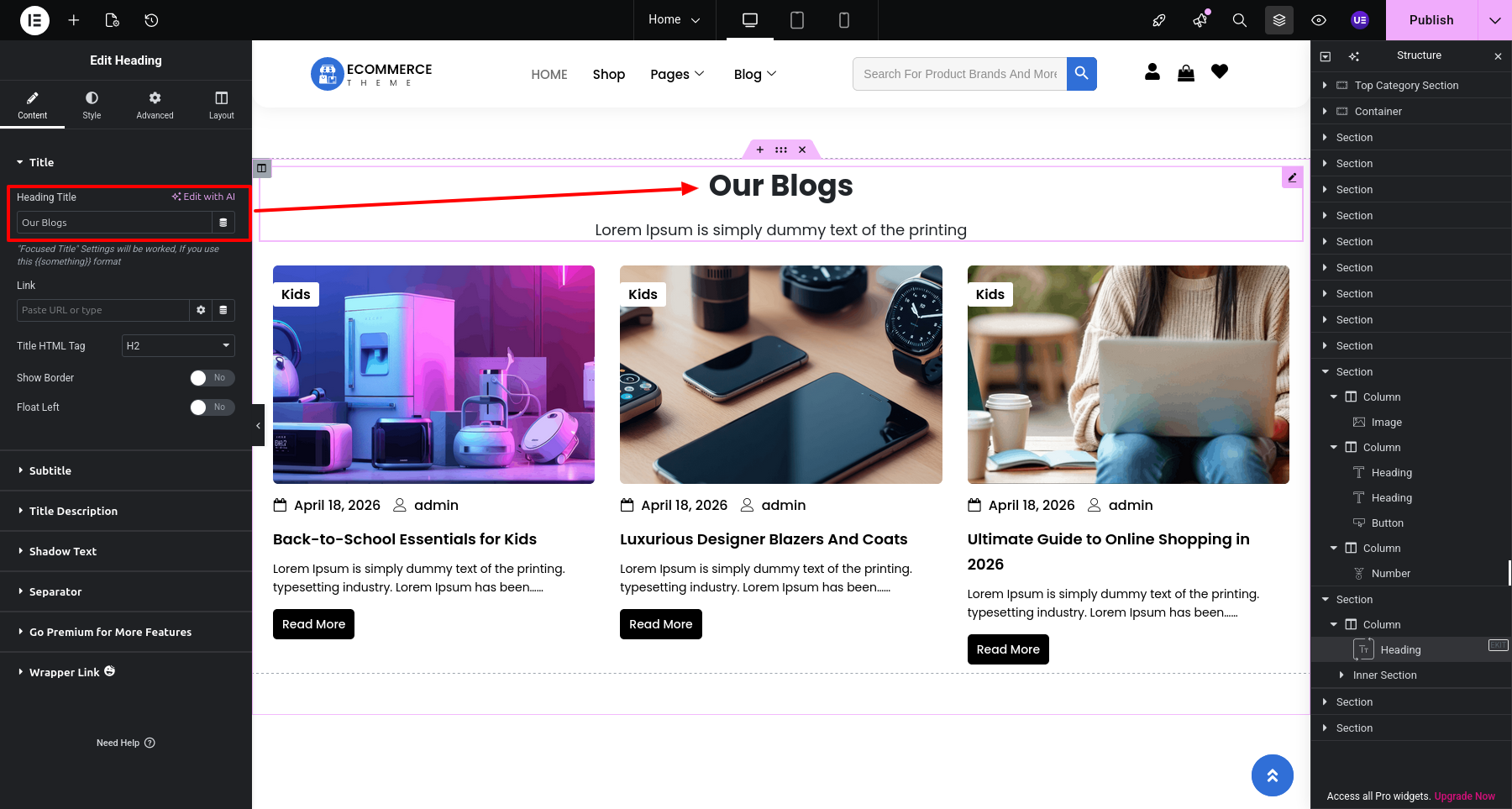
This section pertains to the Our Blogs Section.
Initial Progress while hitting "Dashboard" Discover "Blog Section" Add heading Move forward "Published".
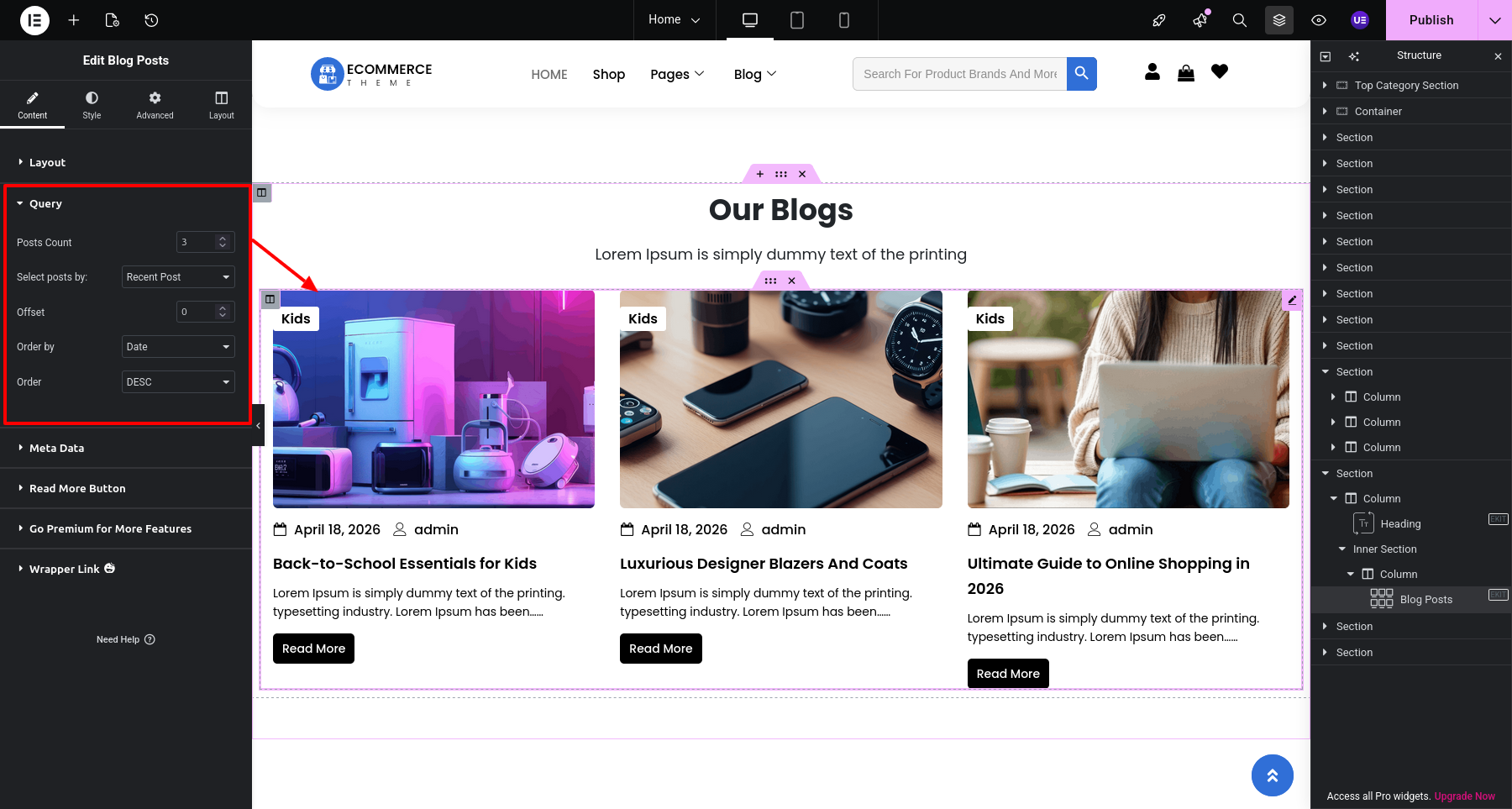
Initial Progress while hitting "Dashboard" Discover "Blog Posts" Widget select "Post" from the query Move forward Add posts and edit the appearance as pe requirements previous tapping "Published" .
Initial Progress while hitting "Dashboard" Discover "Posts" then "Add Post or Edit Post" Move forward "Change the content or Add new Blog post" Save the changes previous tapping "Published" .
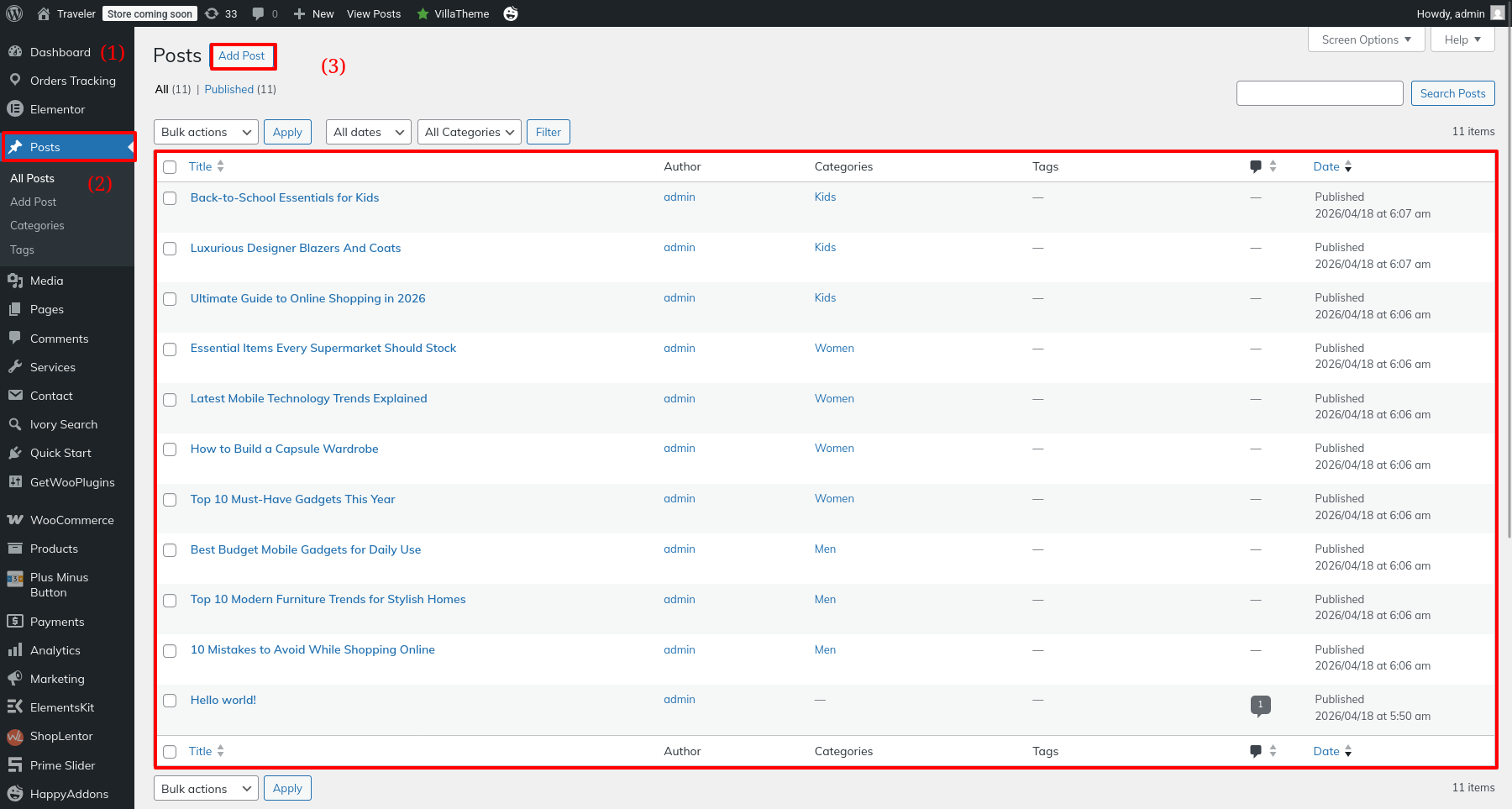
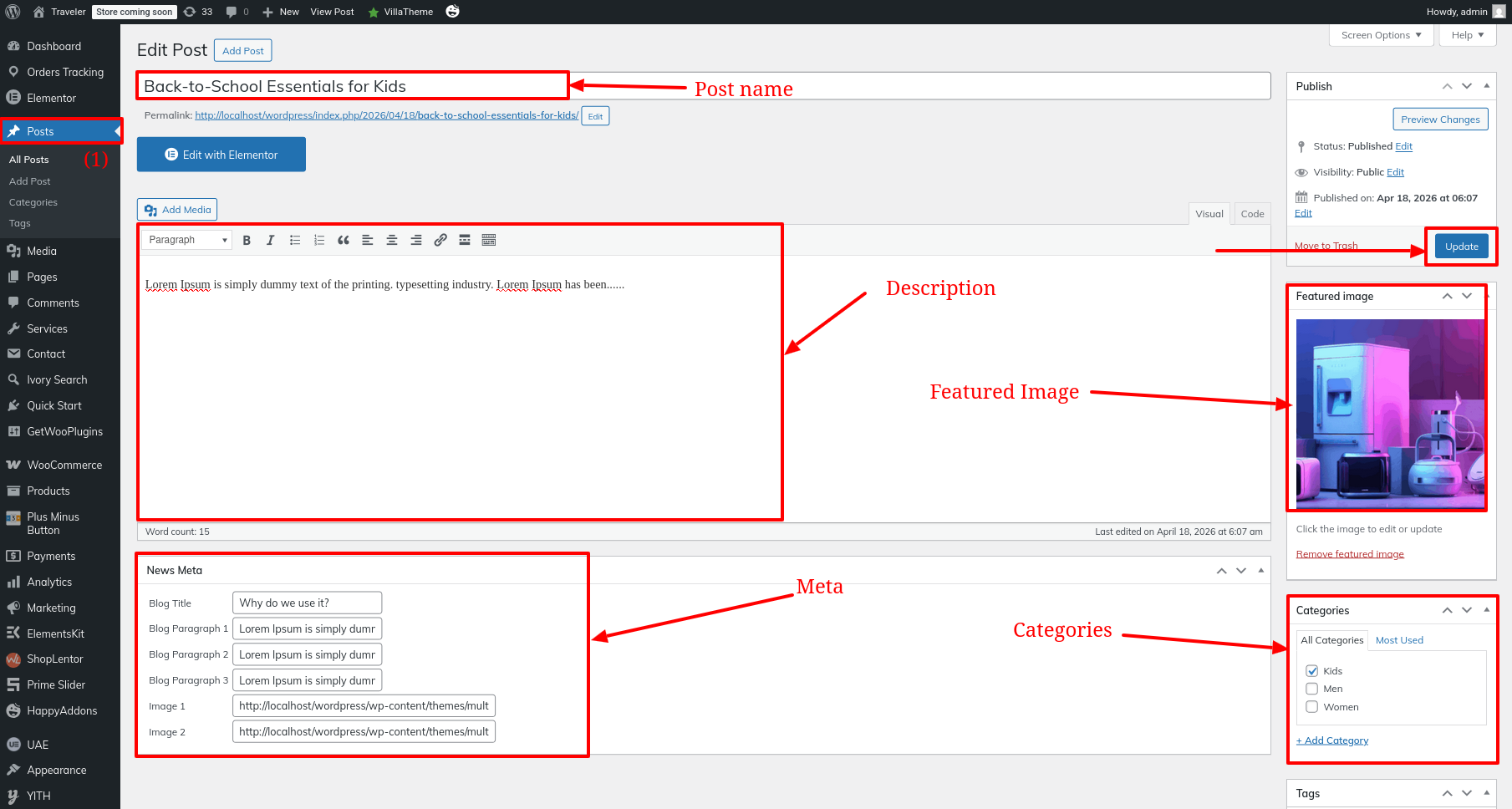
Final Progress See below for design insights.
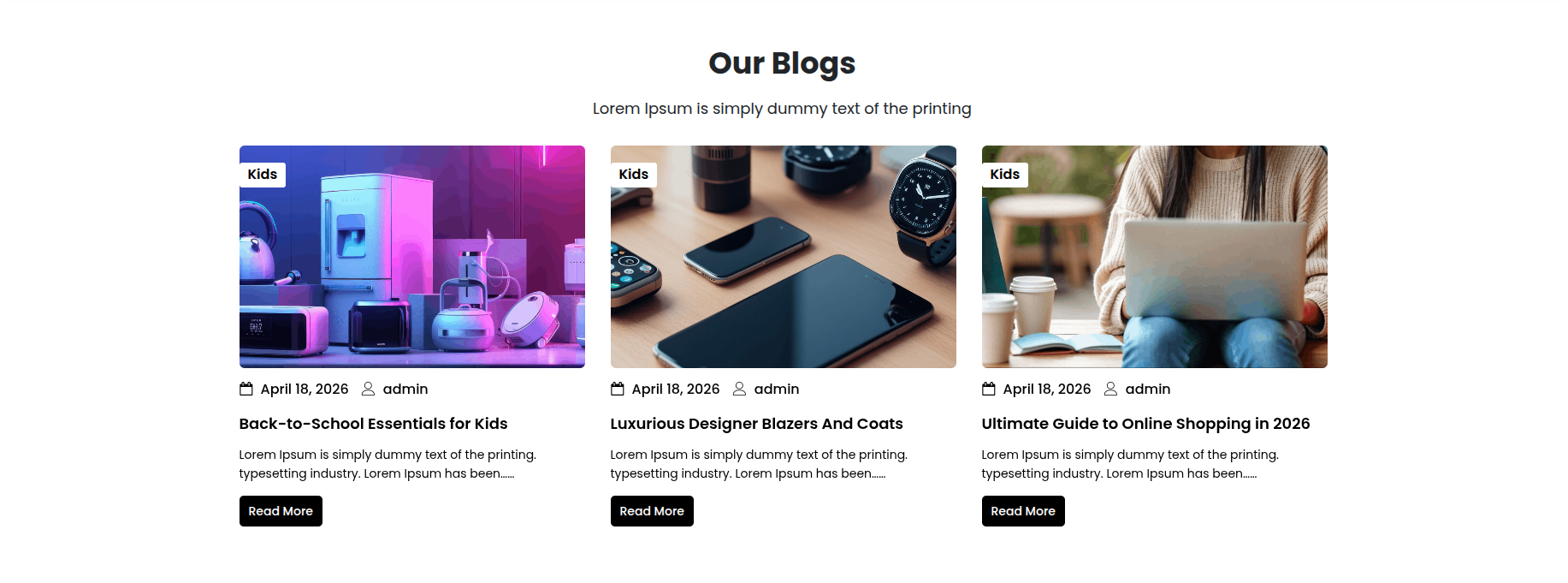
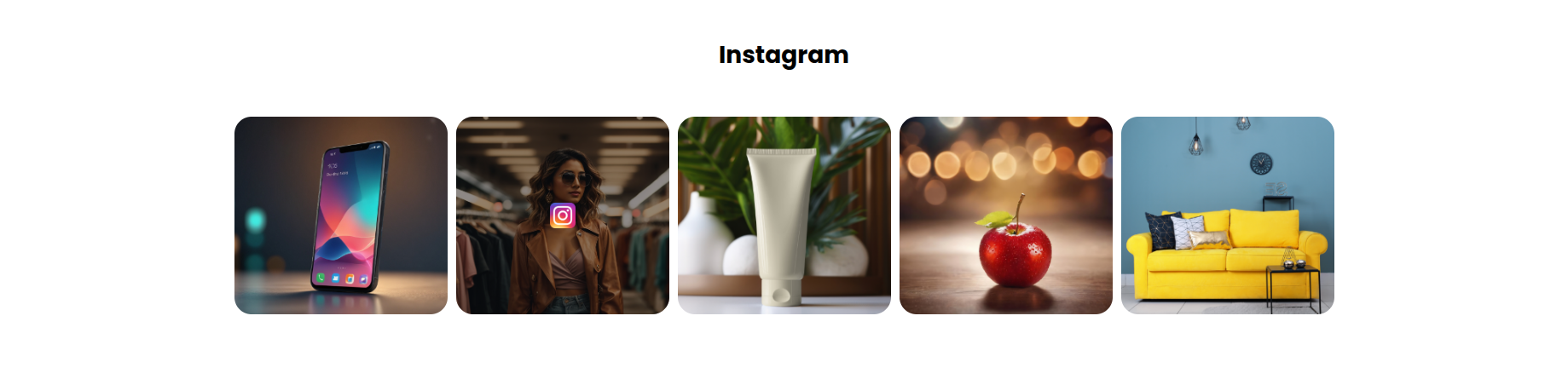
This section pertains to the Instagram Section.
Initial Progress while hitting "Dashboard" Discover "Posts" then "Edit or Add new post" MOve forward with edit post and after adding all the bllog content previous tapping "Published" .
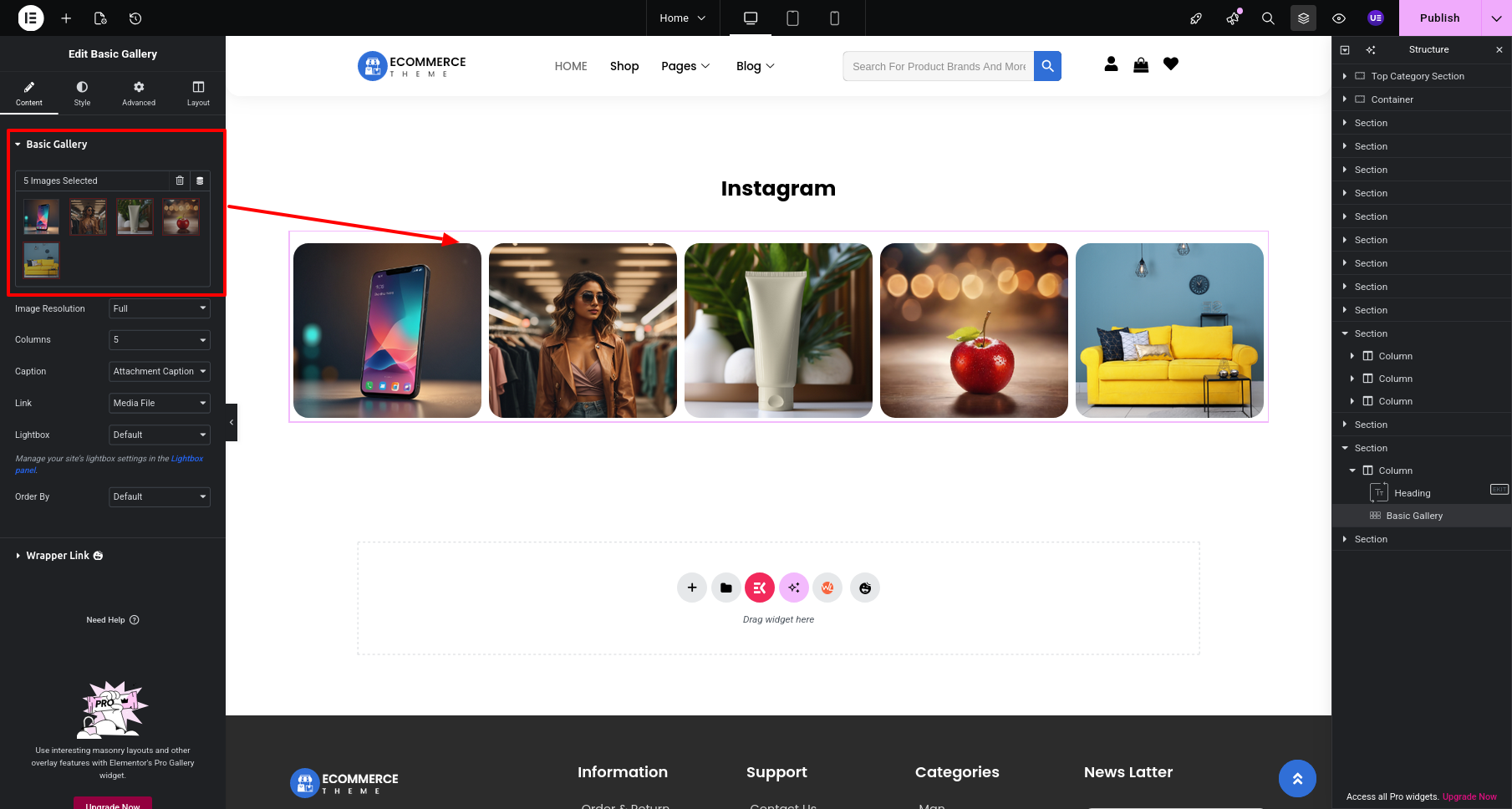
Final Progress See below for design insights.
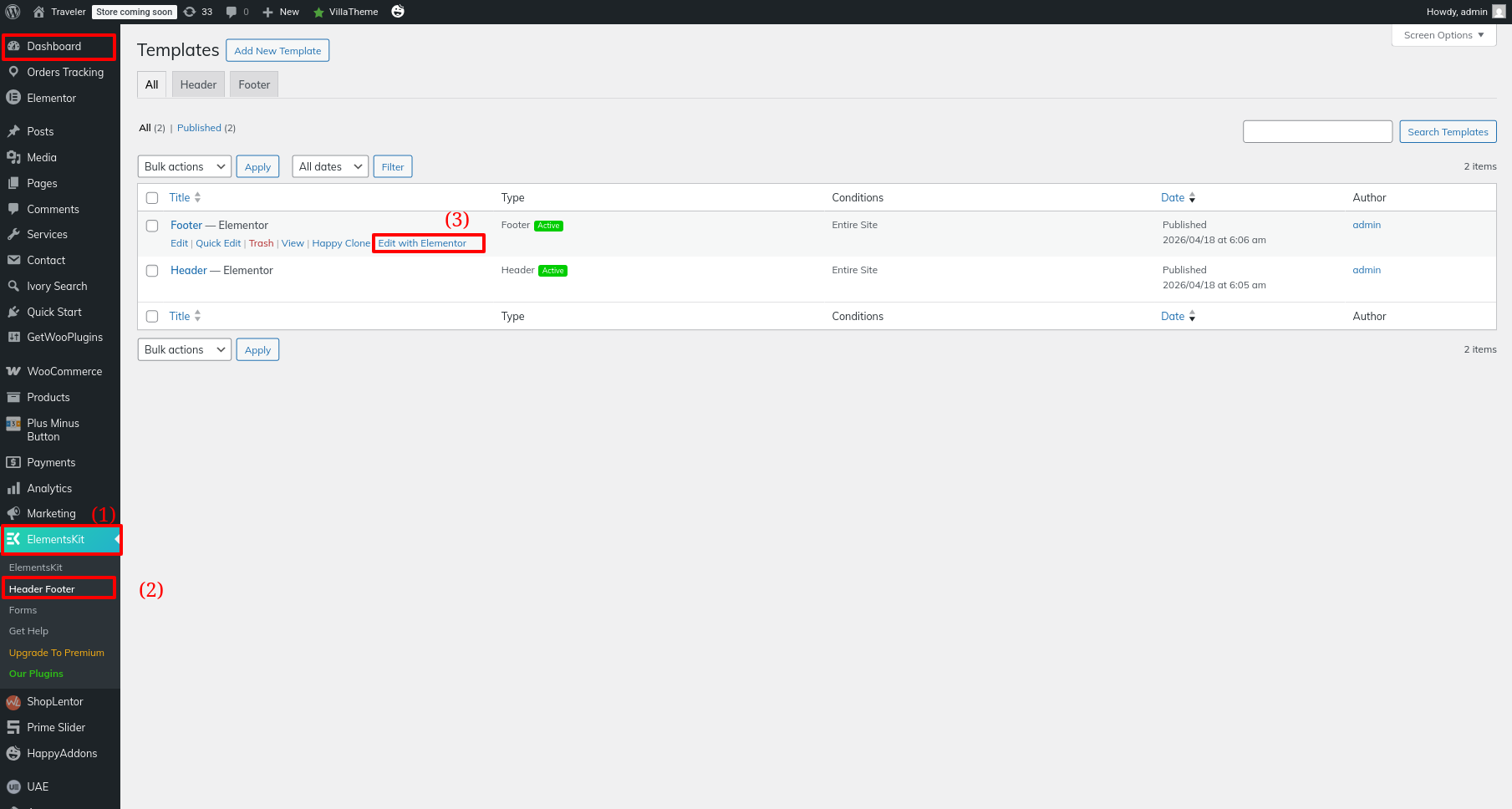
This section pertains to the Footer.
Initial Progress while hitting "Dashboard" Discover "Elements-Kit">>Footer hit edit with elementor for editing the footer section.
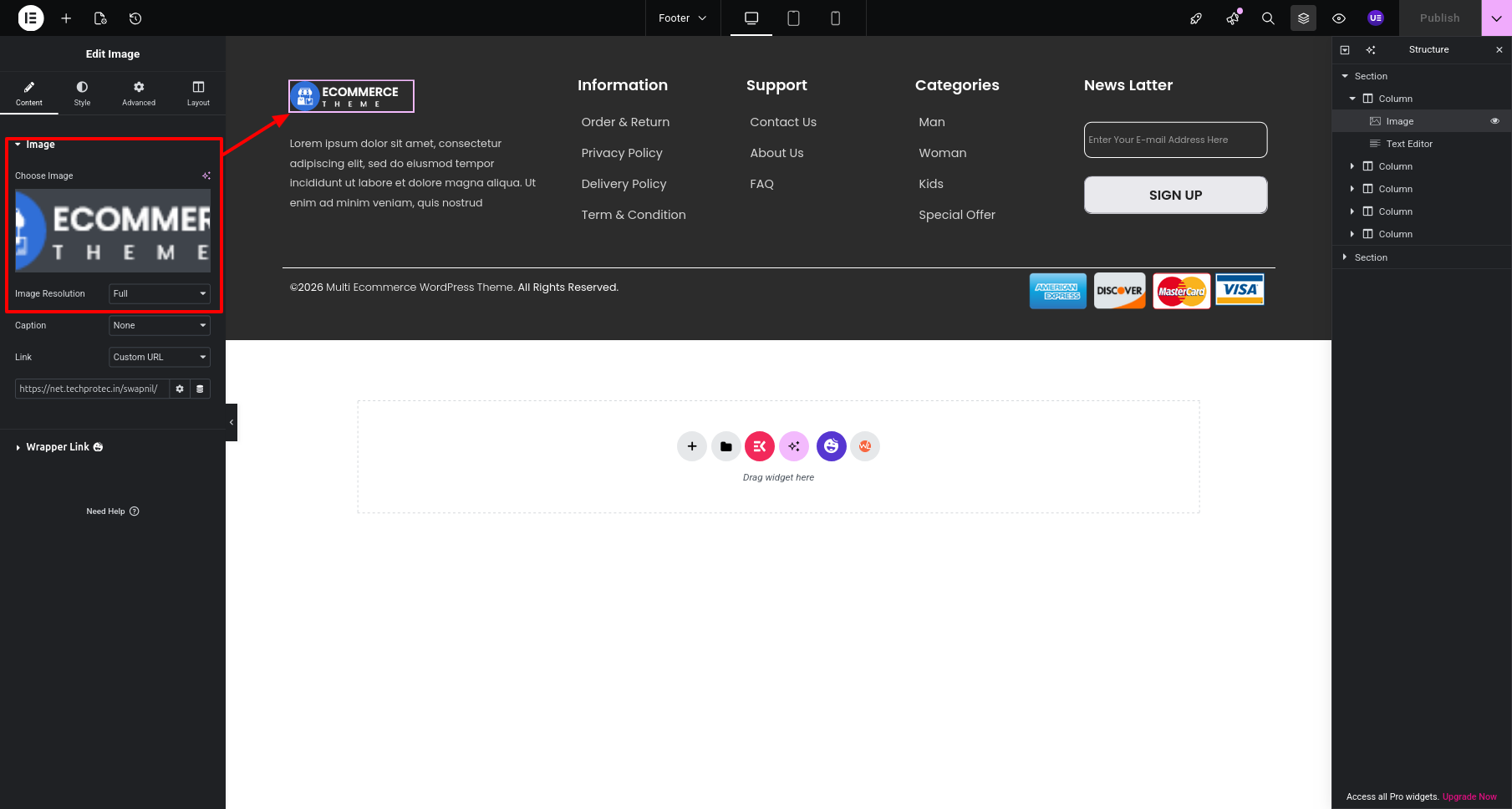
Left Columnselect the text widget and change the text.
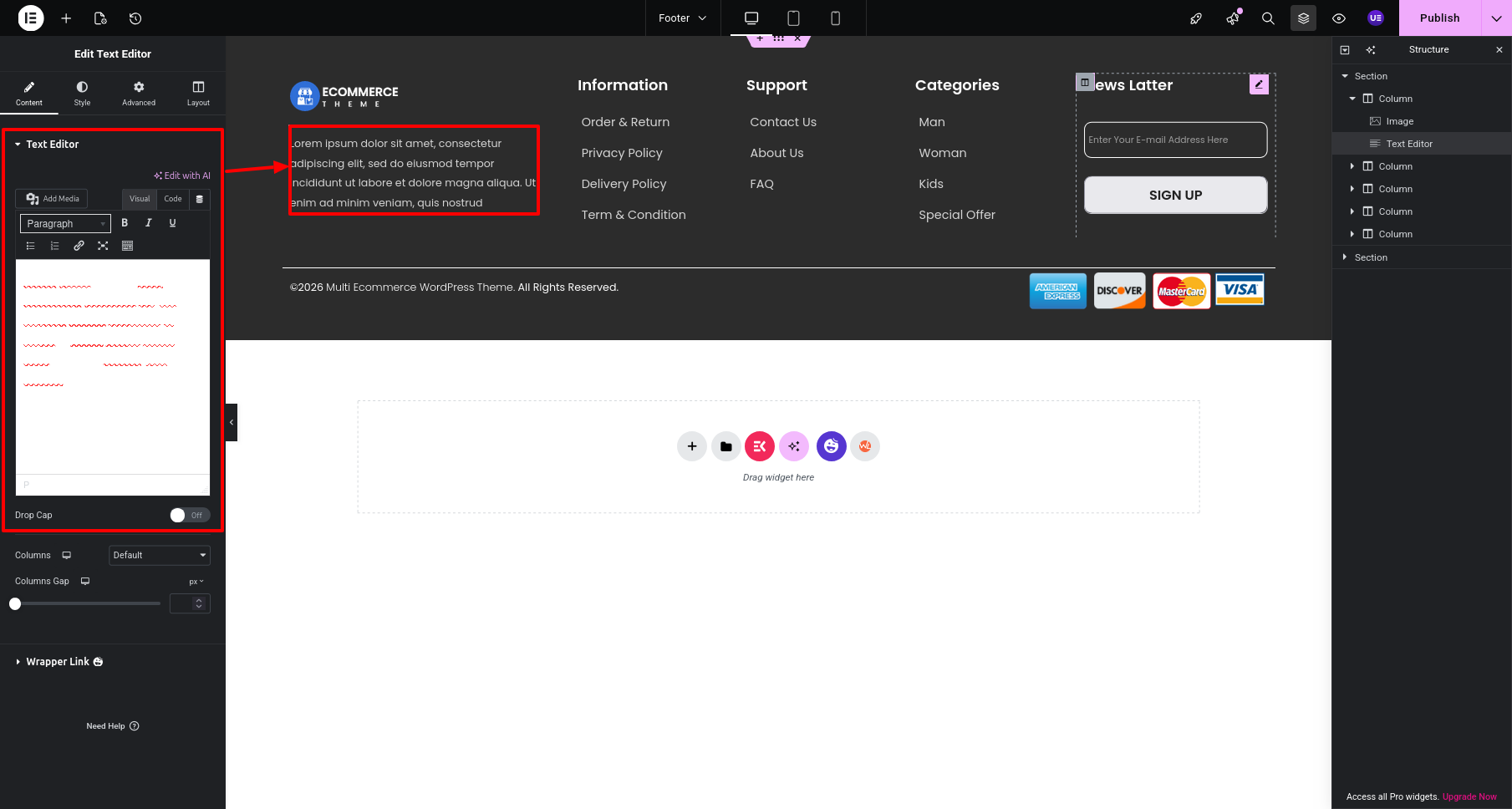
Left Column Select the Social icons and contact icons and edit the section.
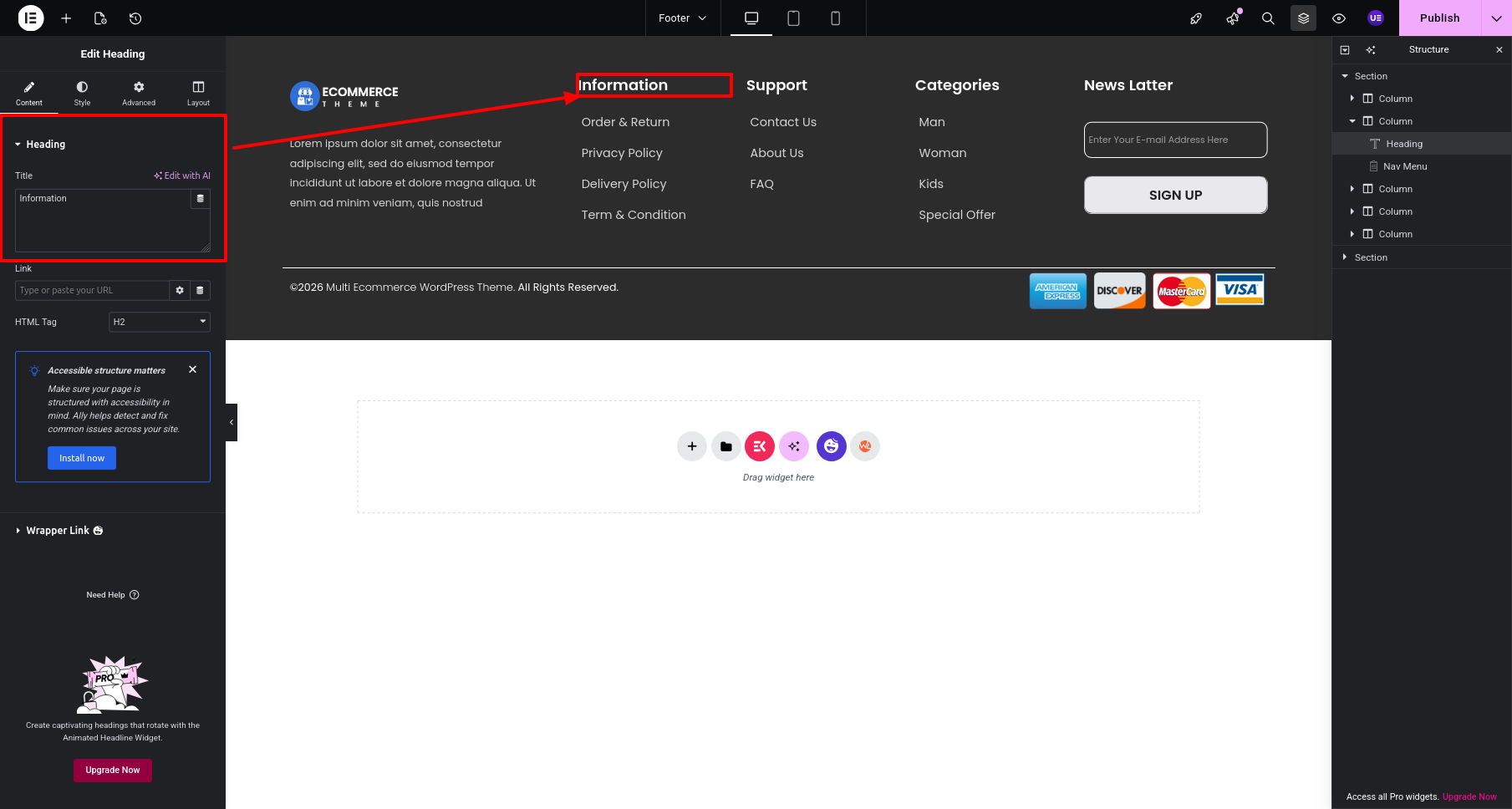
Latest post column Select the icon and change the images and edit the section.
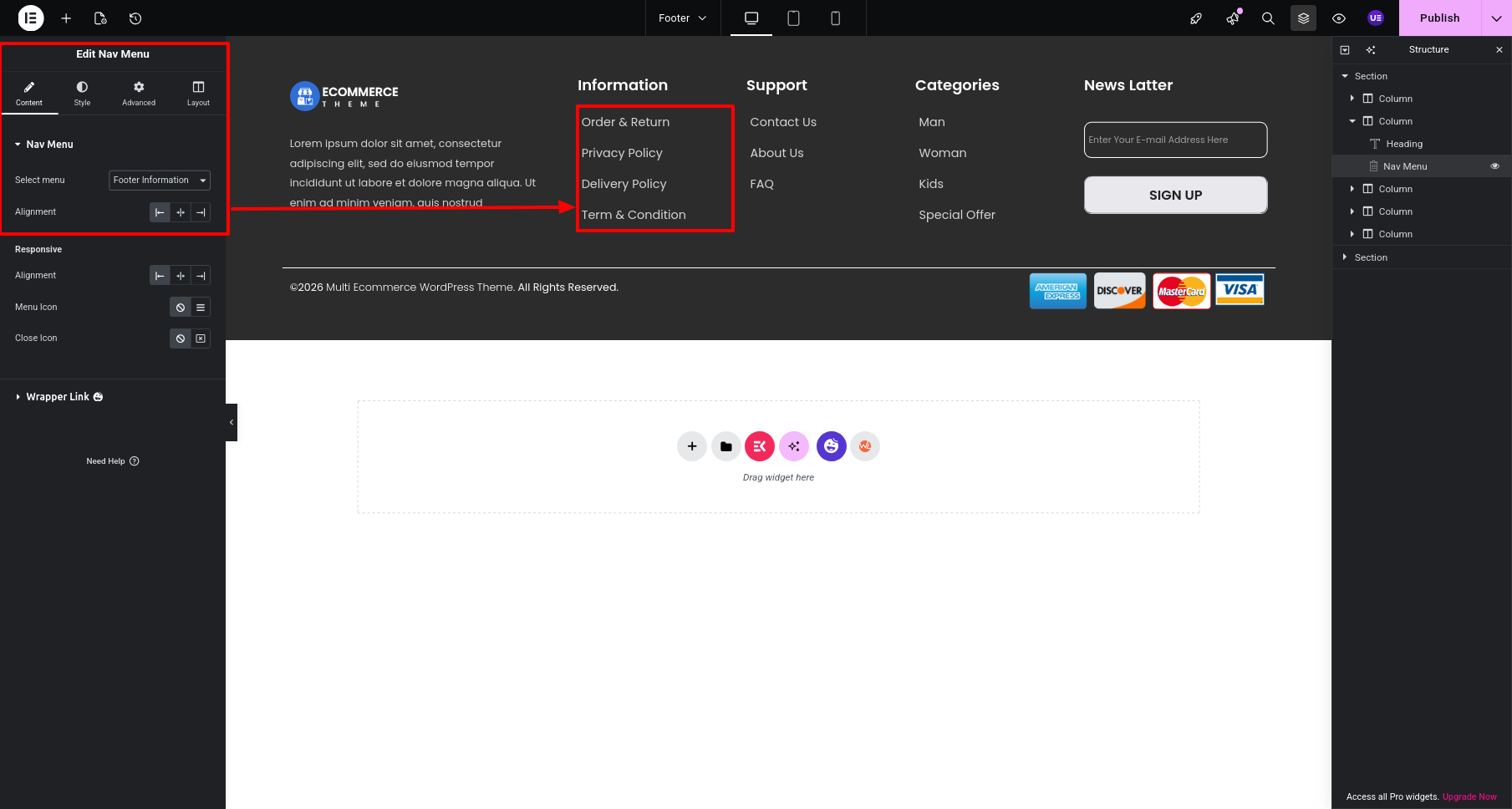
Latest post column Select the post and change or edit the post from the query
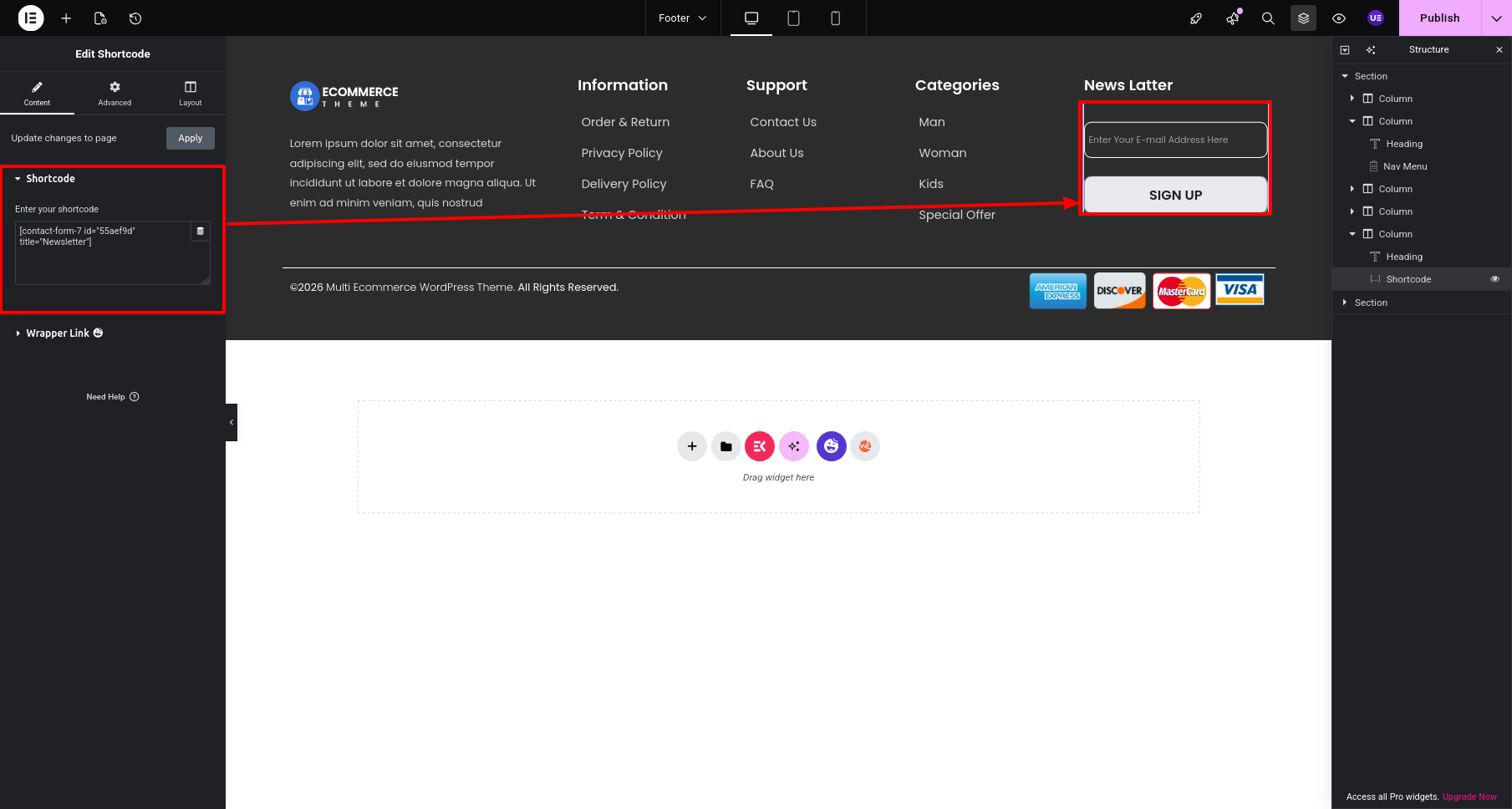
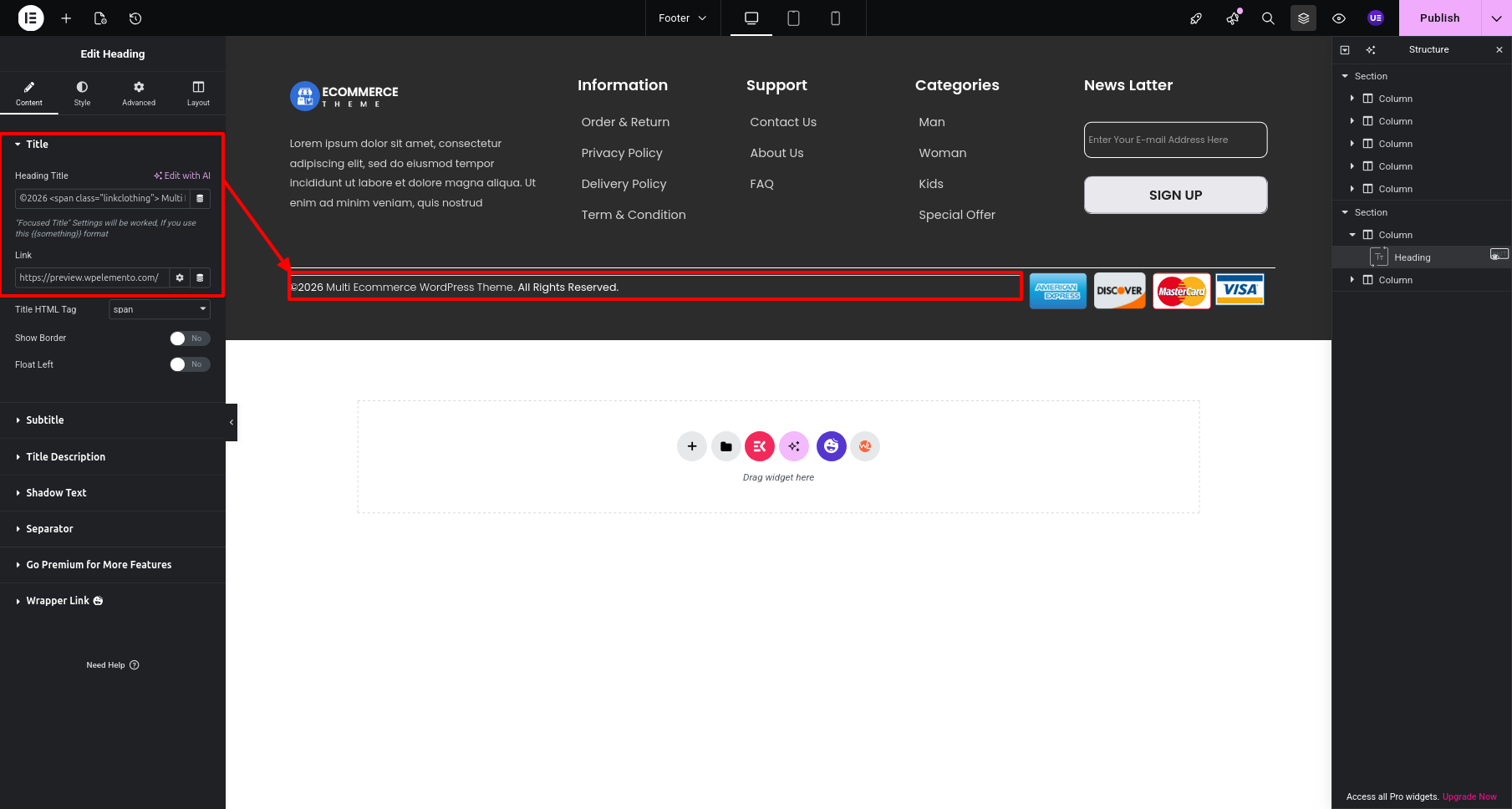
Categories column Select the Navigation Menu widget and change or edit the the menu from the query
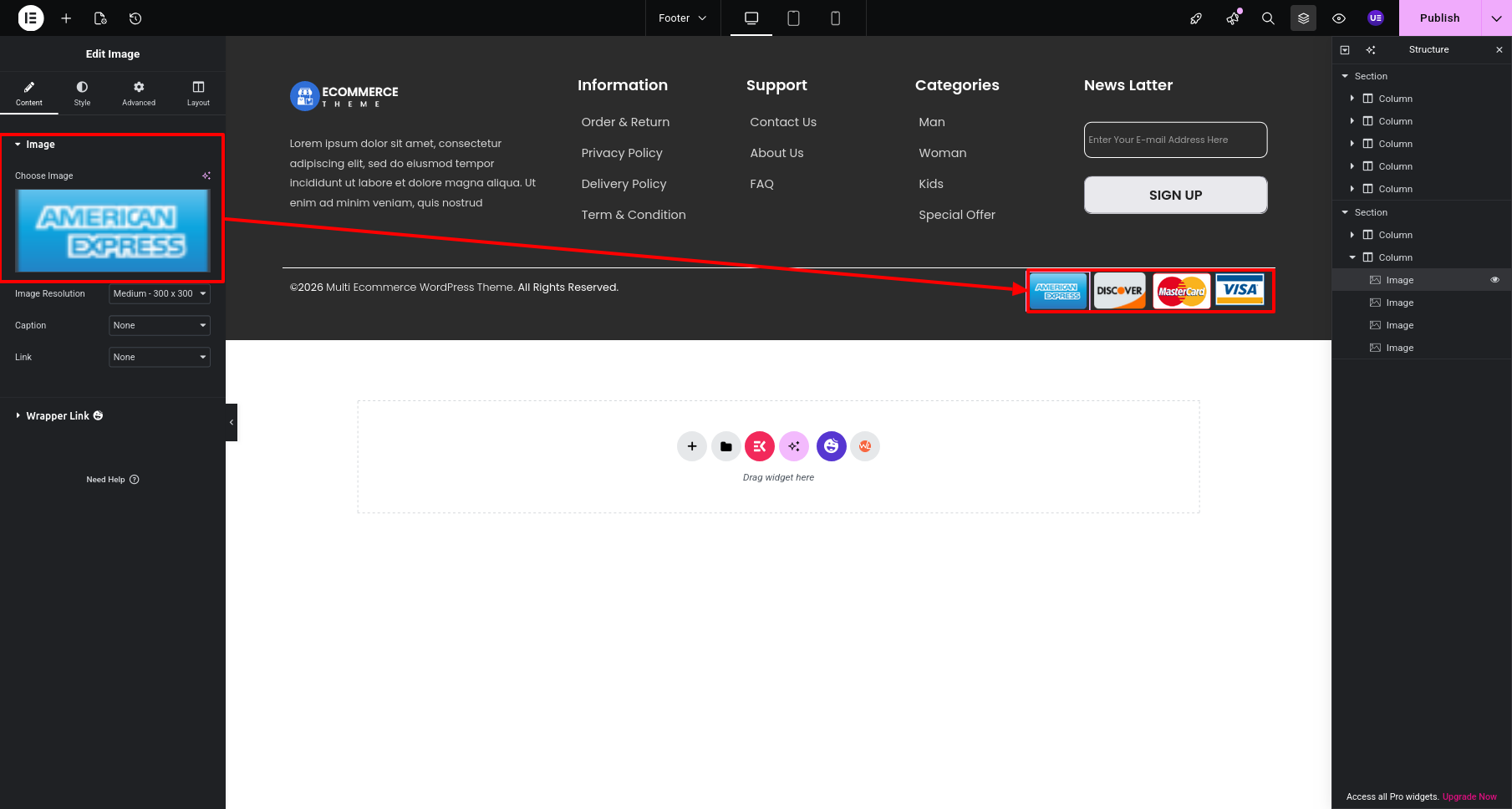
Final Progress See below for design insights.