Recognizing of the layout of folders
After installation, the bundle will display multiple directories. Below is an overview of each file and its accompanying data:
Please keep in mind that the offered snapshots are only intended to serve as templates and should not be used in actual production situations.
Theme: This location contains every requirement WordPress theme files.
"multi-purpose-free" This folder contains all of the necessary WordPress theme files.
Developing via the Template
The installation of a WordPress theme is a straightforward process that can be accomplished using one of two methods outlined below.
Initial Progress Log into your WordPress Admin as an administrator to activate the selected theme.
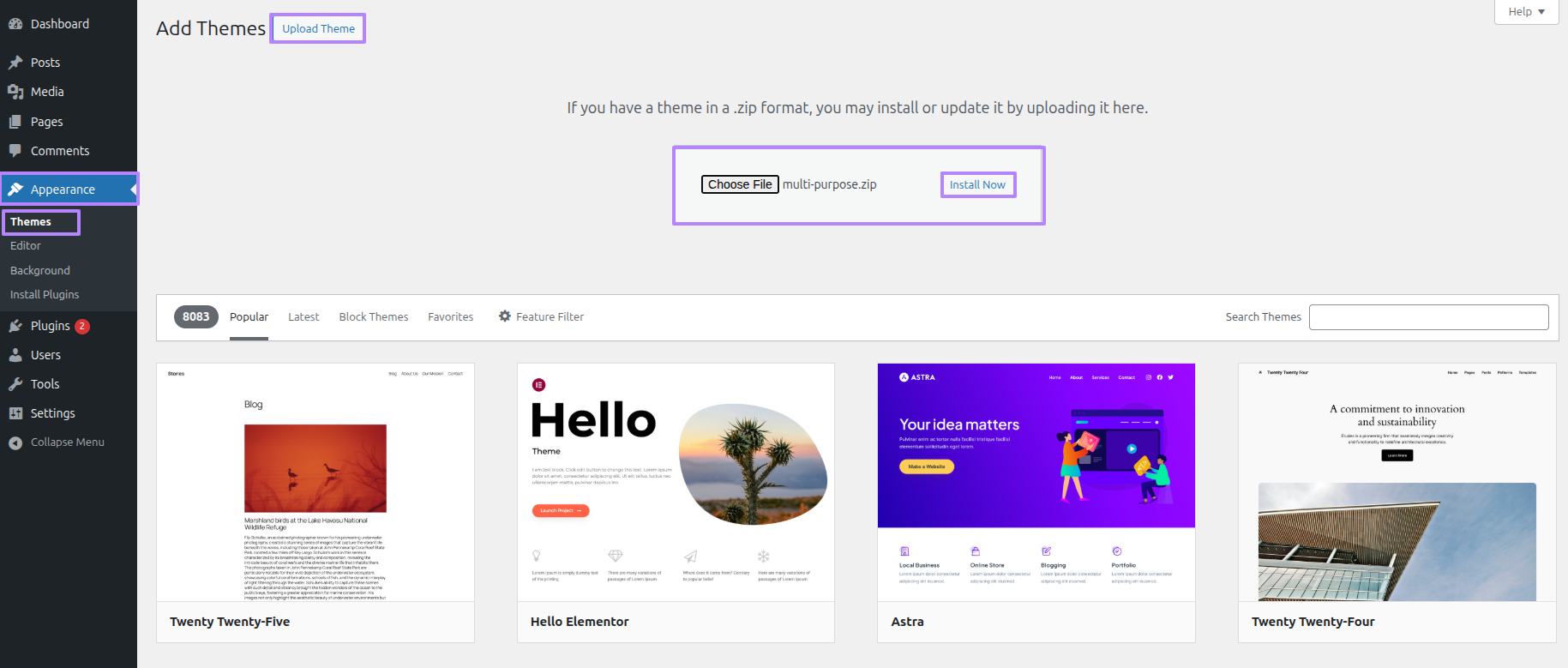
Next Progress while hitting "Dashboard" Discover "Appearance" Move forward "Themes" then "Add New" and lastly "Upload Themes" previous tapping "Install Now" .
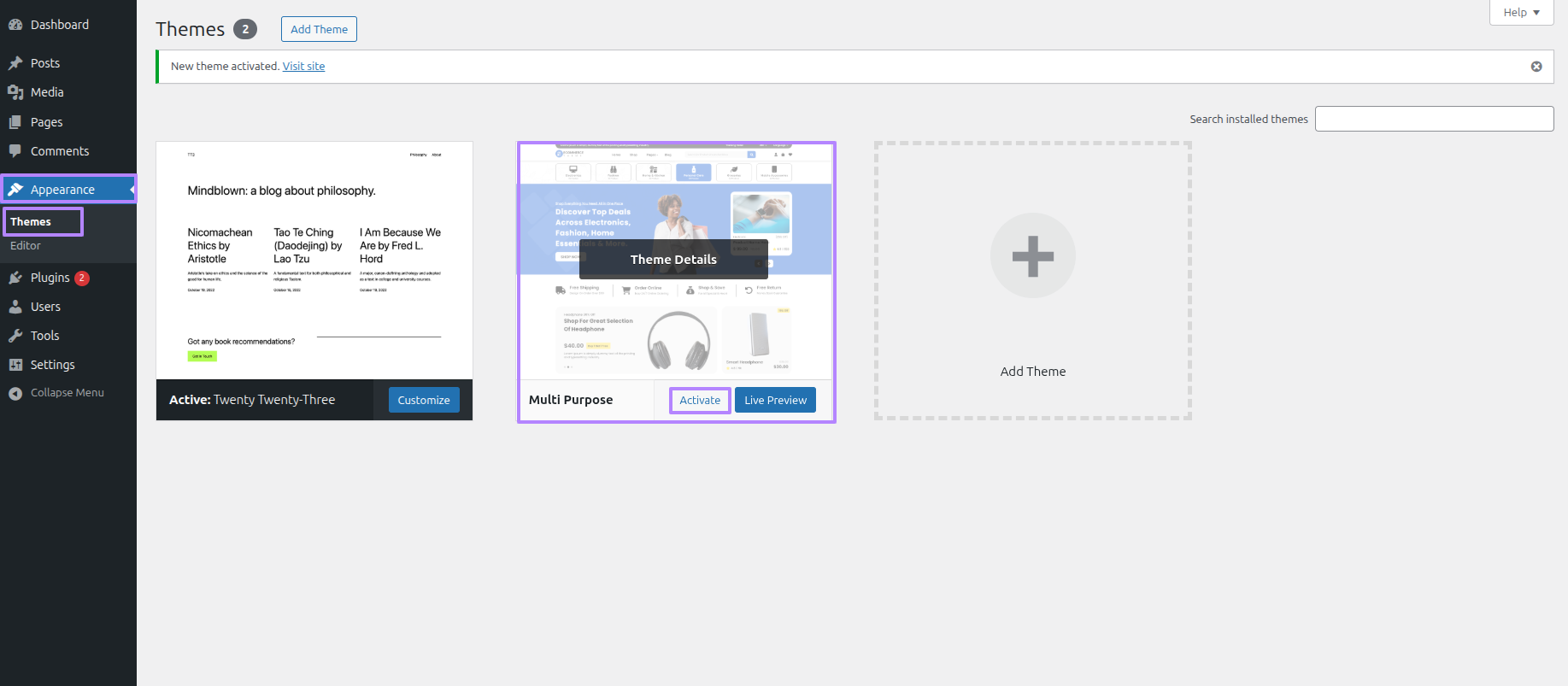
Final Process while hitting "Dashboard" Discover "Appearance" and lastly "Themes" previous tapping "Activate" .
Transmissions through FTP
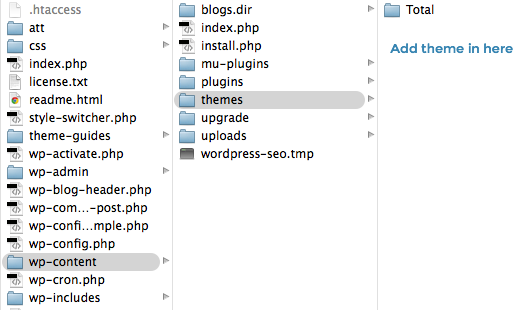
Use FTP as a last resort. Open your FTP client, log in, and locate wp-content and your theme. Download, unzip, and transfer the folder to the server's "themes" directory. The new template will show under "Appearance" in your WordPress Dashboard.
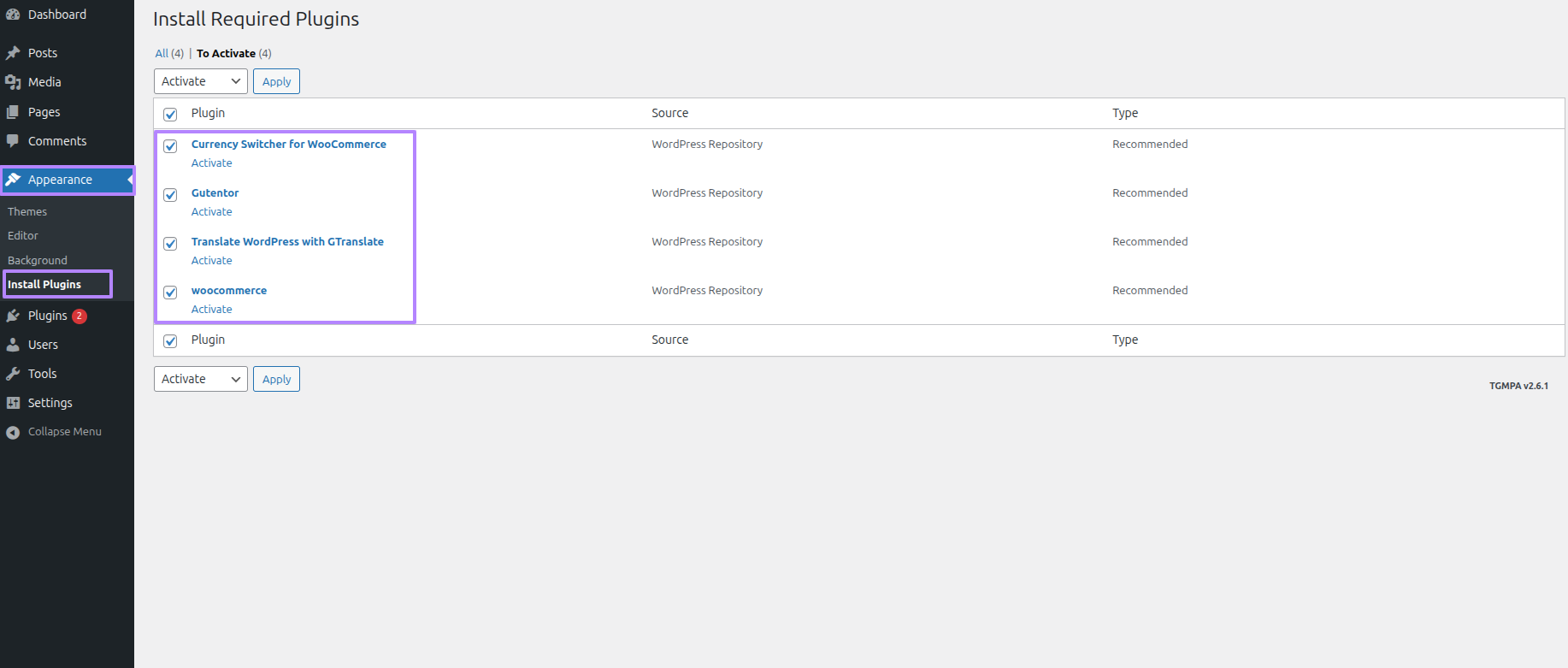
Applying the Plugins as the outset.
Initial Progress while hitting "Dashboard" Discover "Appearance" and lastly "Install Plugins" previous tapping "Install Now" .
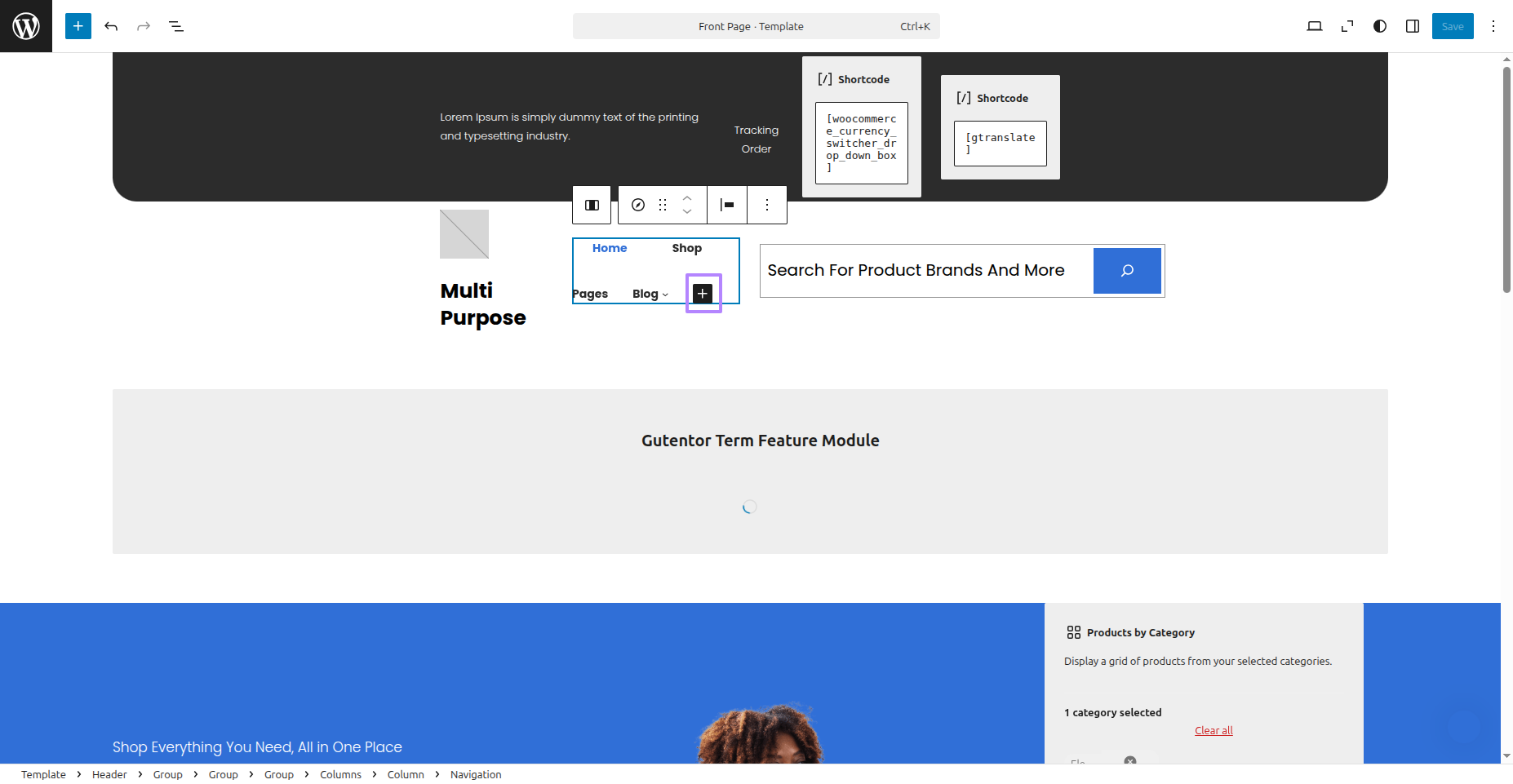
This section pertains to the Navigation reference.
Initial Progress while hitting "Dashboard" Discover "Editor" then "Menu" and lastly "+ Icon" .
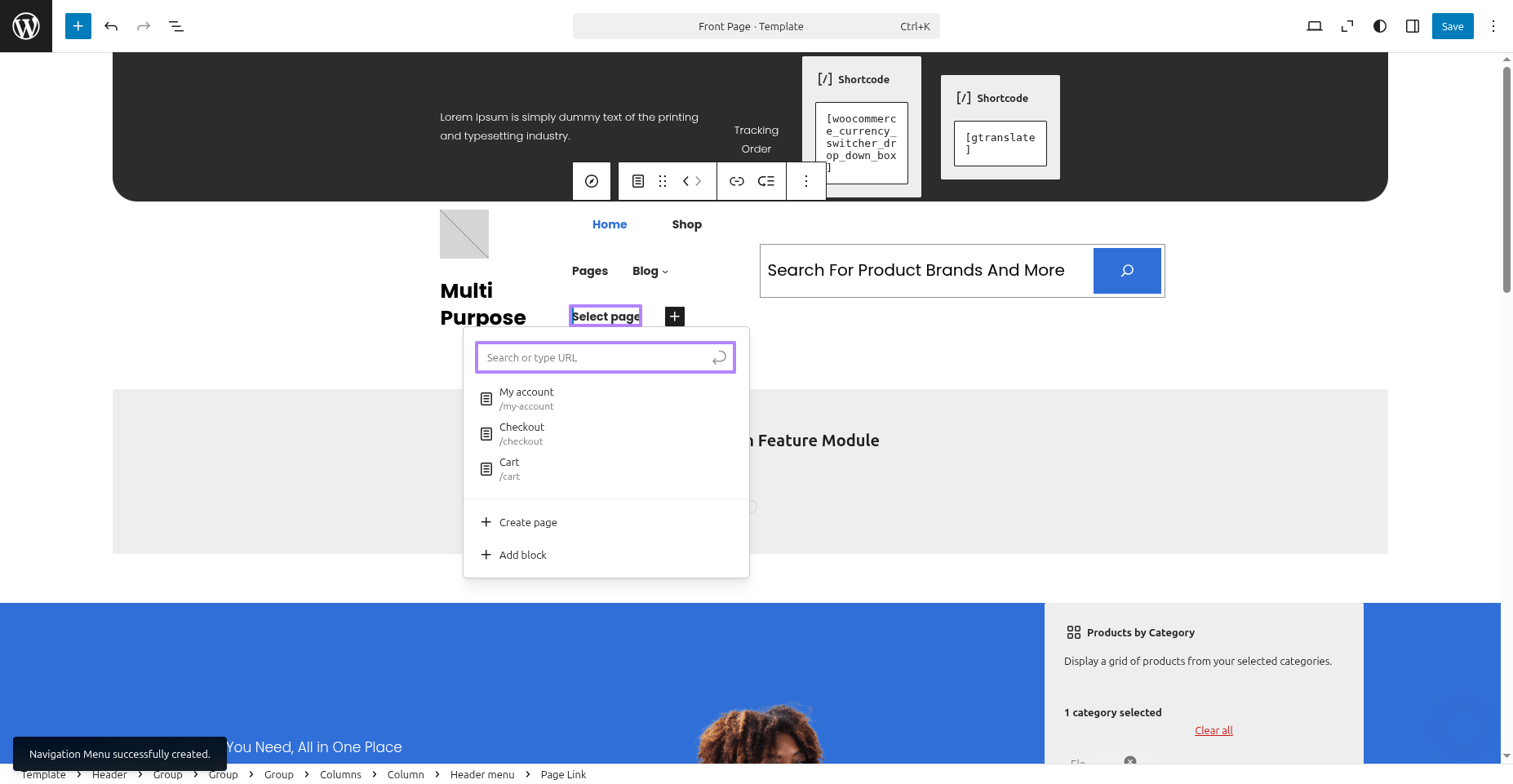
Final Progress while hitting "Dashboard" Discover "Editor" then "Menu" and lastly "Add Link" .
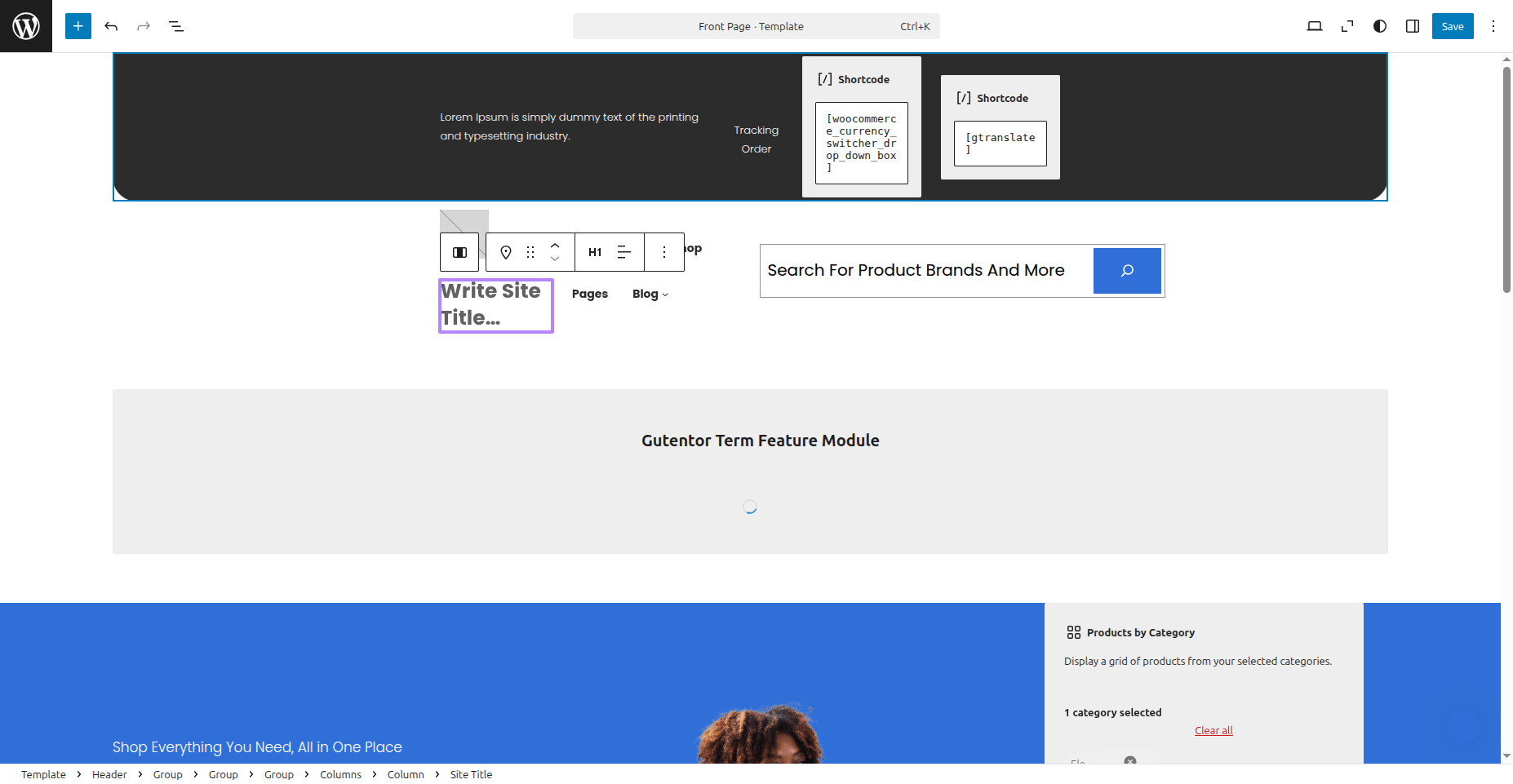
This section pertains to the Site Identity reference.
Initial Progress while hitting "Dashboard" Discover "Editor" then "Header" and lastly "Write Site Title" .
Final Progress See below for design insights.

This section pertains to the Header reference.
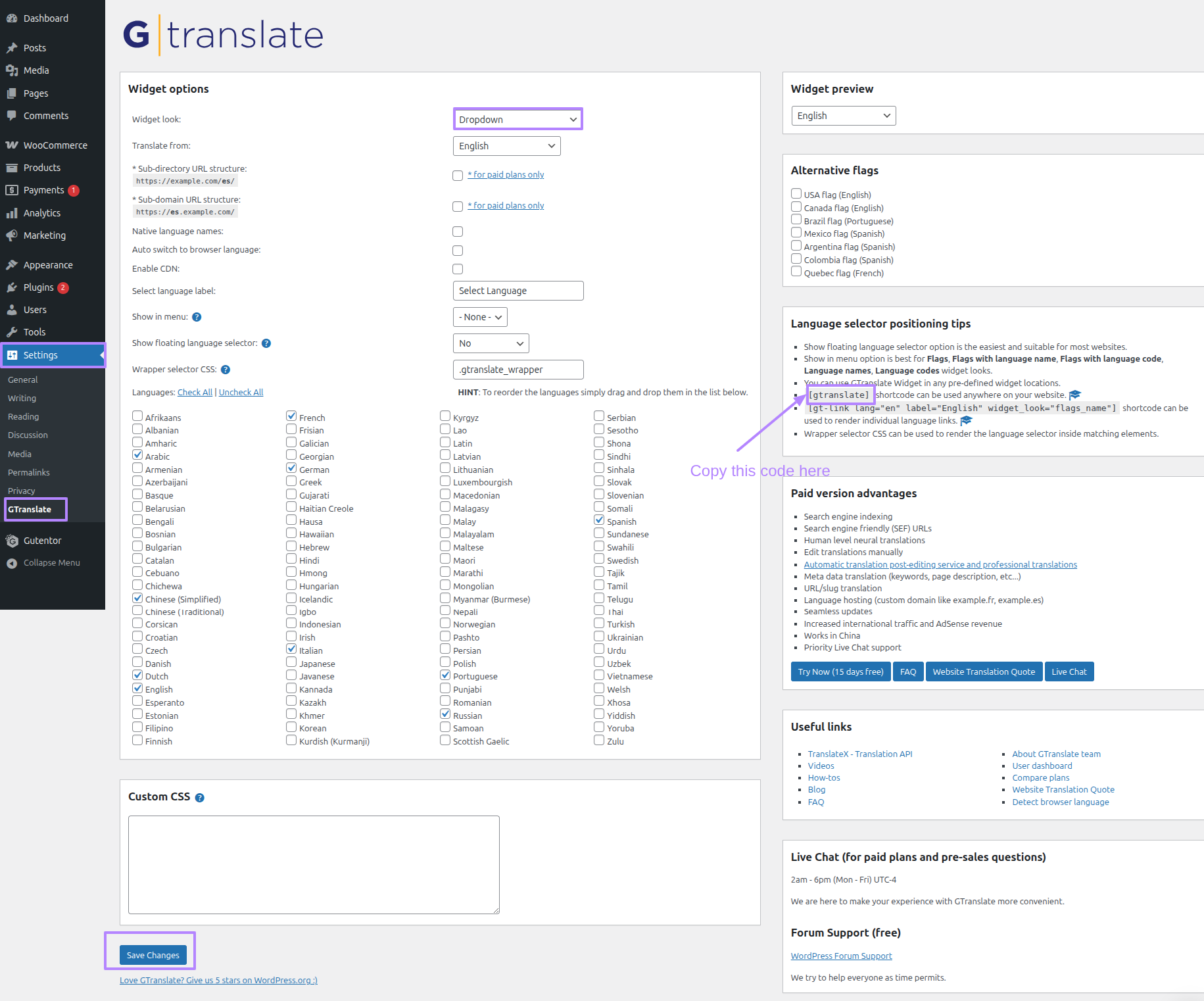
Initial Progress while hitting "Dashboard" Discover "Settings" and lastly "Gtranslate" .
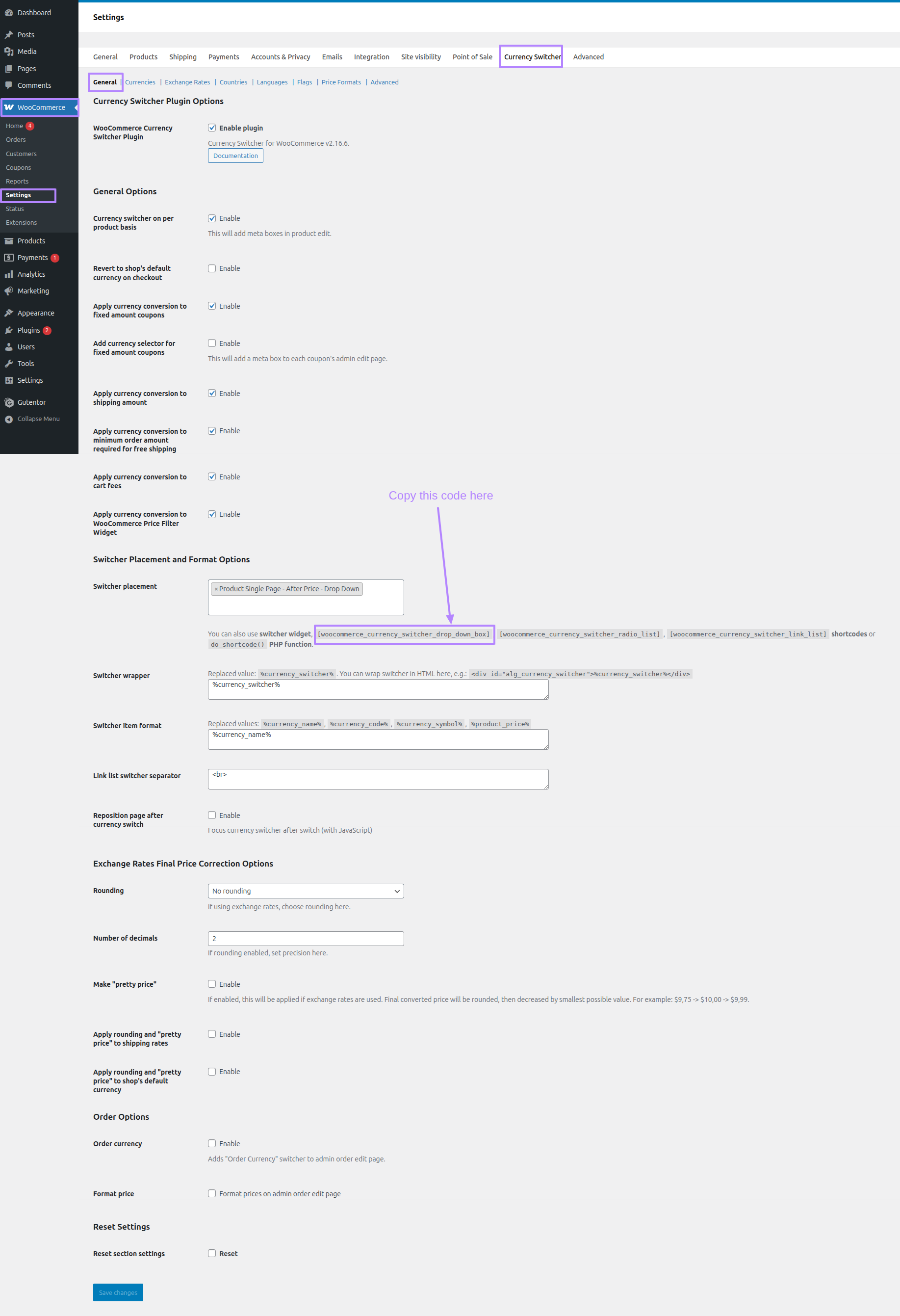
Second Progress while hitting "Dashboard" Discover "WooCommerce" Discover "Settings" Discover " Currency Switcher" and lastly "General" .
Third Progress while hitting "Dashboard" Discover "Editor" and lastly "Main Header" .
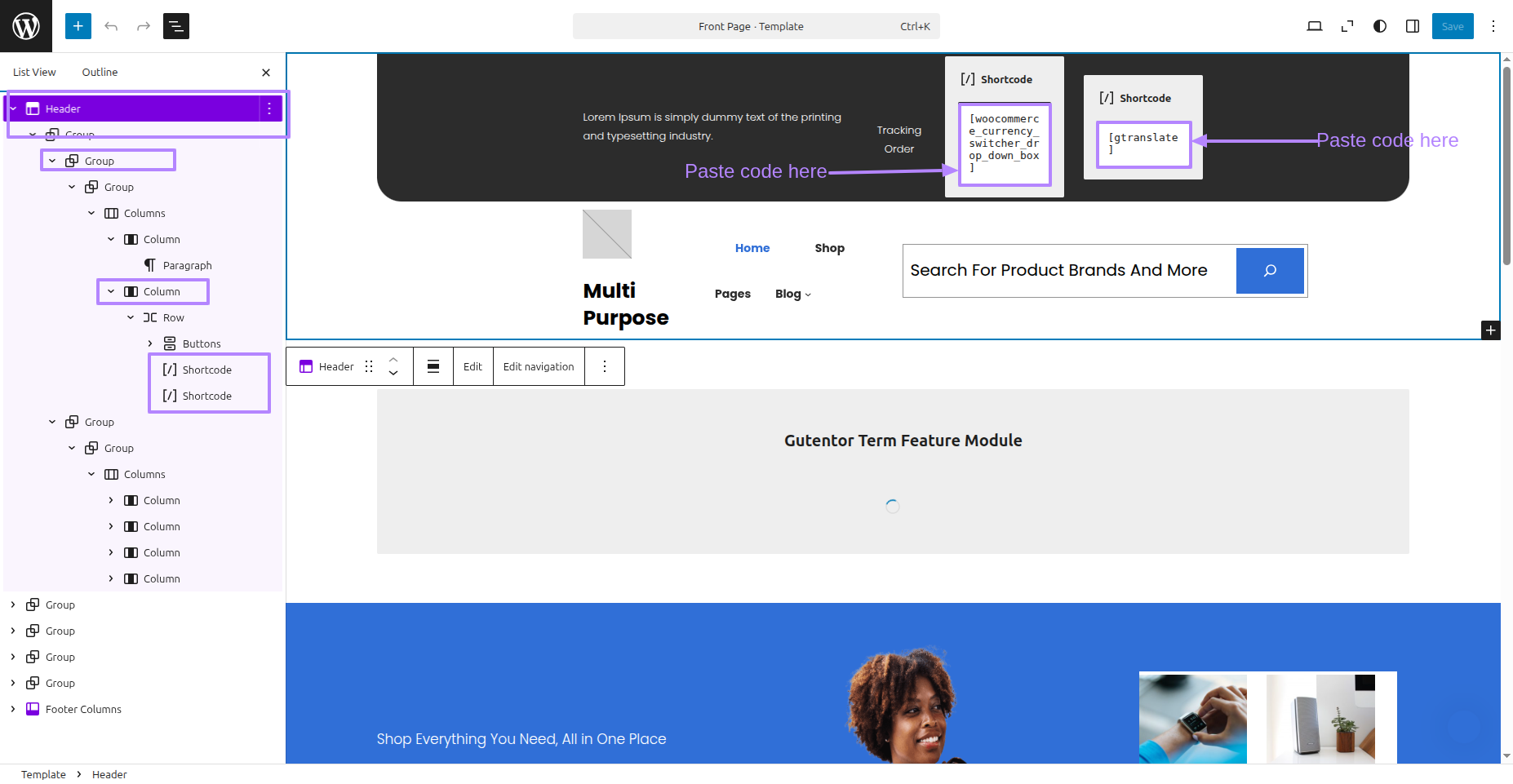
Final Progress See below for design insights.
This section pertains to the Products Category reference.
So you are seeing the static category; to view the dynamic category, follow the steps given below.

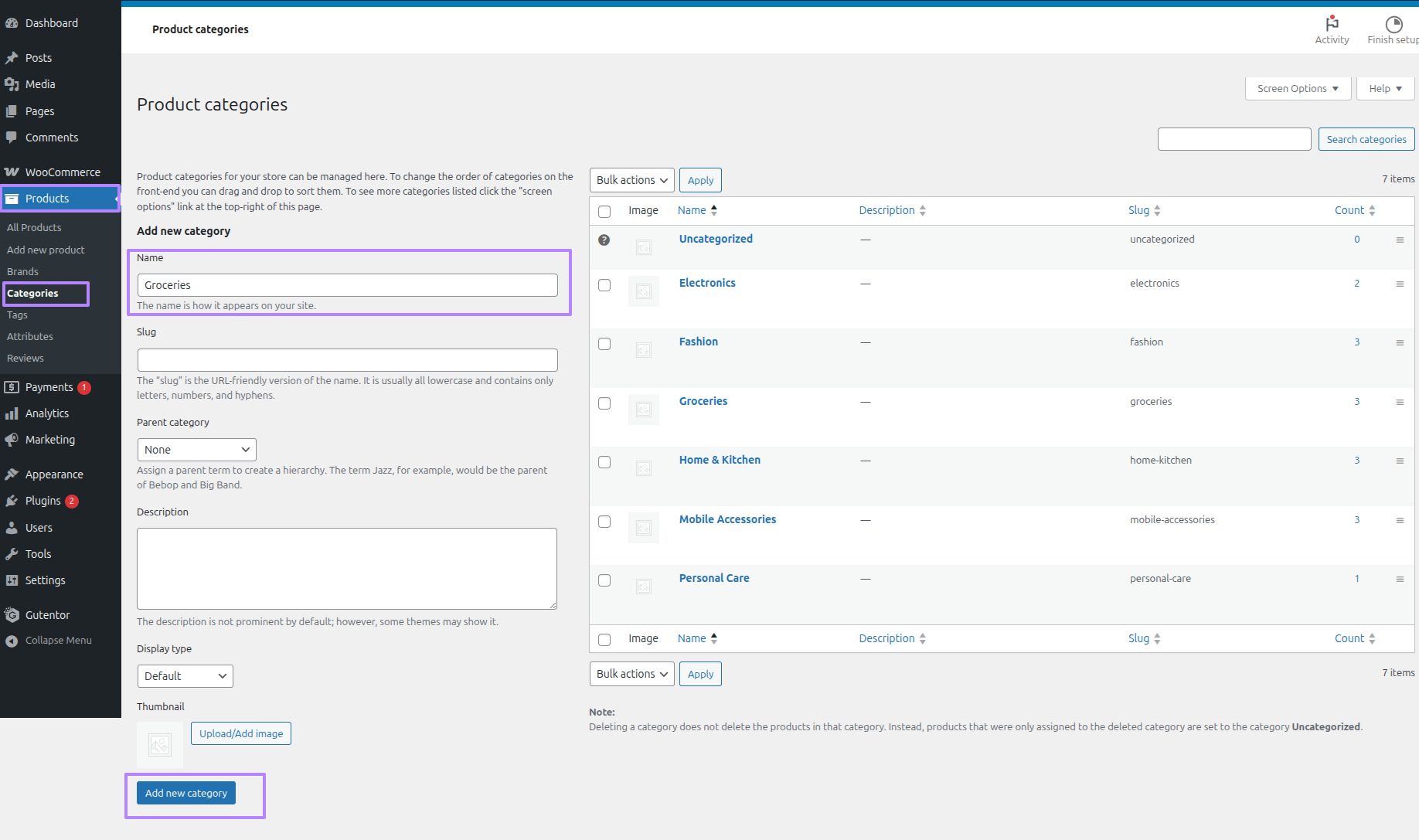
Initial Progress while hitting "Dashboard" Discover "Products" and lastly "Categories".
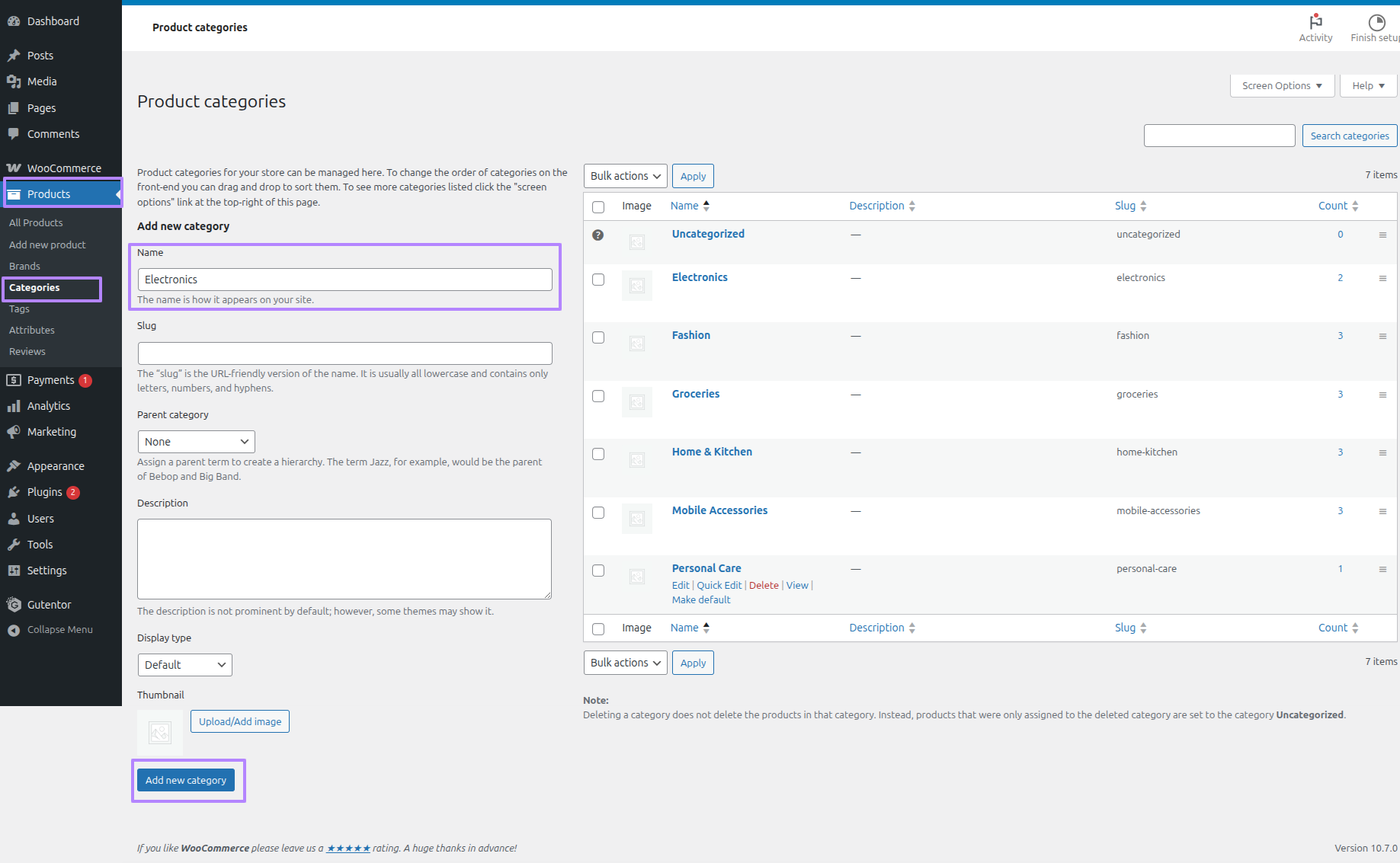
Once you create categories, you will then be able to create products. You need to fetch those, after which it will display the categories.
Second Progress while hitting "Dashboard" Discover "Products" and lastly "Add New Products".
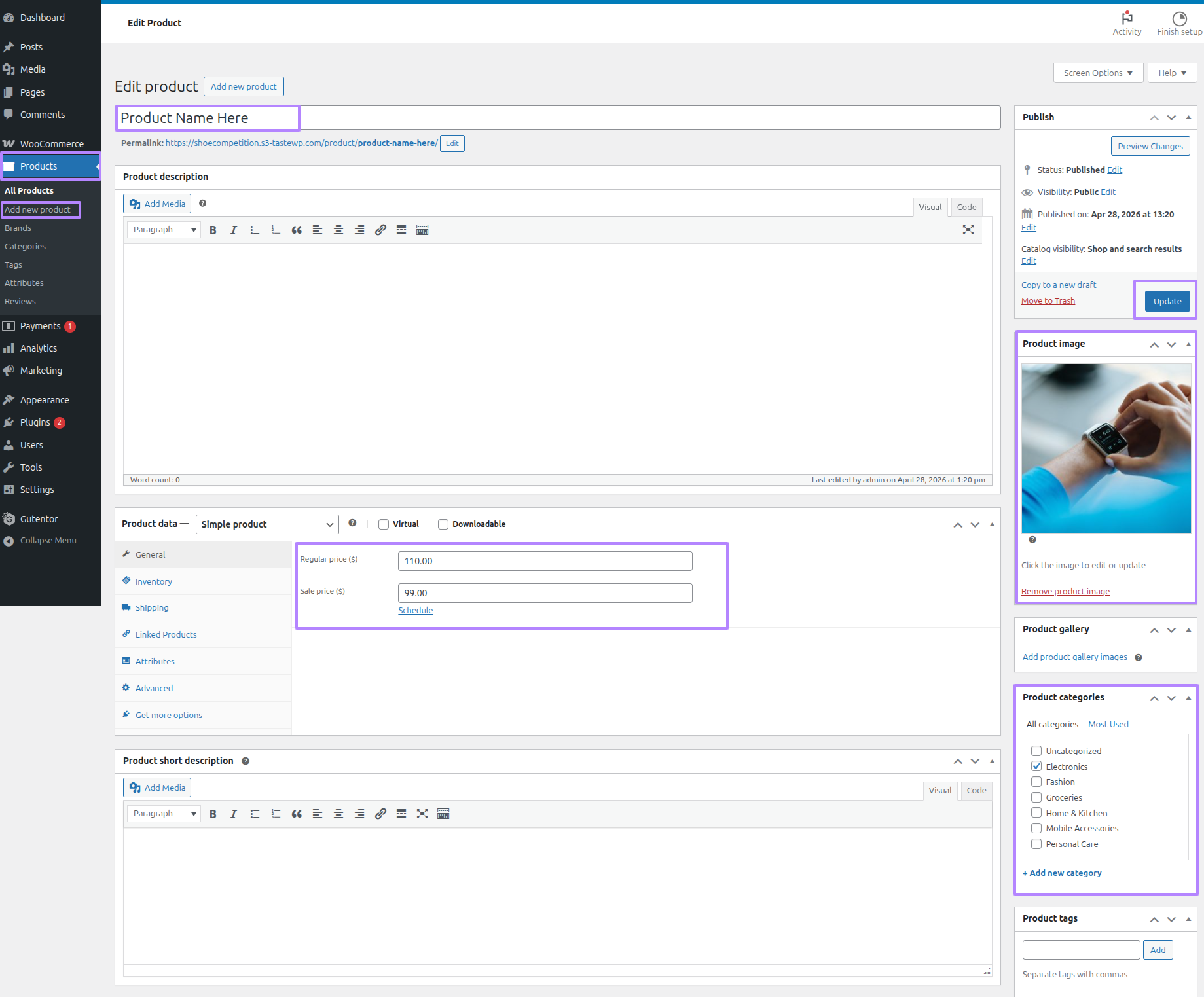
Third Progress while hitting "Dashboard" Discover "Editor" and lastly "Group" .
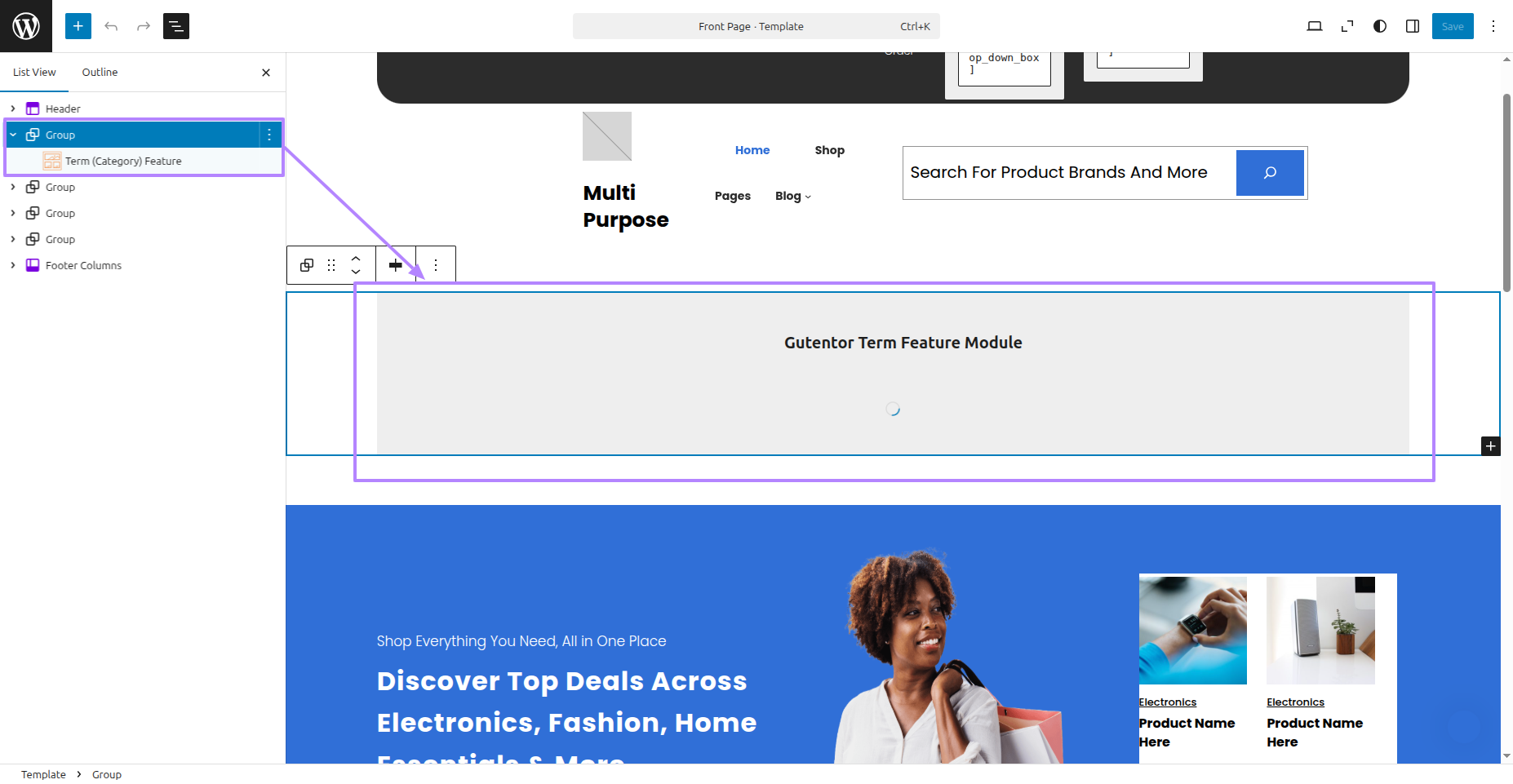
Final Progress See below for design insights.

This section pertains to the Banner reference.
You might be seeing static products; for dynamic products, please follow the steps given below.
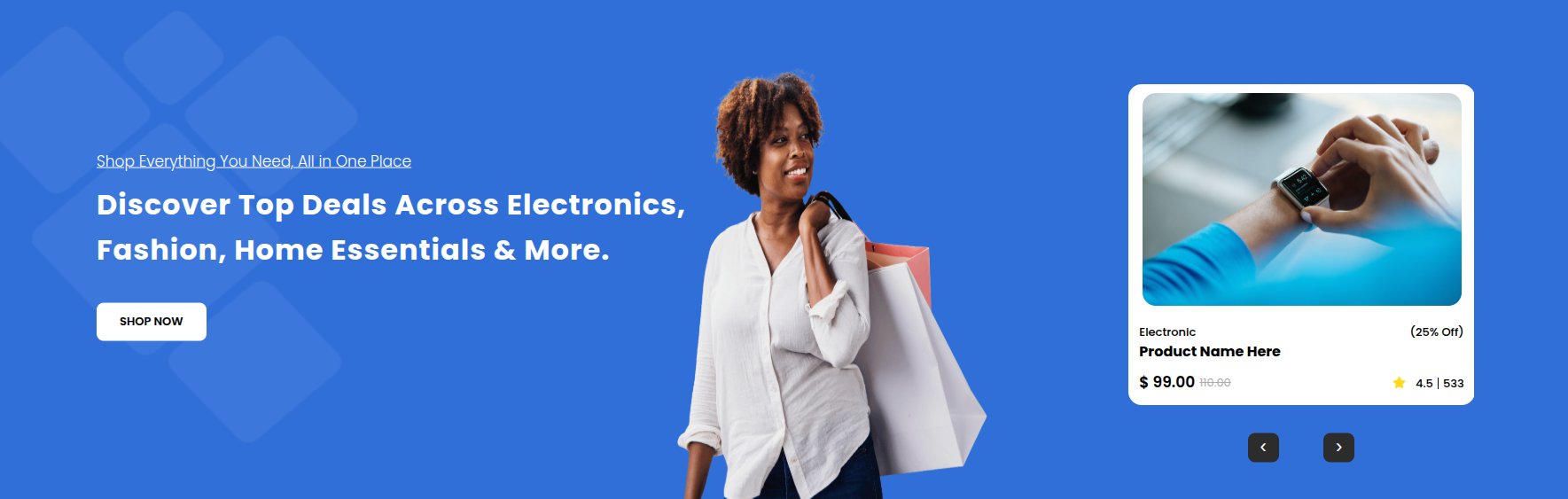
Initial Progress while hitting "Dashboard" Discover "Products" and lastly "Categories".
Second Progress while hitting "Dashboard" Discover "Products" and lastly "Add New Products".
Third Progress while hitting "Dashboard" Discover "Editor" and lastly "Group" .
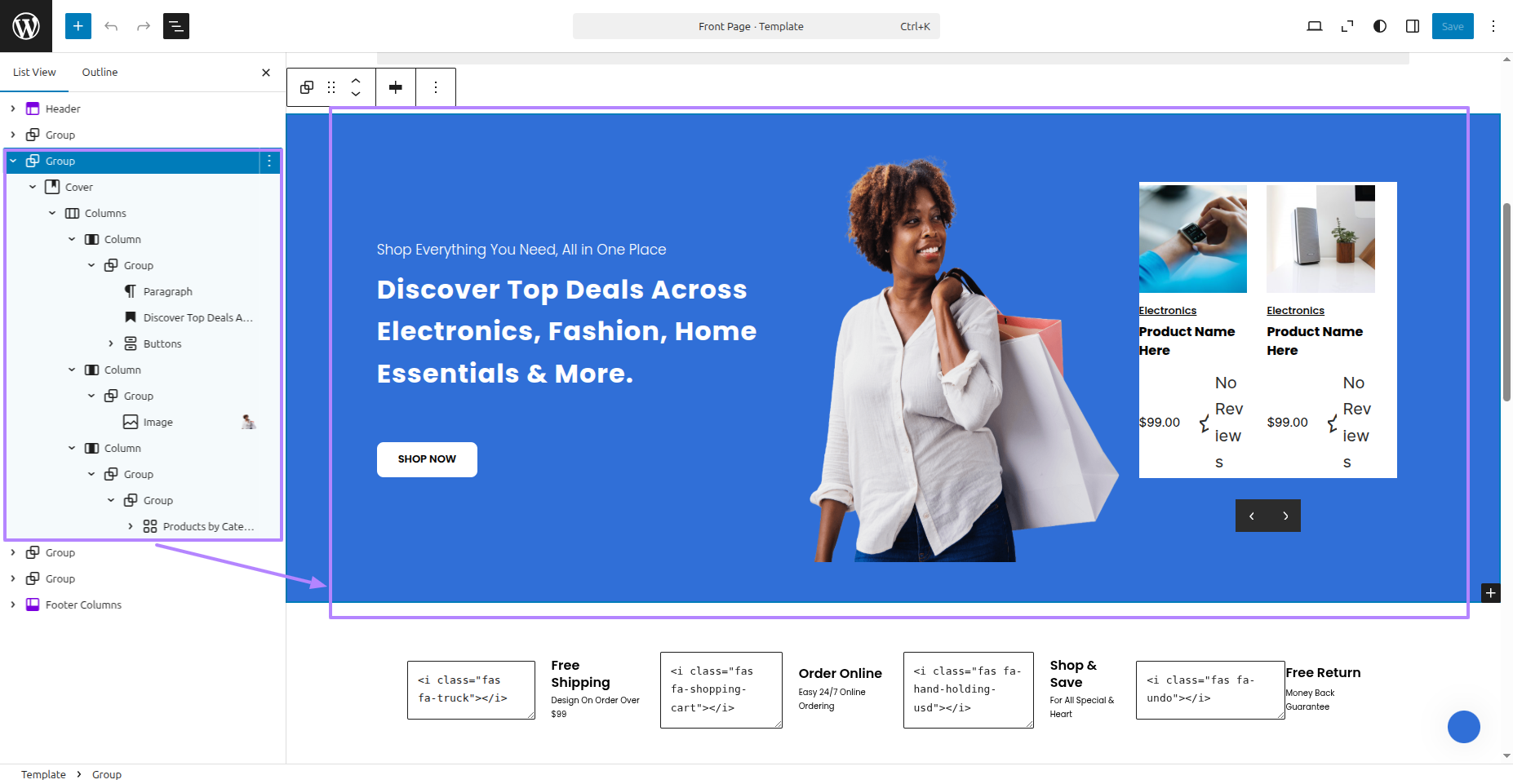
Final Progress See below for design insights.

This section pertains to the Services reference.
Initial Progress while hitting "Dashboard" Discover "Editor" and lastly "Group" .
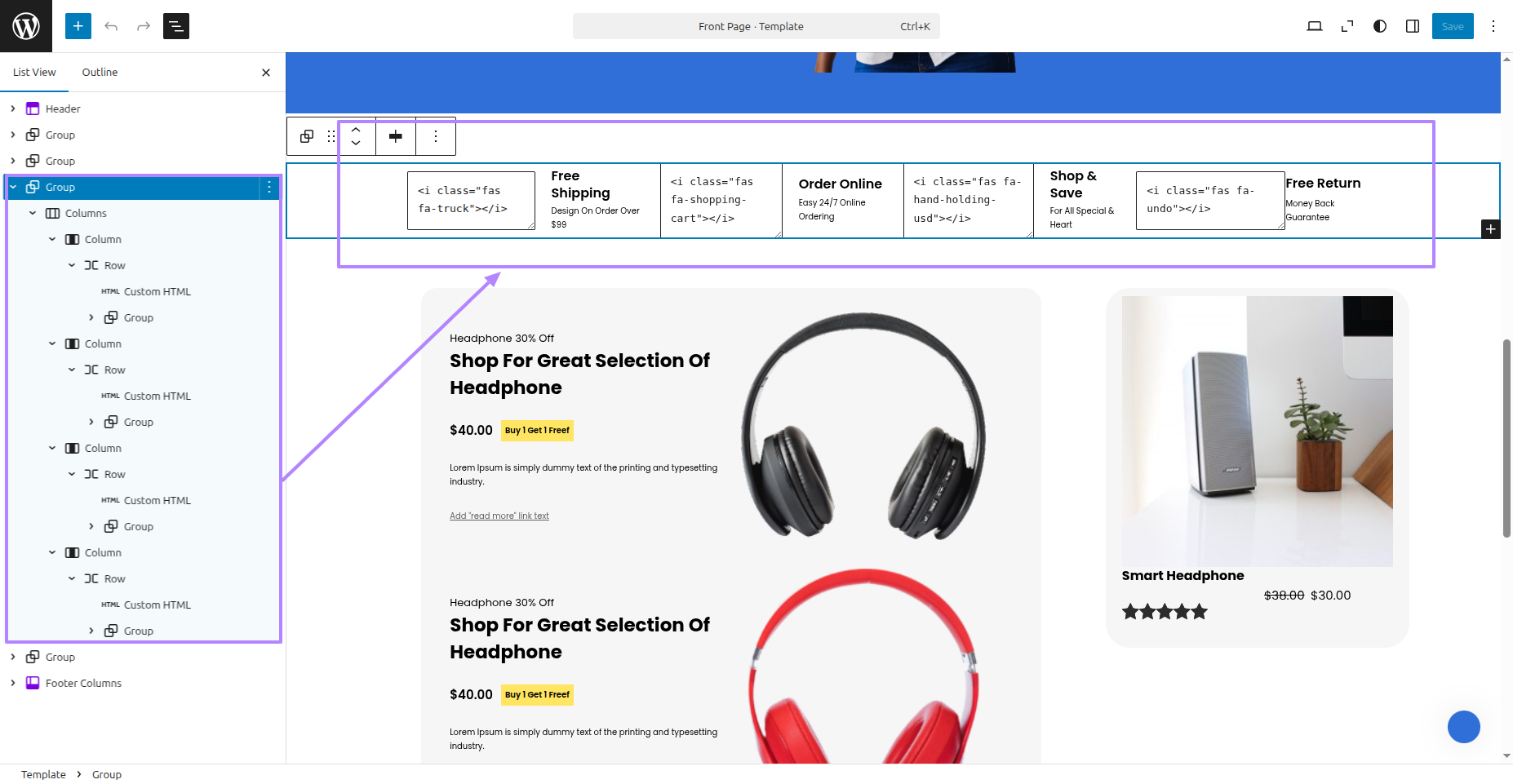
Final Progress See below for design insights.

This section pertains to the Products reference.
You might be seeing static products; for dynamic products, please follow the steps given below.
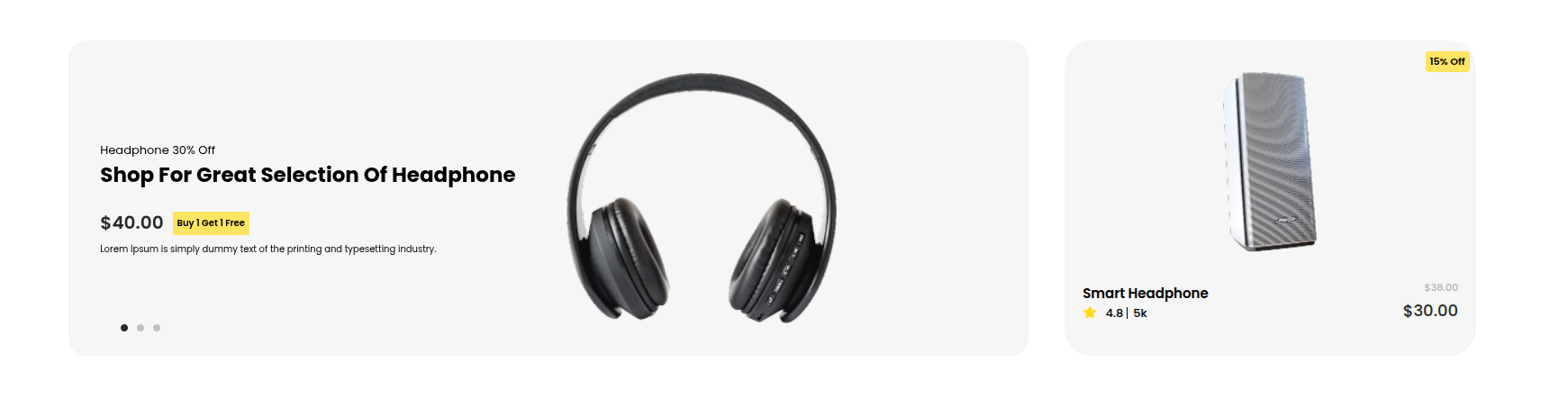
Initial Progress while hitting "Dashboard" Discover "Products" and lastly "Categories".
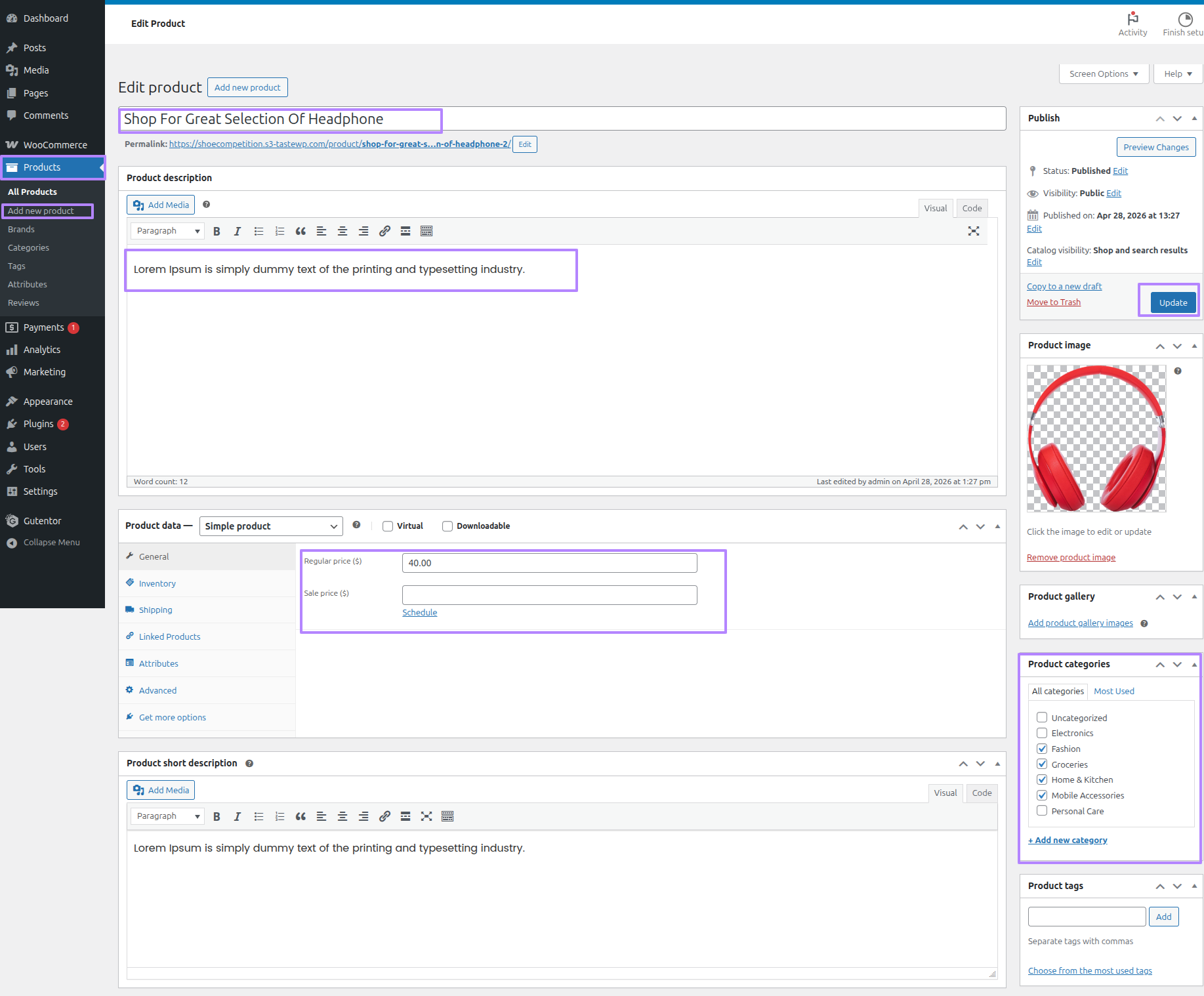
Second Progress while hitting "Dashboard" Discover "Products" and lastly "Add New Products".
Third Progress while hitting "Dashboard" Discover "Editor" and lastly "Group" .
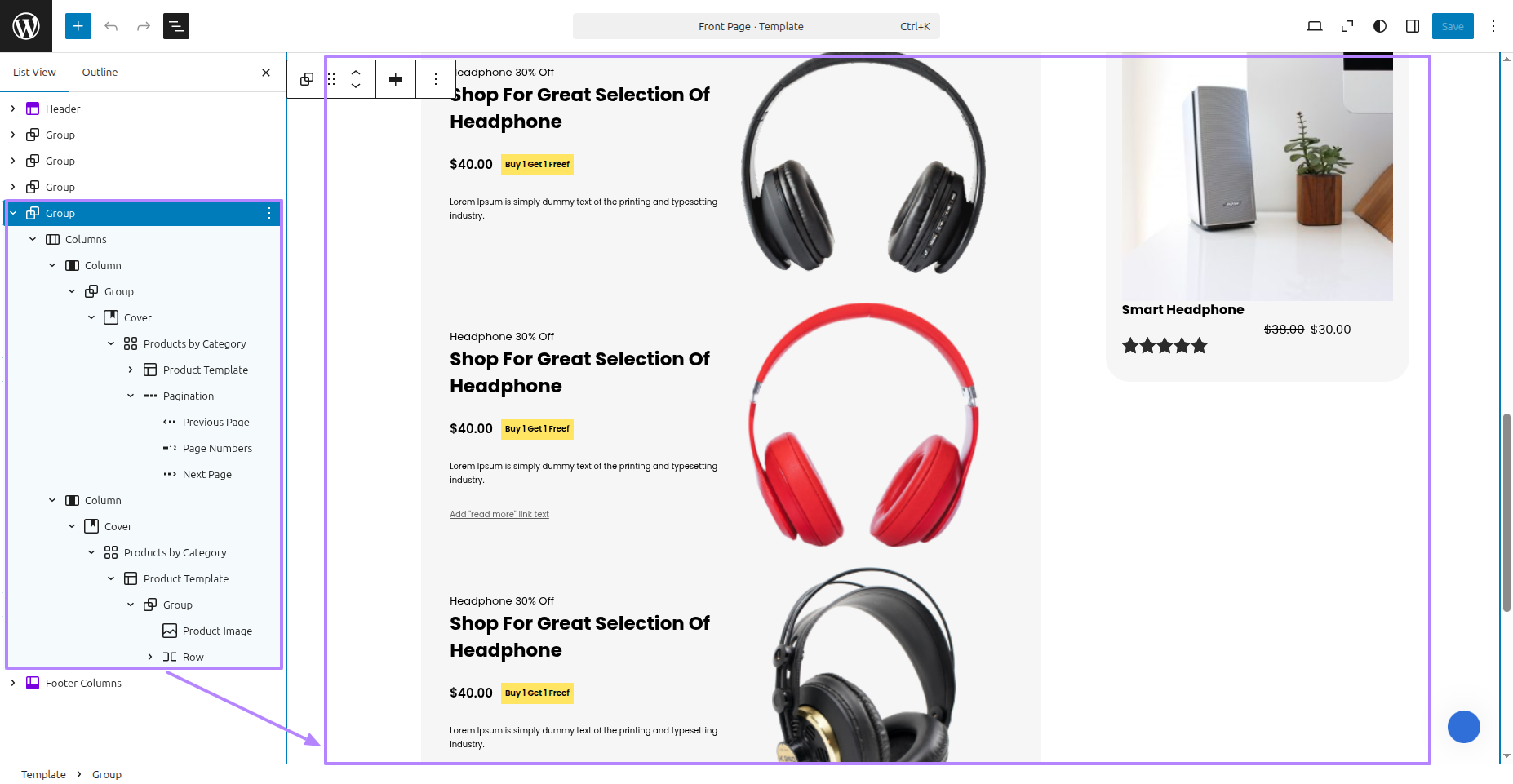
Final Progress See below for design insights.
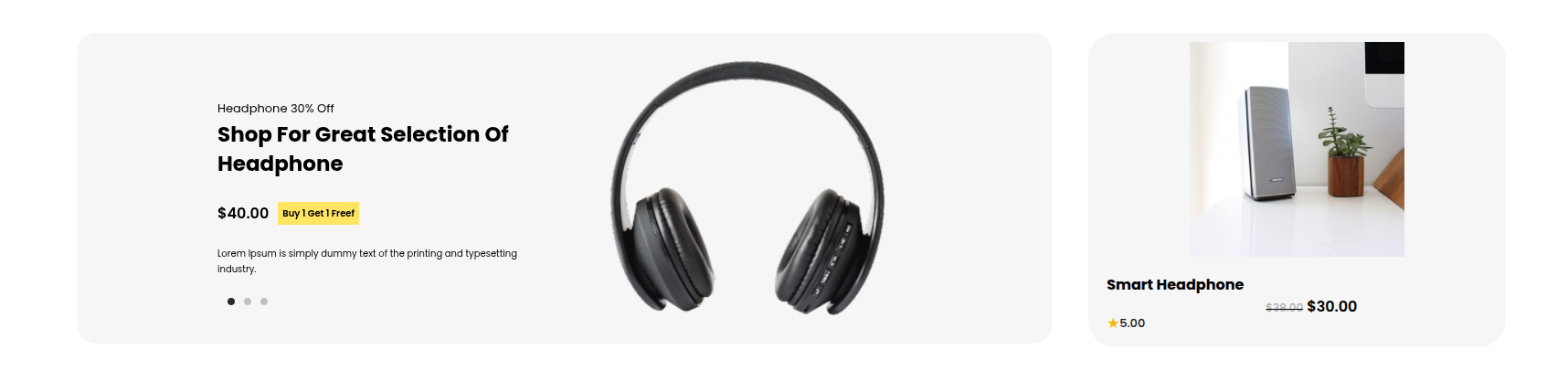
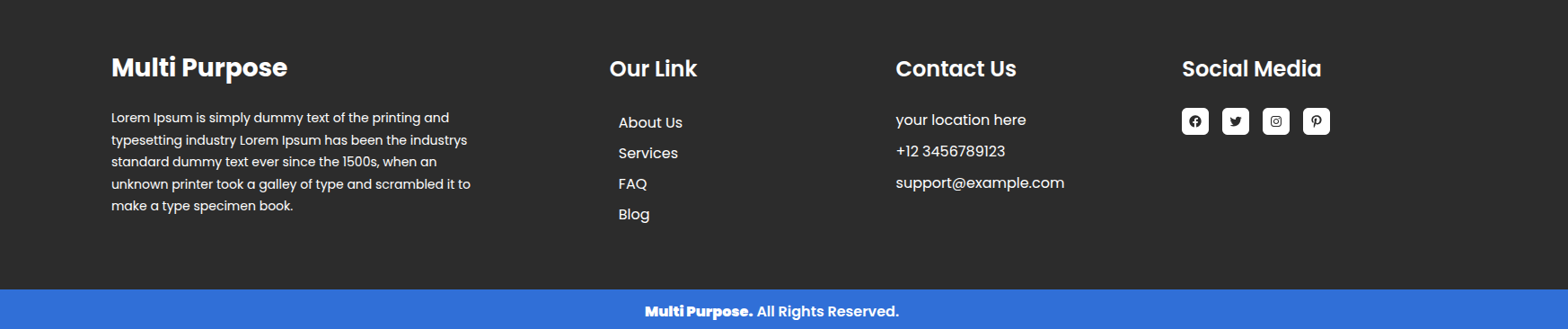
This section pertains to the Footer reference.
Initial Progress while hitting "Dashboard" Discover "Editor" and lastly "Footer Columns" .
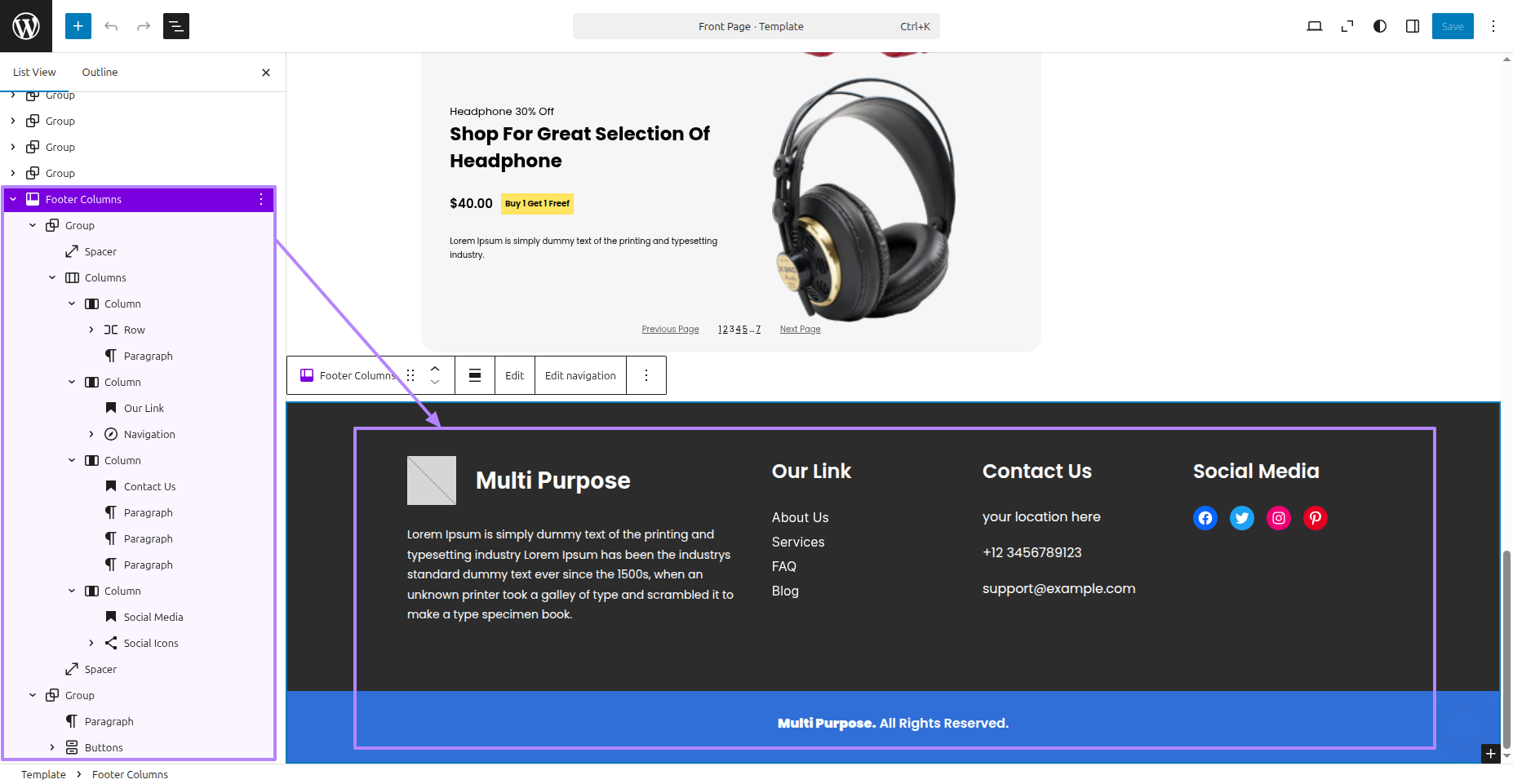
Final Progress See below for design insights.