Recognizing of the layout of folders
After installation, the bundle will display multiple directories. Below is an overview of each file and its accompanying data:
Please keep in mind that the offered snapshots are only intended to serve as templates and should not be used in actual production situations.
Theme: This location contains every requirement WordPress theme files.
"marriage-counseling-pro" This folder contains all of the necessary WordPress theme files.
Developing via the Template
The installation of a WordPress theme is a straightforward process that can be accomplished using one of two methods outlined below.
Initial Progress Log into your WordPress Admin as an administrator to activate the selected theme.
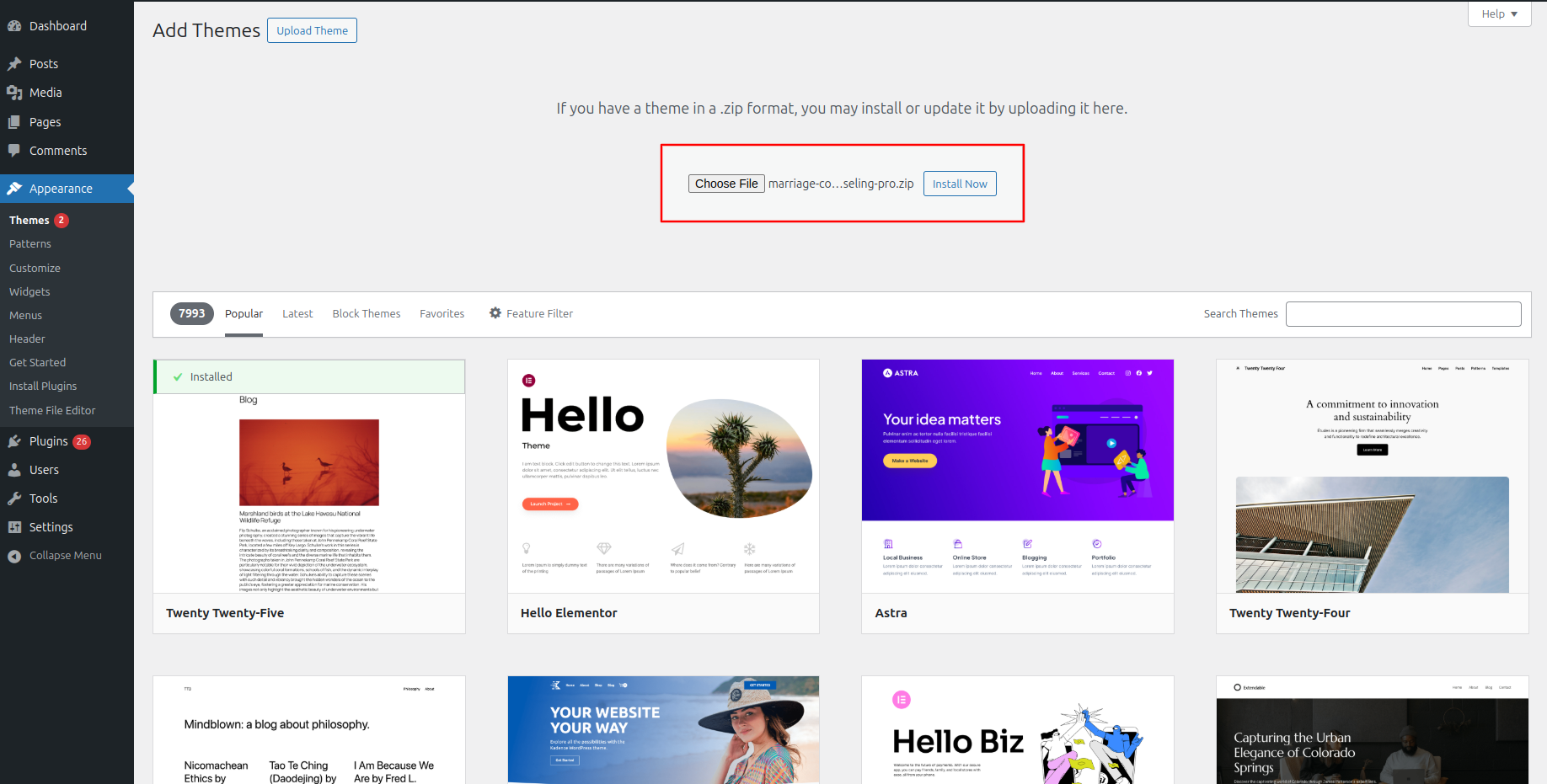
Next Progress while hitting "Dashboard" Discover "Appearance" Move forward "Themes" then "Add New" and lastly "Upload Themes" previous tapping "Install Now" .
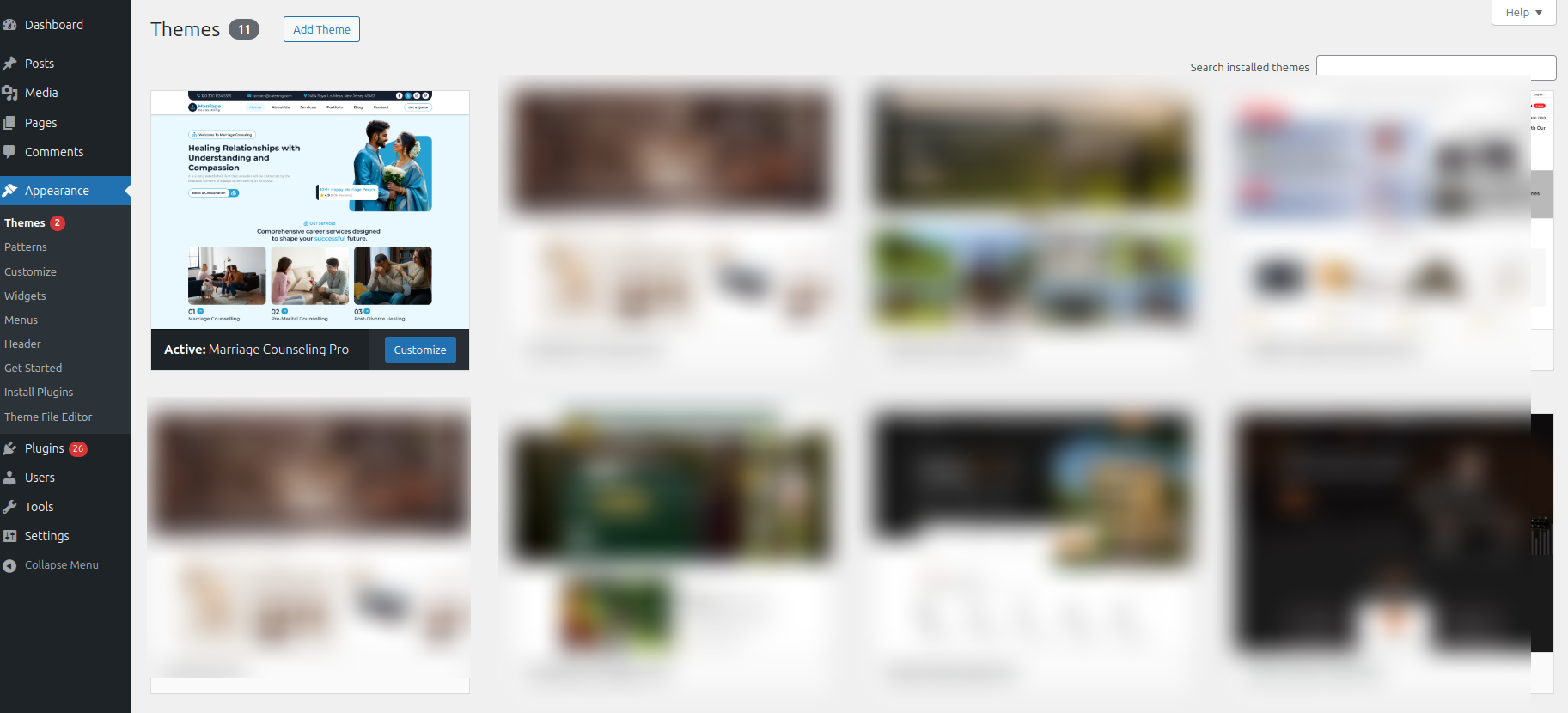
Final Process while hitting "Dashboard" Discover "Appearance" and lastly "Themes" previous tapping "Activate" .
Transmissions through FTP
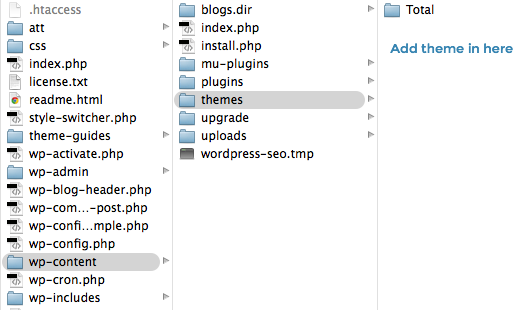
Use FTP as a last resort. Open your FTP client, log in, and locate wp-content and your theme. Download, unzip, and transfer the folder to the server's "themes" directory. The new template will show under "Appearance" in your WordPress Dashboard.
Applying the Plugins as the outset.
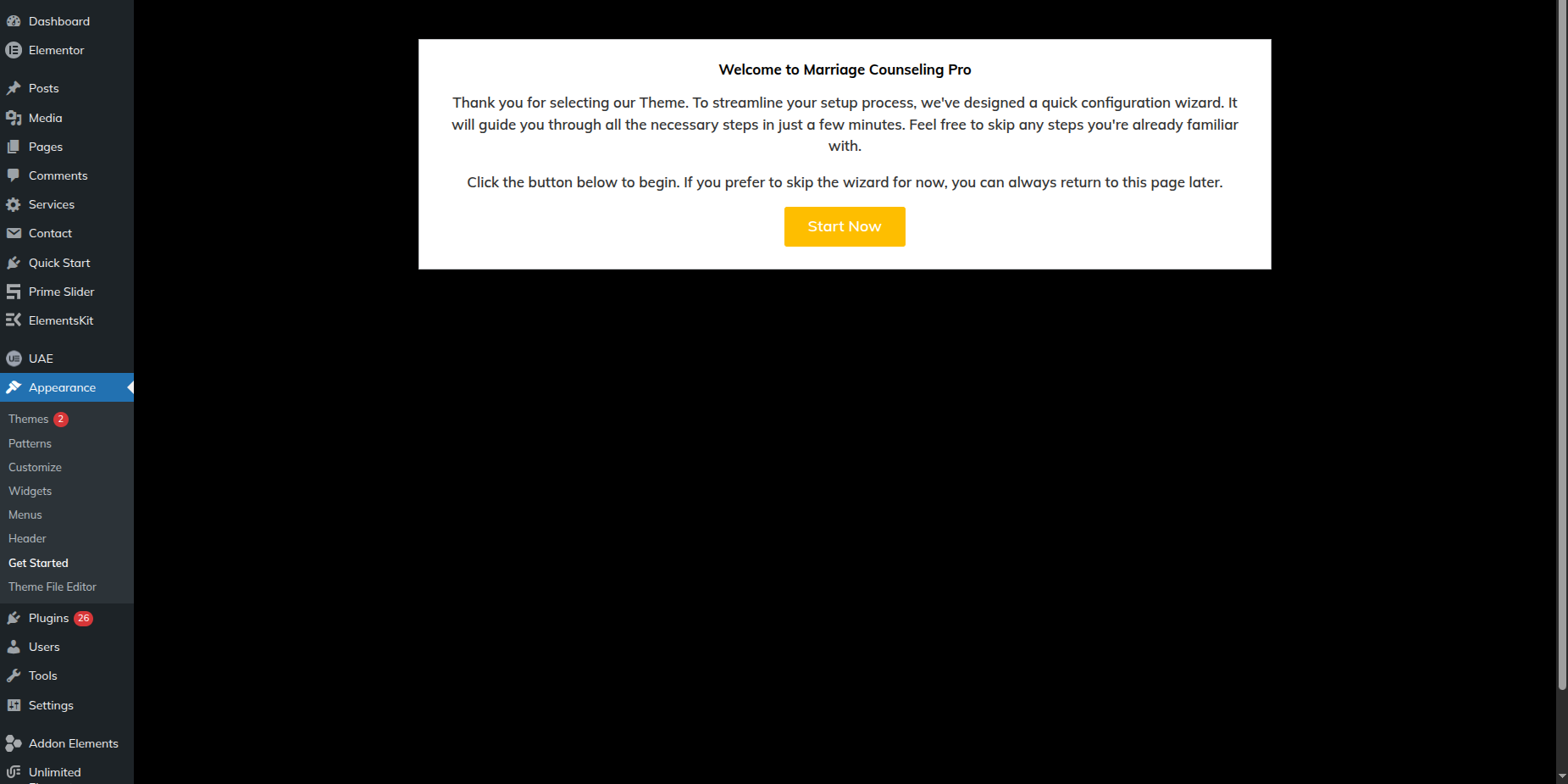
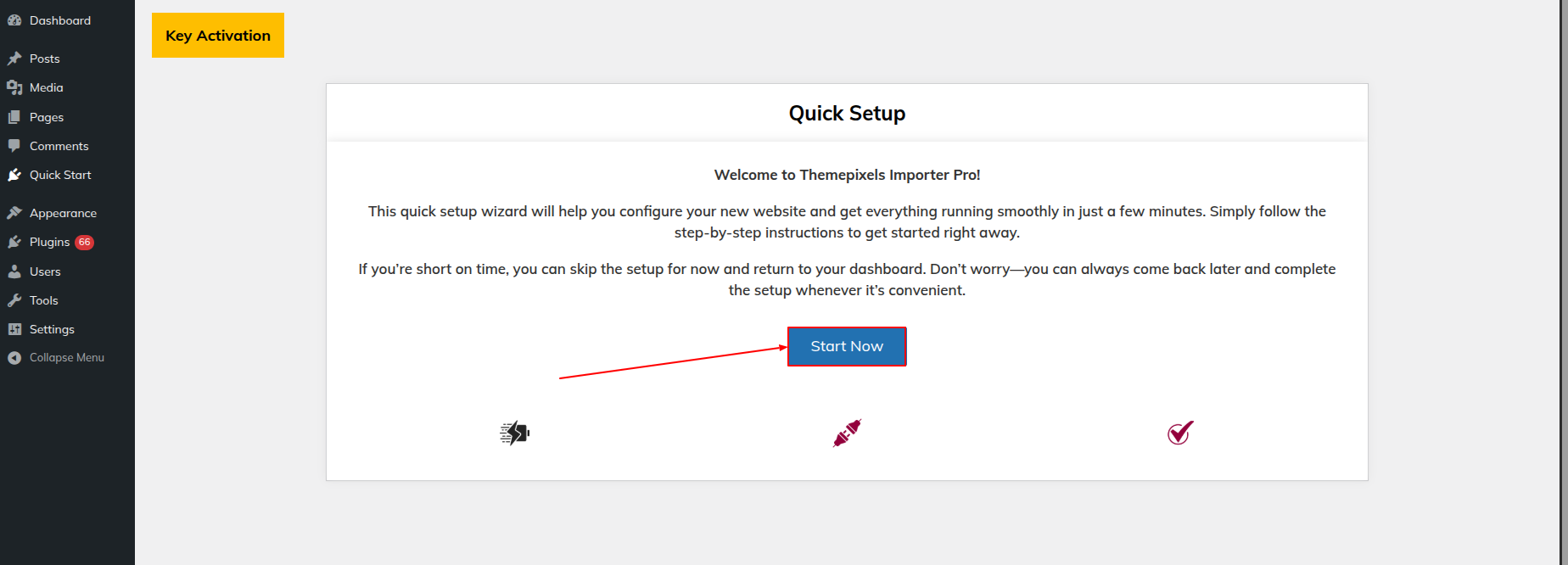
1.Example Import Procedure Simply click the "Start Now" button to get started.
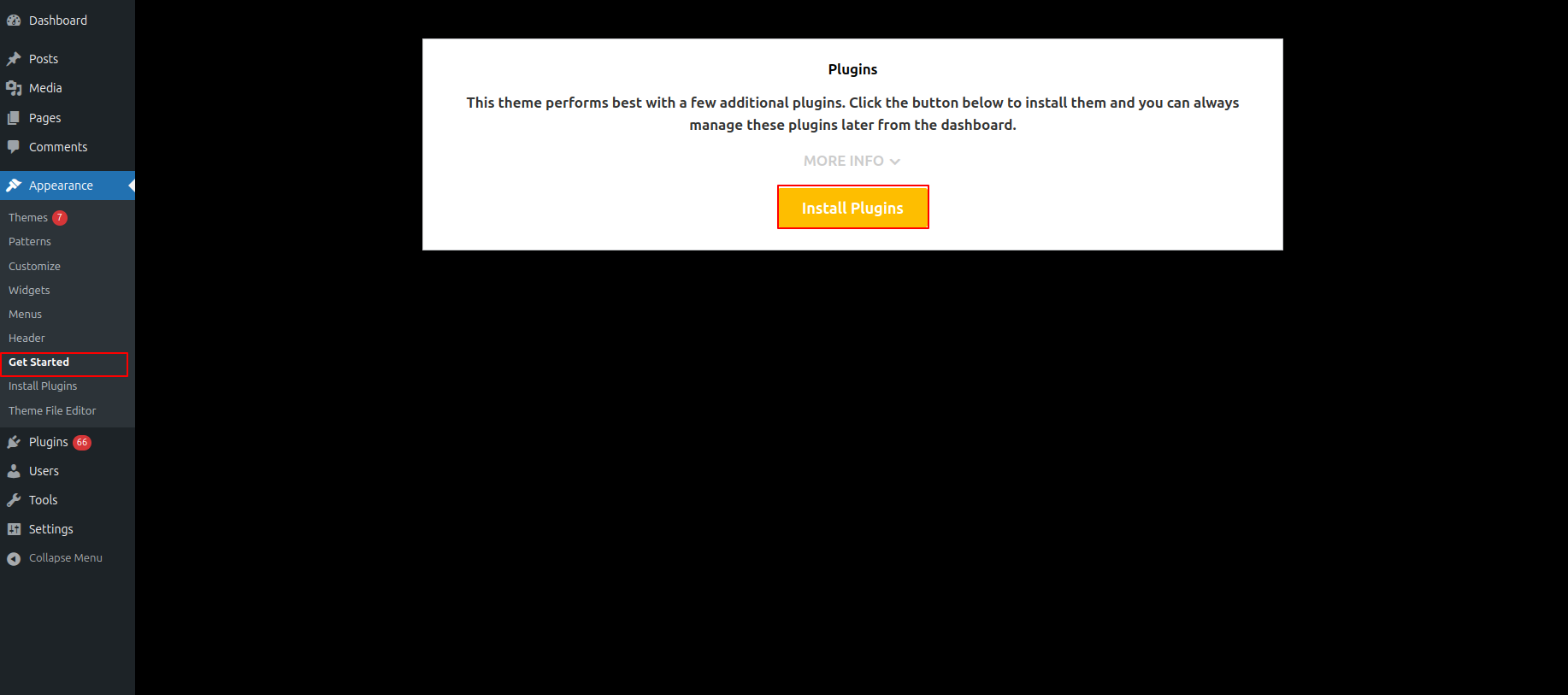
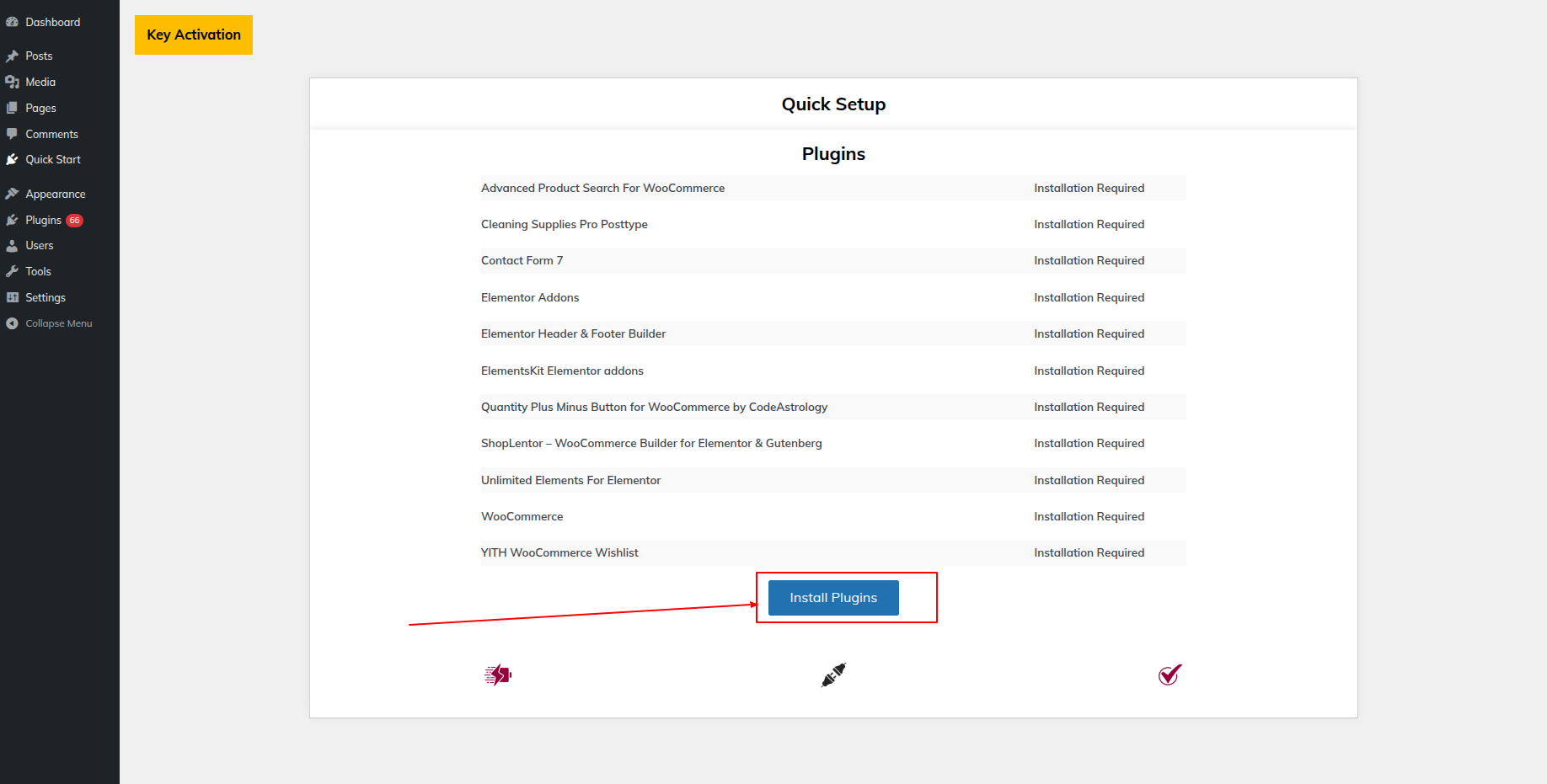
2. Install Every Plugin That's Needed Simply click the Install Plugs button.
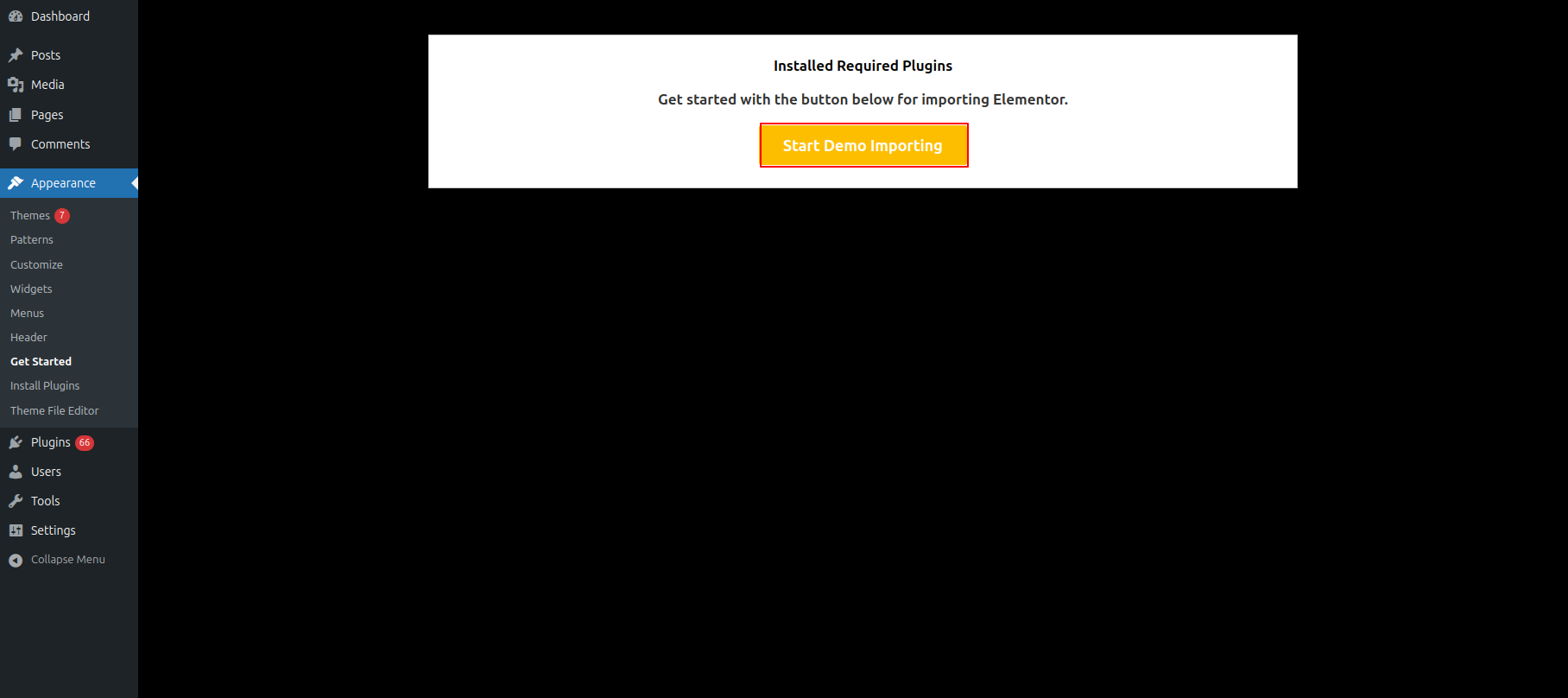
3.Select "Start Demo" Import Buttons
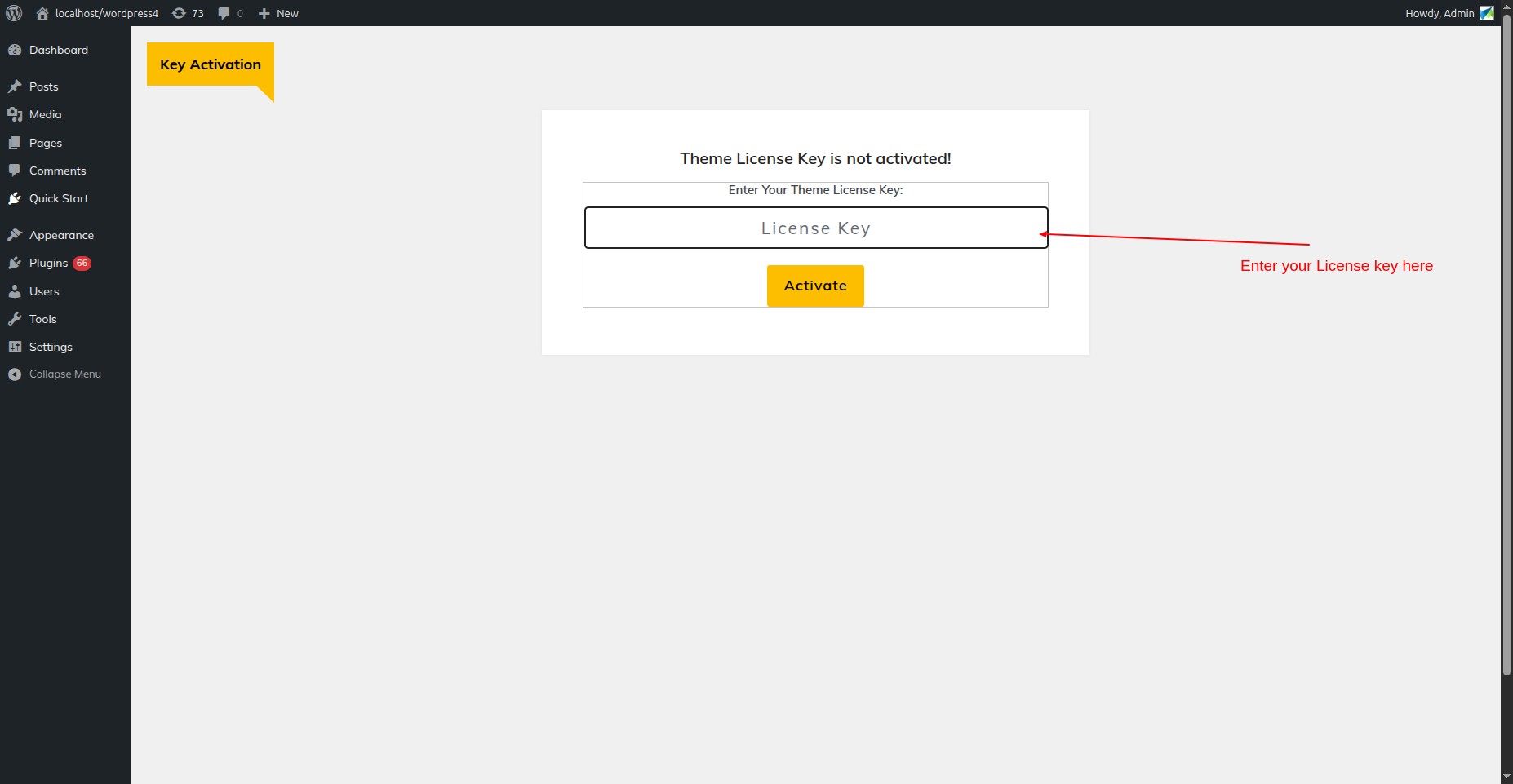
4.After entering your license key, select "Activate."
5.After activating the license key, click Next
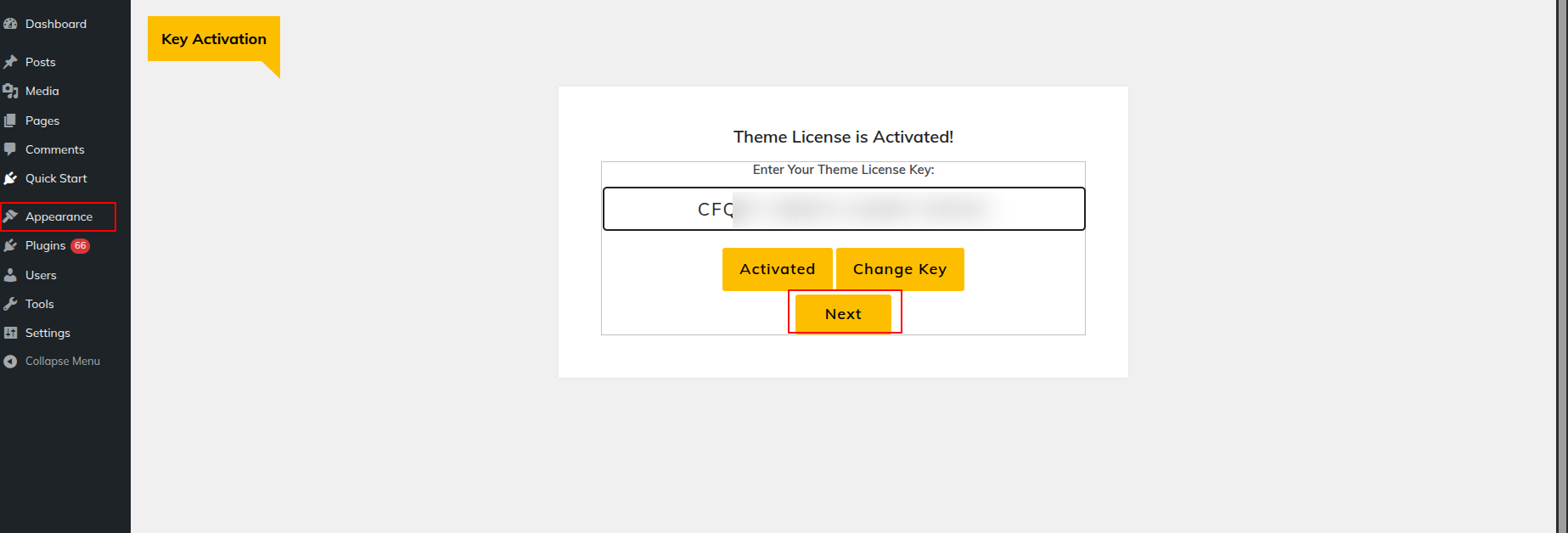
6.Click the "Start Now" button.
7.Hit the Plugins Install button.
Install the Unlimited Element Widget for Showing Header Before Importing Demo After Installing Pulgin
This section pertains to the Site Identity reference.
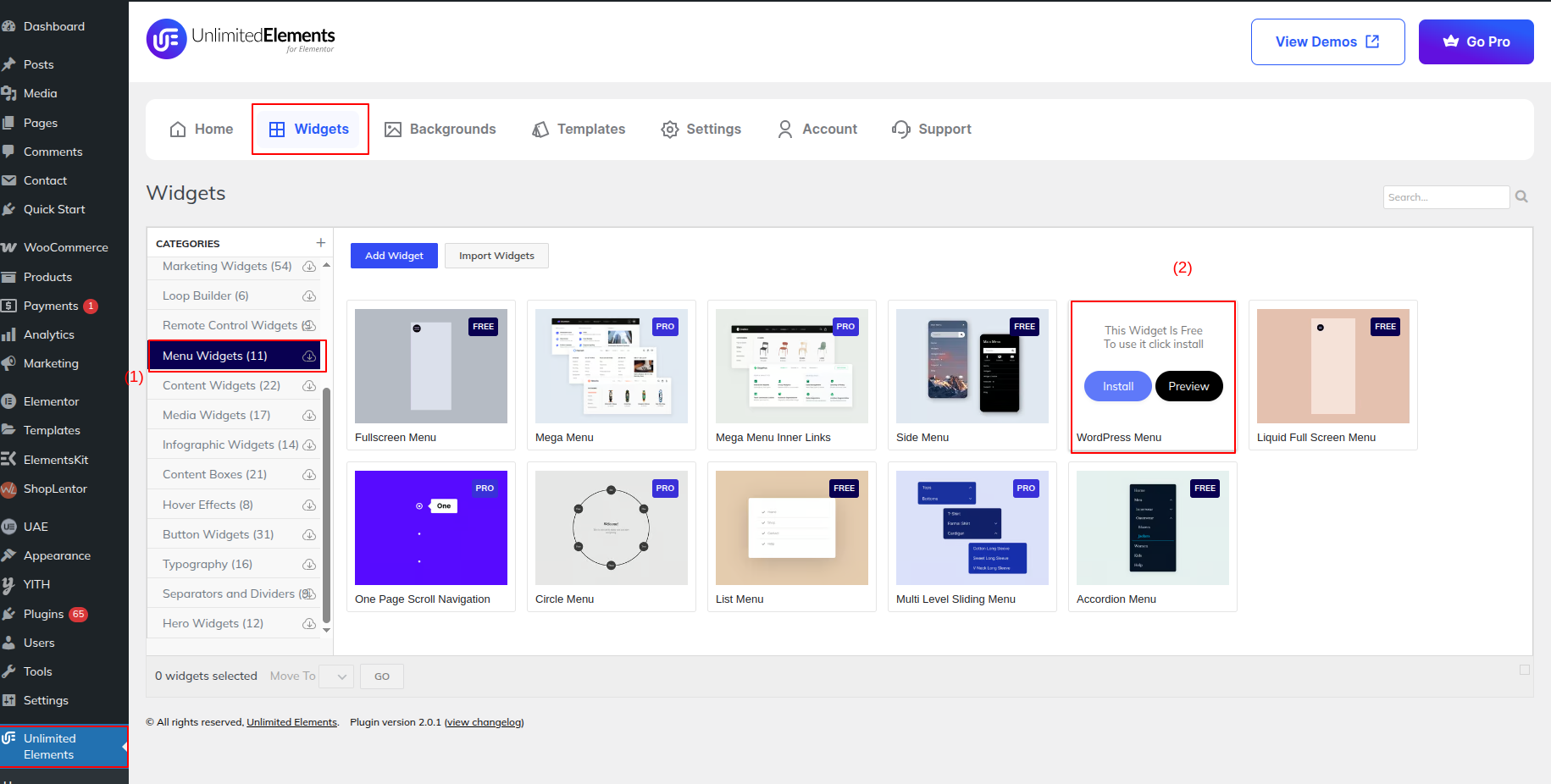
Initial Progress While hitting "Dashboard Discover "Unlimited Elements" Move forward "Widget" Make the changes and then "Publish" .
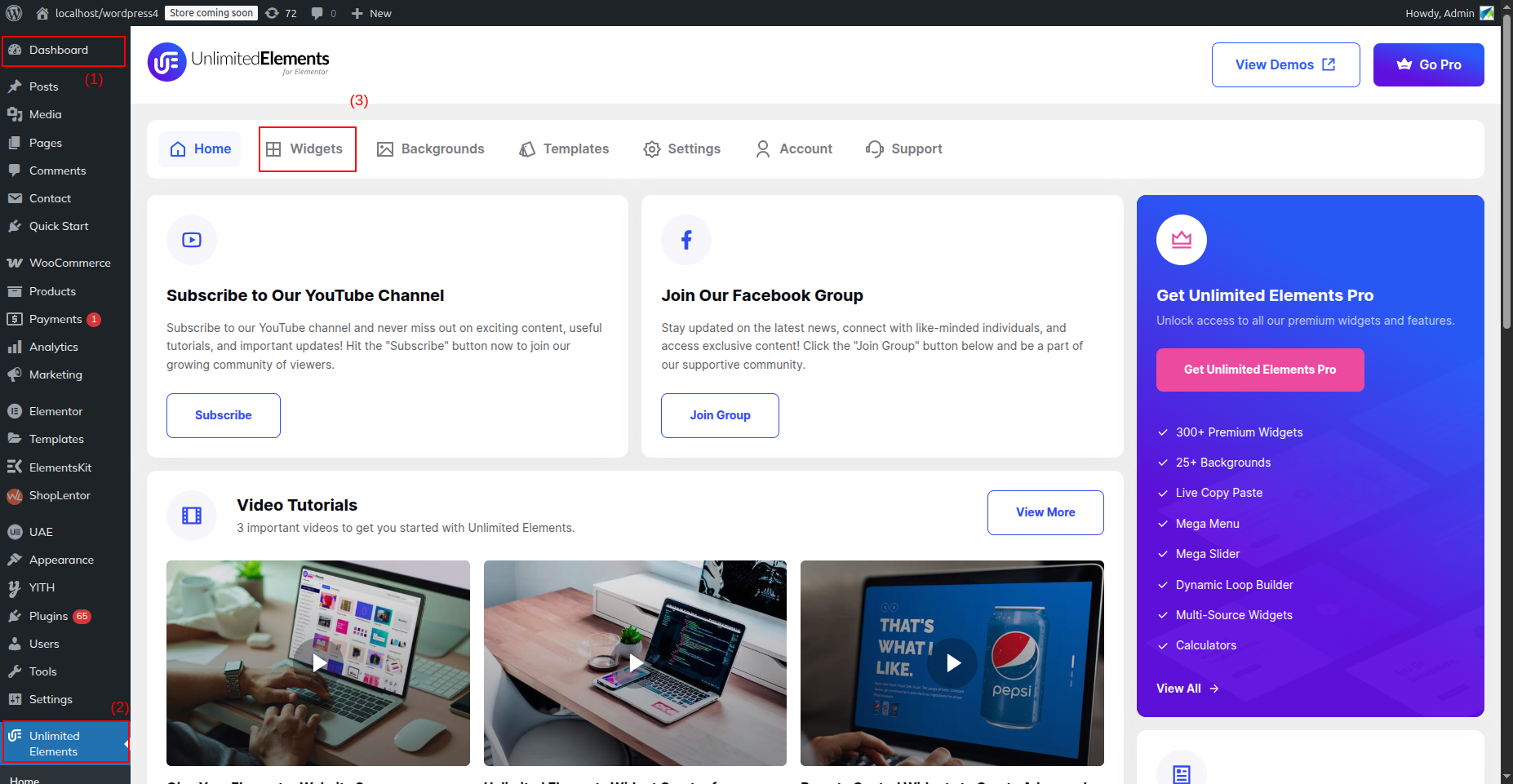
After that, install the Menu Widgets by clicking on WordPress Menu.
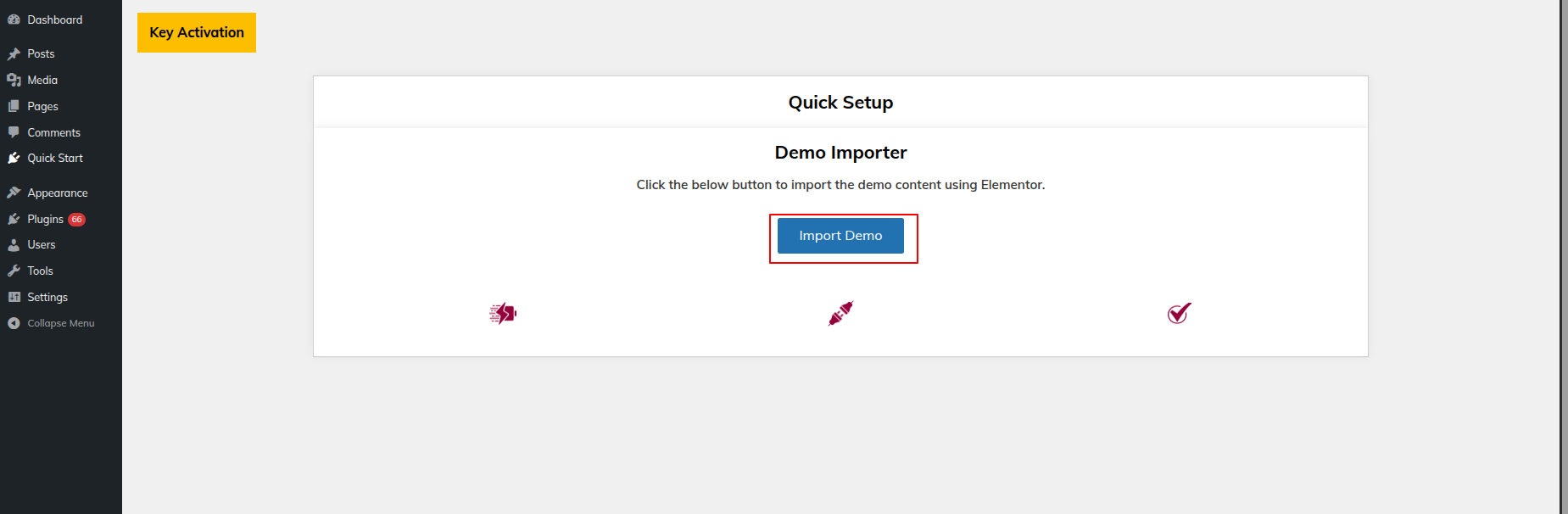
To import a demo, click Import Demo.
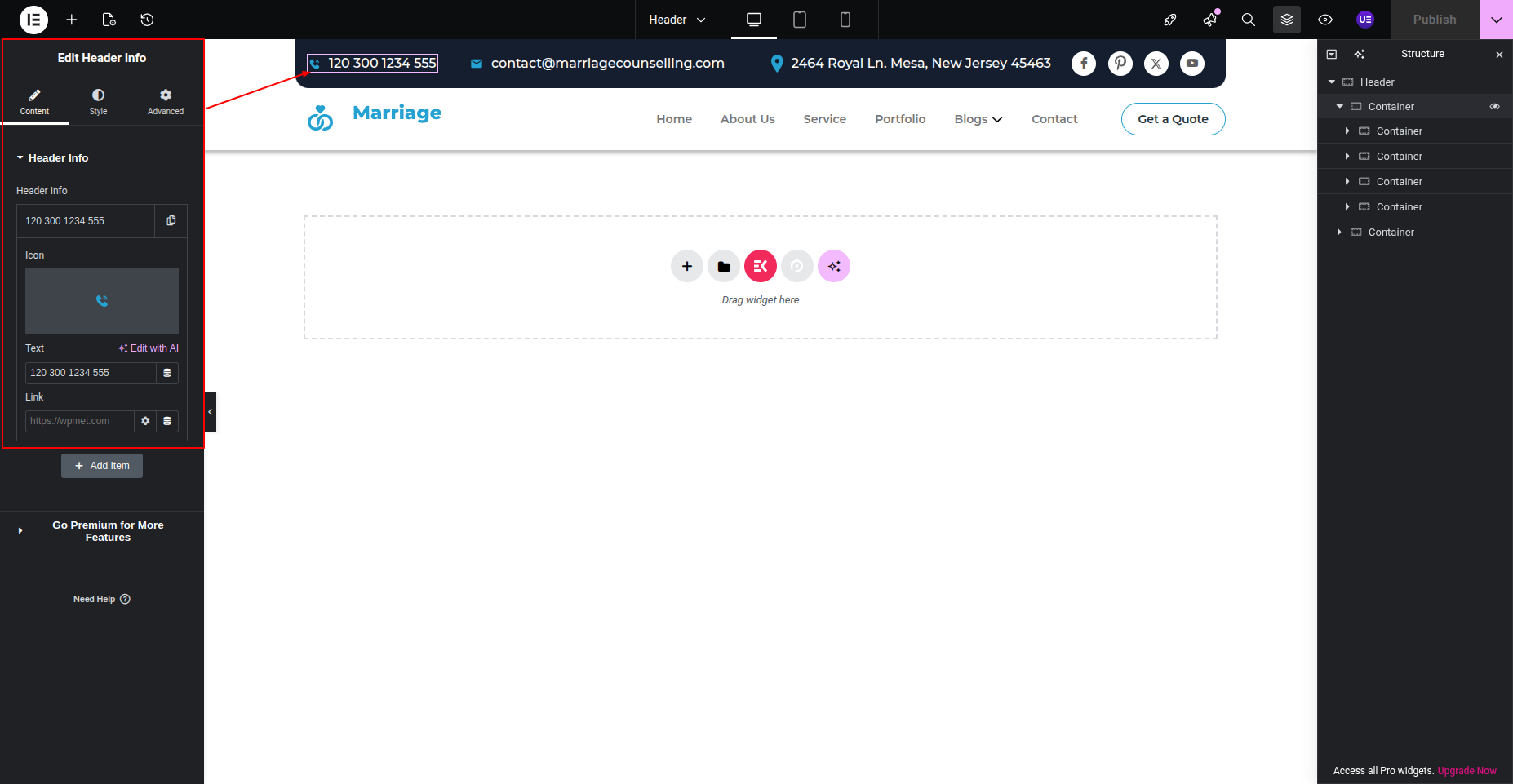
This section pertains to the Header reference.
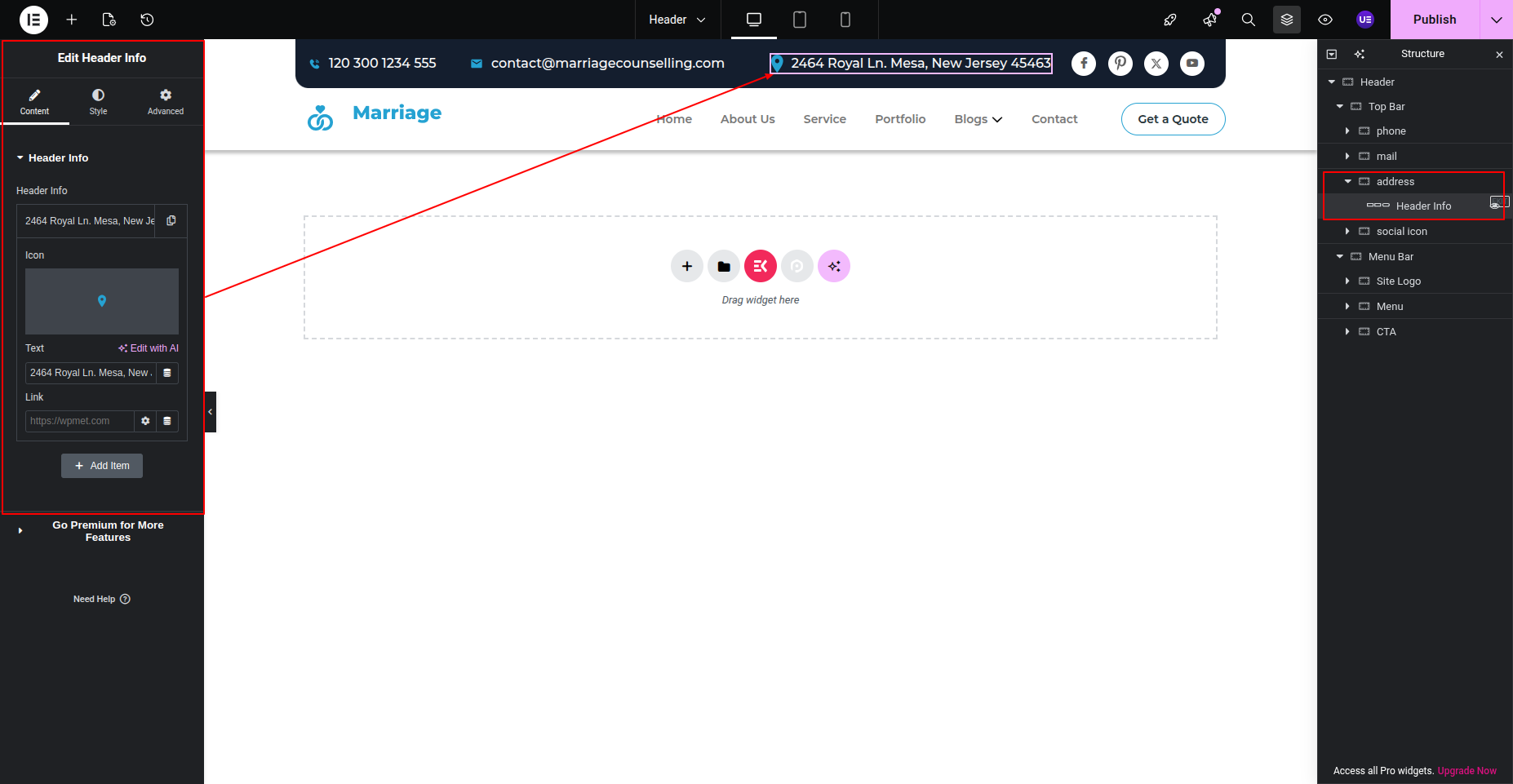
Initial Progress while hitting "Dashboard" Discover "Elements-Kit" Move forward "Edit with elementor" Select header-info widget Make the changes and then "Publish" .
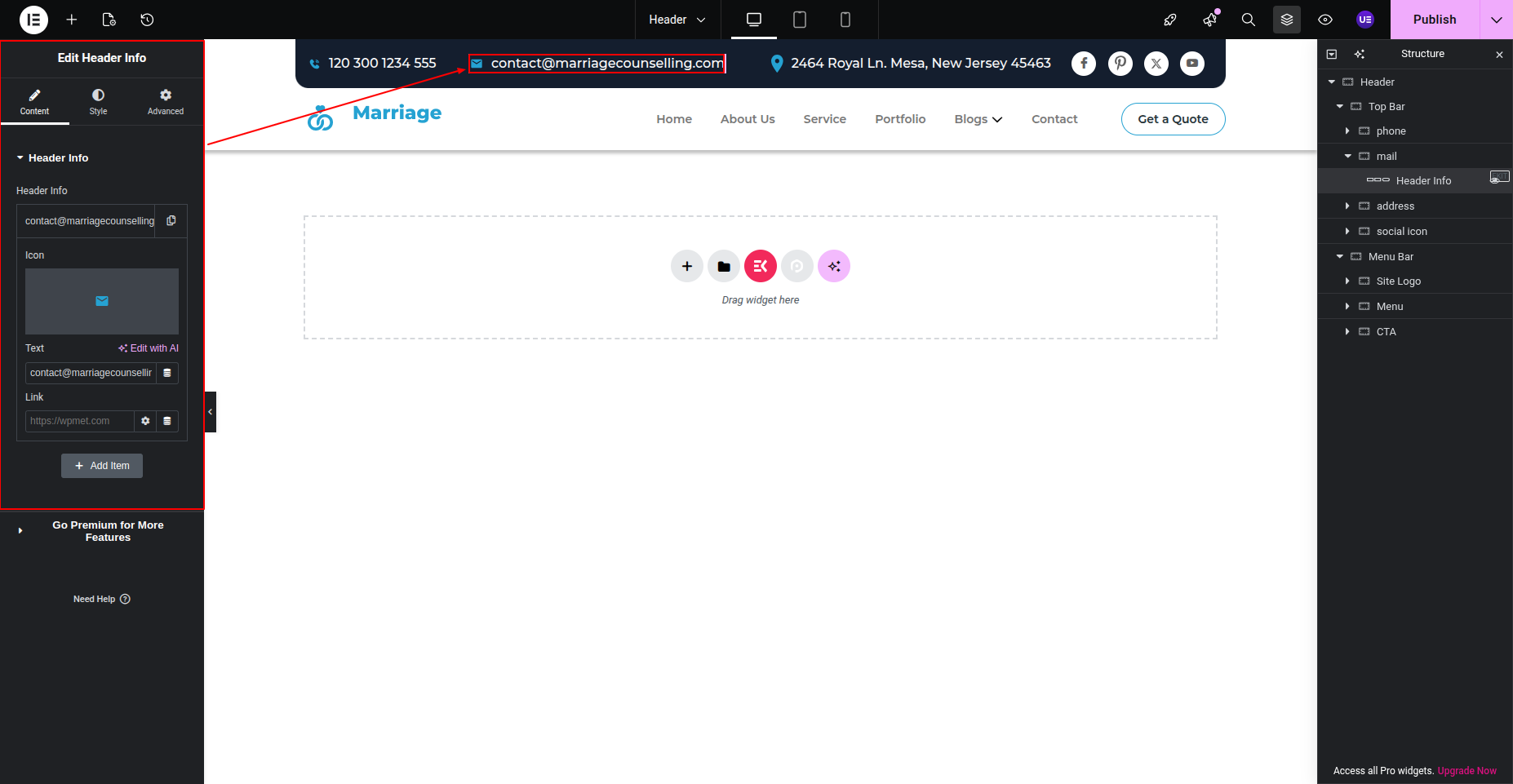
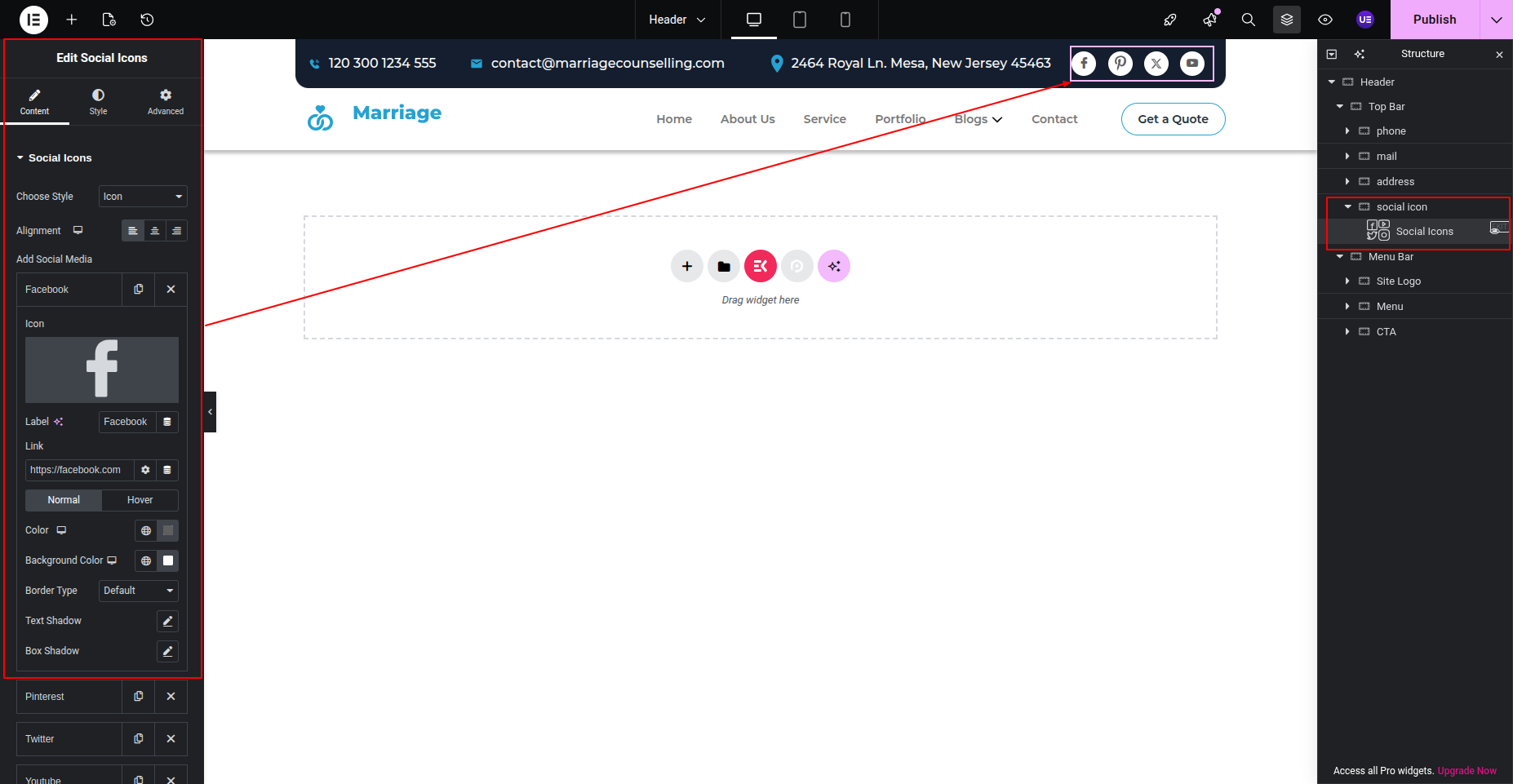
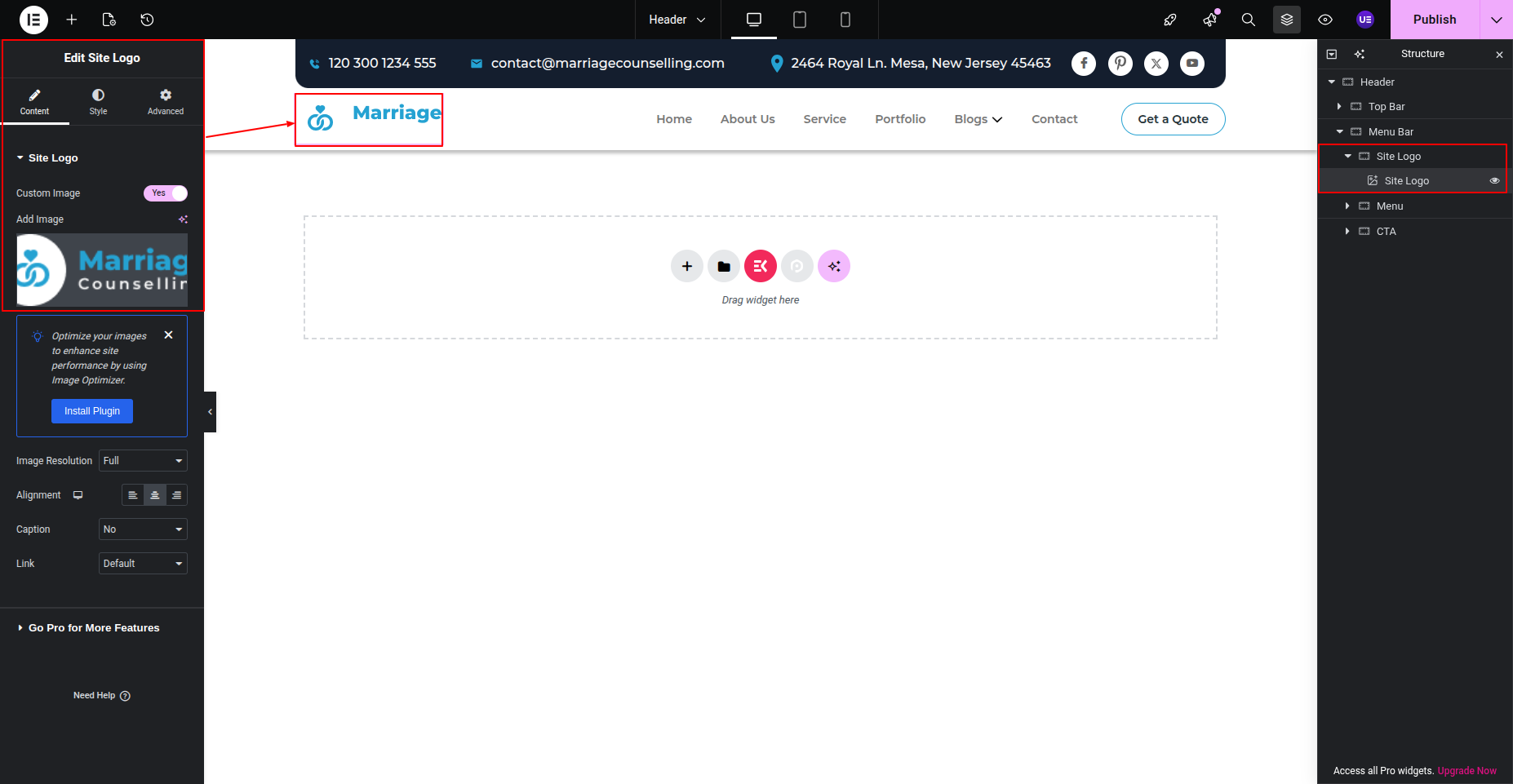
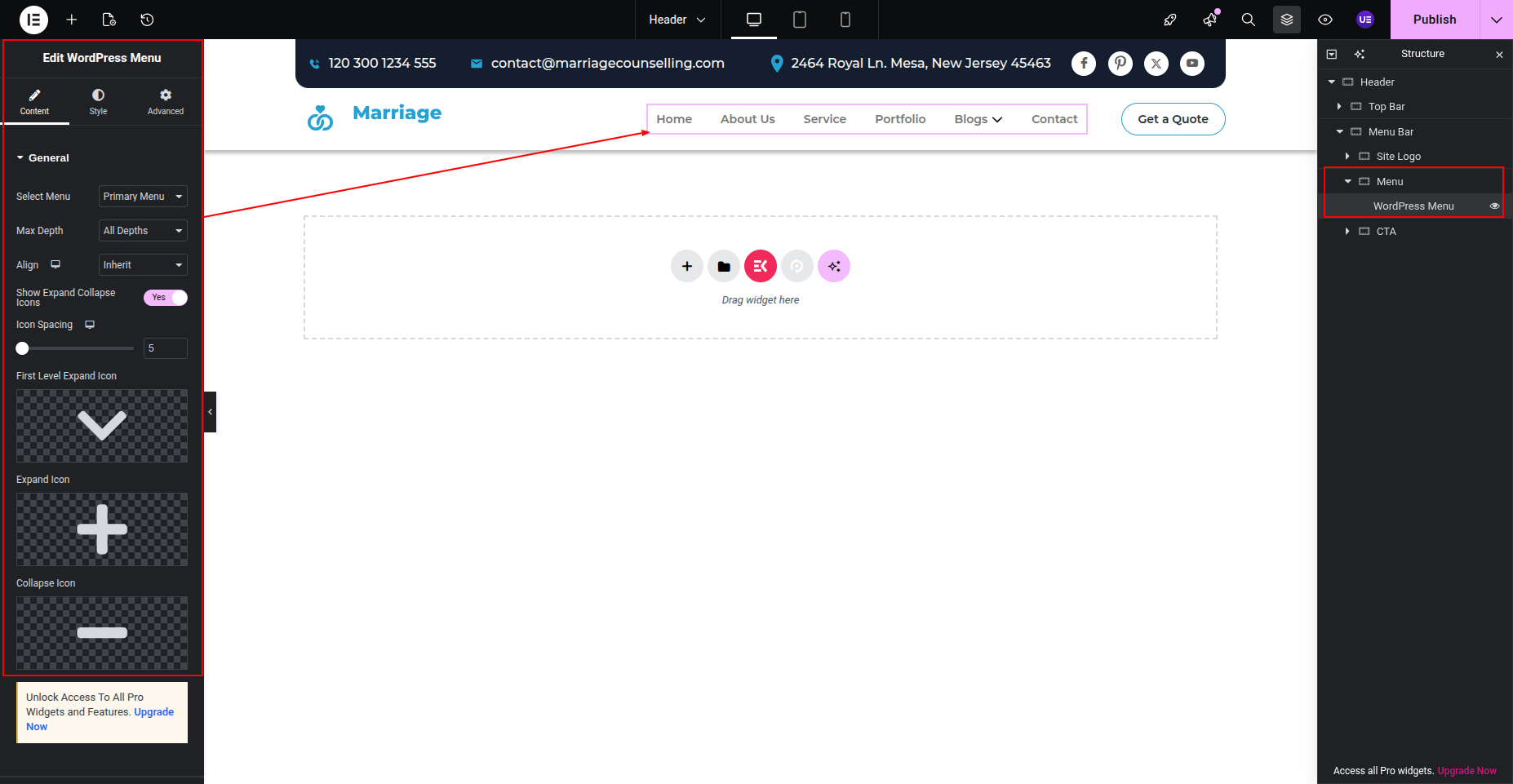
Select Wordpress Menu Widget Make the changes and then "Publish" .
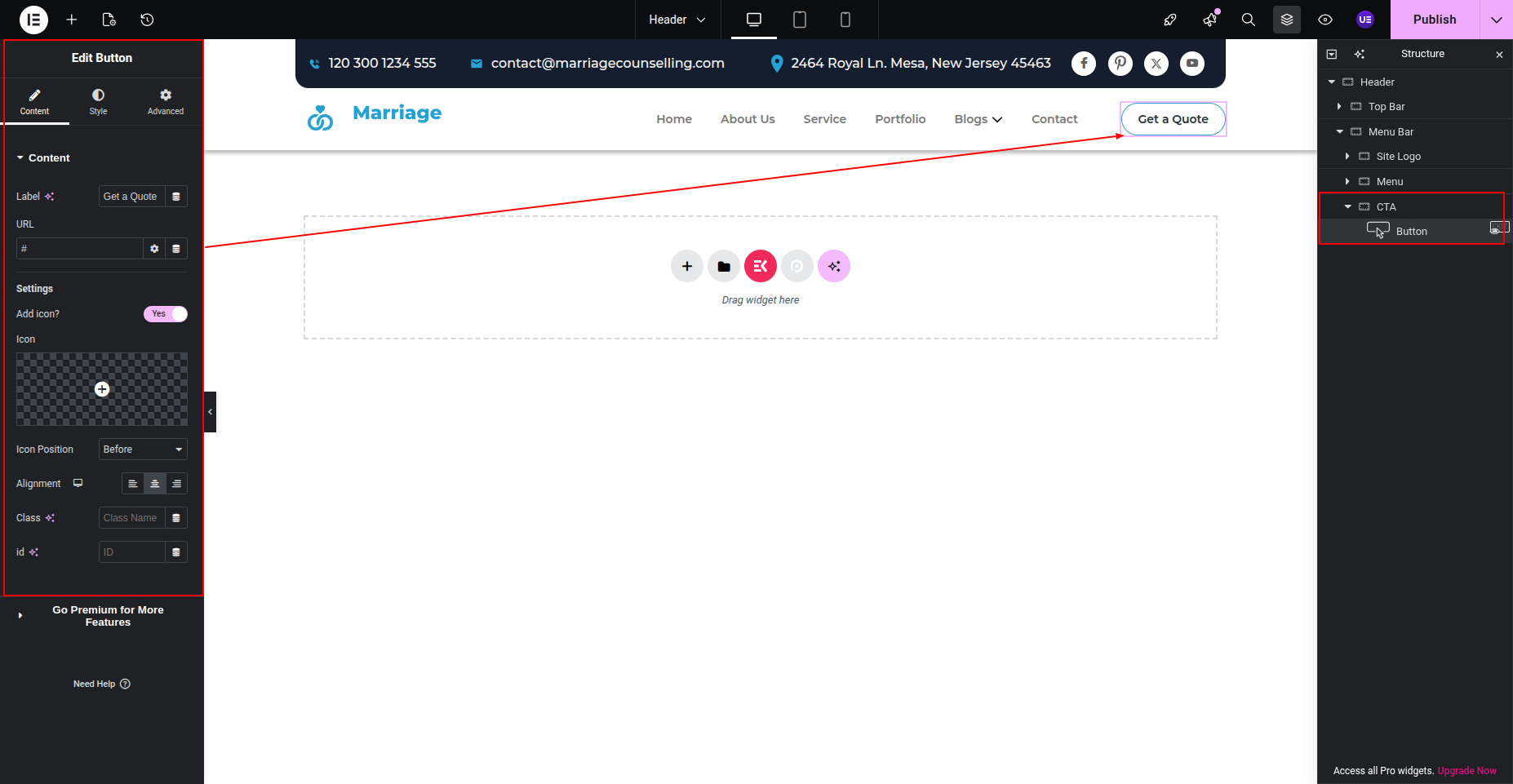
Final Output See below for design insights.

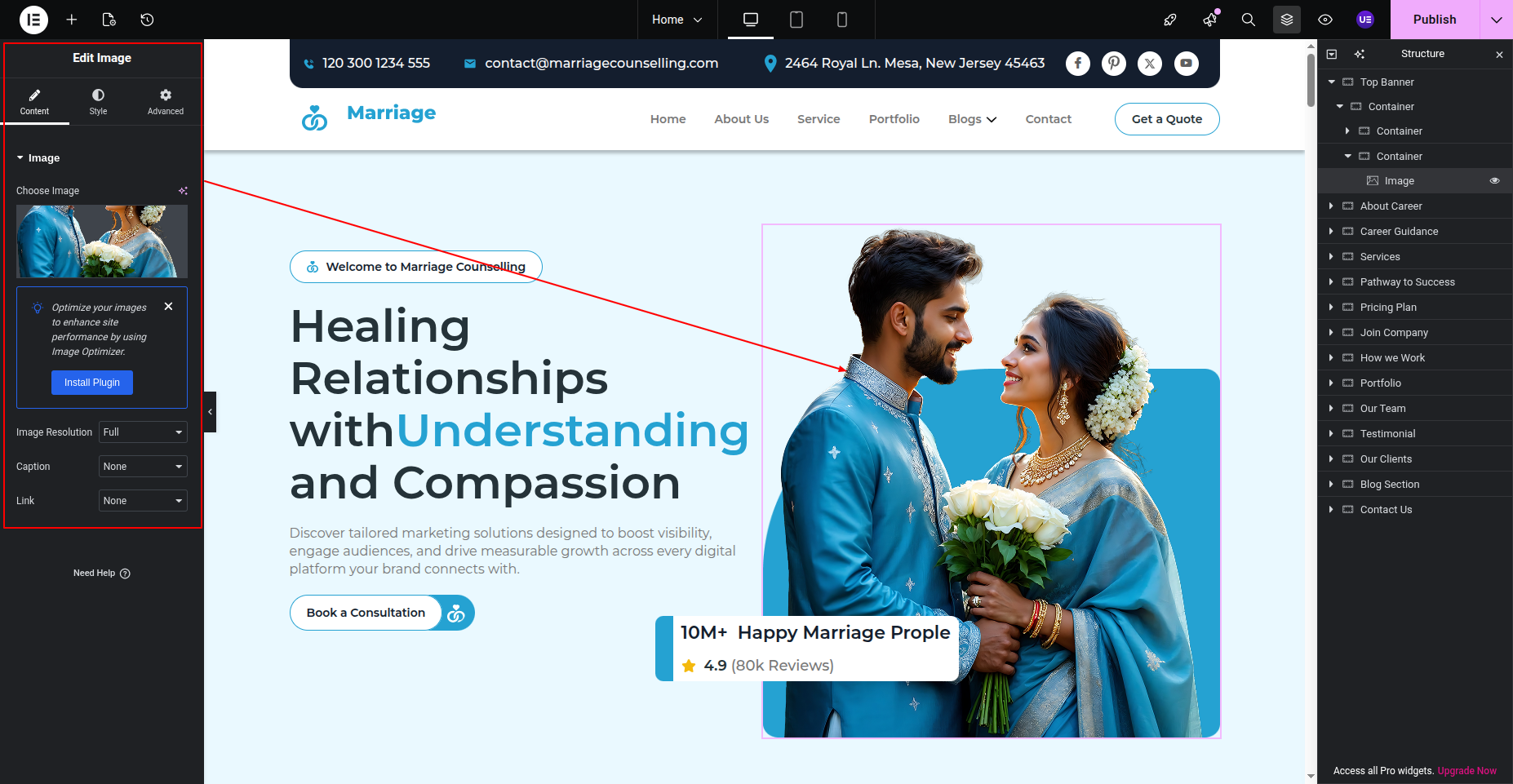
This section pertains to the Hero Section.
Initial Progress While hitting "Dashboard" Discover "Edit with elementor" then "add new heading the and content as shown in the screenshots"
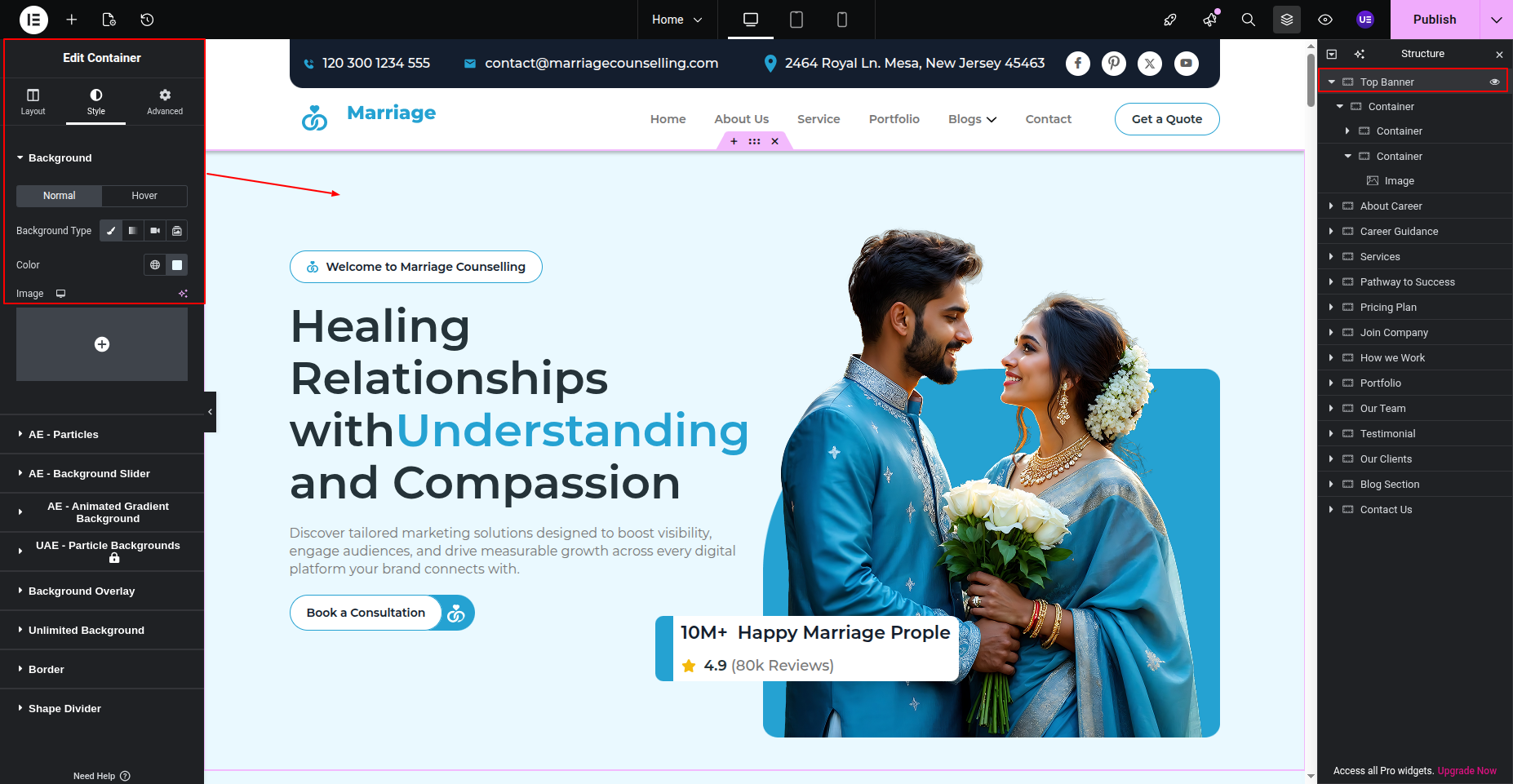
Edit ContentAdd tittle, description and image and other details and publish
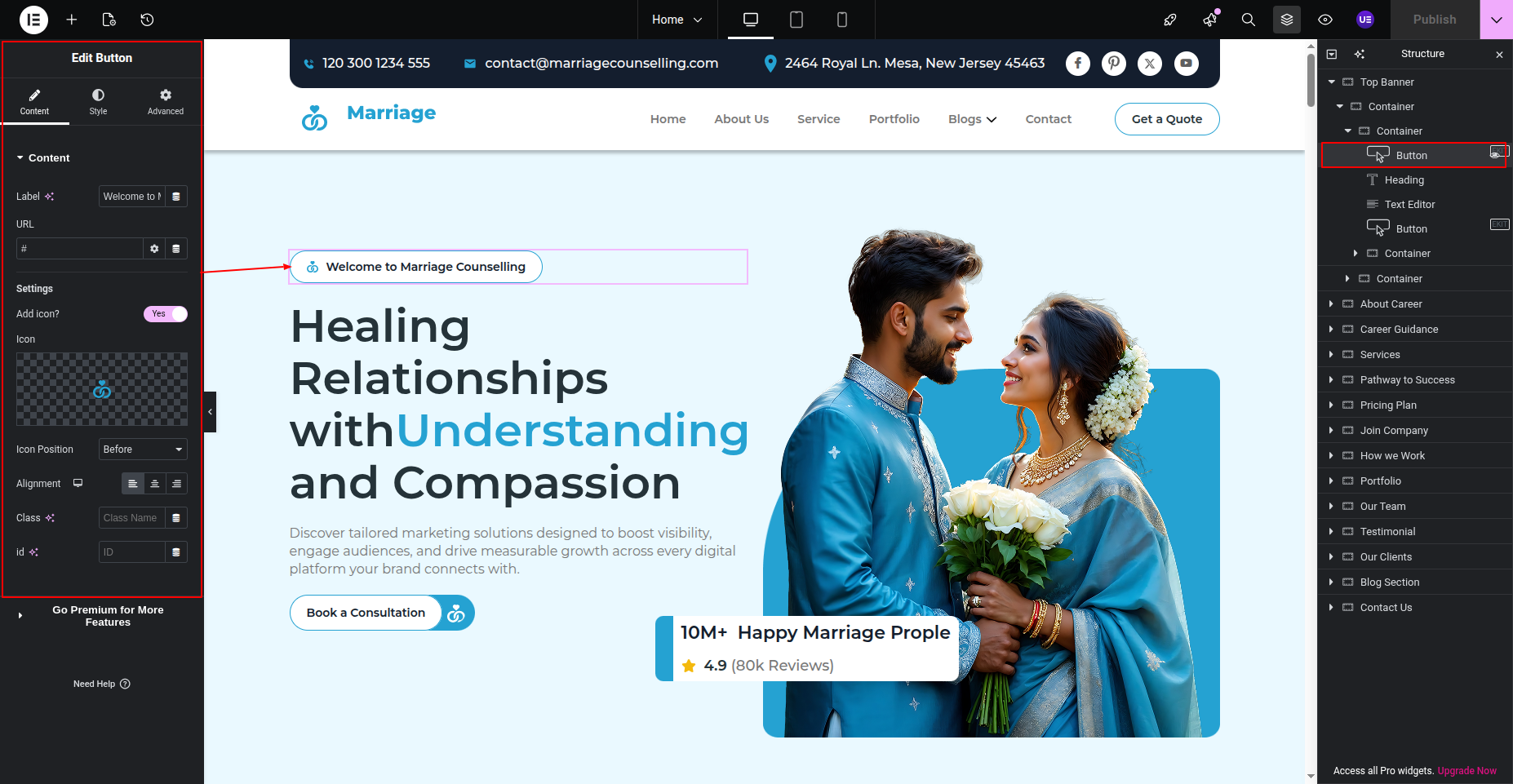
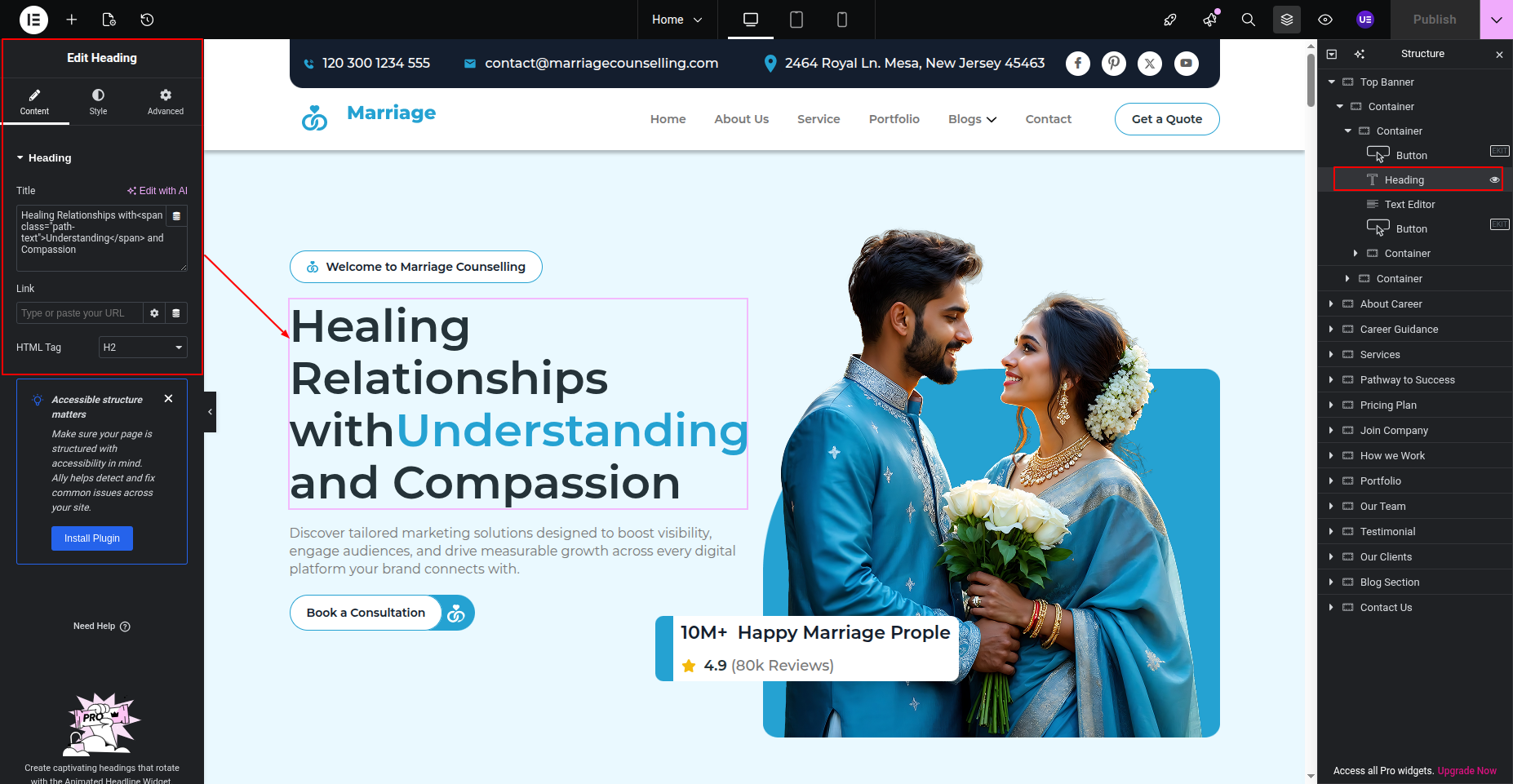
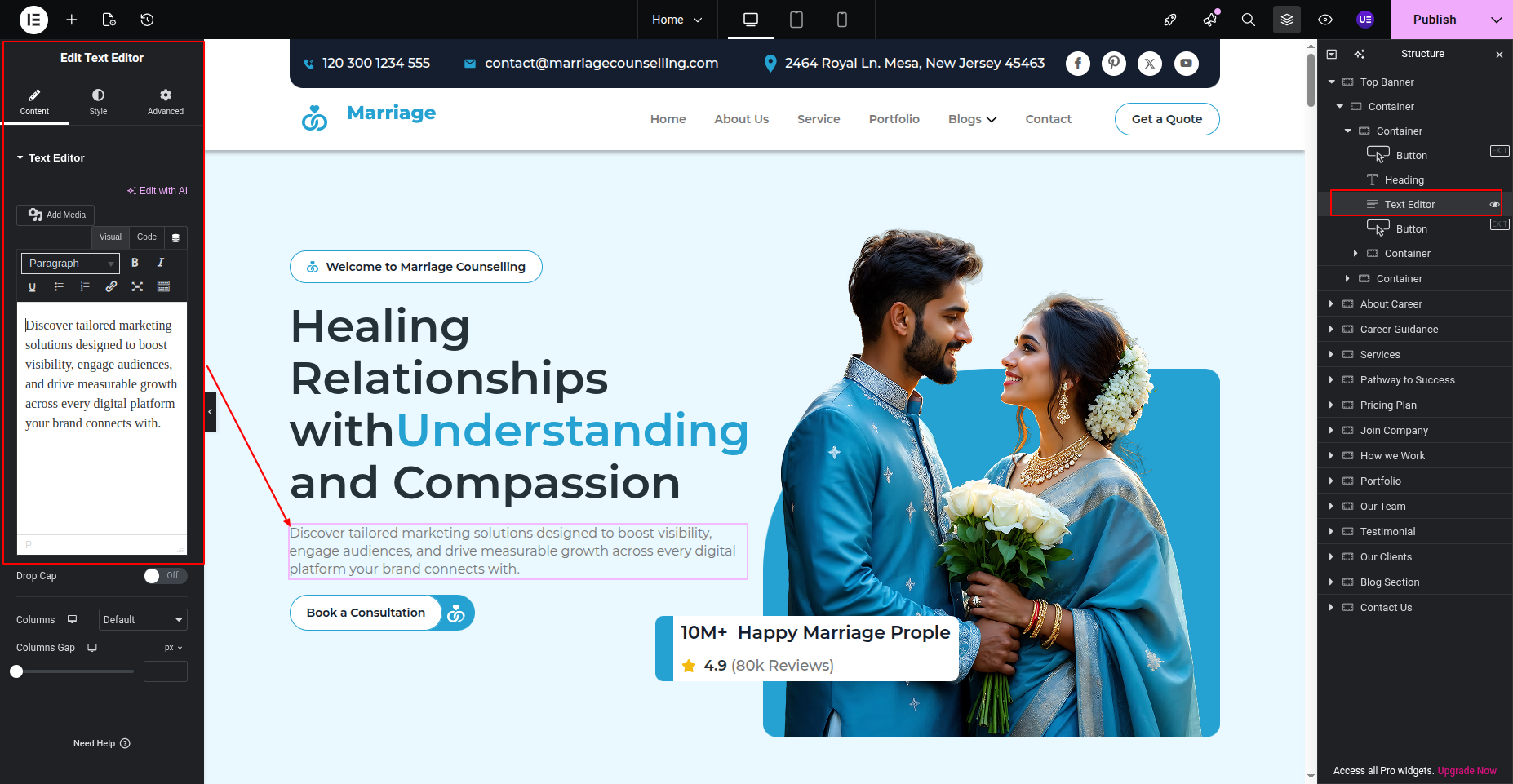
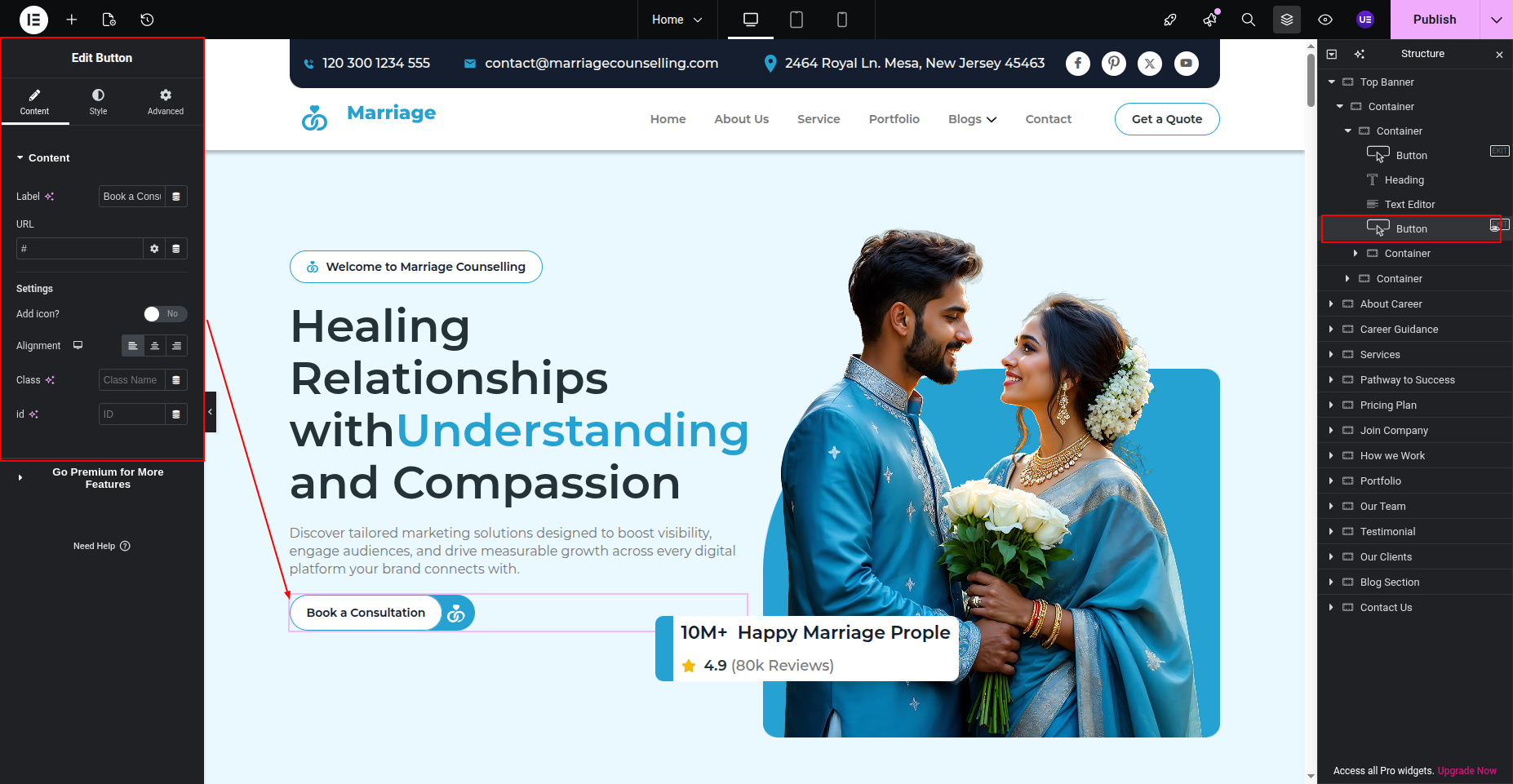
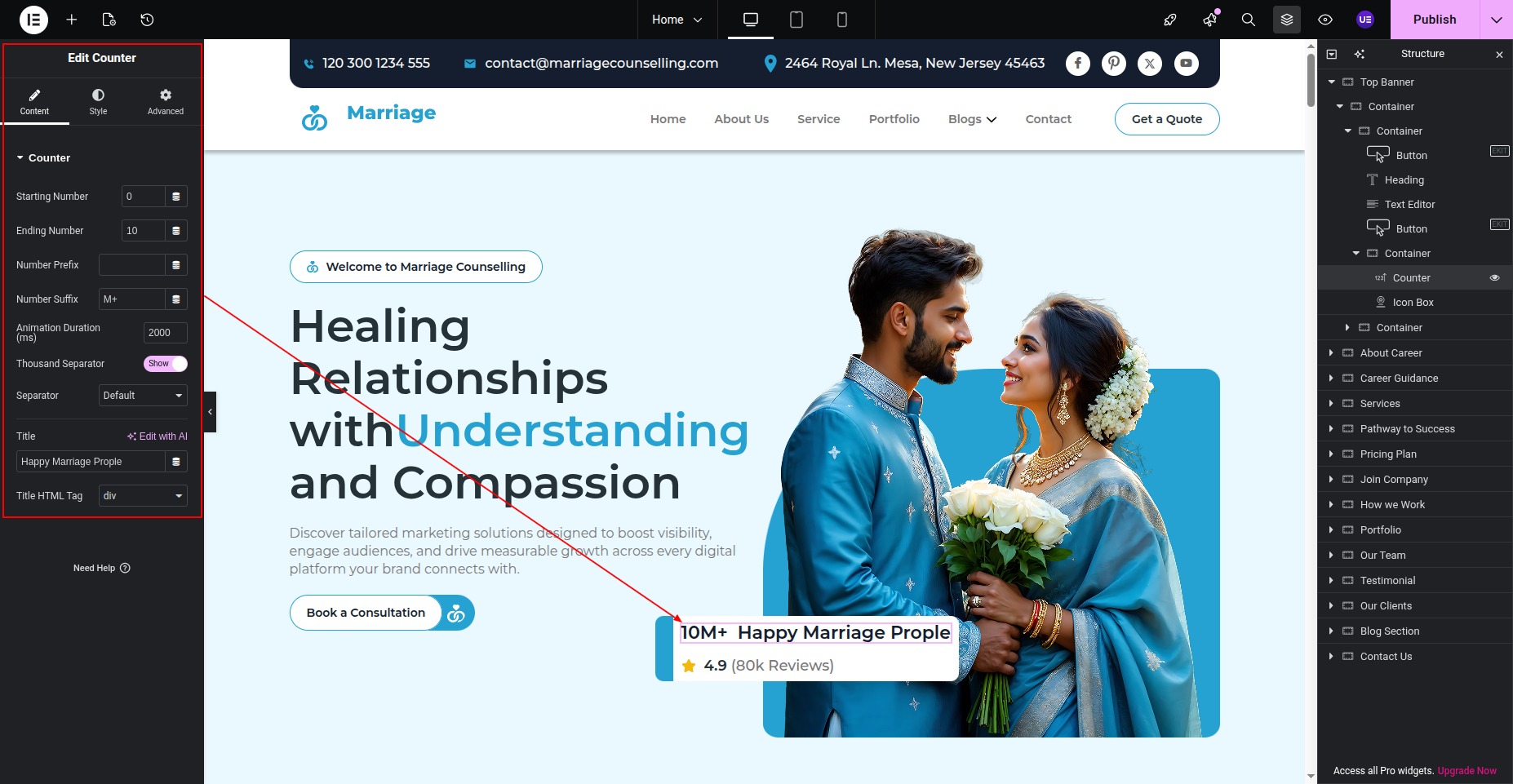
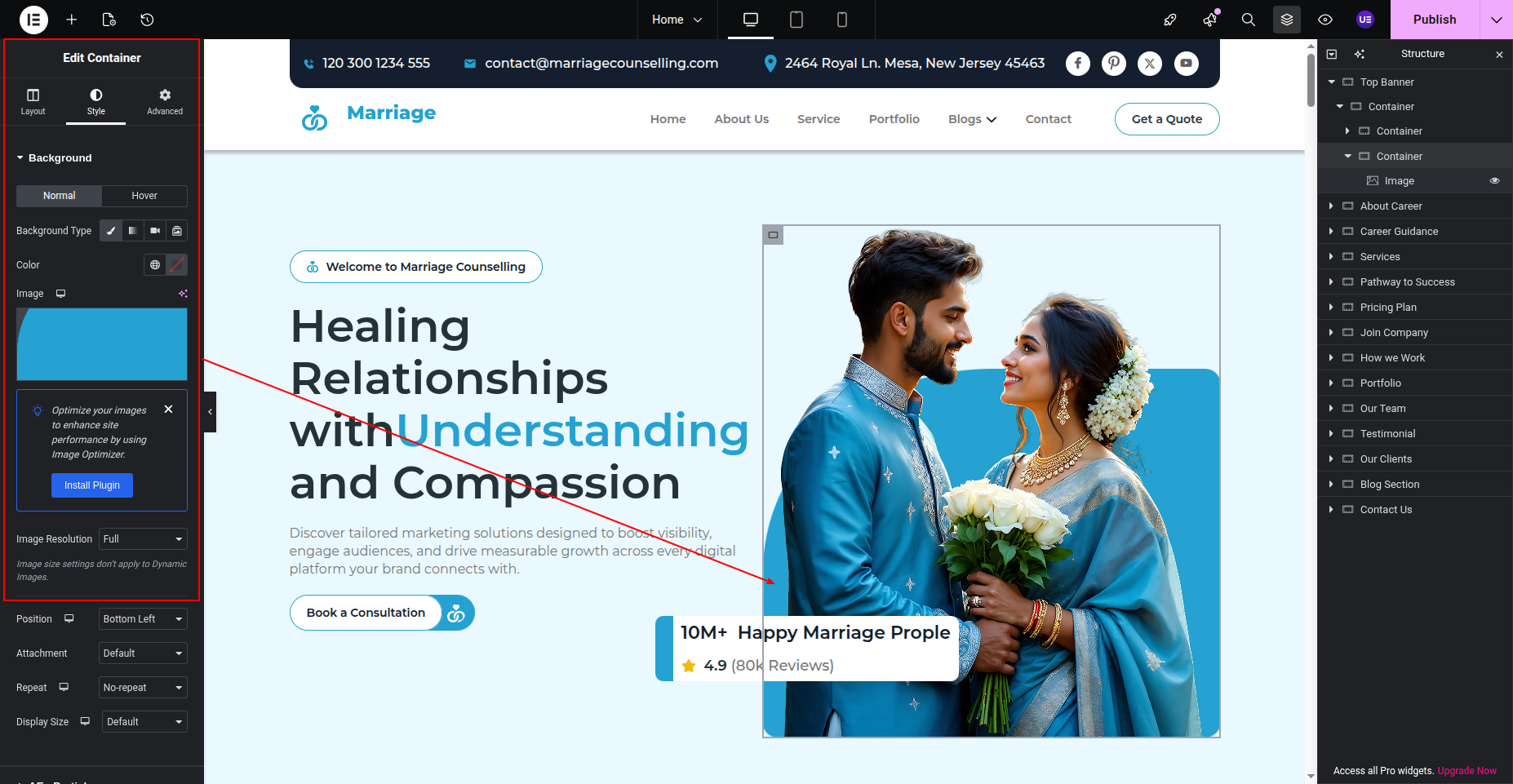
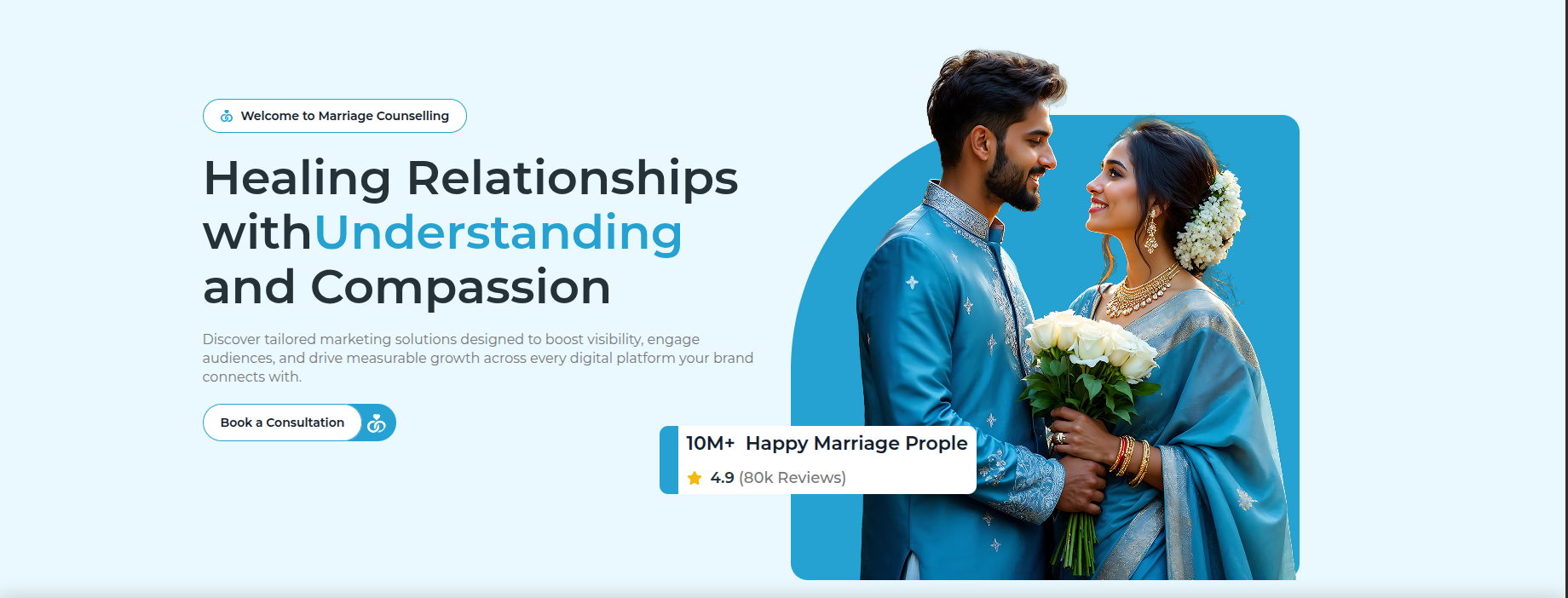
Final Image See below for design insights.
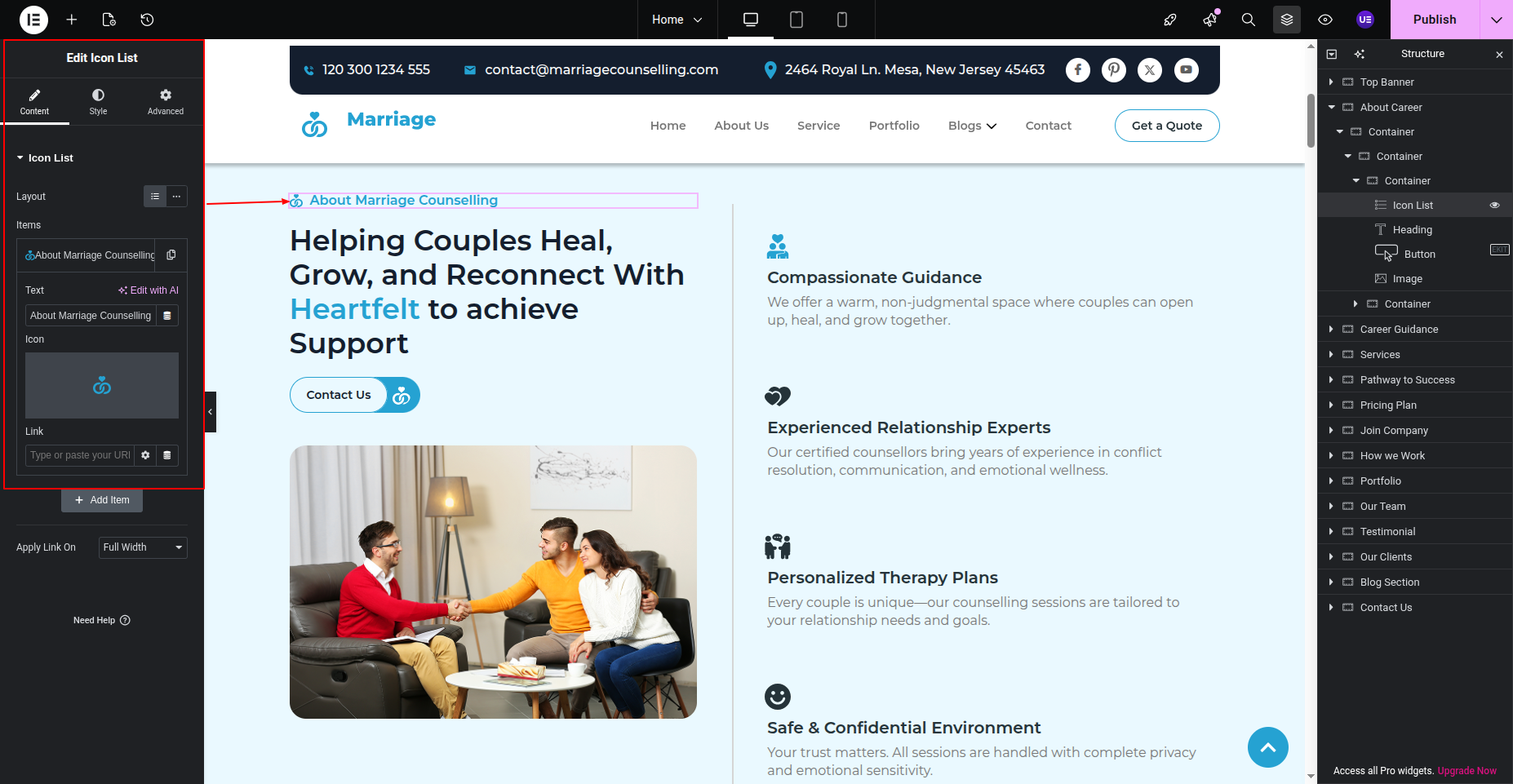
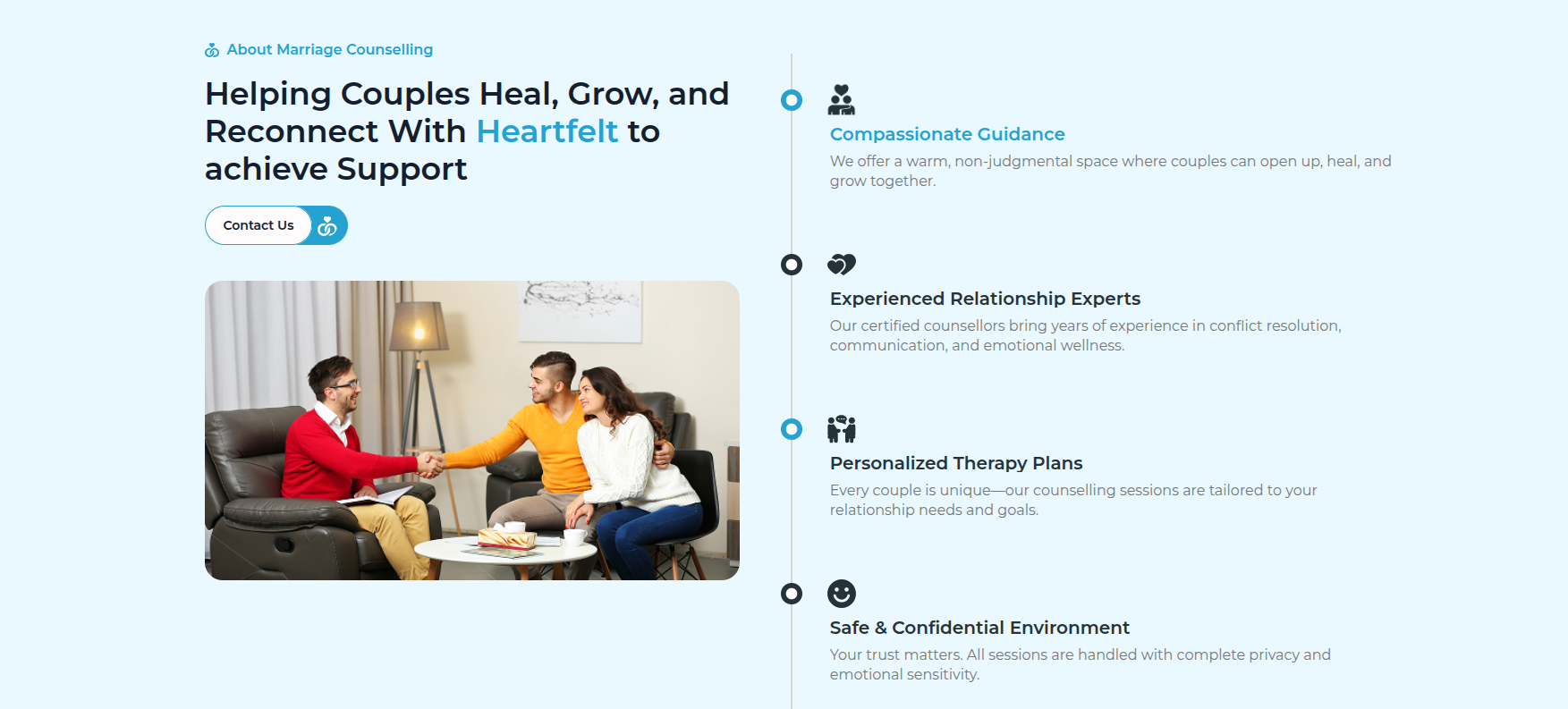
This section pertains to the About Section
Initial Progress while hitting "page, edit with elementor" Move forward Select Widgets and make the changes.
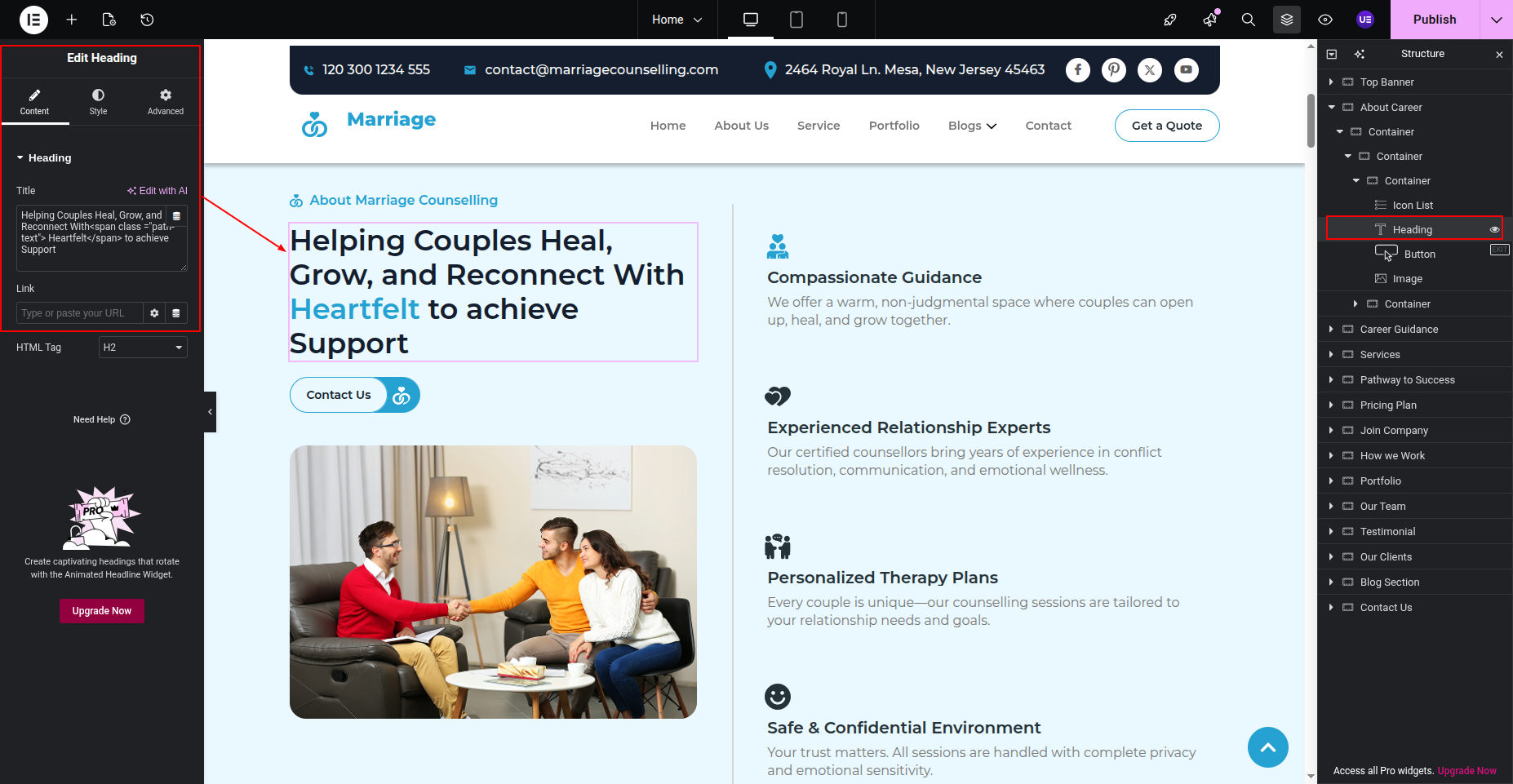
Text editor while hitting "Dashboard" Add your desired text using text editor widget." .
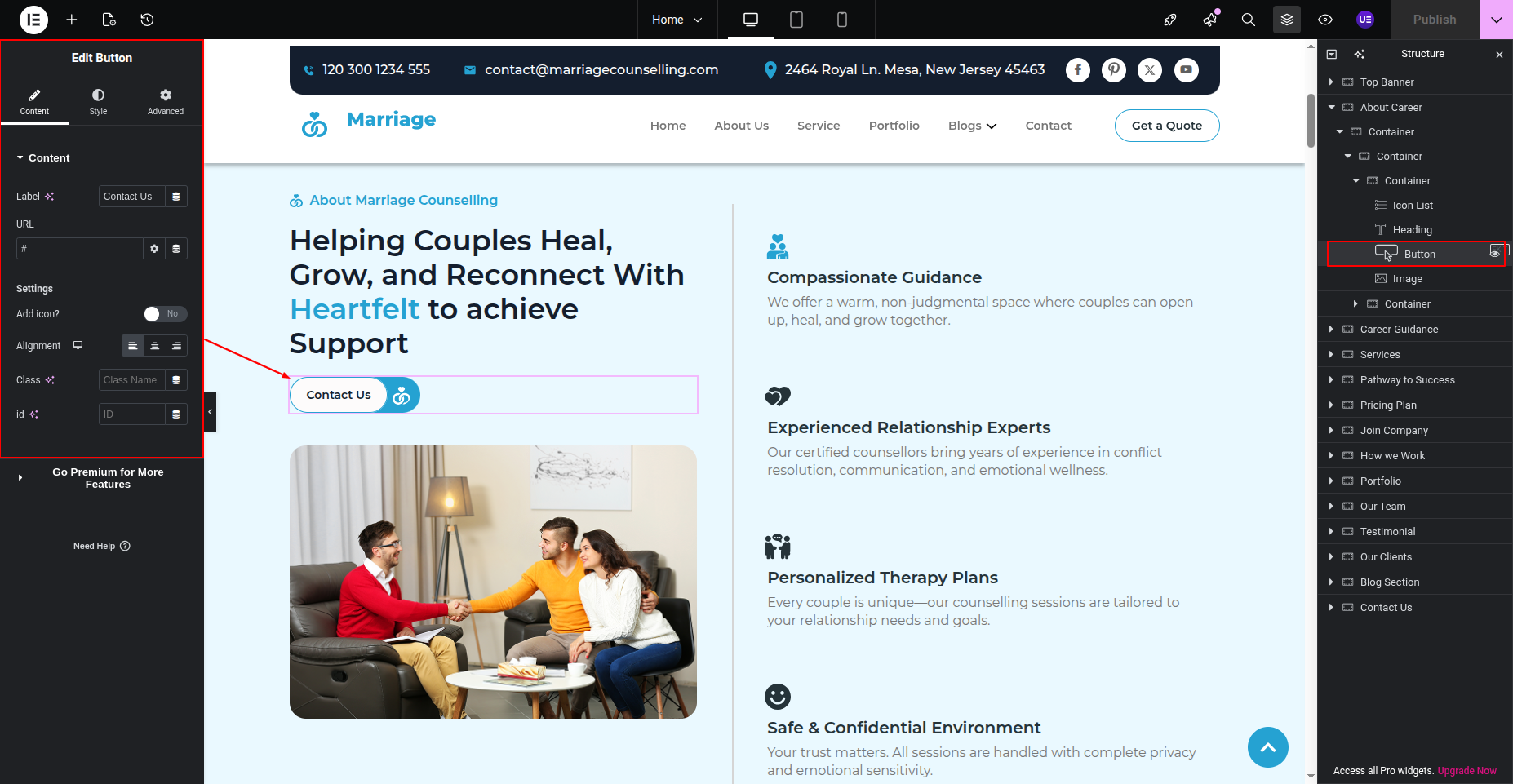
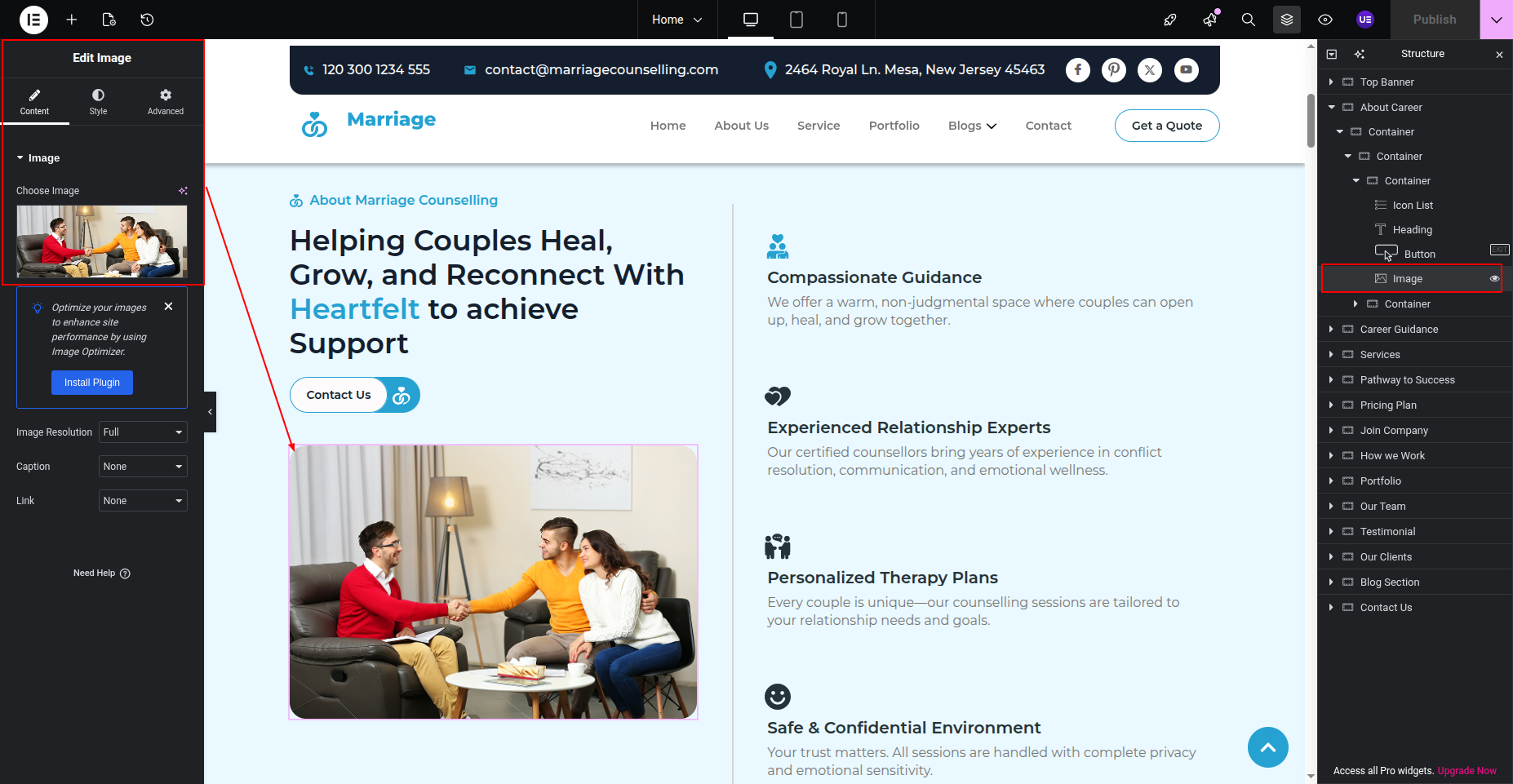
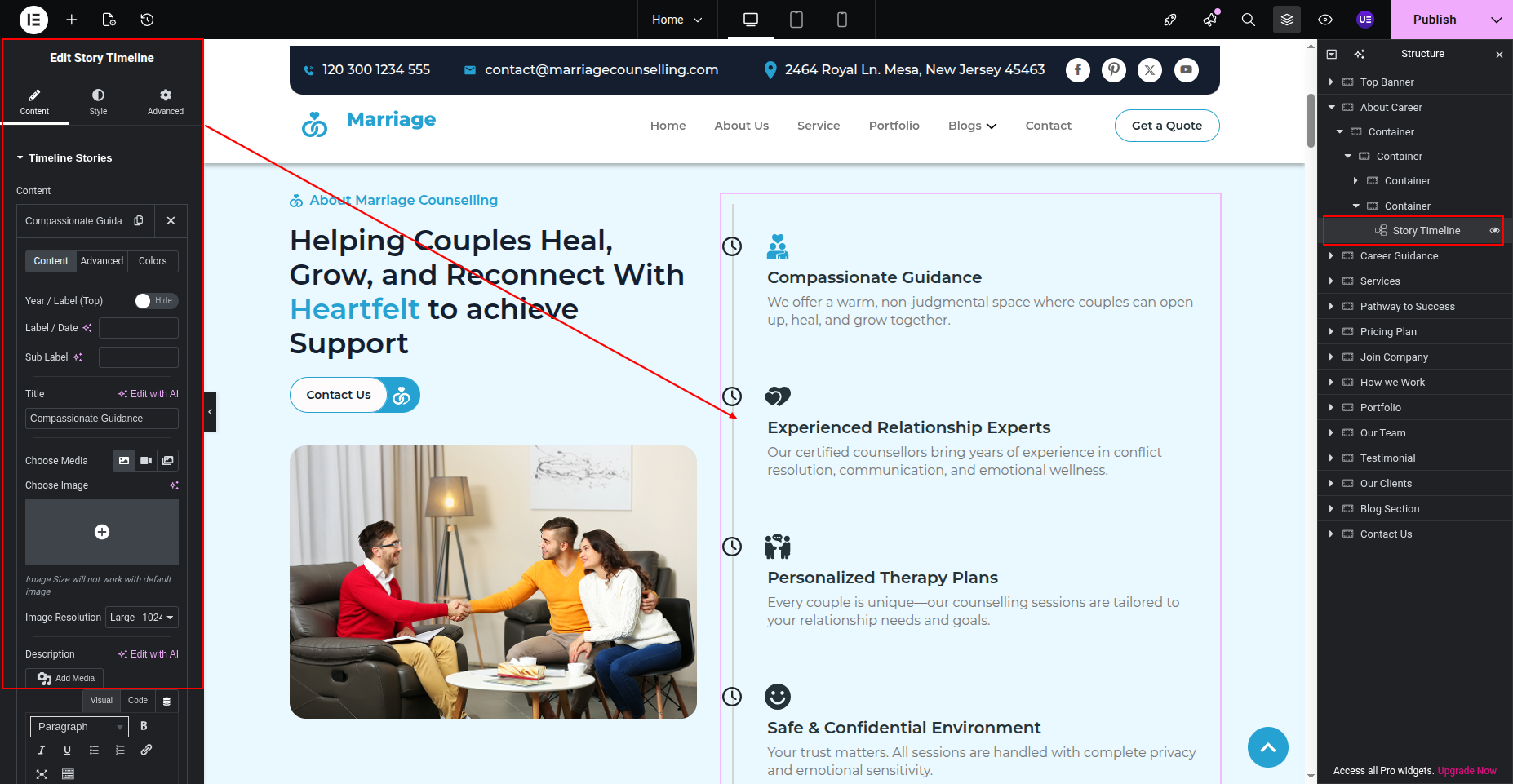
Select Story Timeline widget Edit Content or Add New Content
Final Progress See below for design insights.
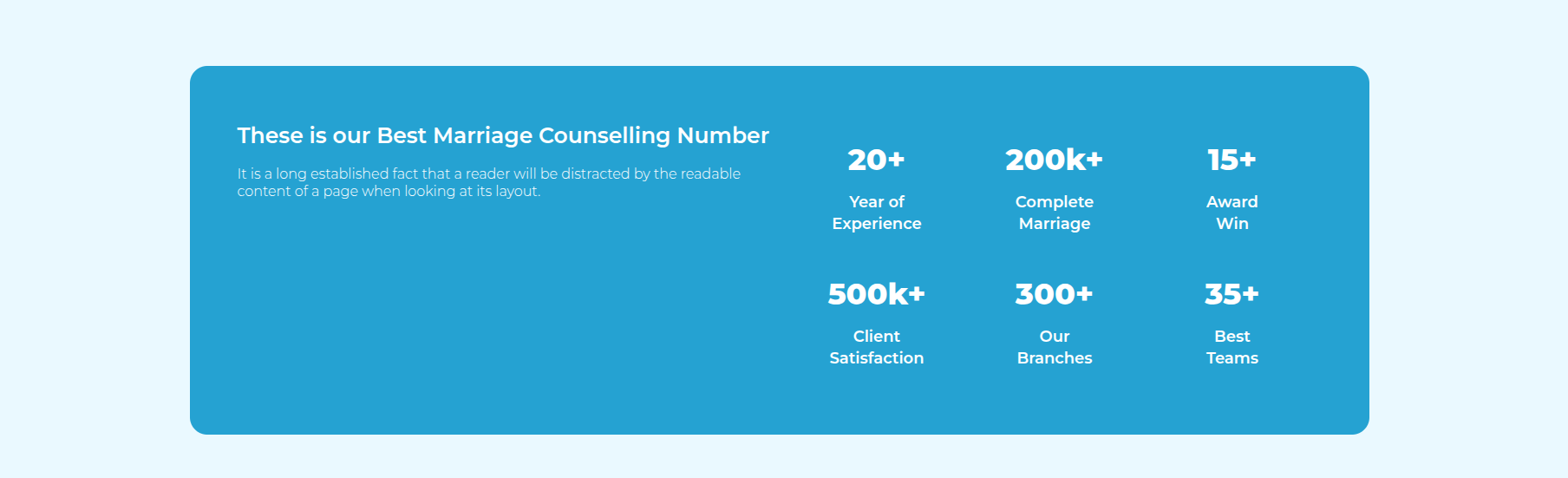
This section pertains Marriage Councel Counter Section.
Initial Progress while hitting "Dashboard" Move forward "Edit with elementor" Now edit or add new content in the Marriage Councel Counter section previous tapping "Published" .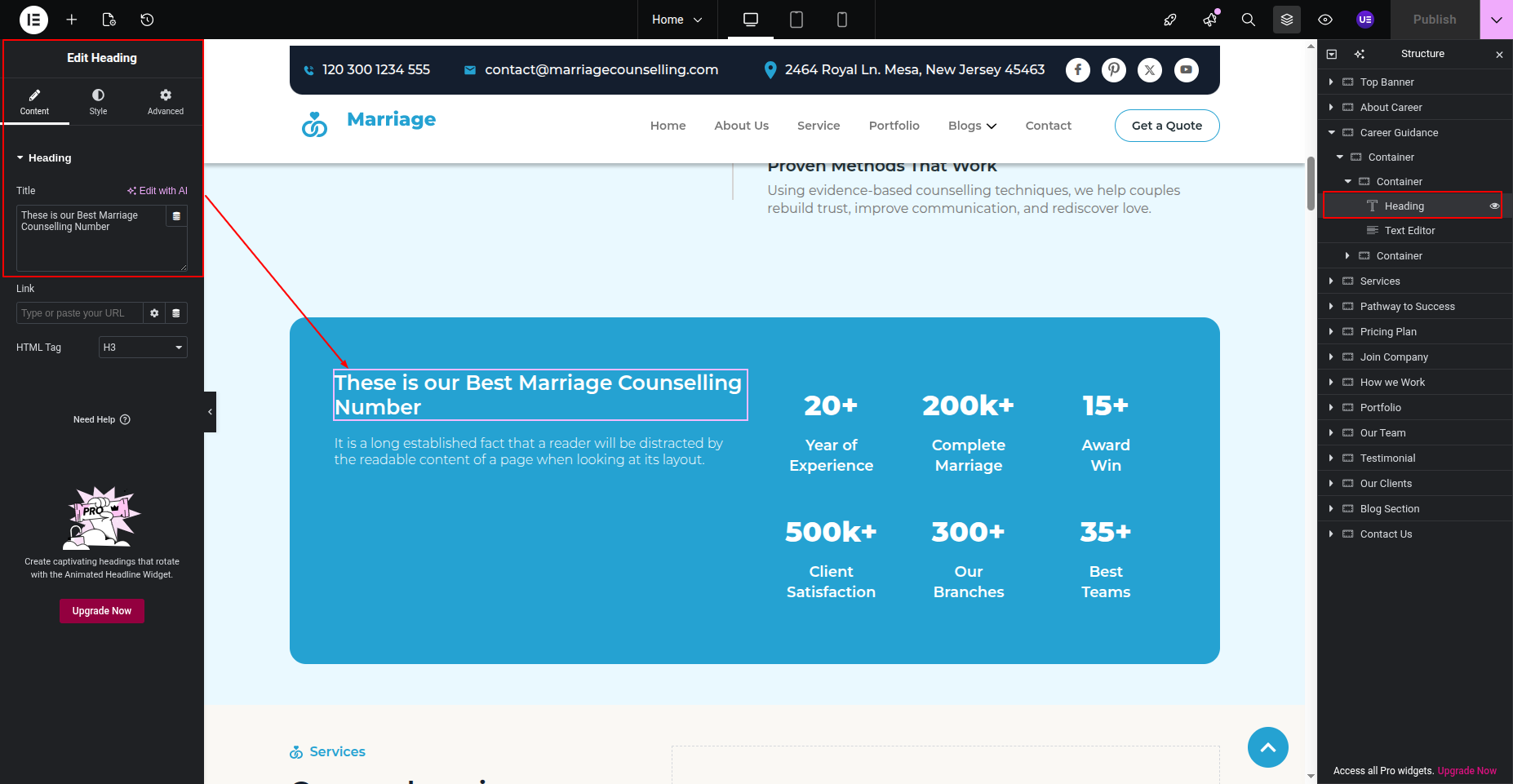
Final Progress See below for design insights.
This section pertains to the Services Section.
Next Progress while hitting "Edit With Elementor" Discover "Heading" Widget then edit the content Move forward "add heading name, content and featured".
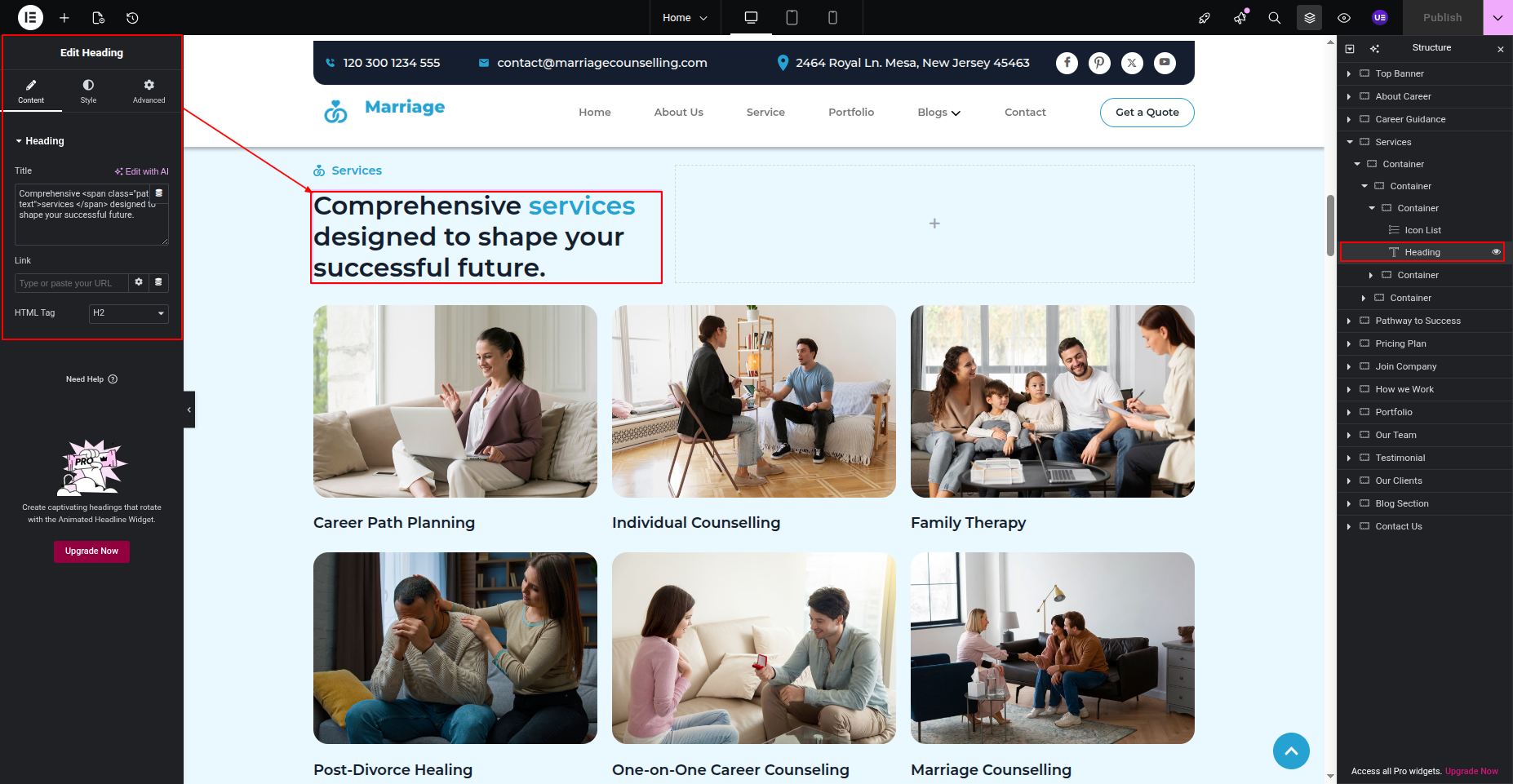
Next Progress while hitting "Edit With Elementor" Discover "Heading" Widget then edit the content Move forward "Select Service from the Query".
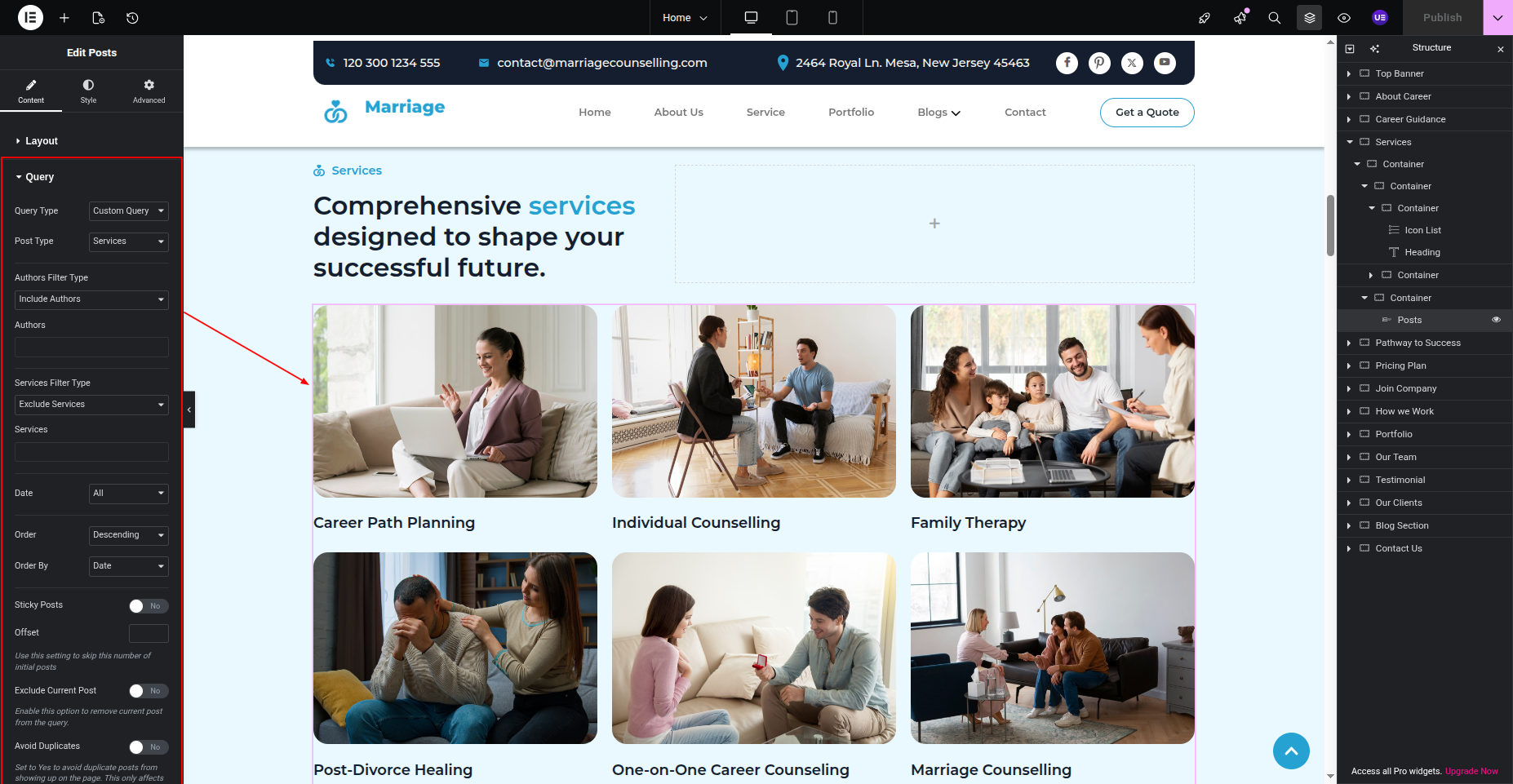
For adding this go to Dashboard Now look for the "Service" Tab Click on Add or Edit the services then edit the content Move forward and save the changes.
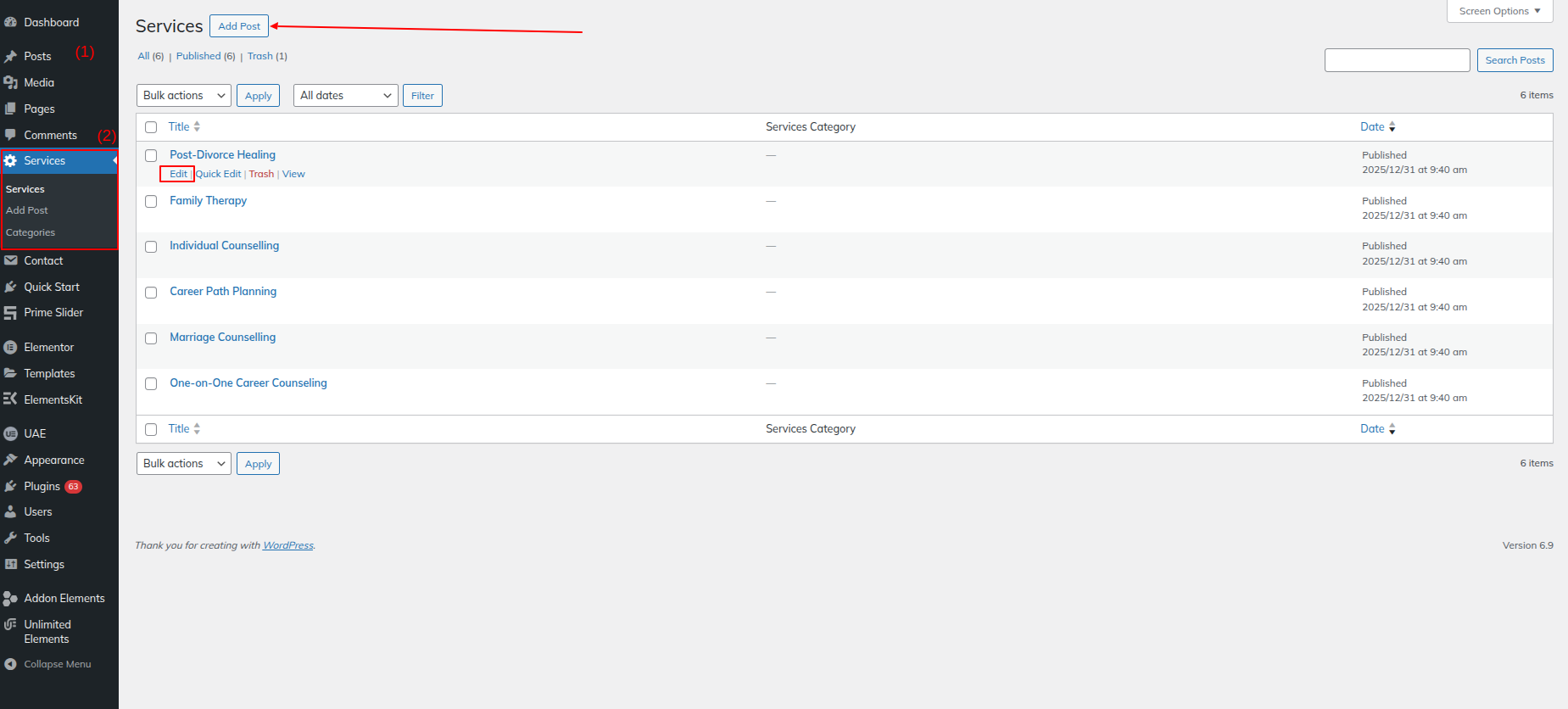
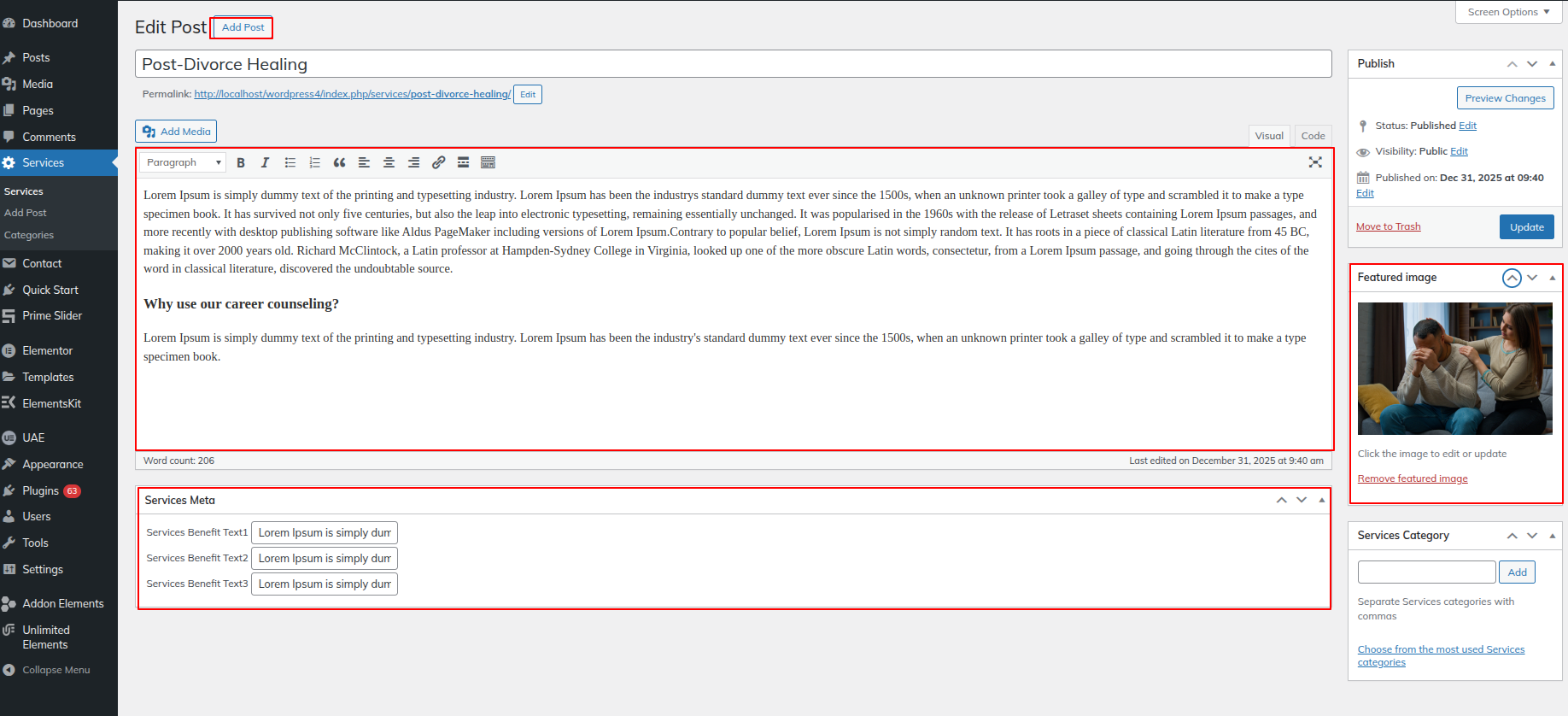
Final Output See below for design insights.
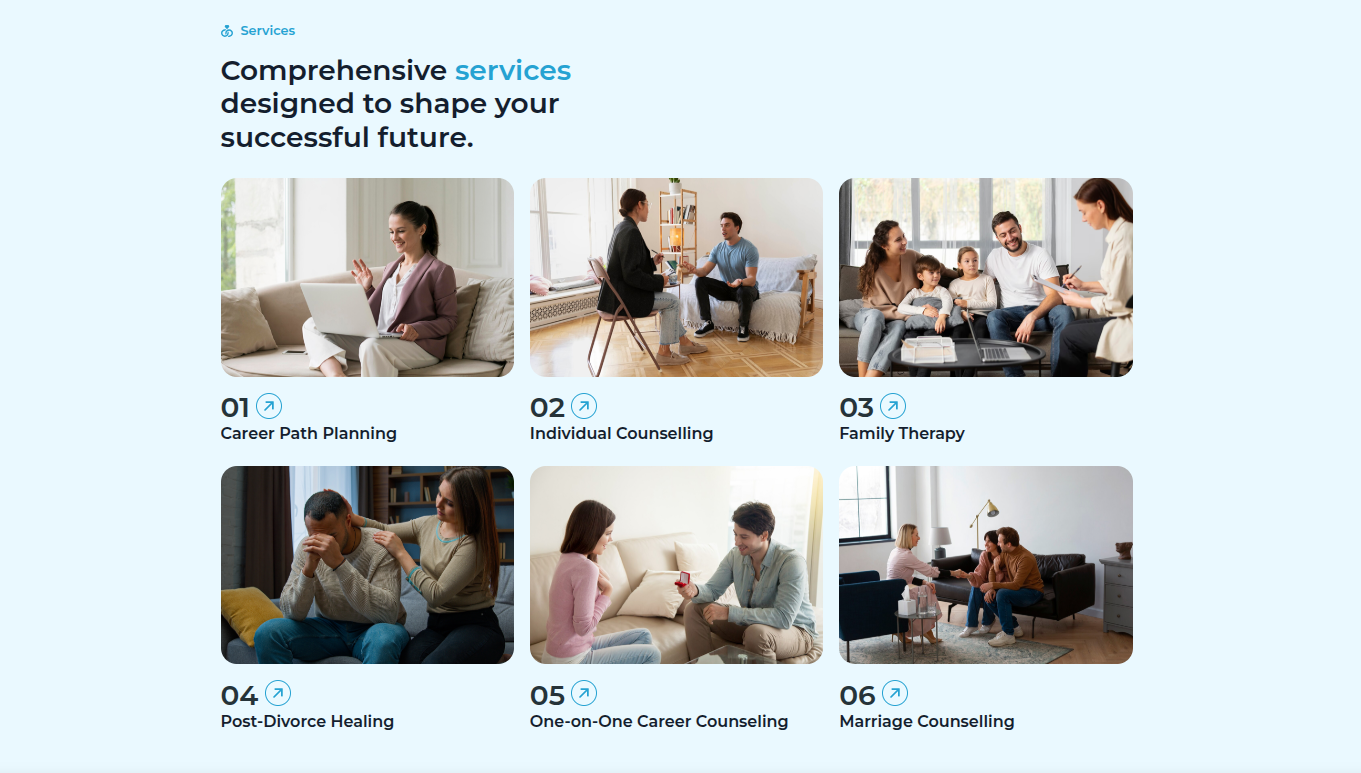
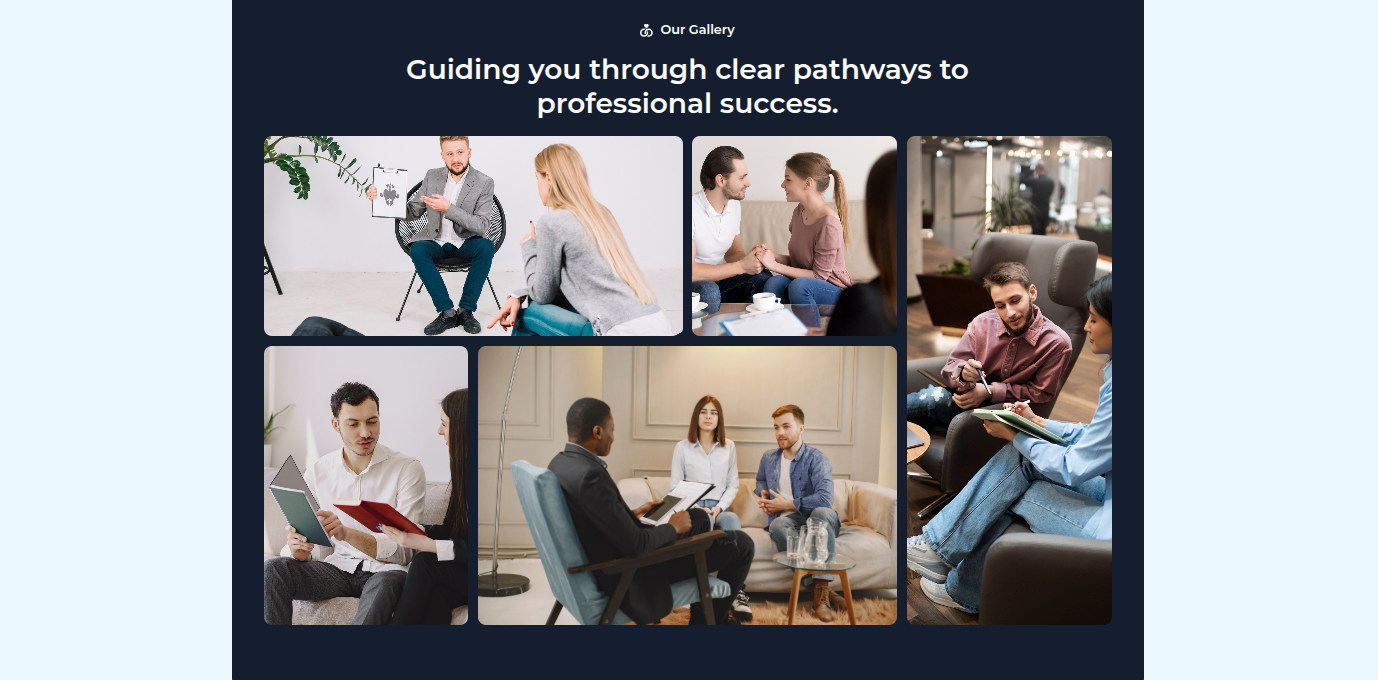
This section pertains to the Our Gallery Section
Initial Progress while hitting "edit page with elementor" Discover "Heading" then "add content in it" .
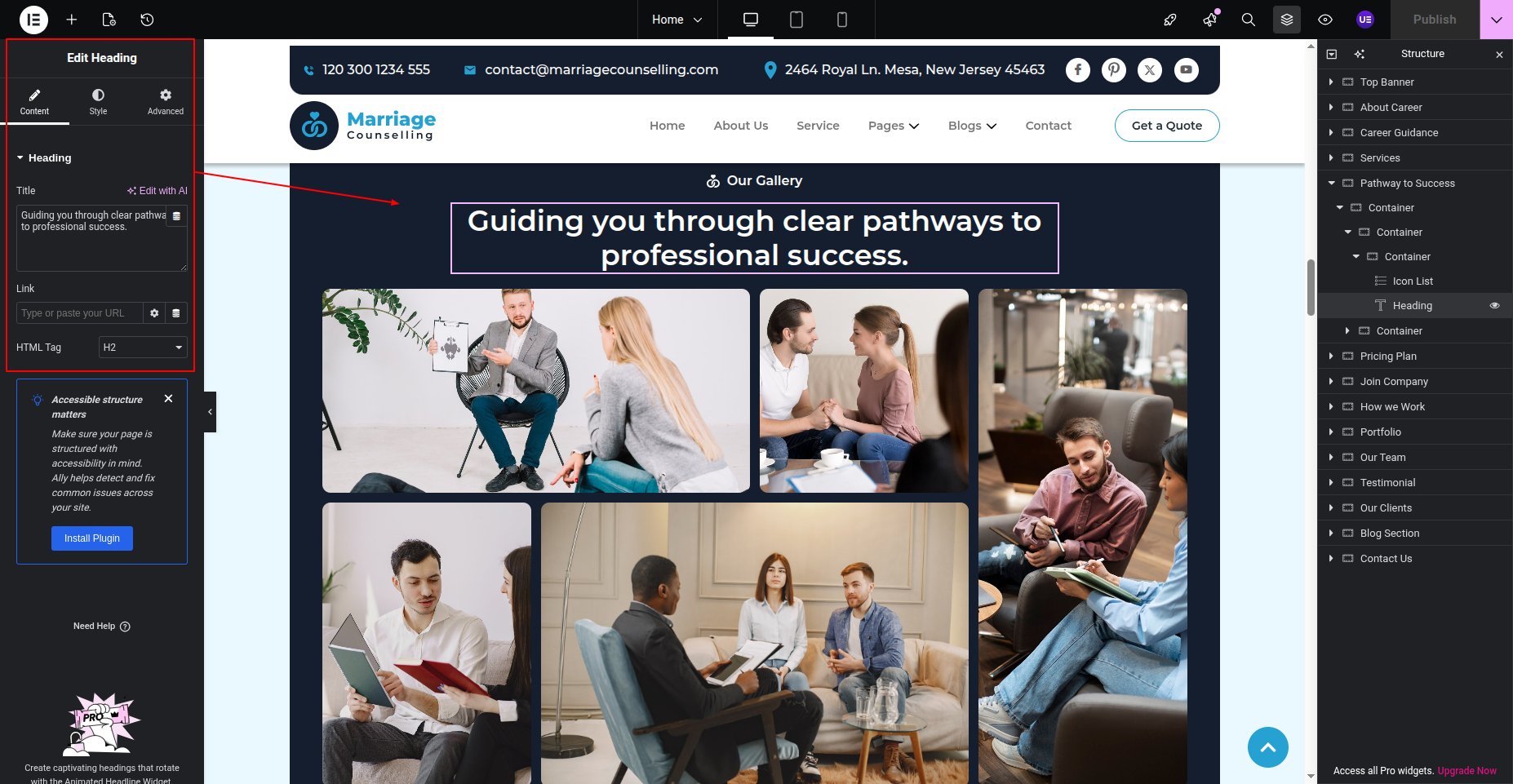
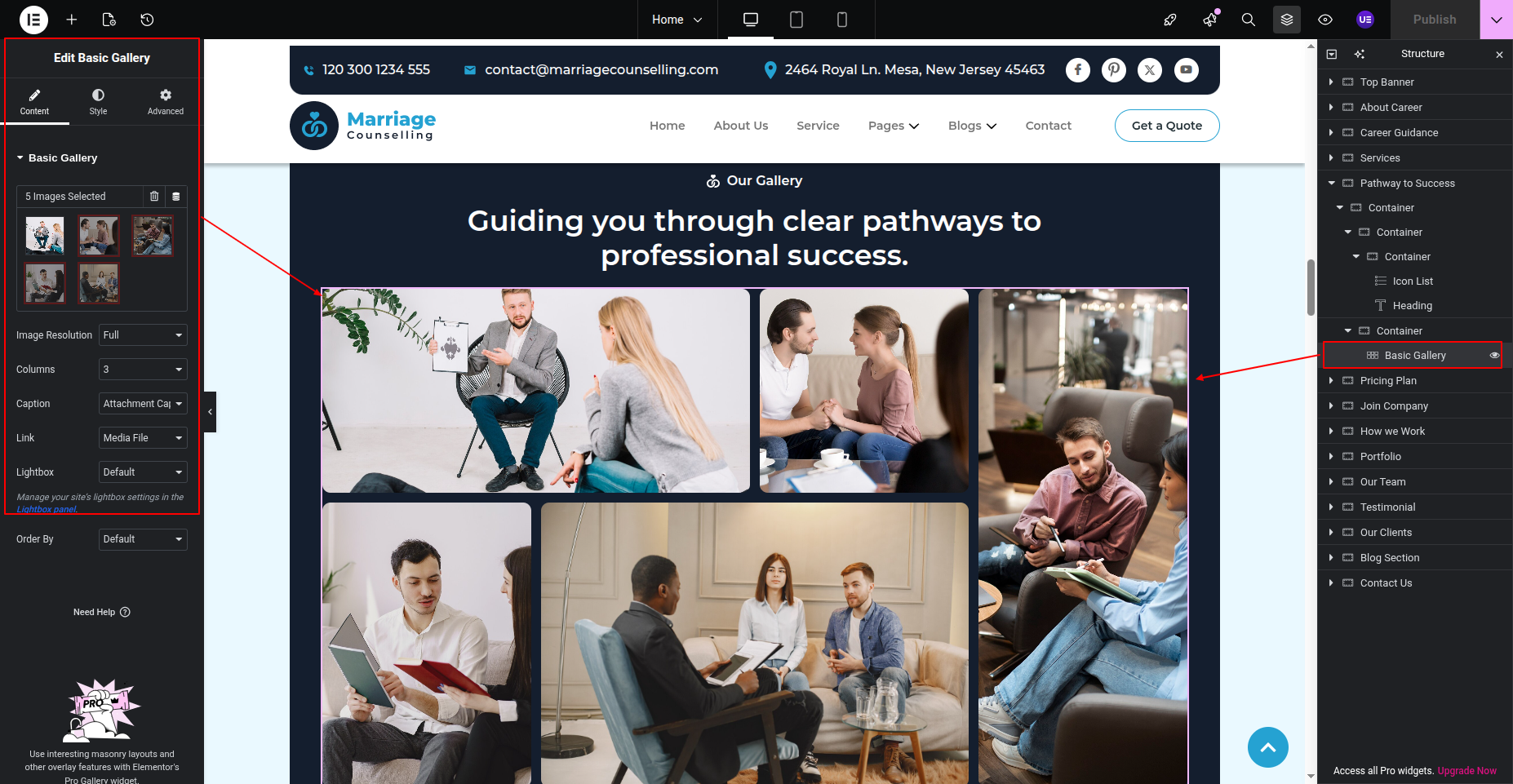
Final Progress See below for design insights.
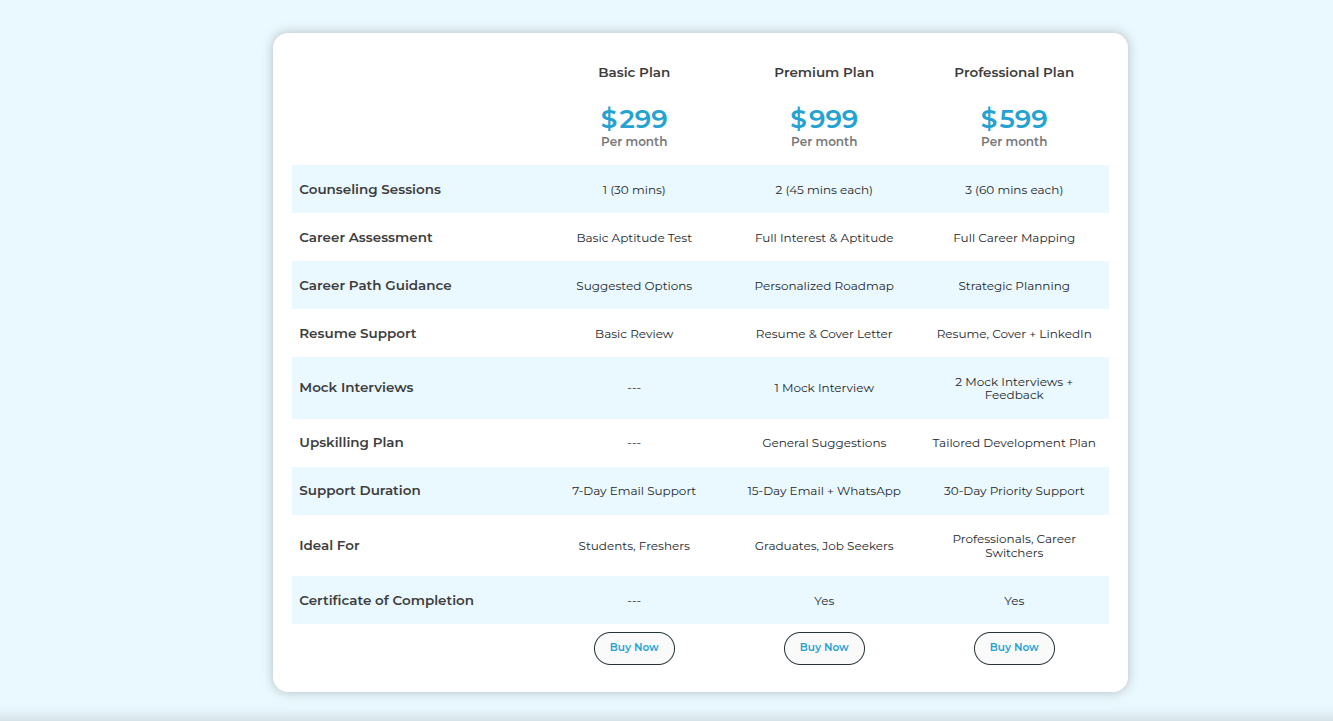
This section pertains to the Pricing Plan Section.
Initial Progress this is the Pricing Section, click on "Heading" to change or edit then select the shortcode widget add shortcode [wpe-sneakers-brands-product-shortcode category="product_cat1"] .
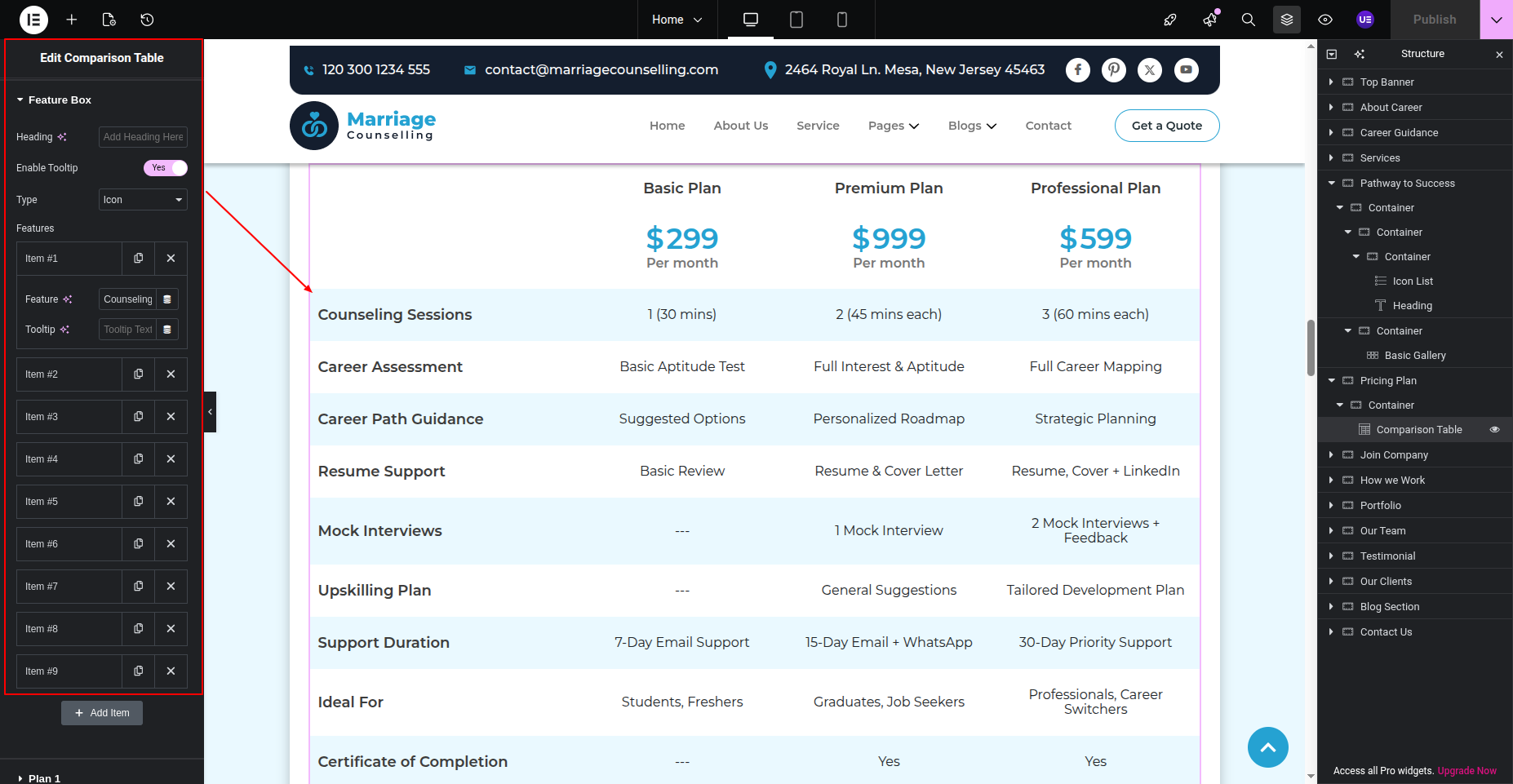
Final Progress See below for design insights.
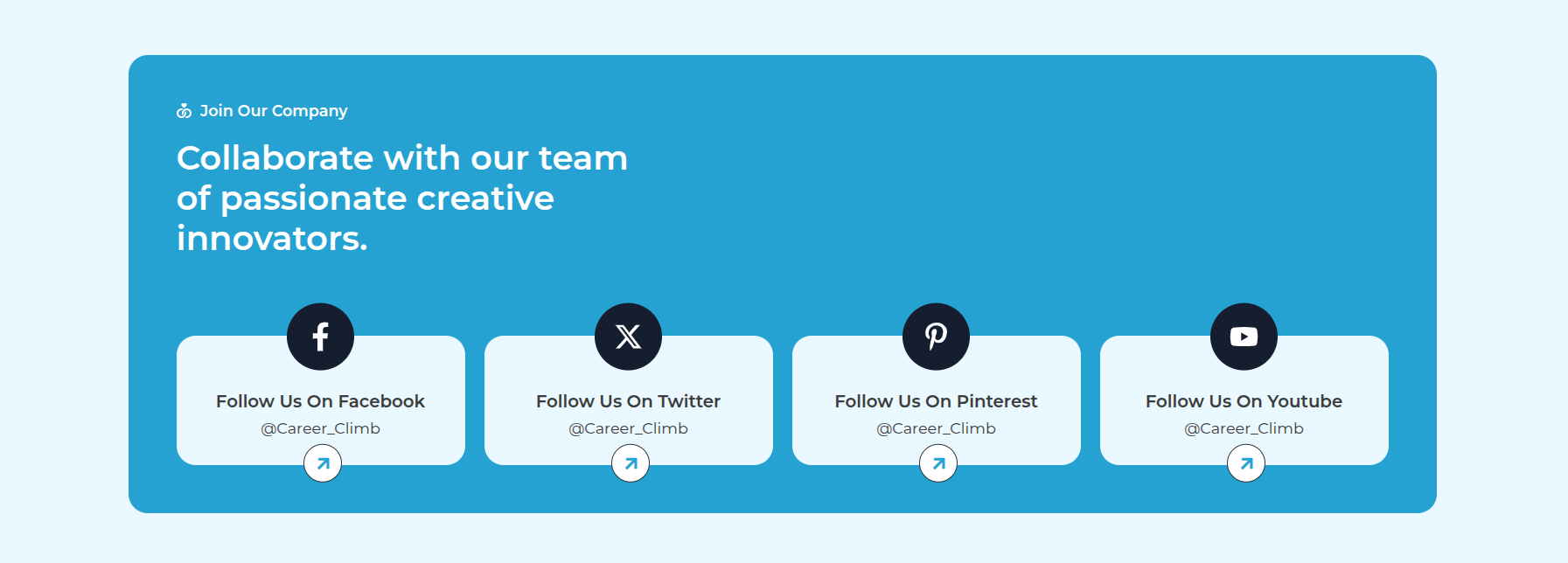
This section pertains to the Join Company Section.
Initial Progress while hitting "Dashboard" Discover "Join Company Section" then "add heading, posts categories as per your requirements" .
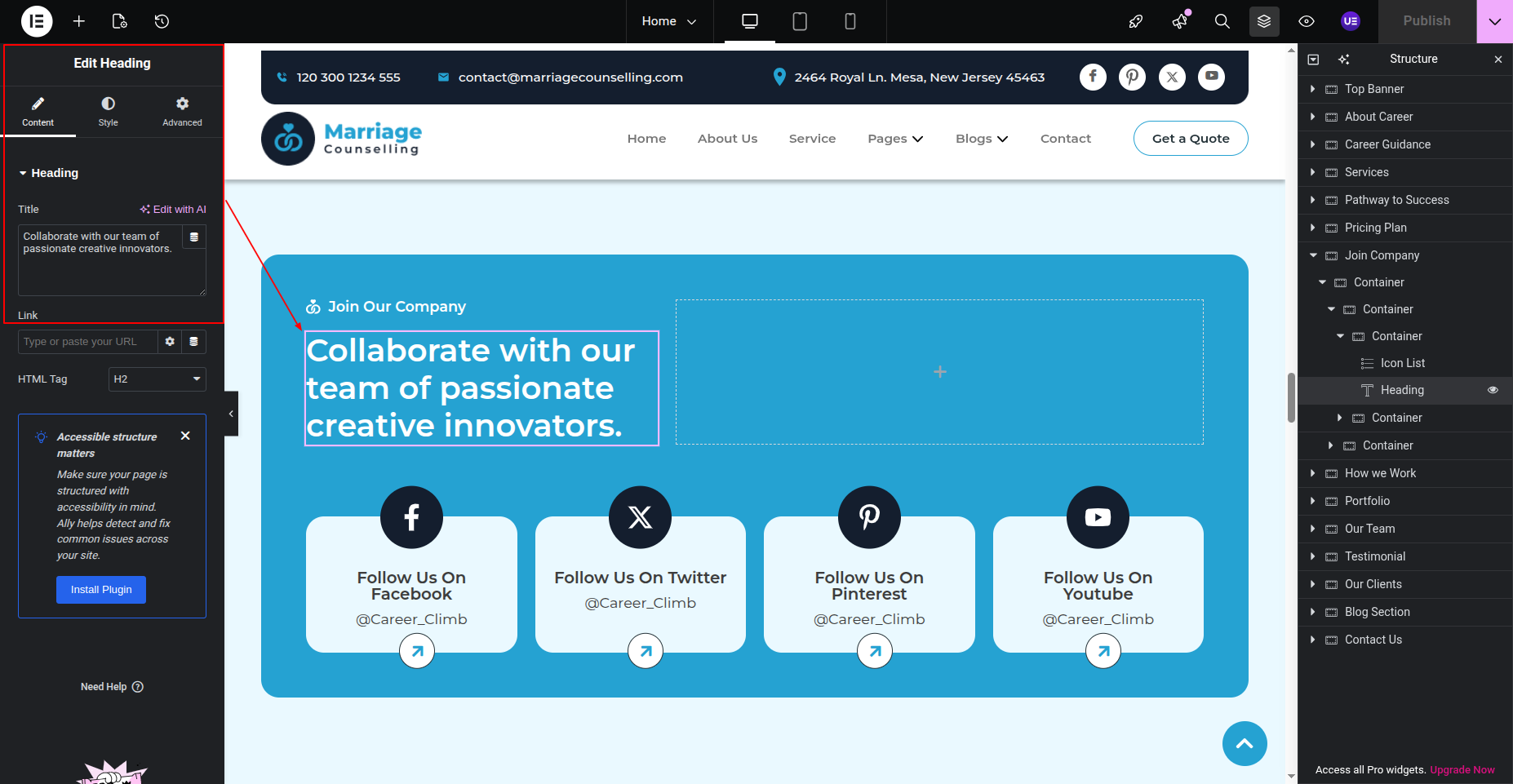
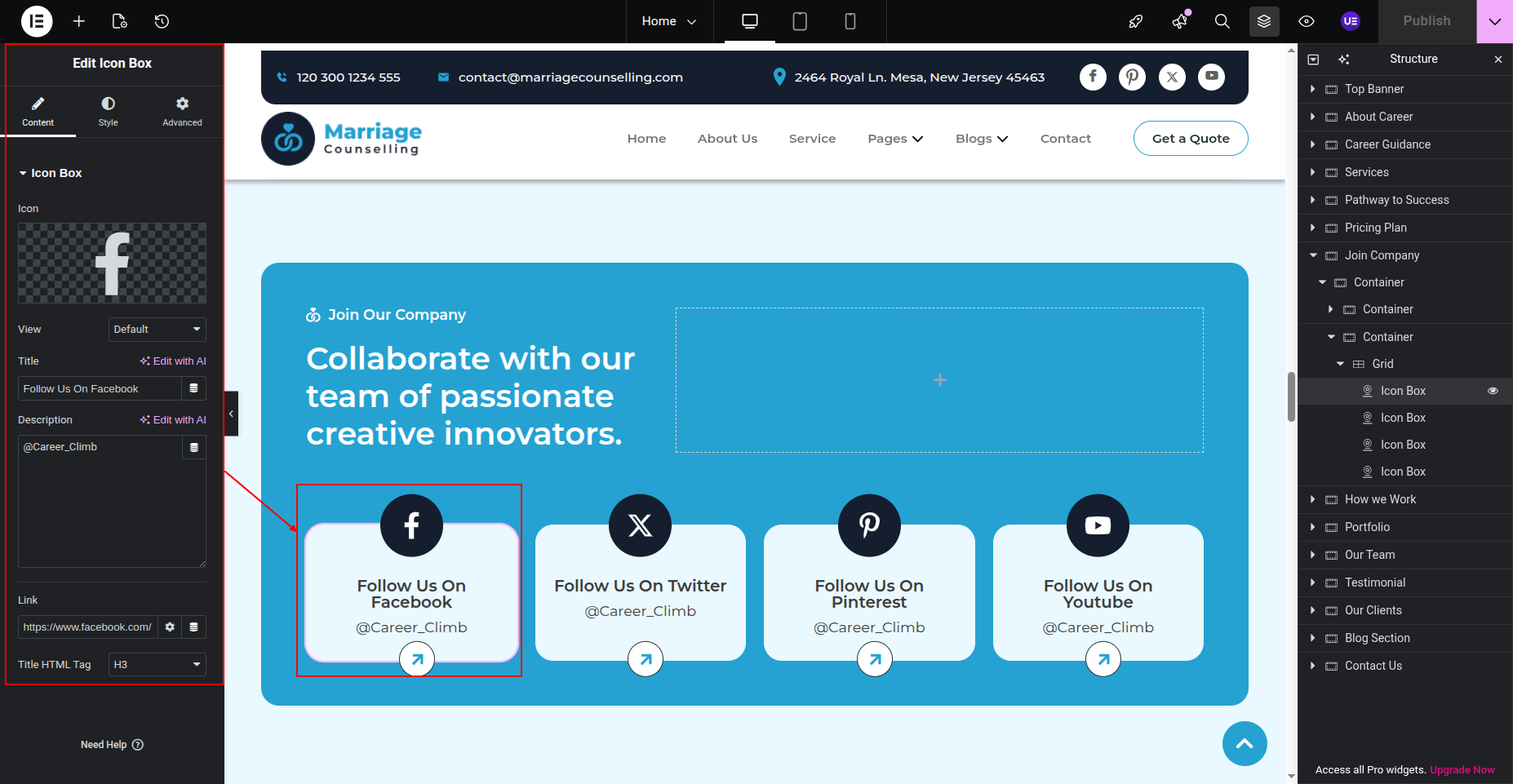
Final Progress See below for design insights.
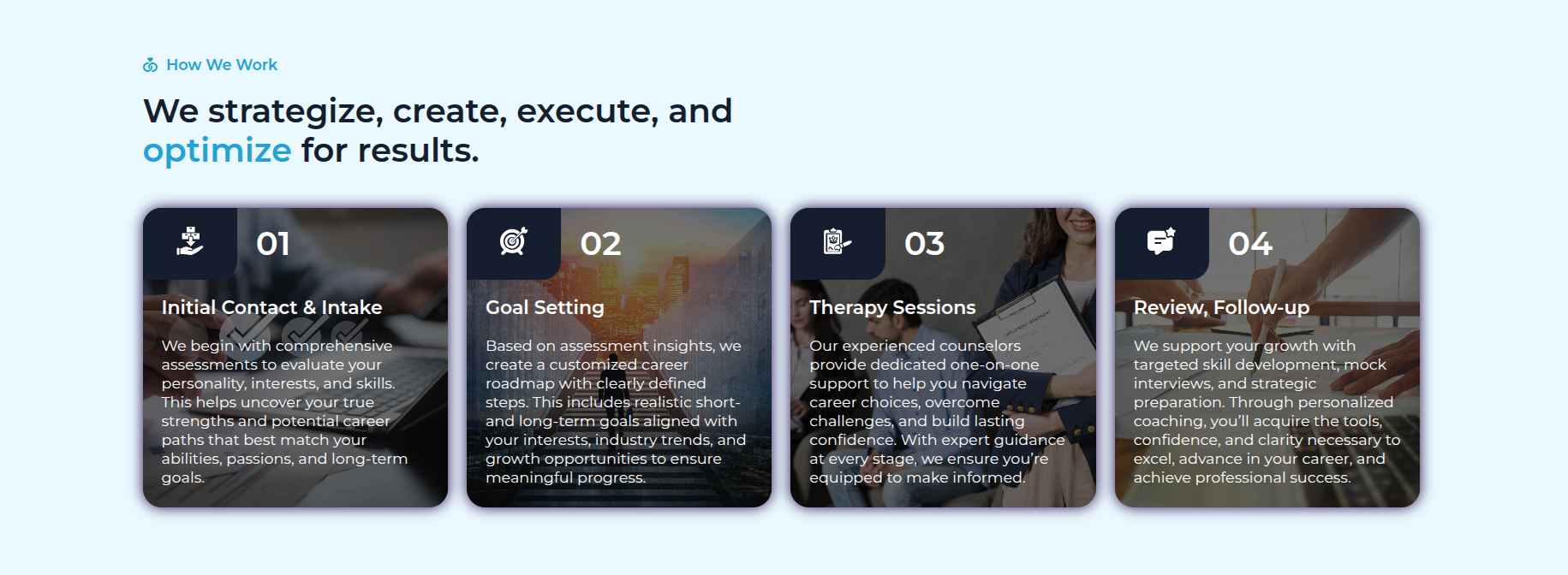
This section pertains to the How We Work Section.
Initial Progress while hitting "edit page with elementor" Discover "How We Work Section" Edit the content and click on "Published" to save the changes
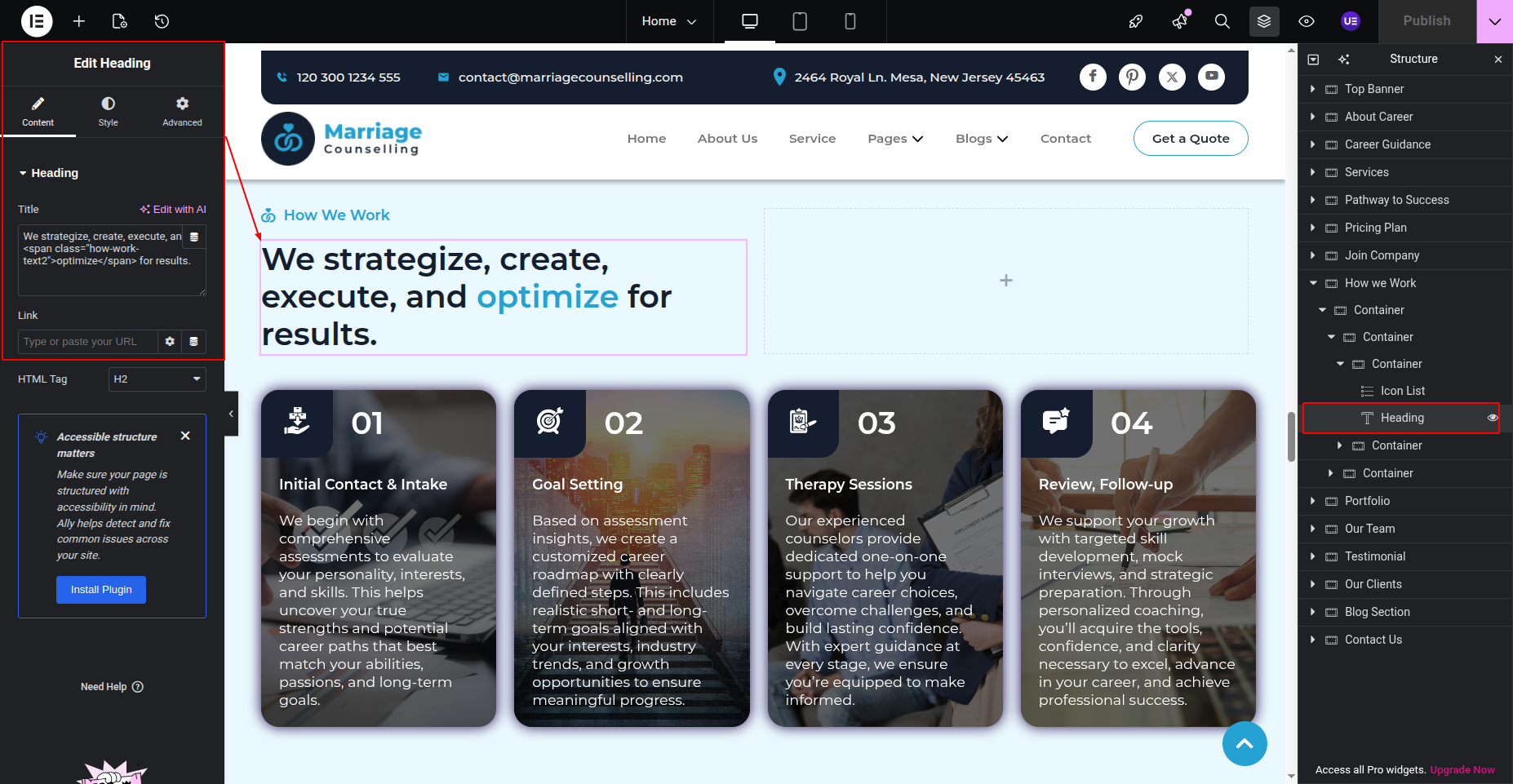
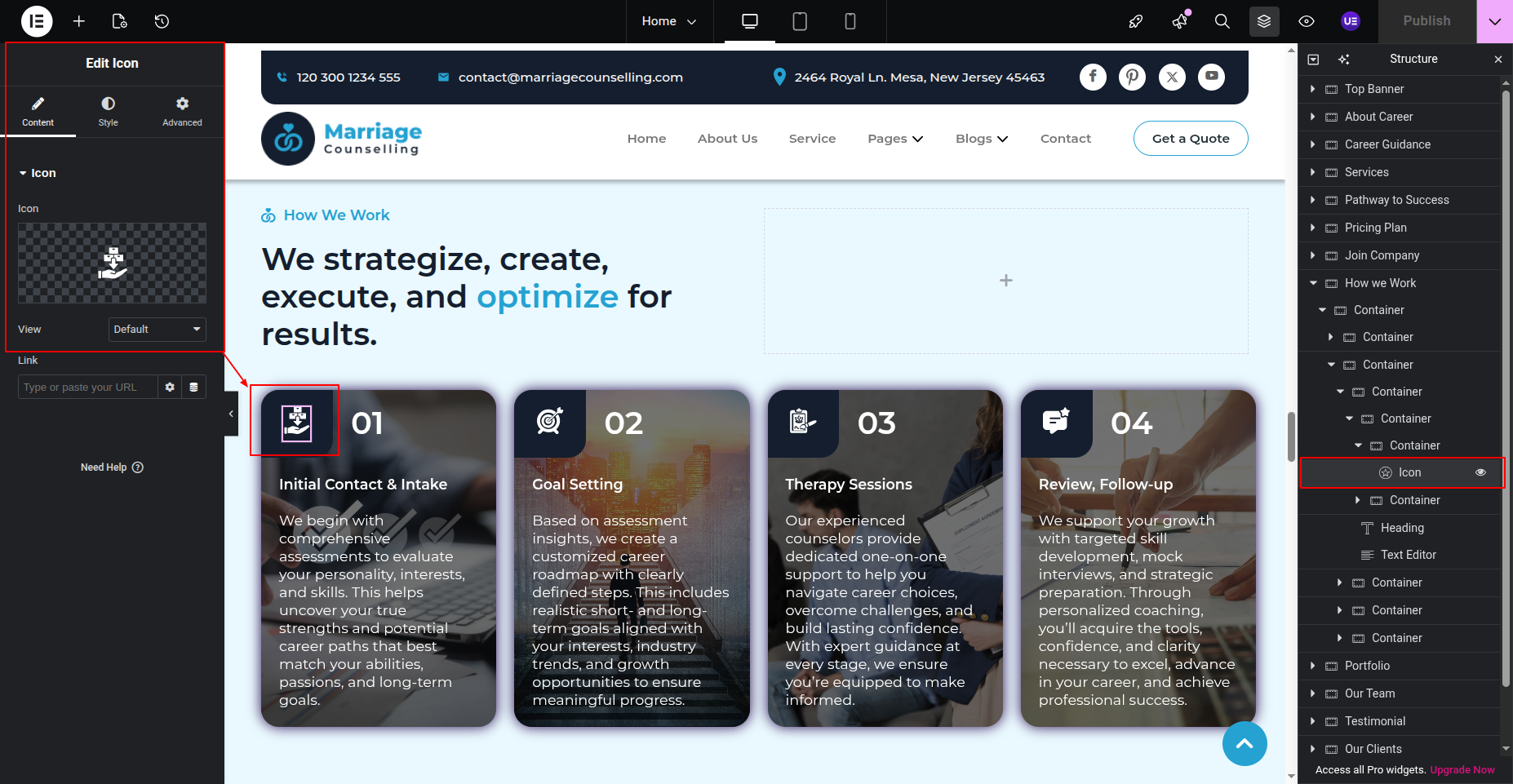
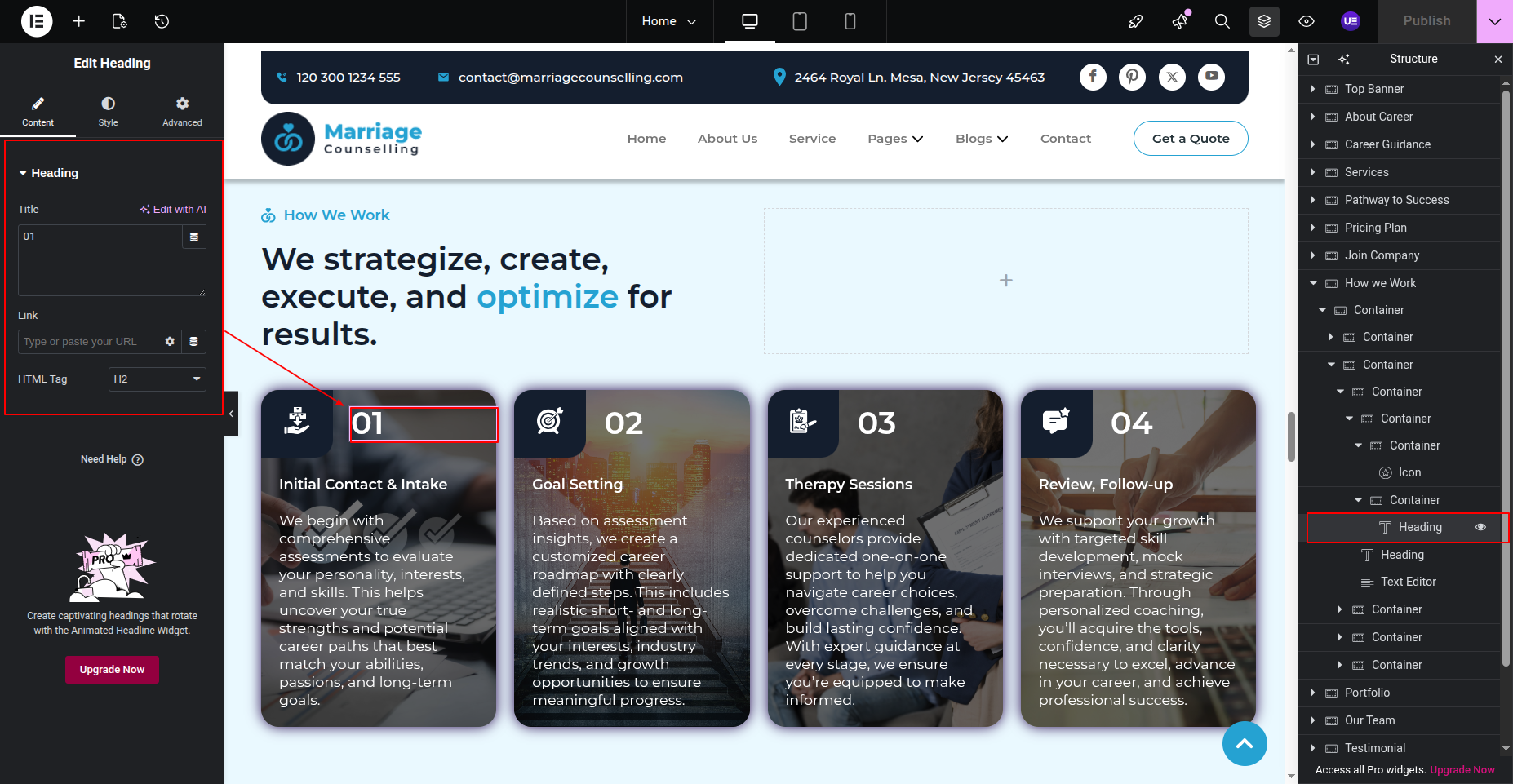
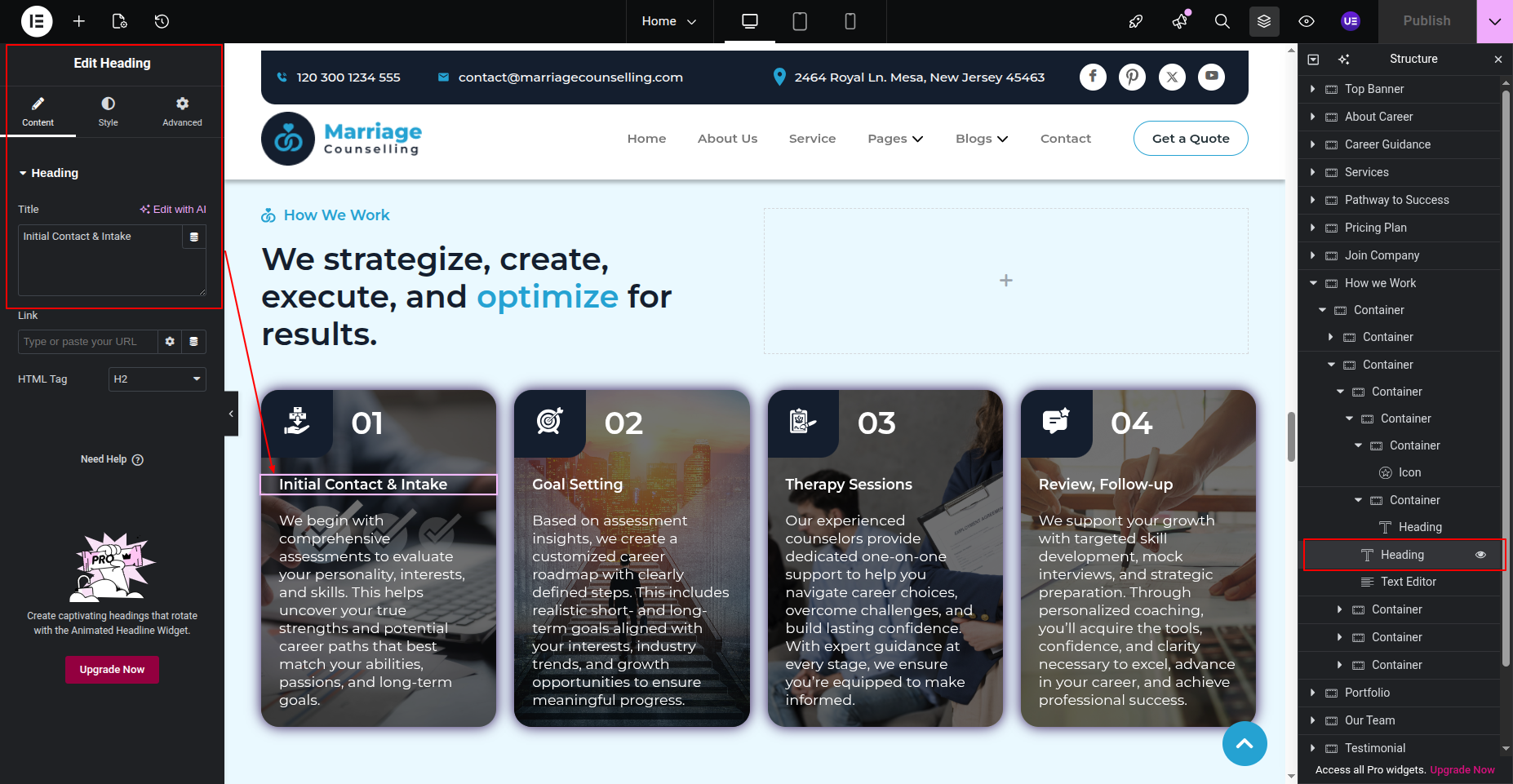
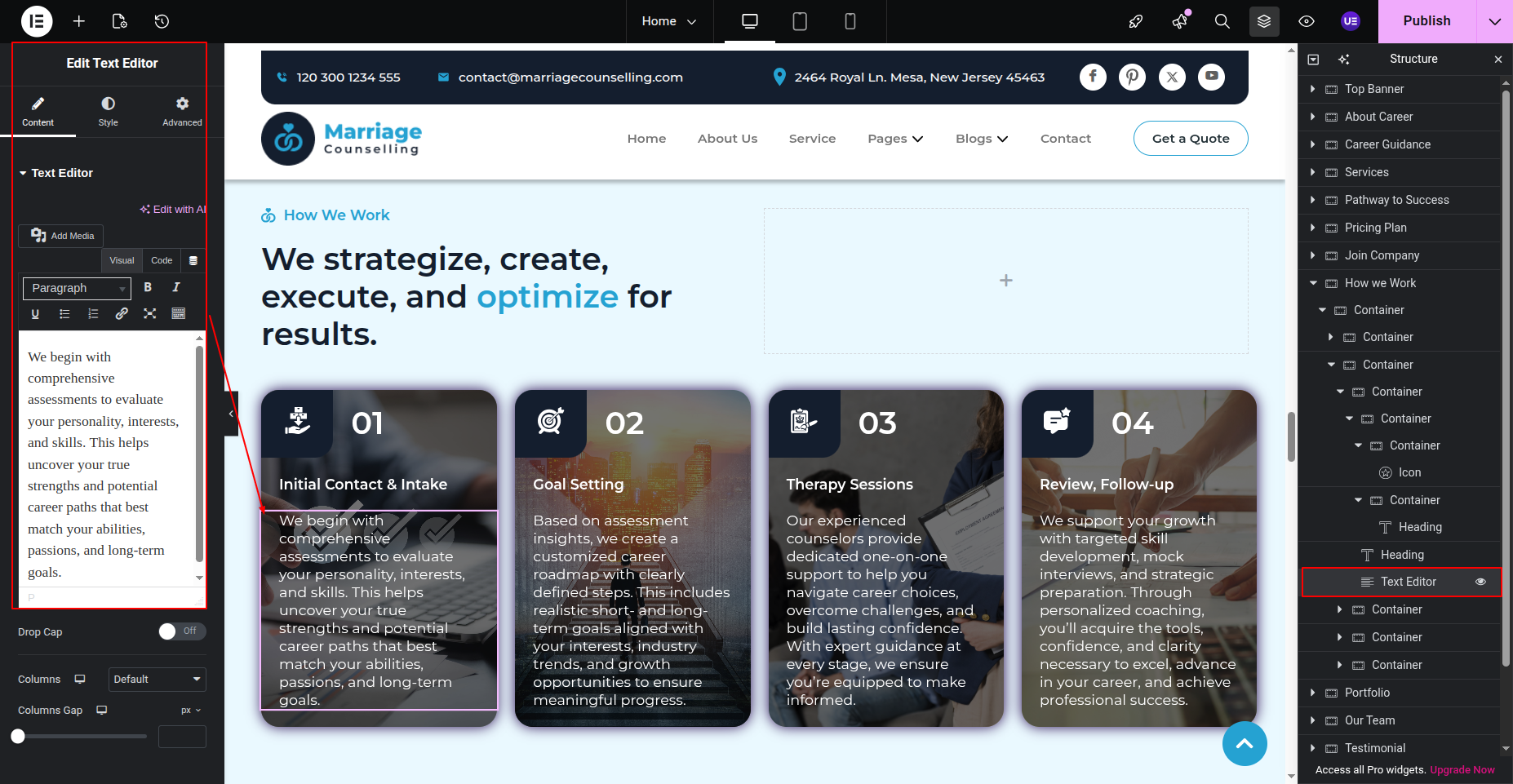
Final Progress See below for design insights.
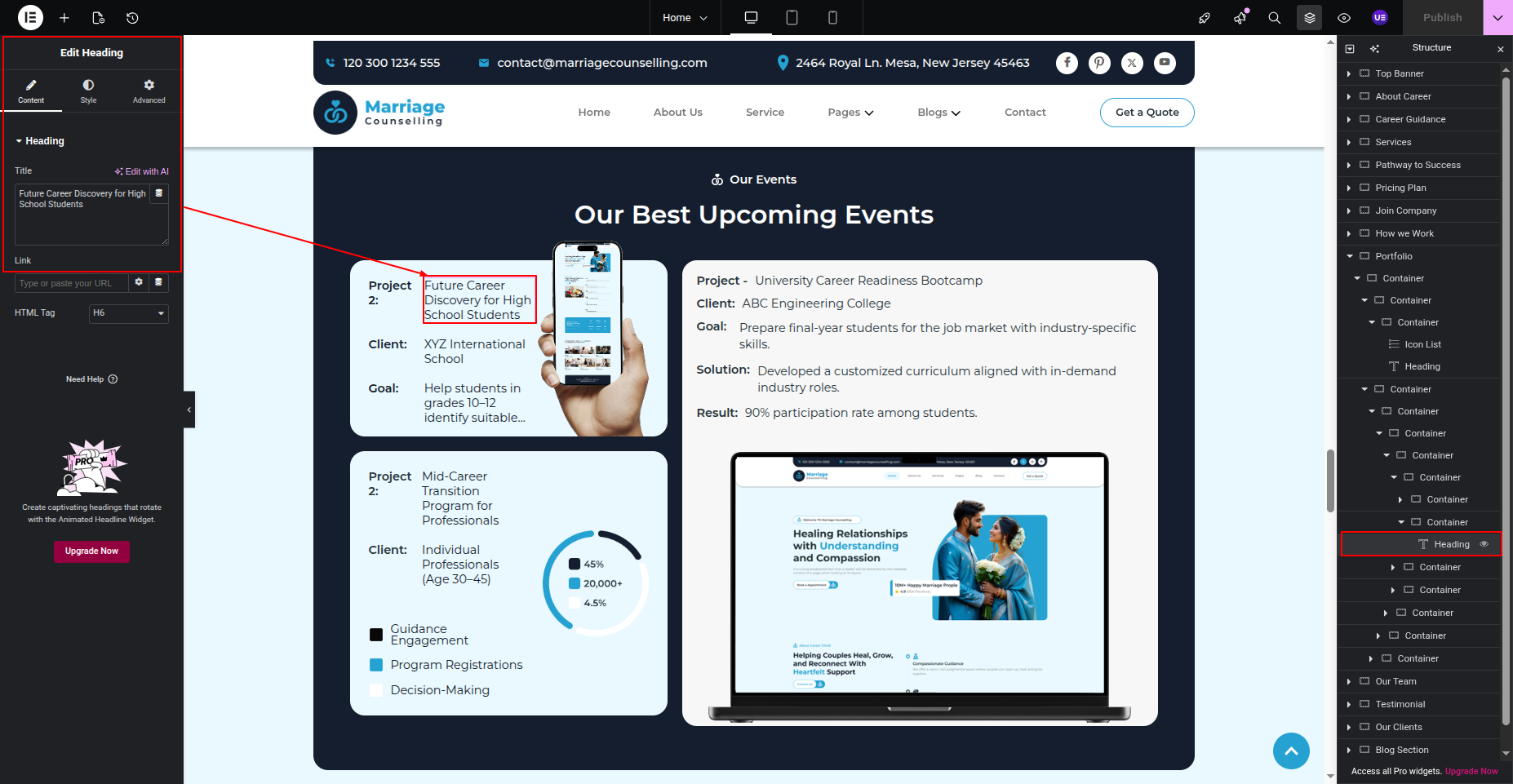
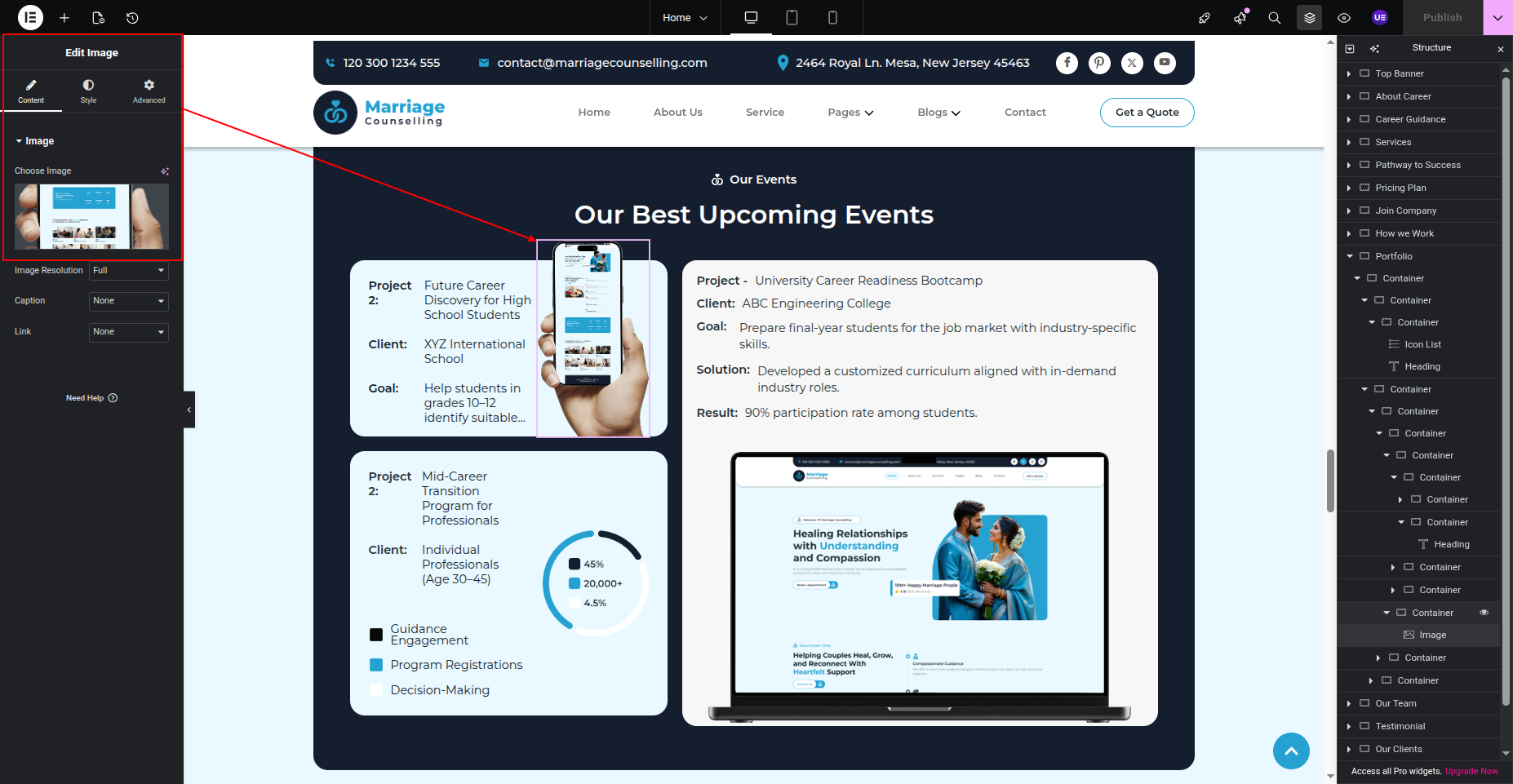
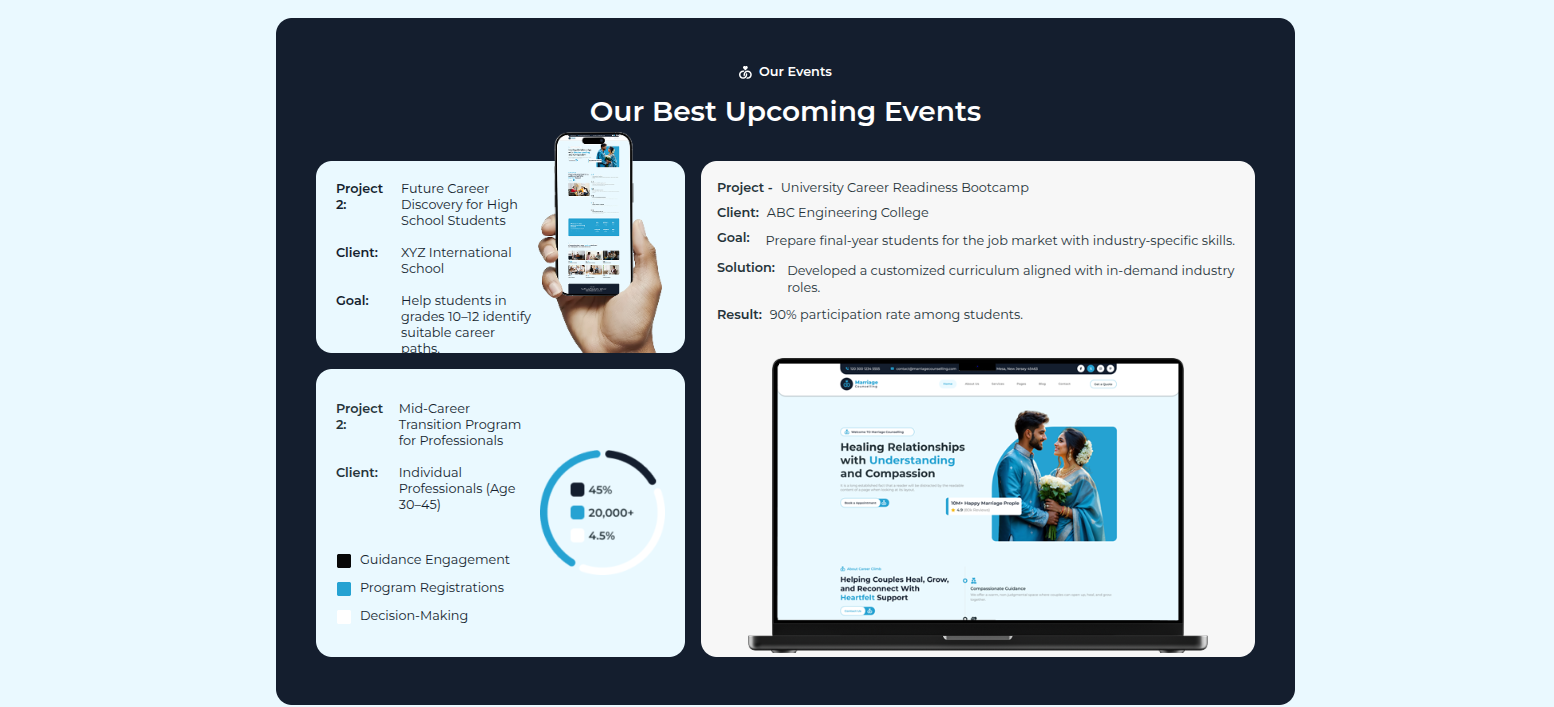
This section pertains to the Our Events Section.
Initial Progress while hitting "Edit the elementor"Select the widgets Change the content including heading, text and images
Final Progress See below for design insights.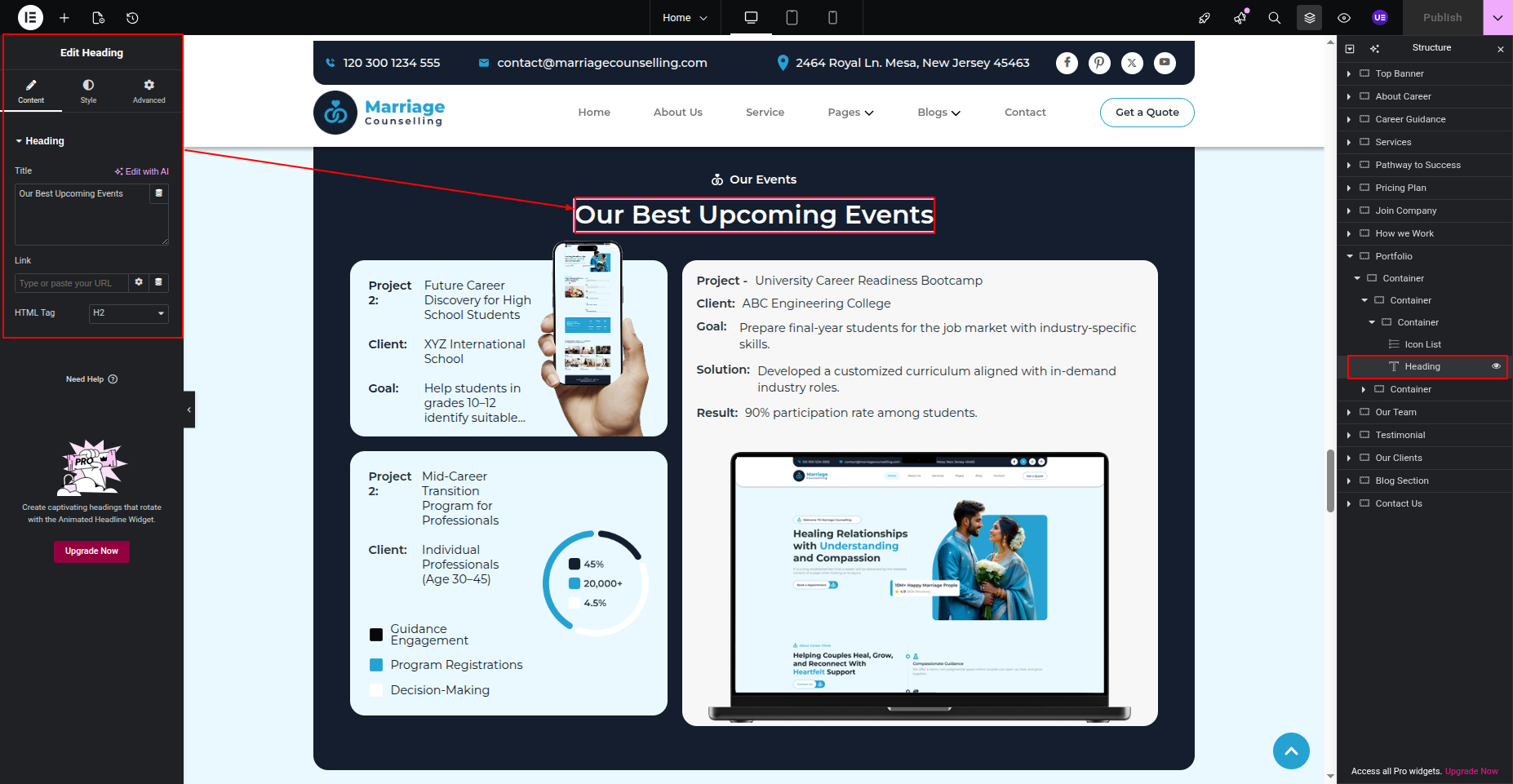
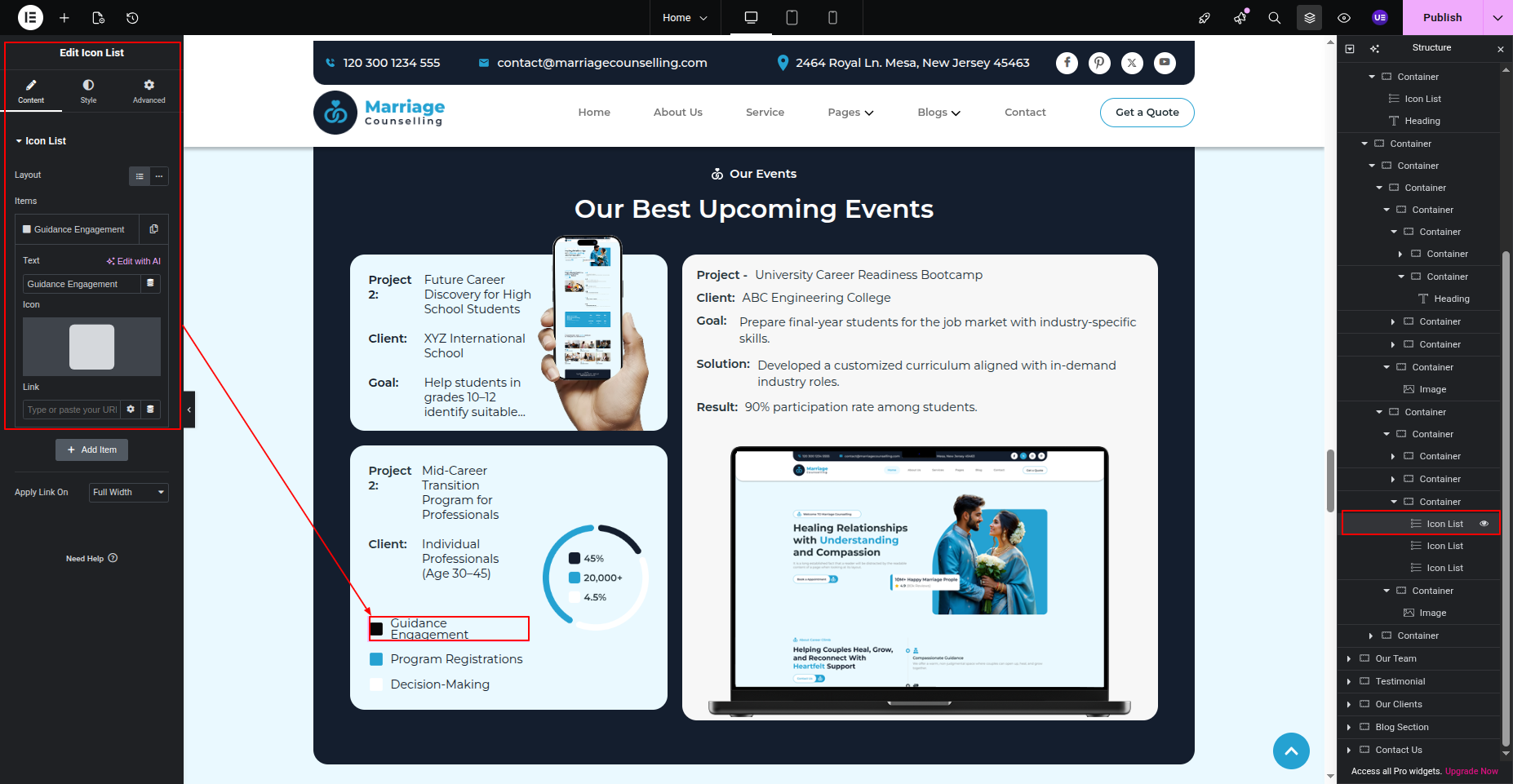
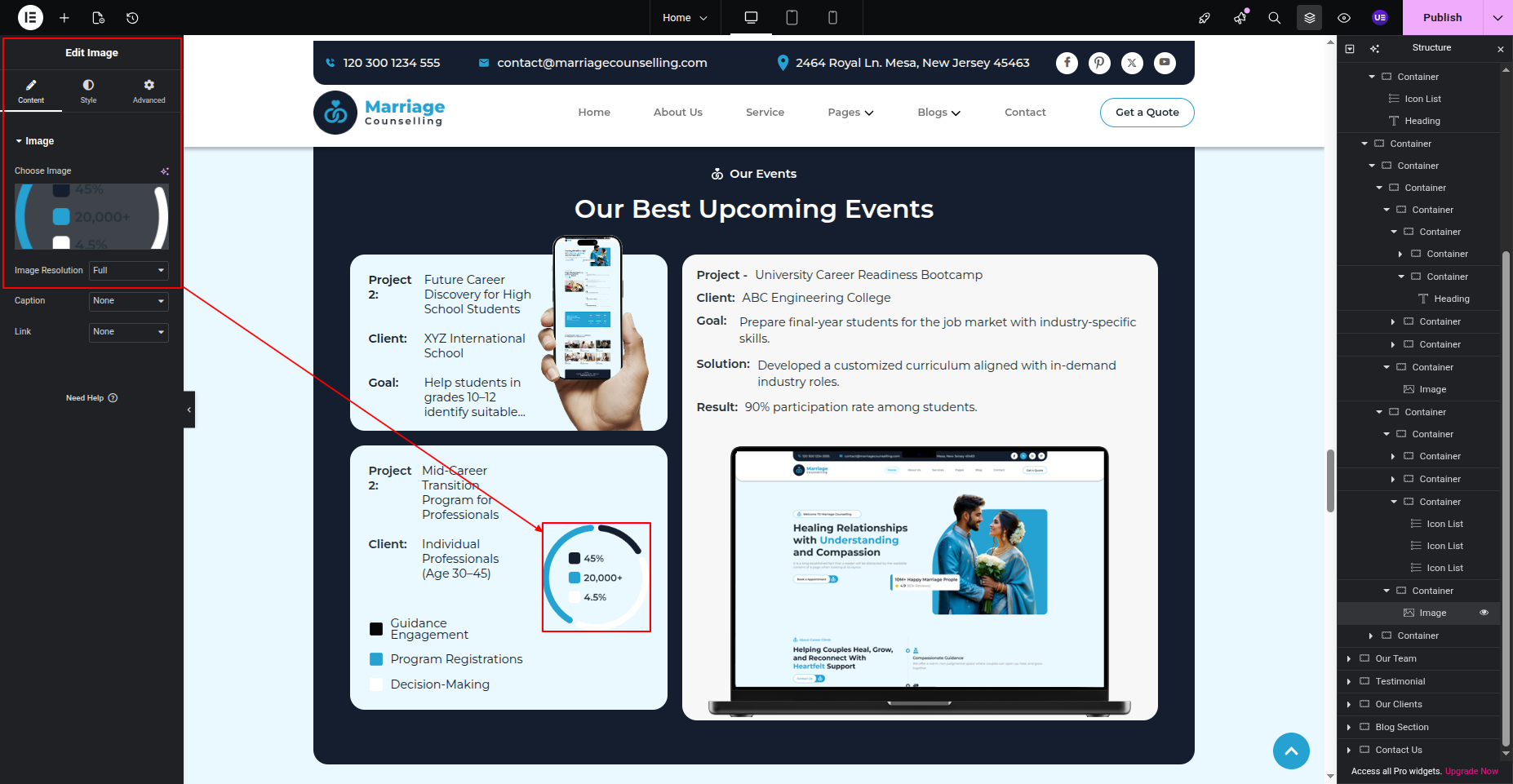
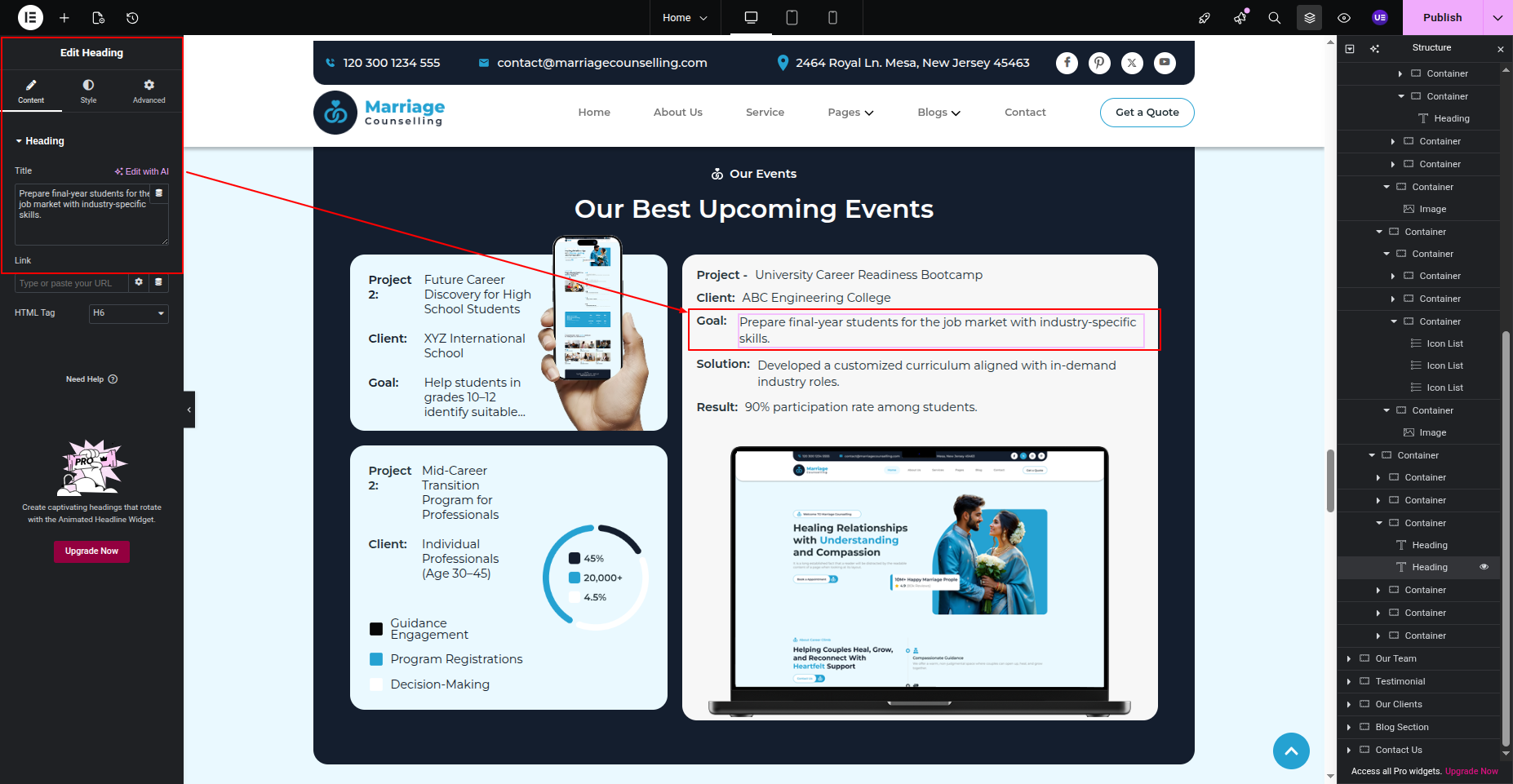
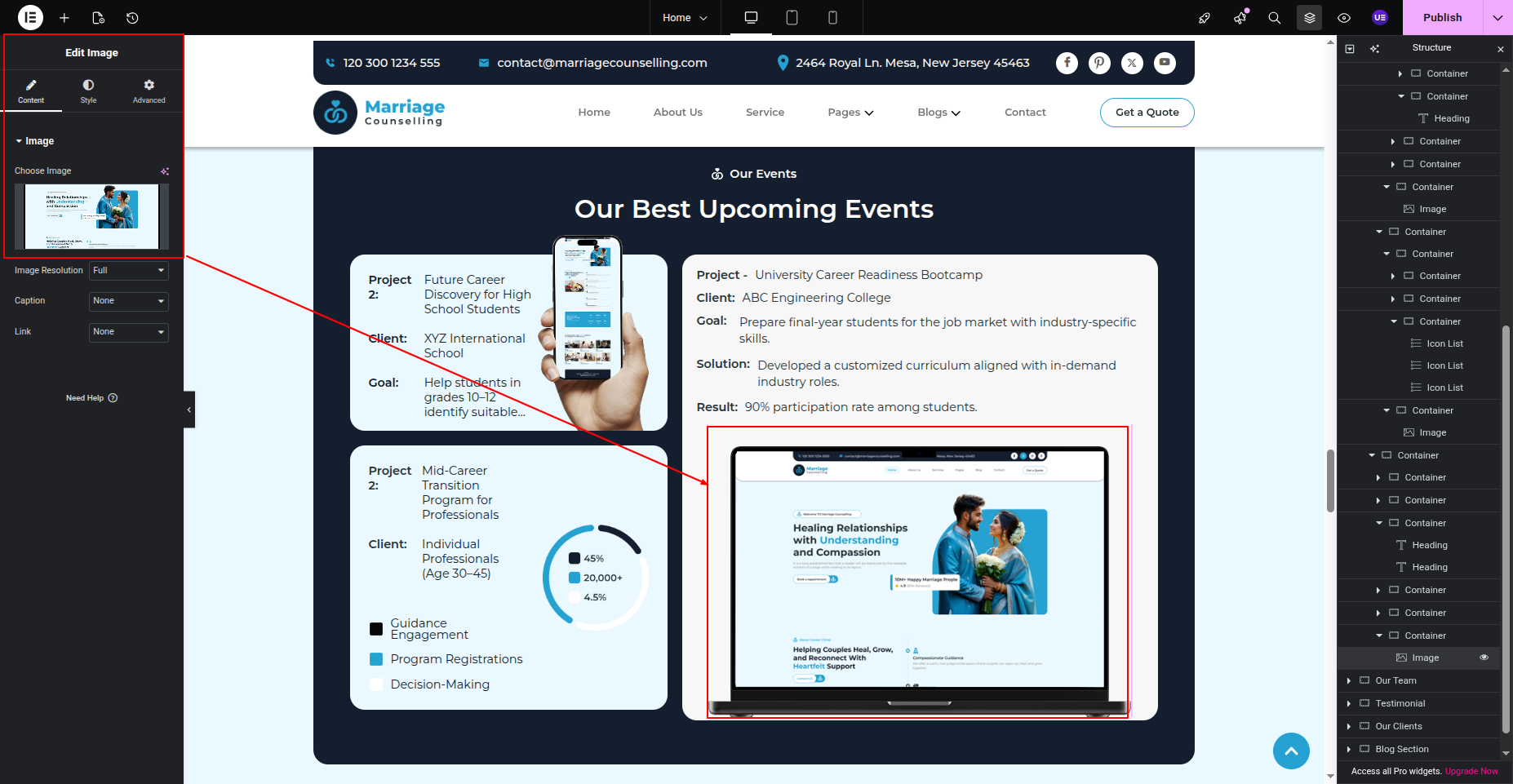
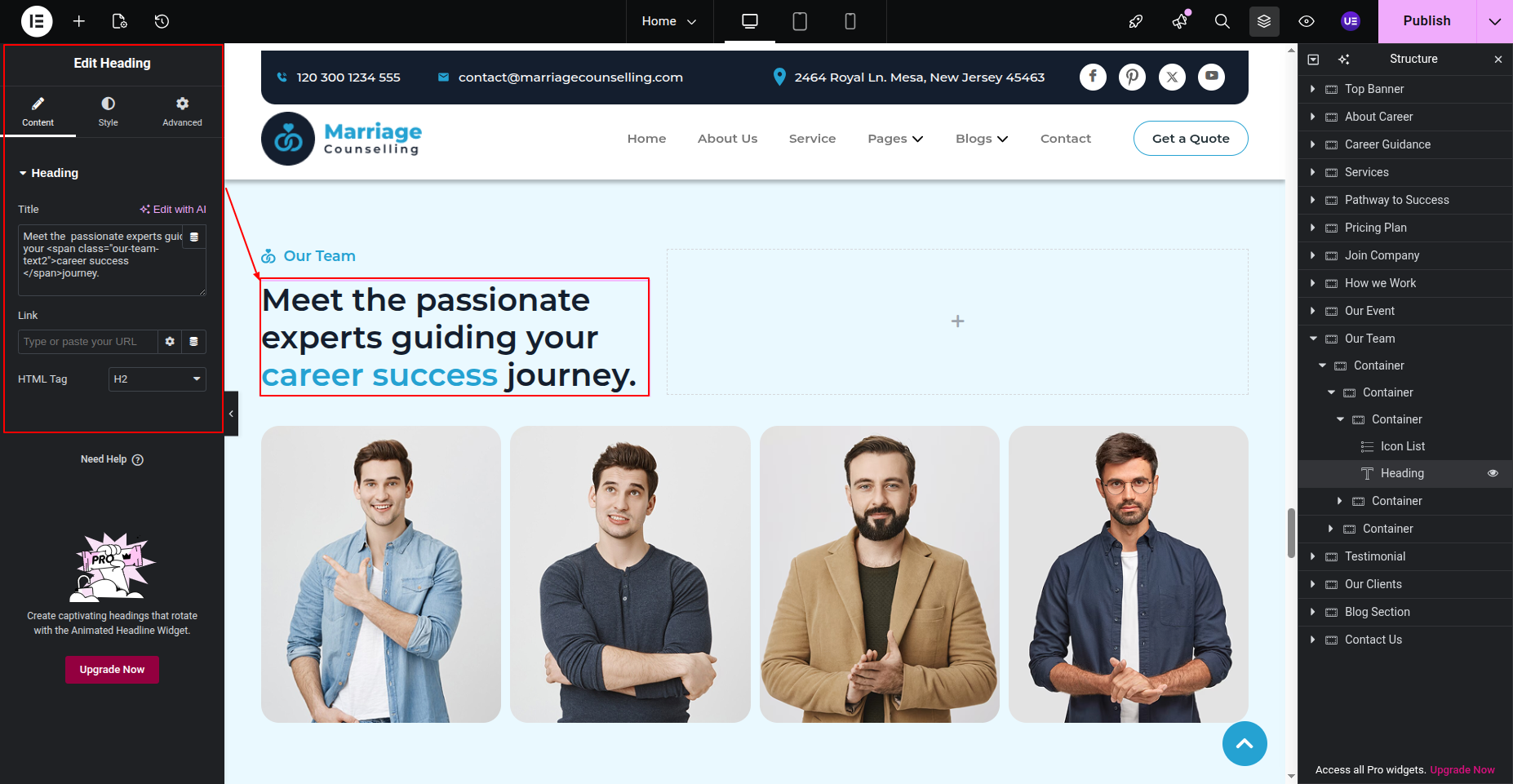
This section pertains to the Our Best Team Section.
Initial Progress while hitting "Edit with Elementor" Move forward "Selecting Heading" Change the content previous tapping "Published" .
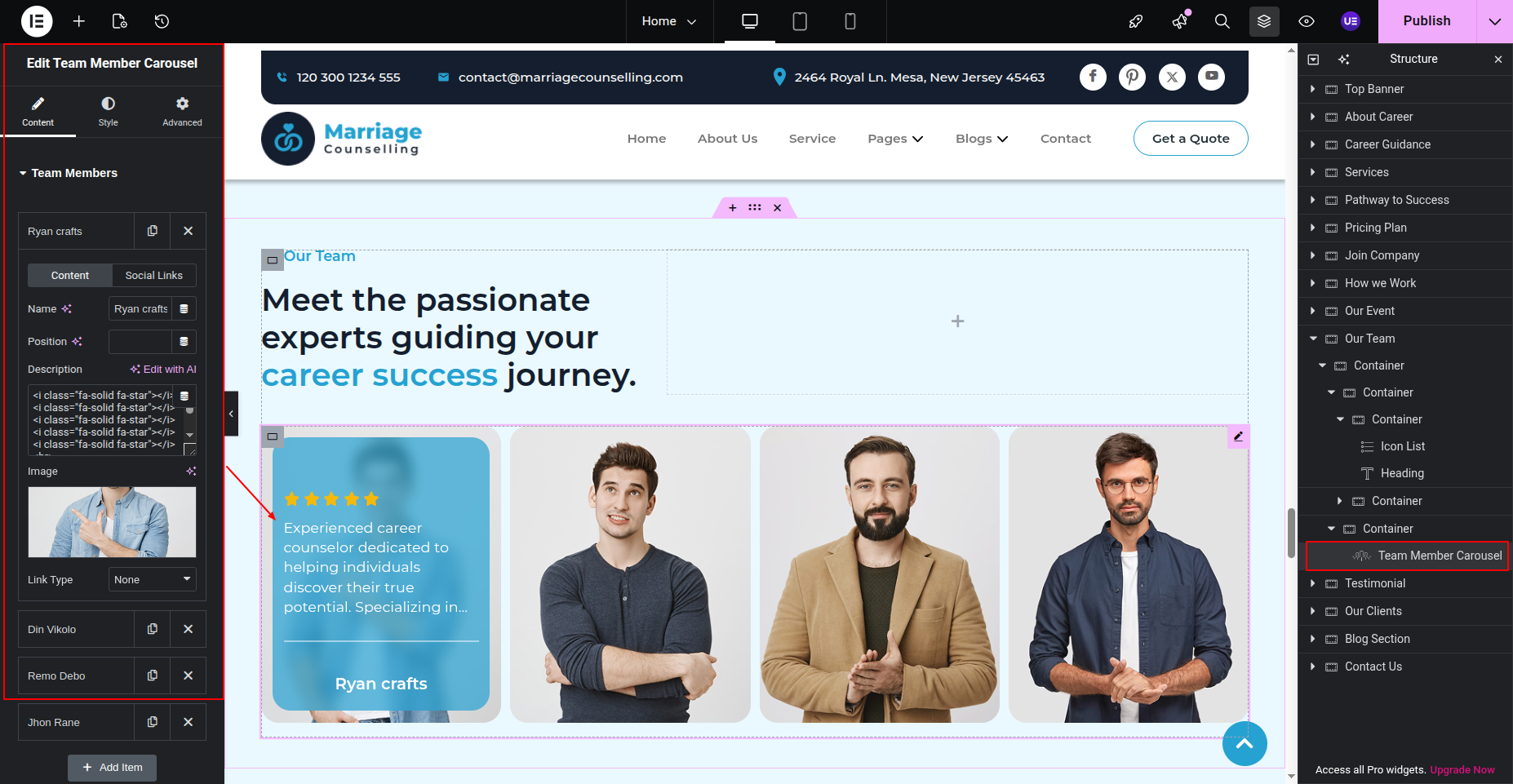
Initial Progress Select "Team Member Carousel" Widget Move forward edit the content and previous tapping "Published" .
Final Progress See below for design insights.

This section pertains to the Testimonial Section.
Initial Progress while hitting "Edit with Elementor" Selecting "Testimonials" Change the content add new testimonials previous tapping "Published" .
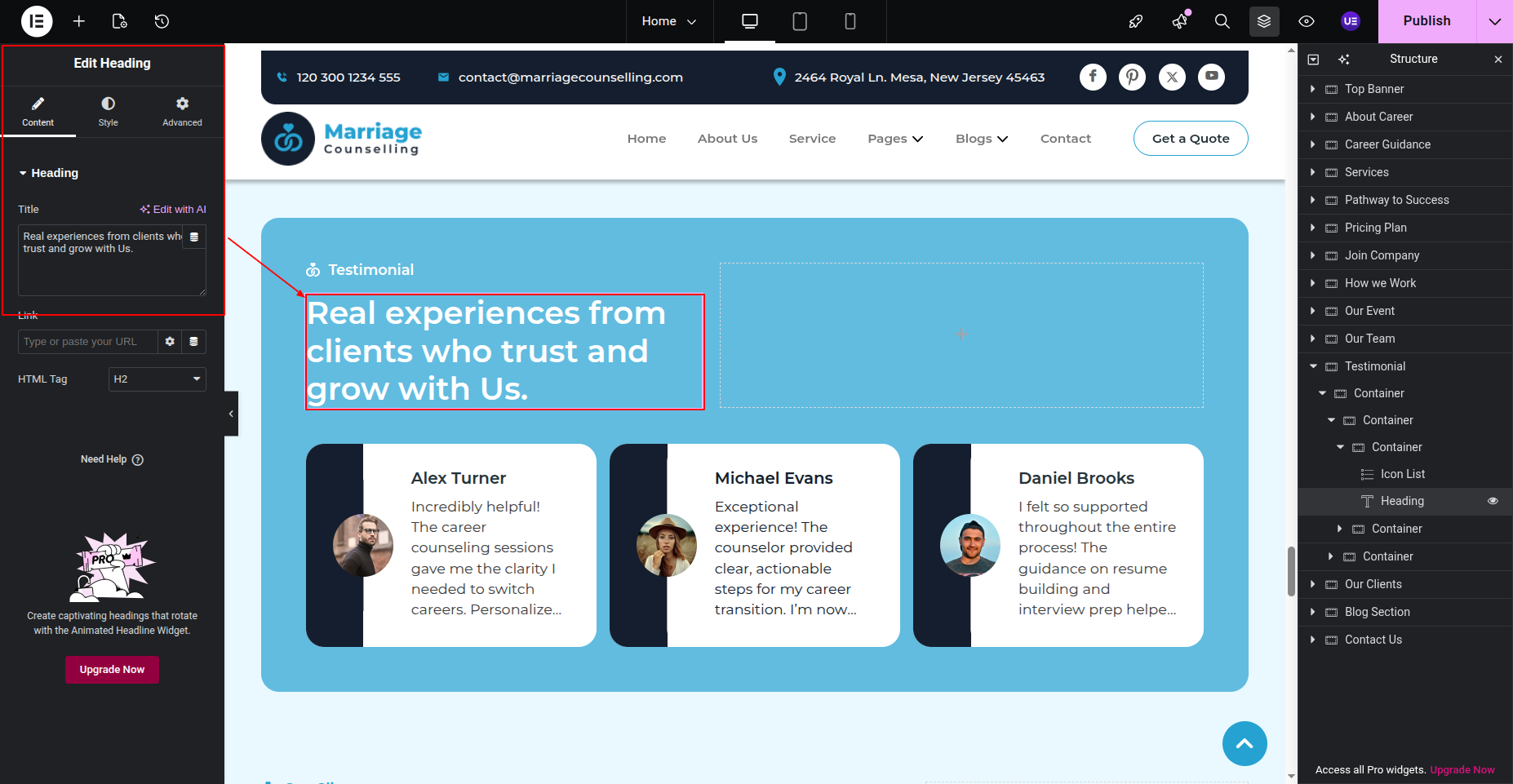
Final Progress See below for design insights.
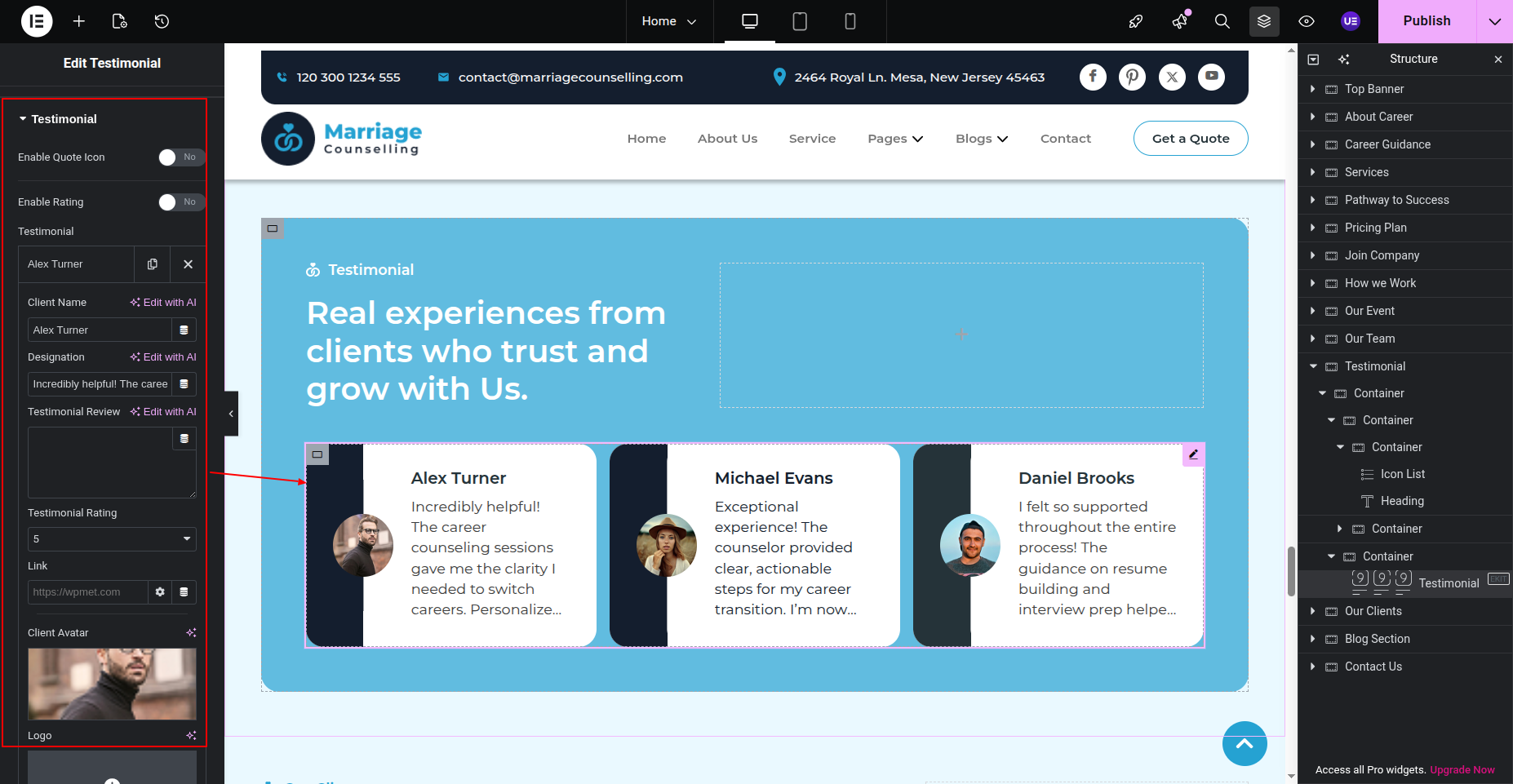
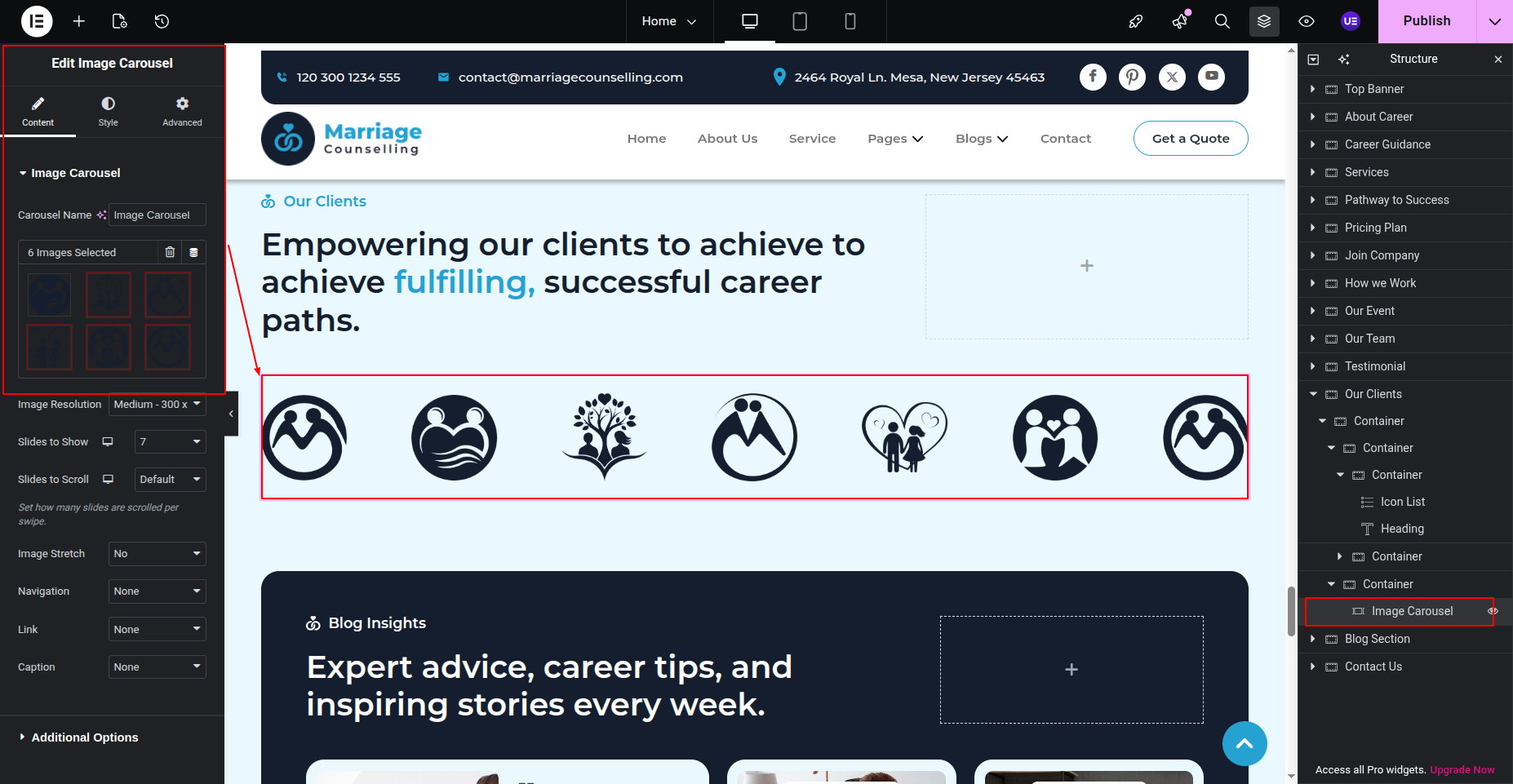
This section pertains to the Clients Section.
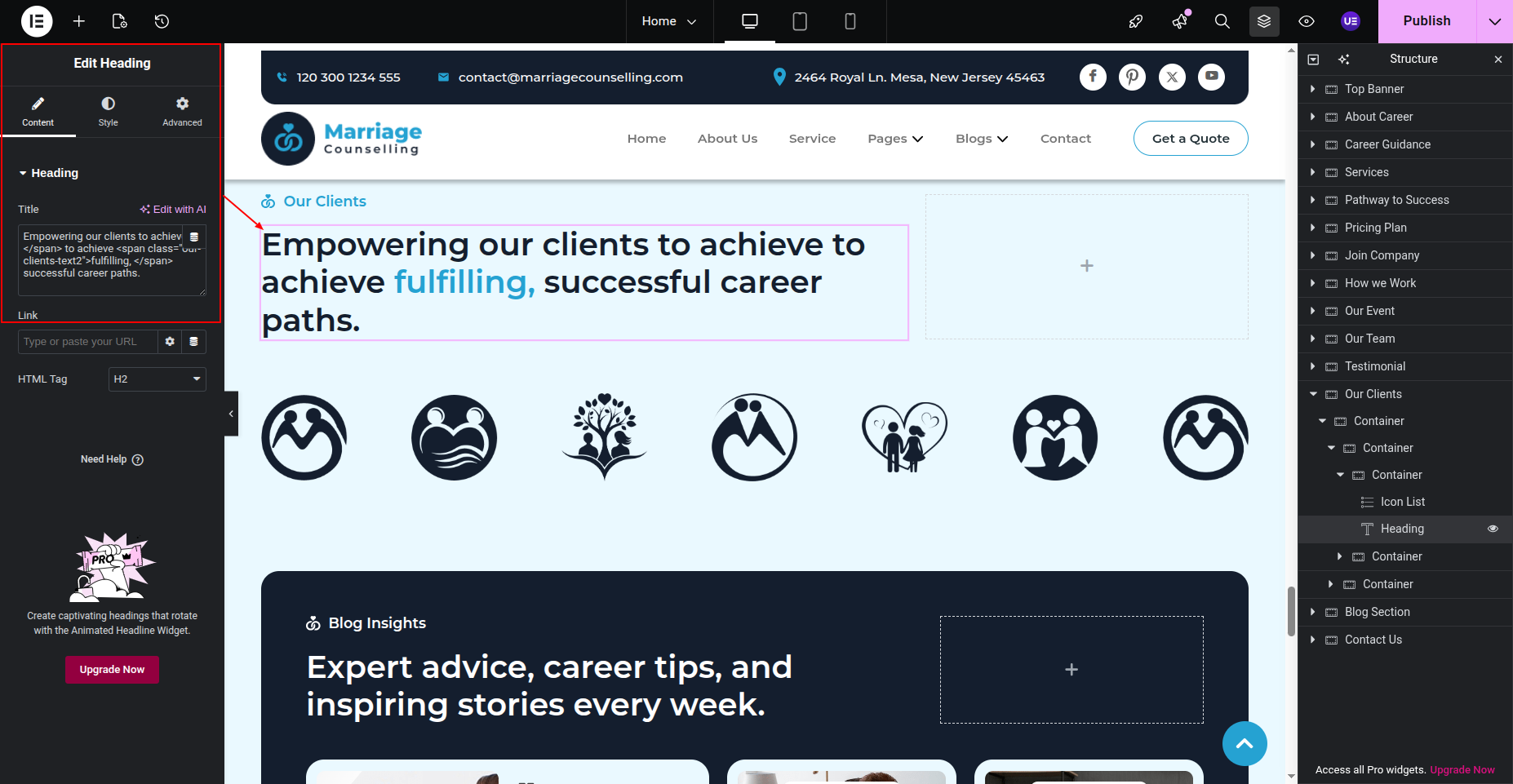
Initial Progress while hitting "Edit with Elementor" Search for the "Image Carousel" previous tapping "Published" .
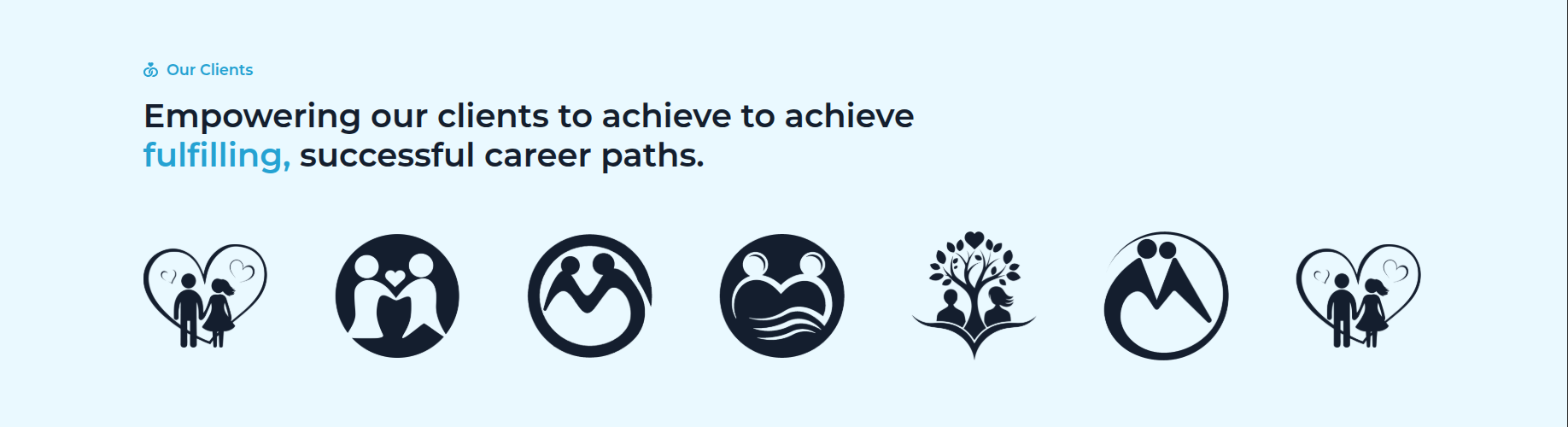
Final Progress See below for design insights.
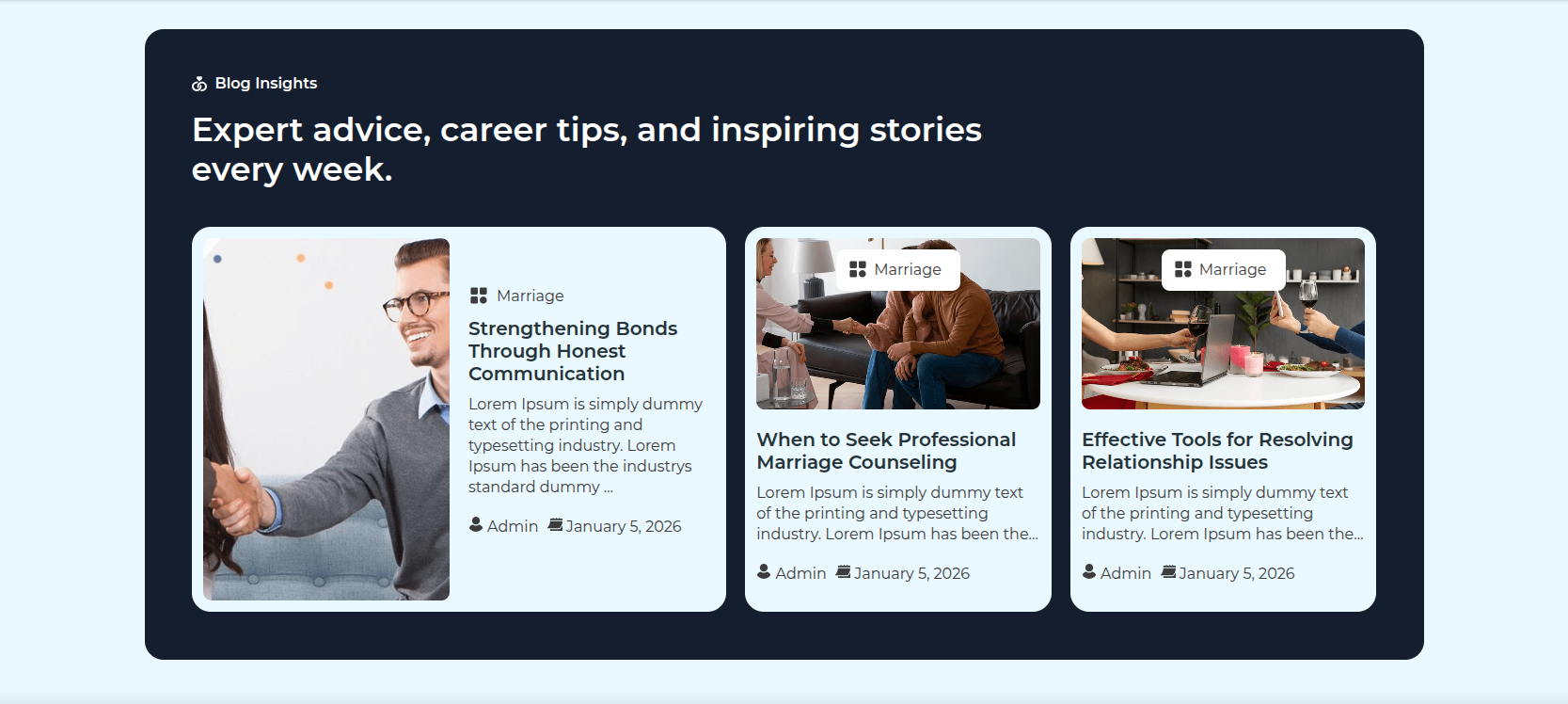
This section pertains to the News & Blogs Section reference.
Initial Progress while hitting "Dashboard" Discover "Posts" then "Edit or Add new post" Move forward with edit post and after adding all the blog content previous tapping "Published" .
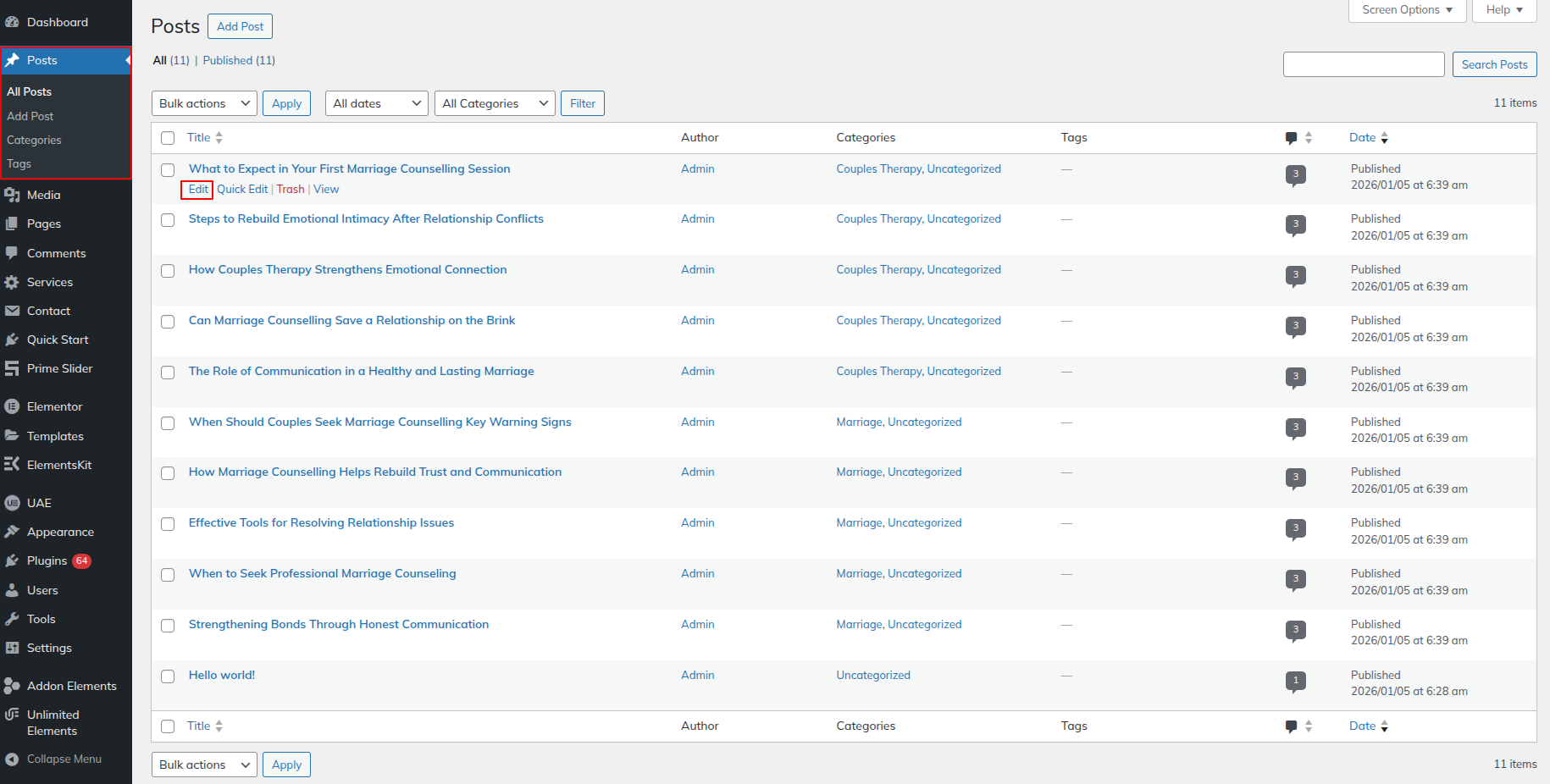
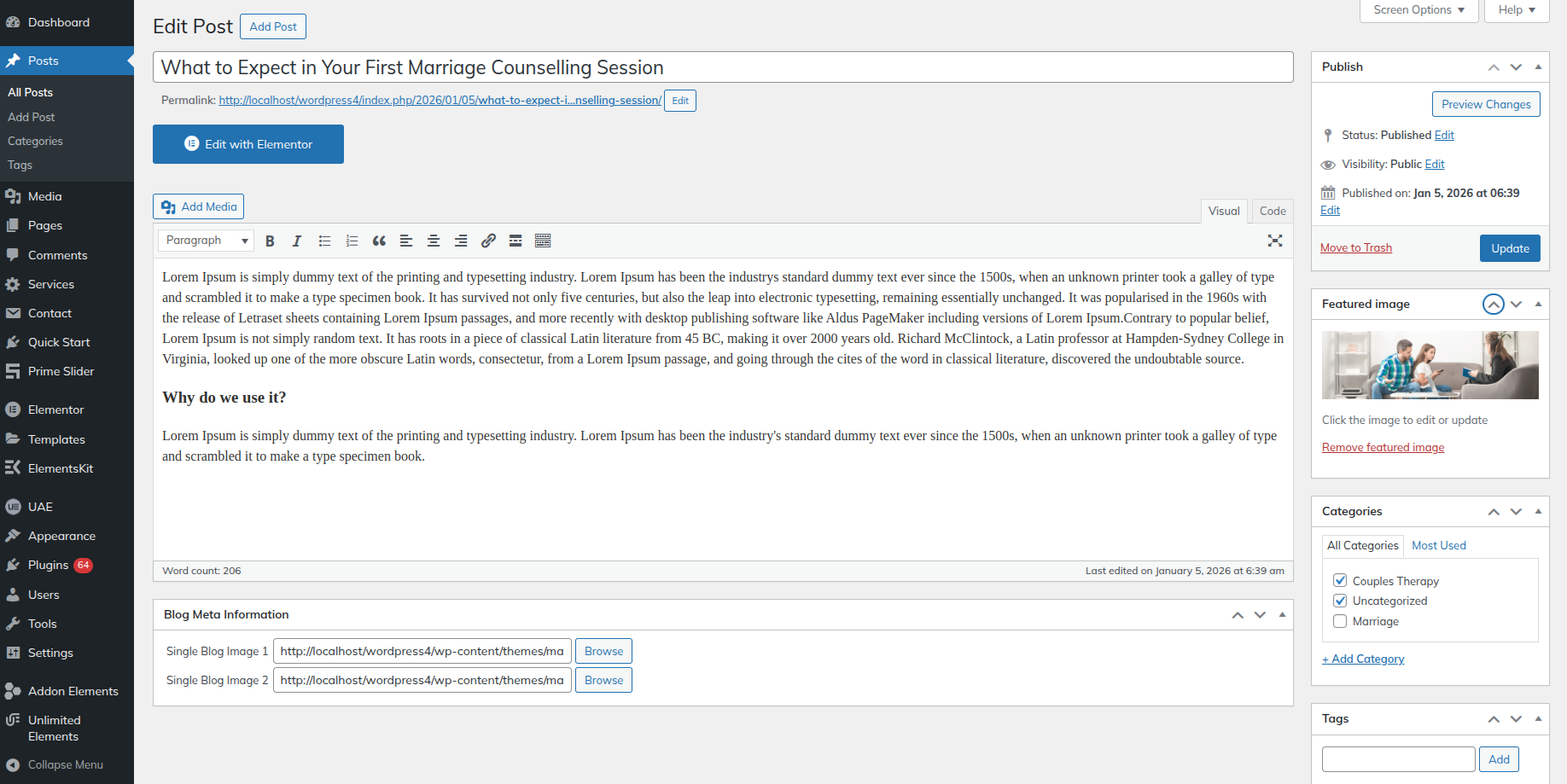
Initial Progress while hitting "Edit With Elementor" Discover "Posts" Widget then edit the content Move forward selecting the posts from the "Query" and after adding all the blog content previous tapping "Published" .
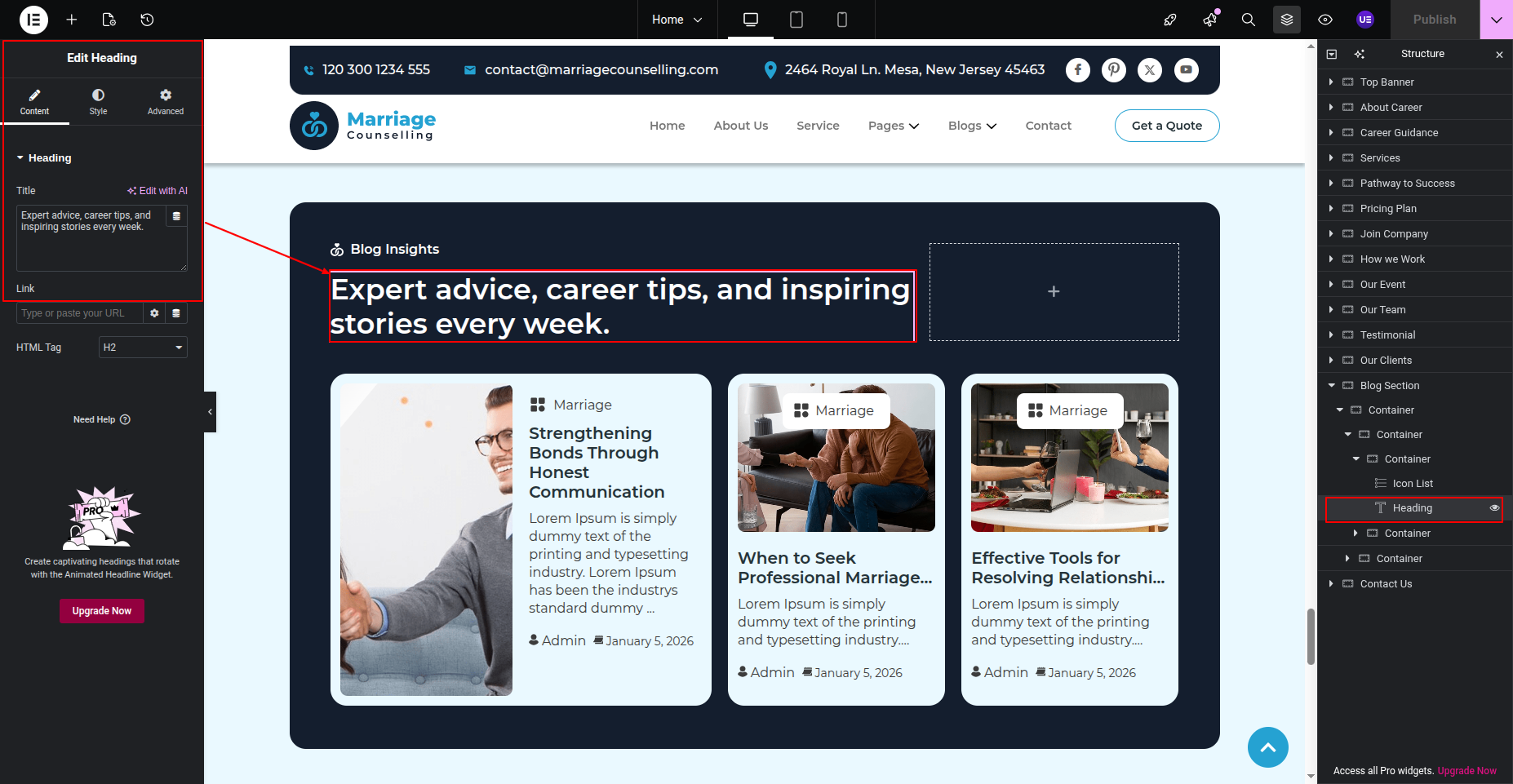
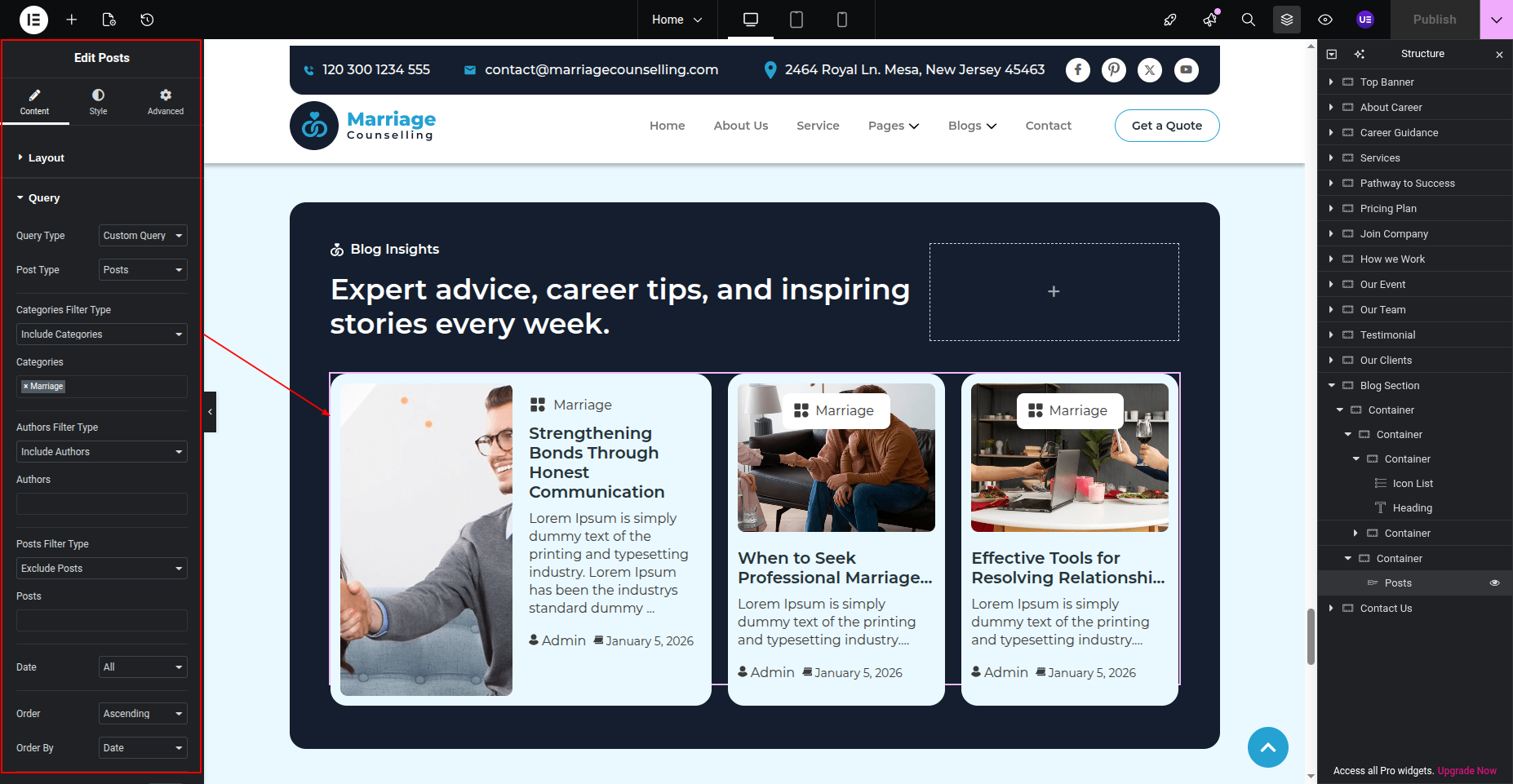
Final Progress See below for design insights.
This section pertains to the Our Contact Section.
Initial Progress while hitting "Edit with Elementor" Move forward "Editing the content"
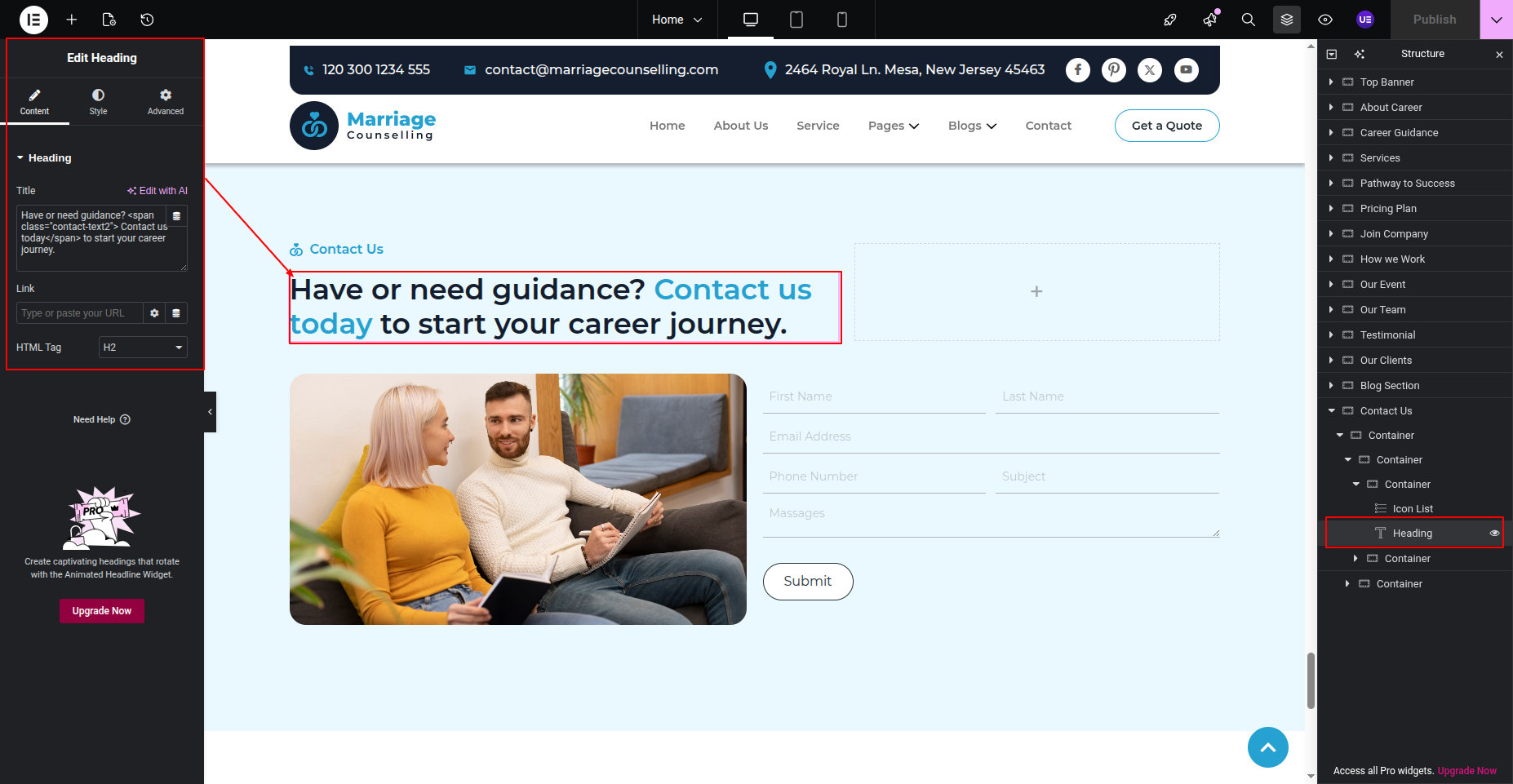
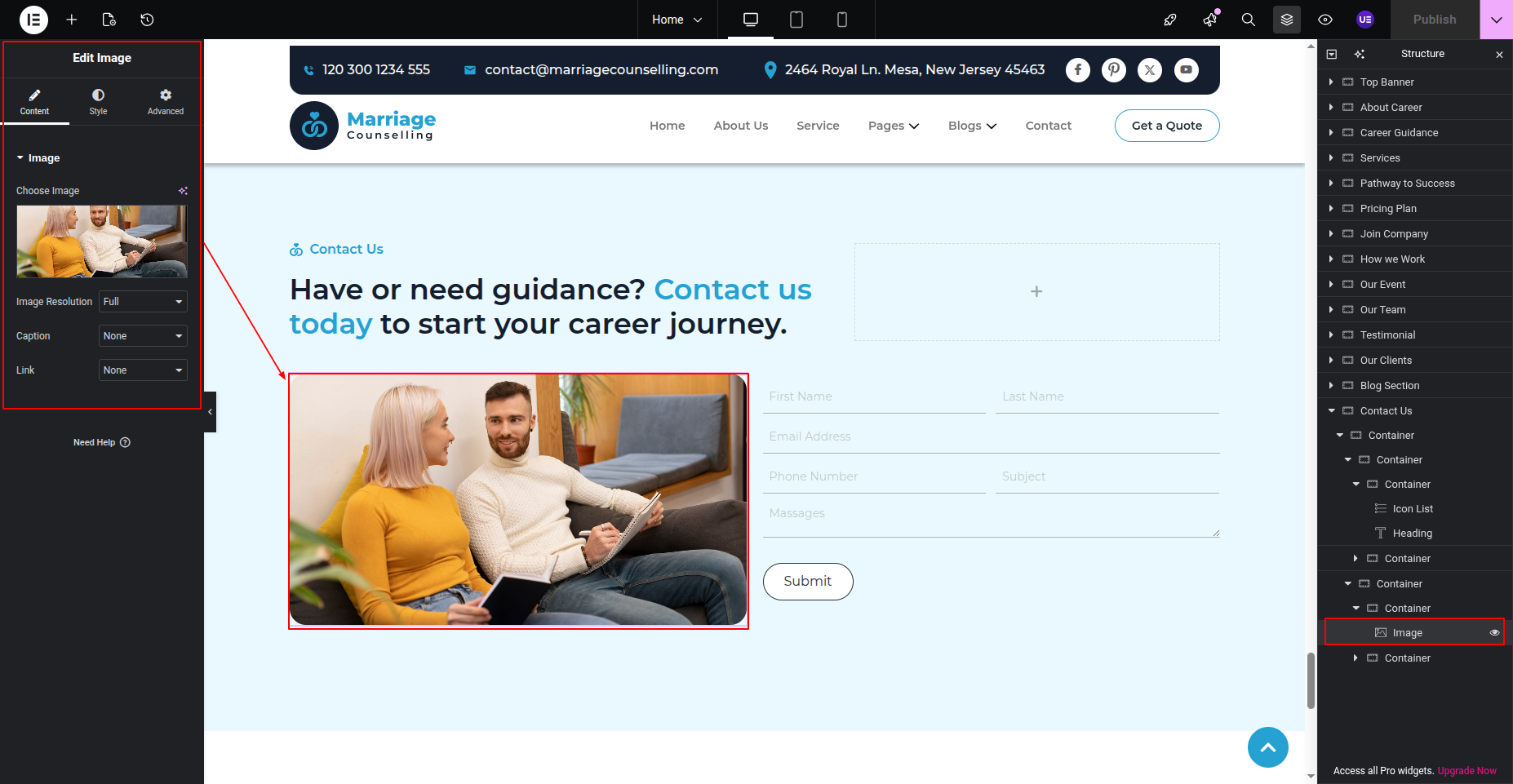
Edit or Add contact form as per your requirement See below for design insights.
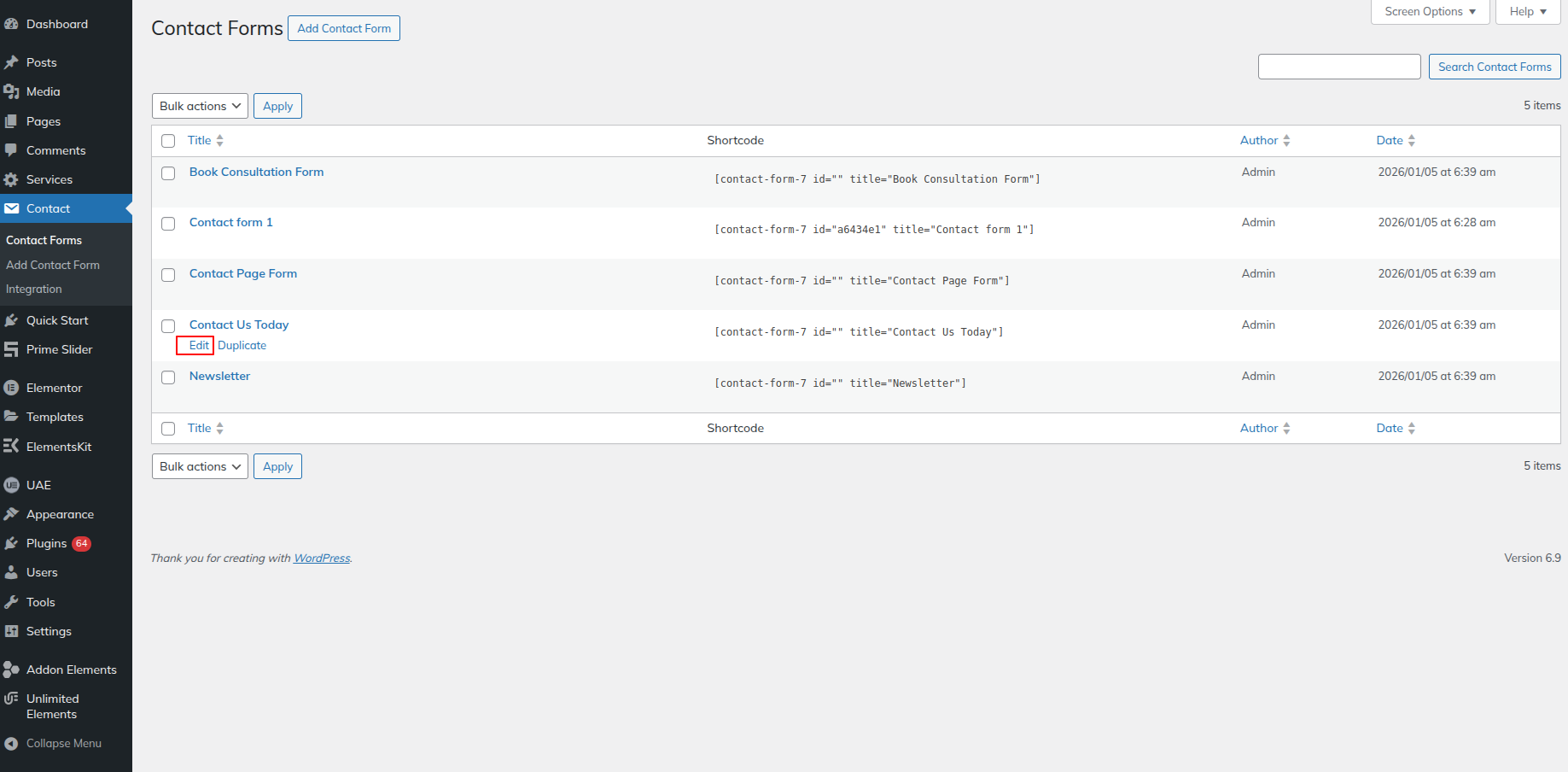
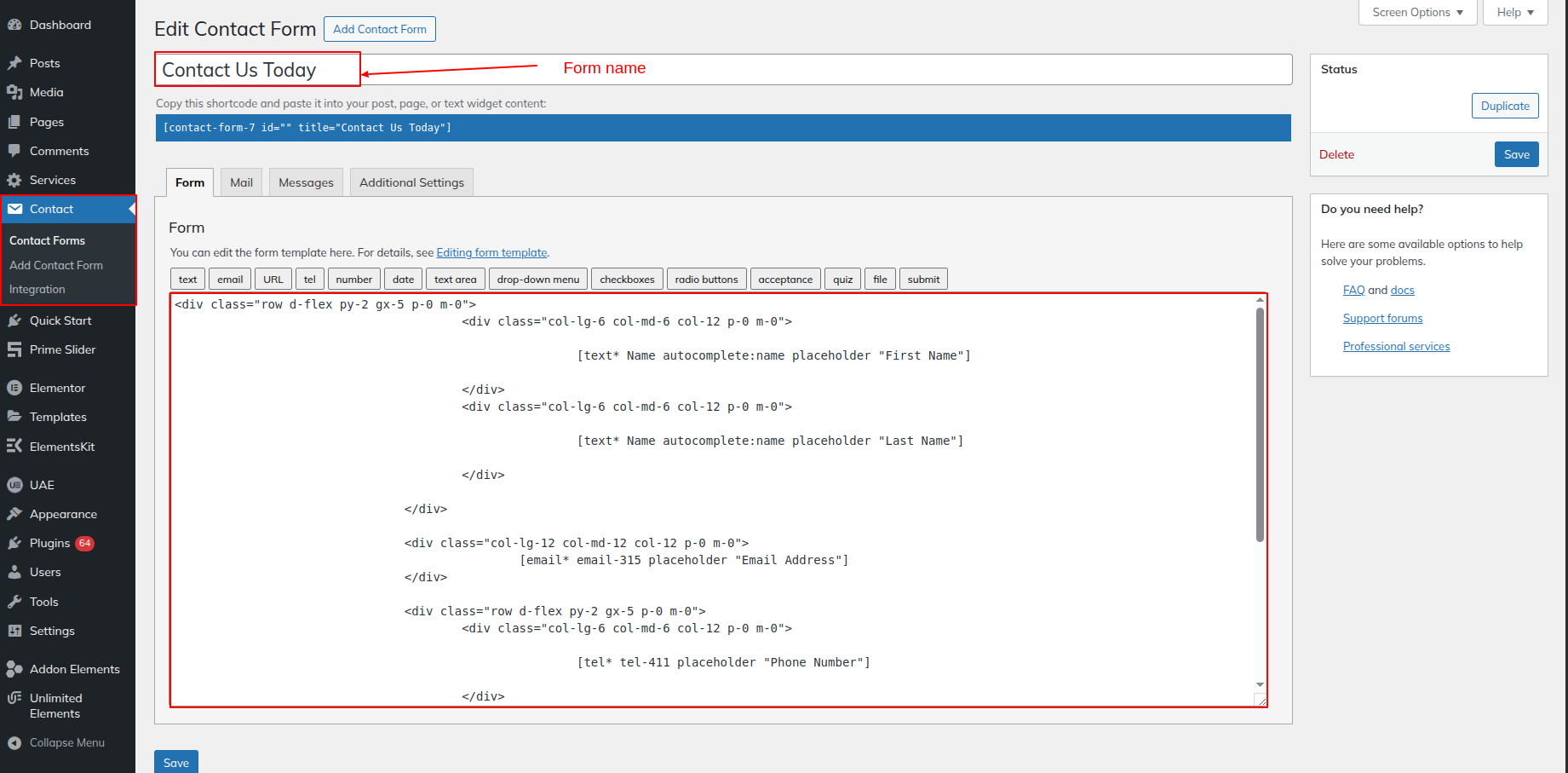
Copy the short code and paste the shortcode here See below for design insights.
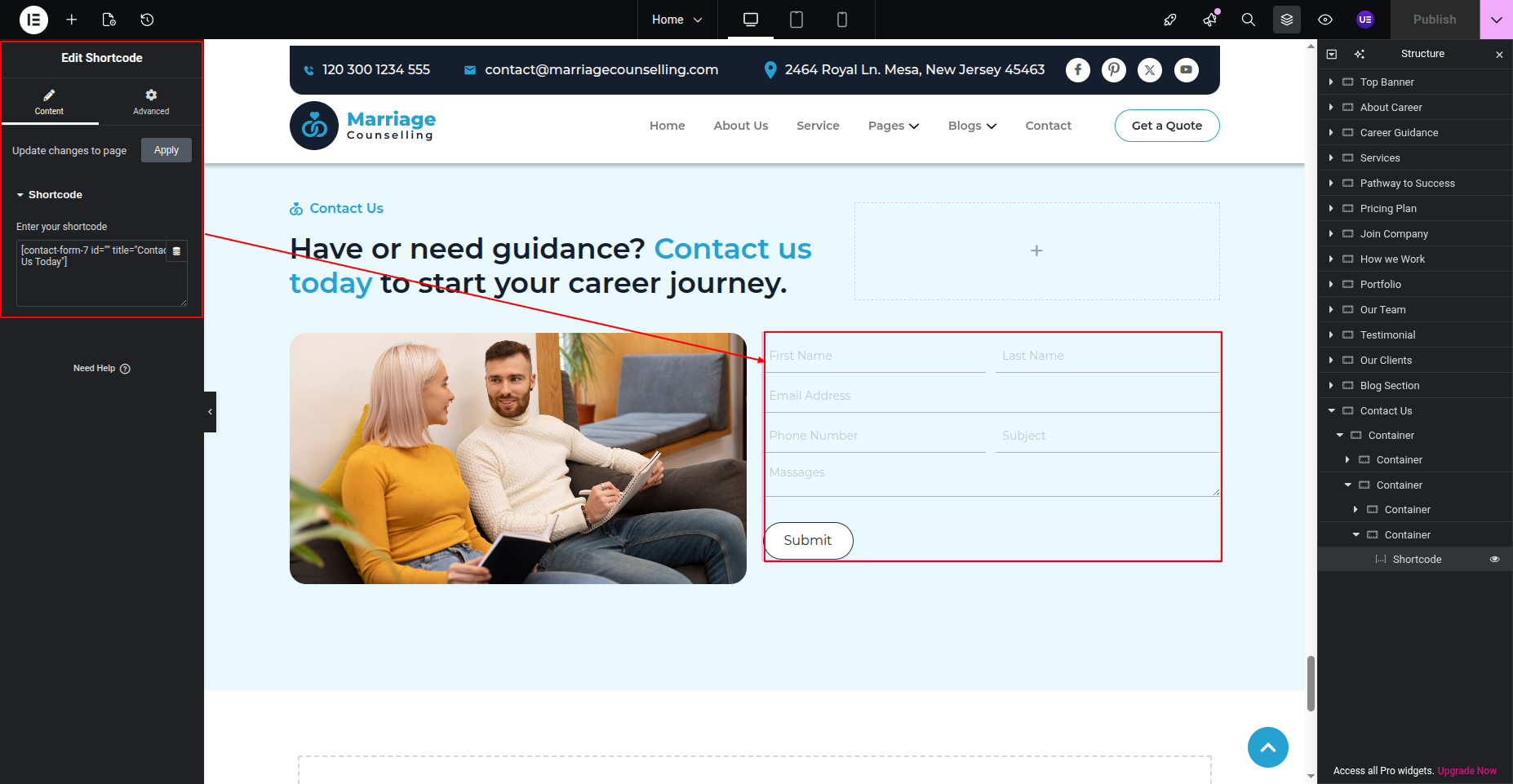
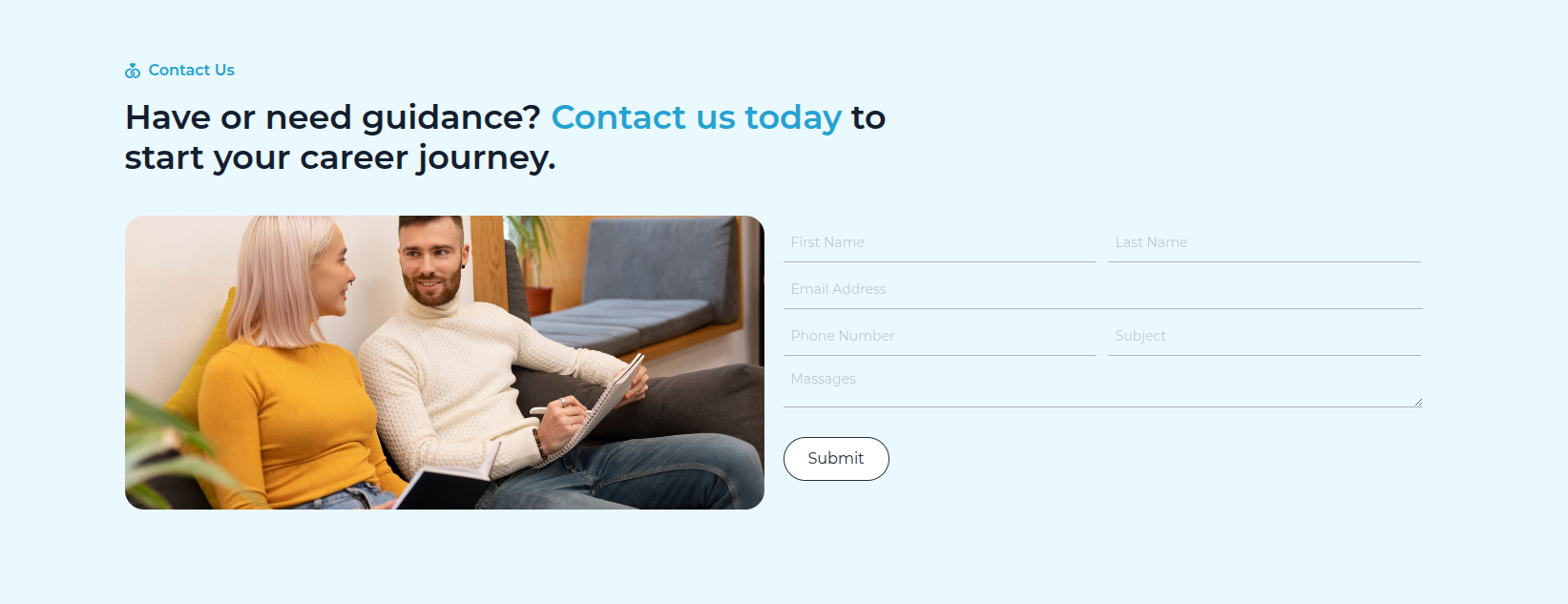
Final Progress See below for design insights.
This section pertains to the Footer.
Initial Progress while hitting "Dashboard" Discover "Elements-Kit">>Footer hit edit with elementor for editing the footer section.
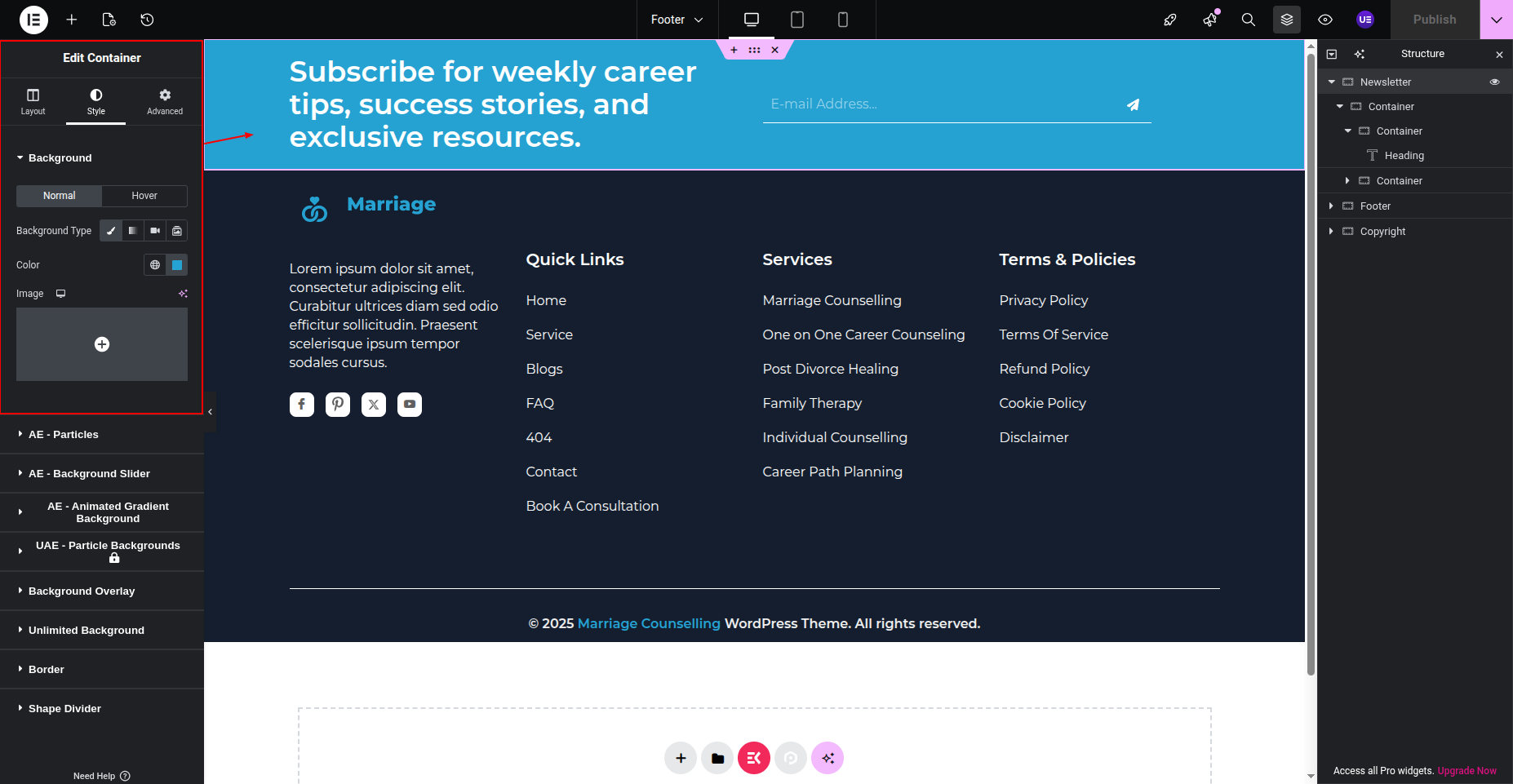
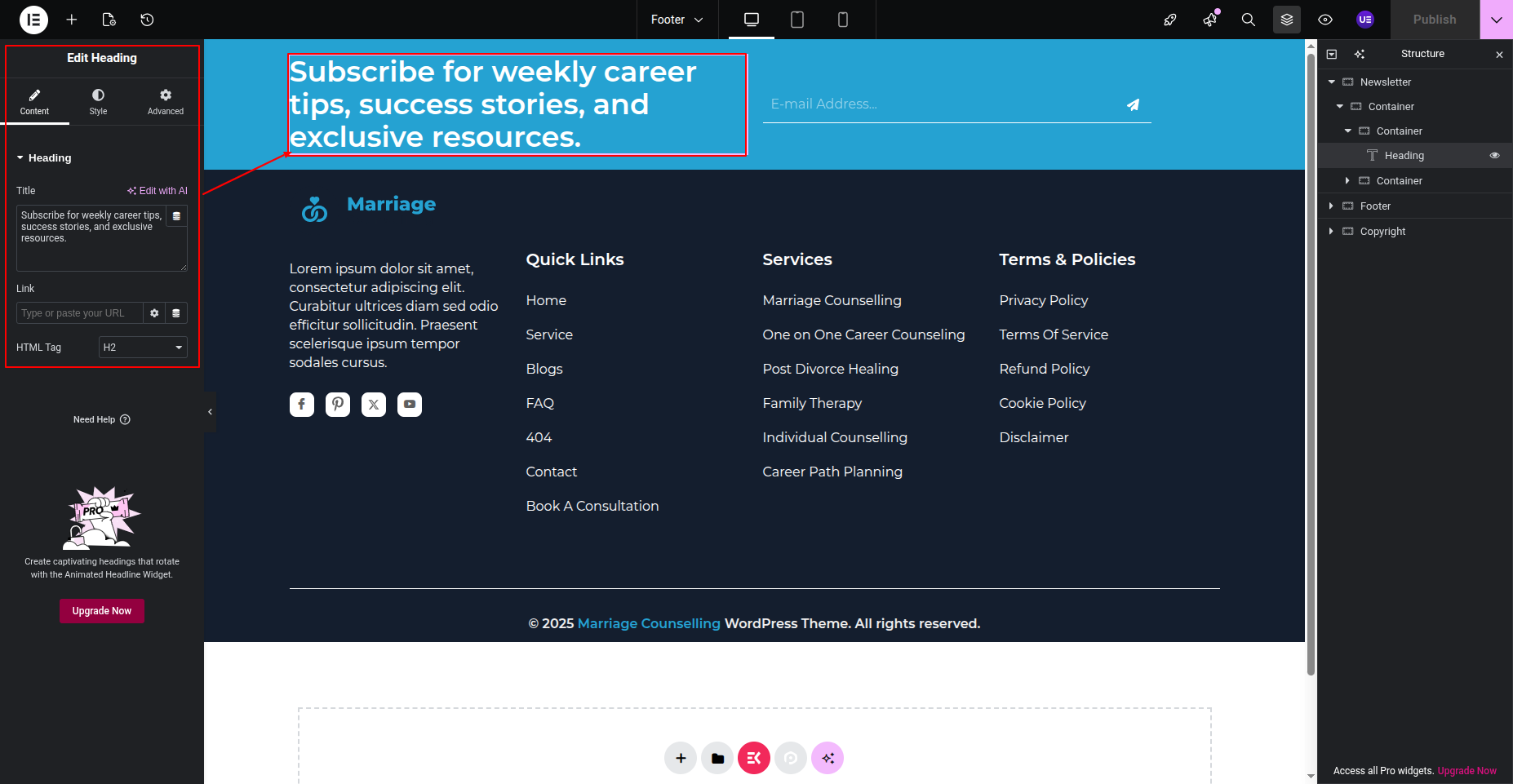
Select Tittle select the text widget and change the text.
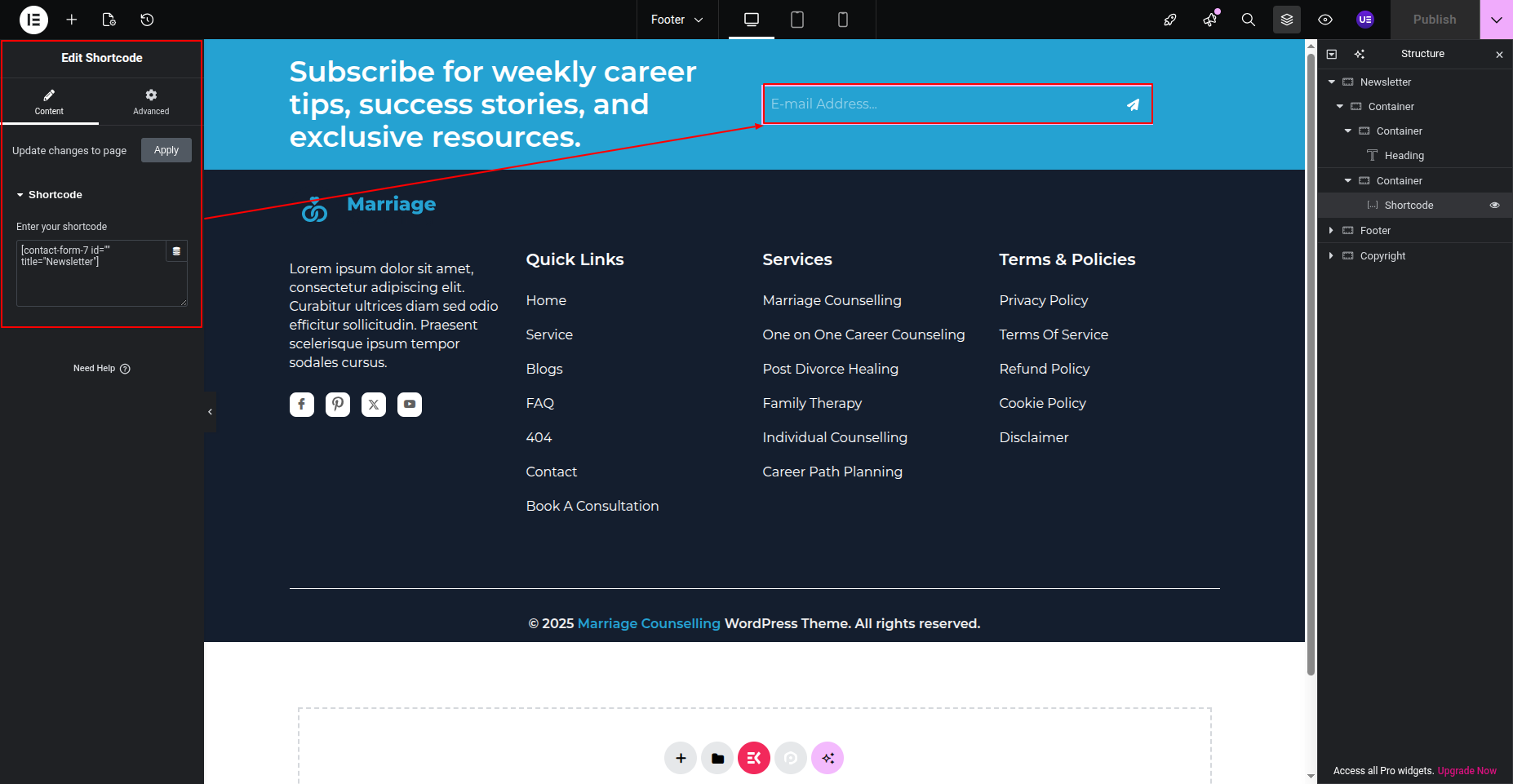
Left Column Select the shortcode and paste the shortcode for newsletter section.
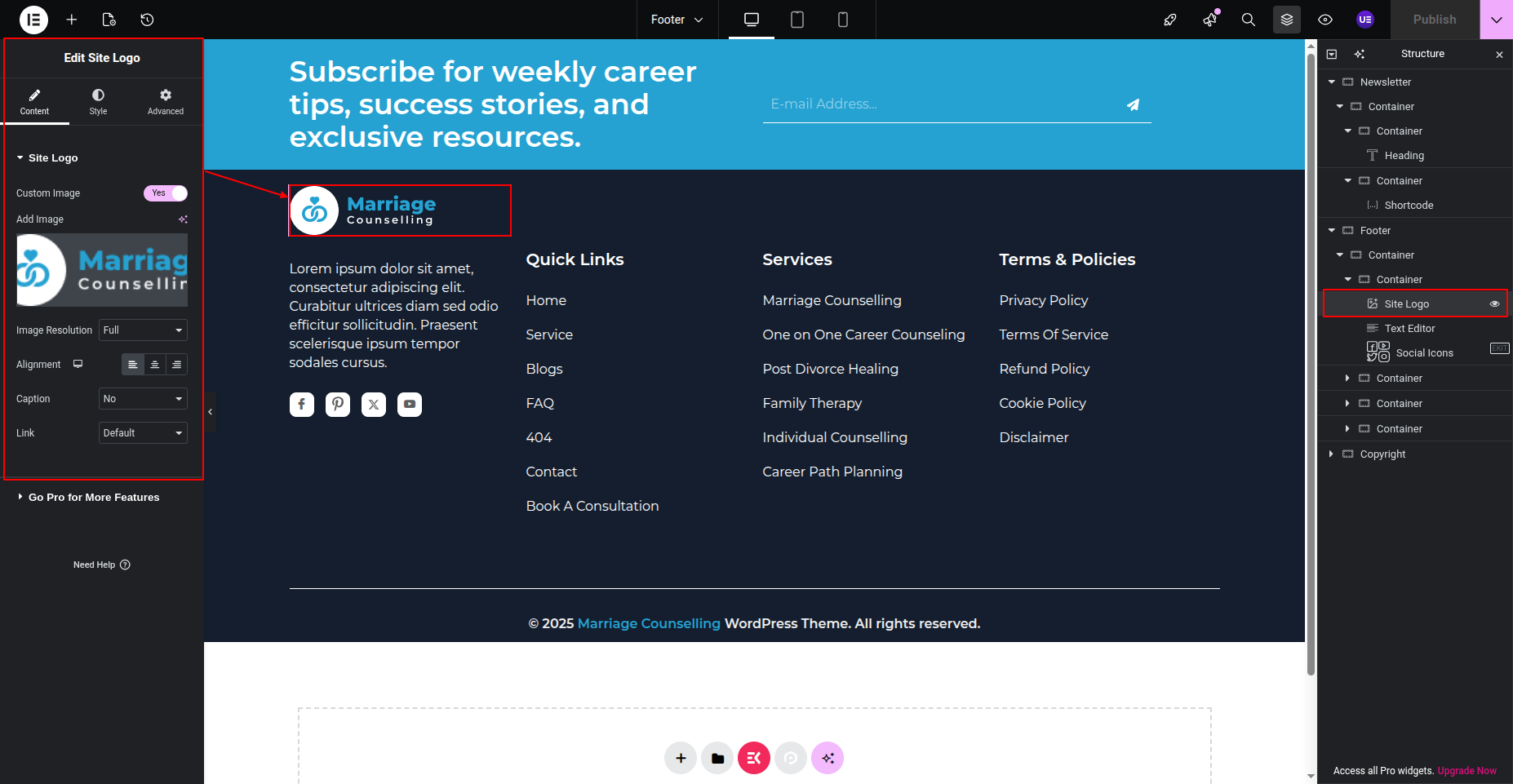
Site Logo Select the icon and change the images and edit the section.
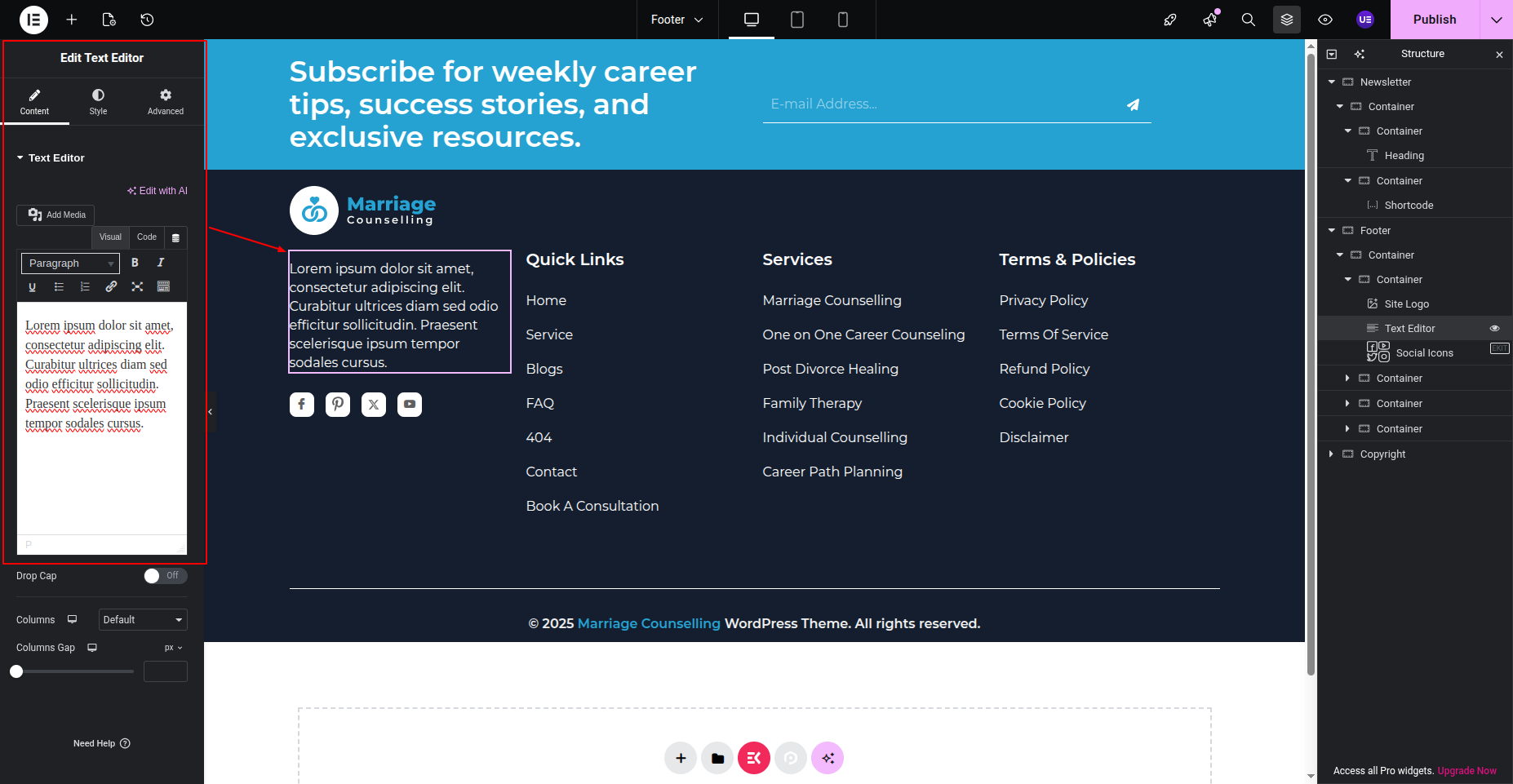
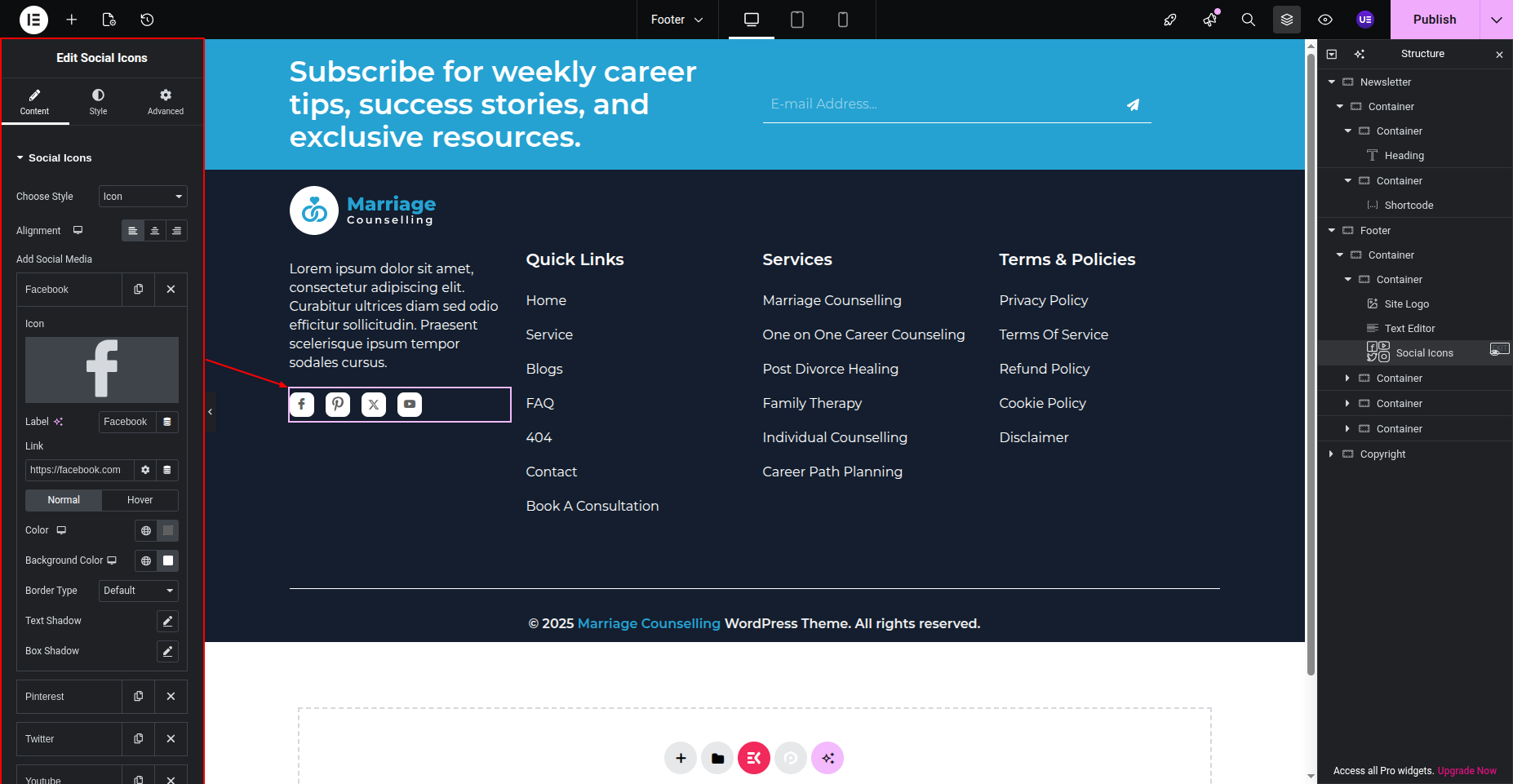
Social Media Icons Select the icons and change or edit the icons from the widget
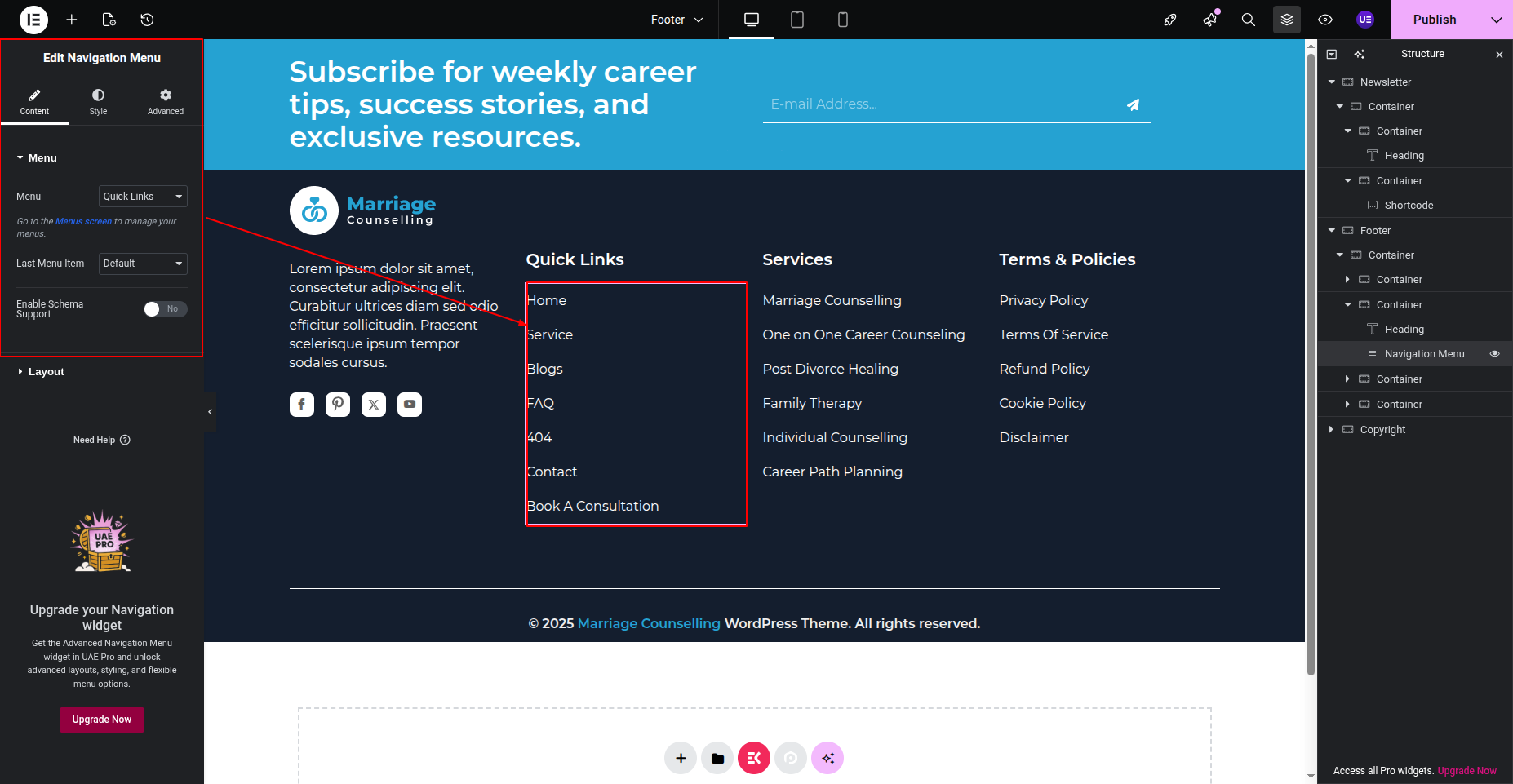
Copyright column Edit the copyright content
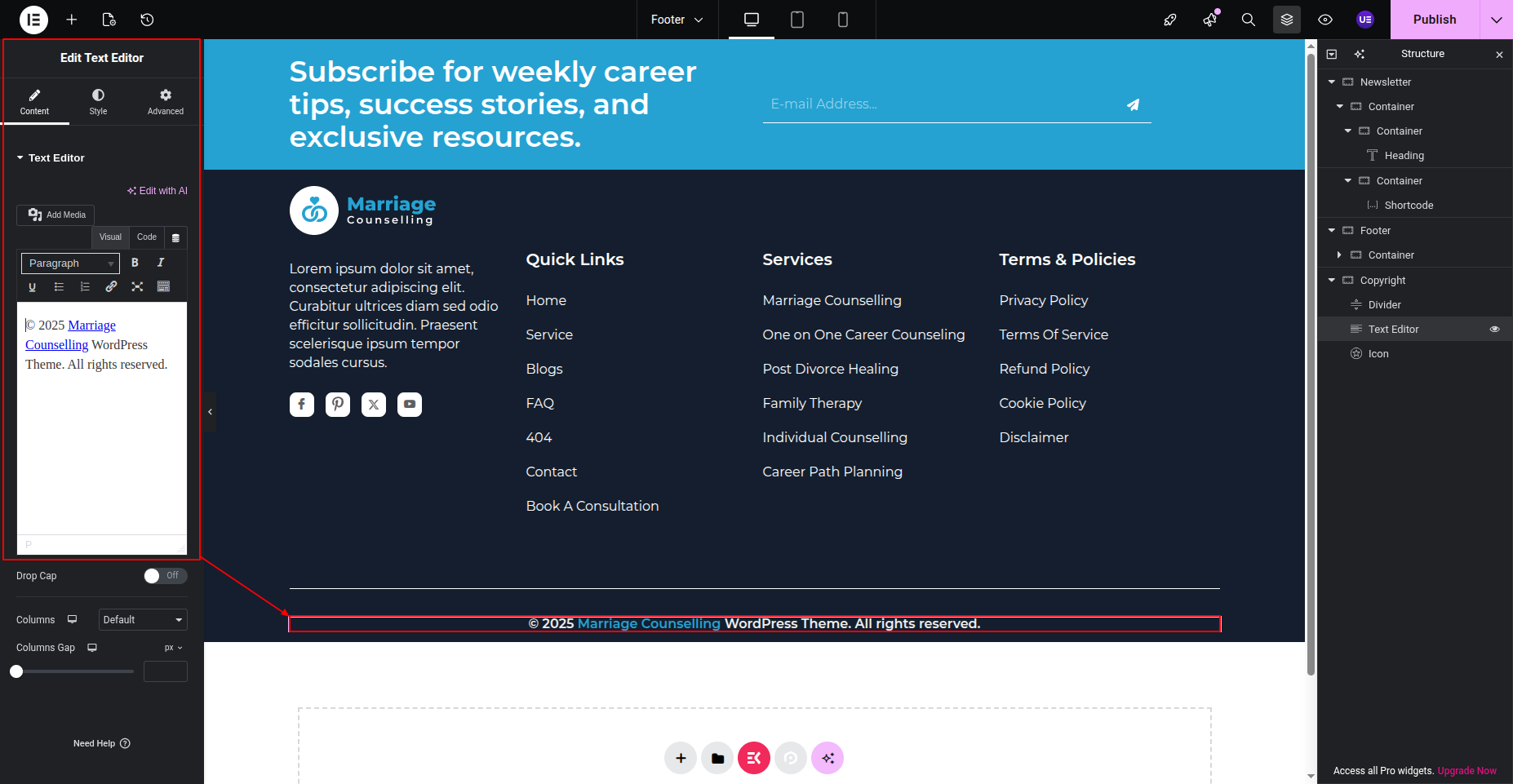
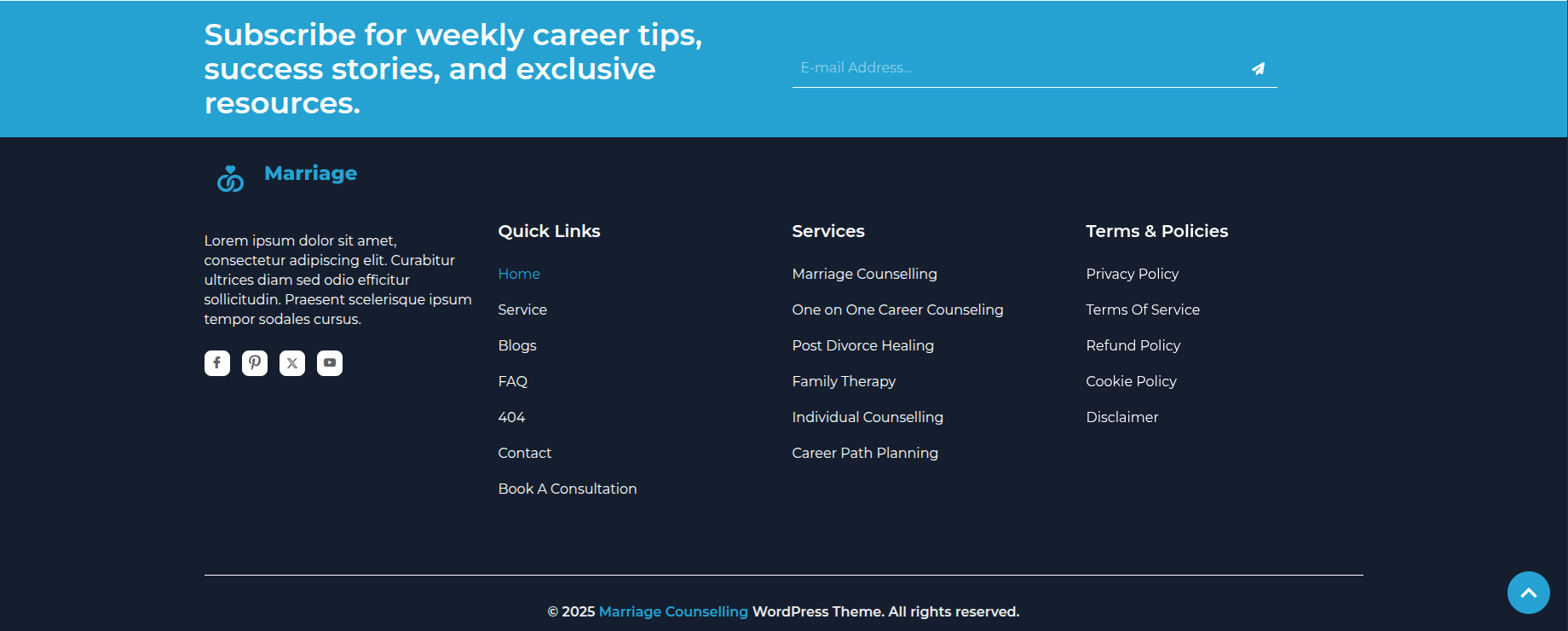
Final Progress See below for design insights.